

“Product” is which interface a client gets — the full Platform (the complete agent builder, best for technical users) or the Simplified receptionist view (a guided, streamlined experience for non-technical SMB owners). See Simplified Platform for the receptionist experience.
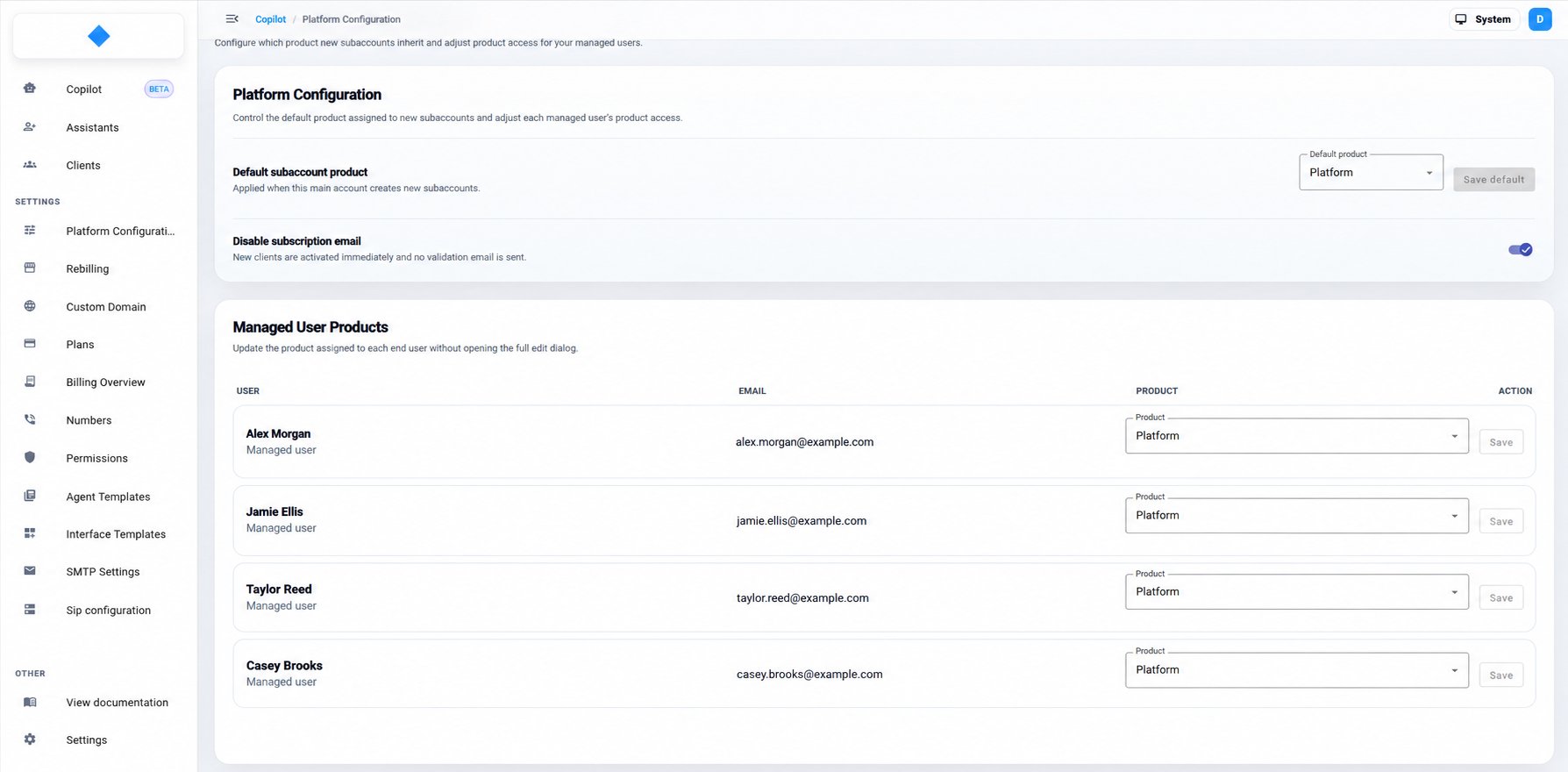
Platform Configuration — set the default product for new subaccounts, disable the subscription email, and manage each user's product.
Default subaccount product
Choose the product that is applied automatically when your main account creates new subaccounts. Pick it from the Default product dropdown (for example, Platform) and click Save default. From then on, every new sub-account inherits this product by default — so new clients start on the right interface without you setting it each time.Disable subscription email
A single toggle: Disable subscription email. When it’s on, new clients are activated immediately and no validation email is sent — so a client signing up on your branded domain gets access to the platform right away, without having to verify their email first. Leave it off to keep the standard flow, where new clients receive a validation email before their account is activated.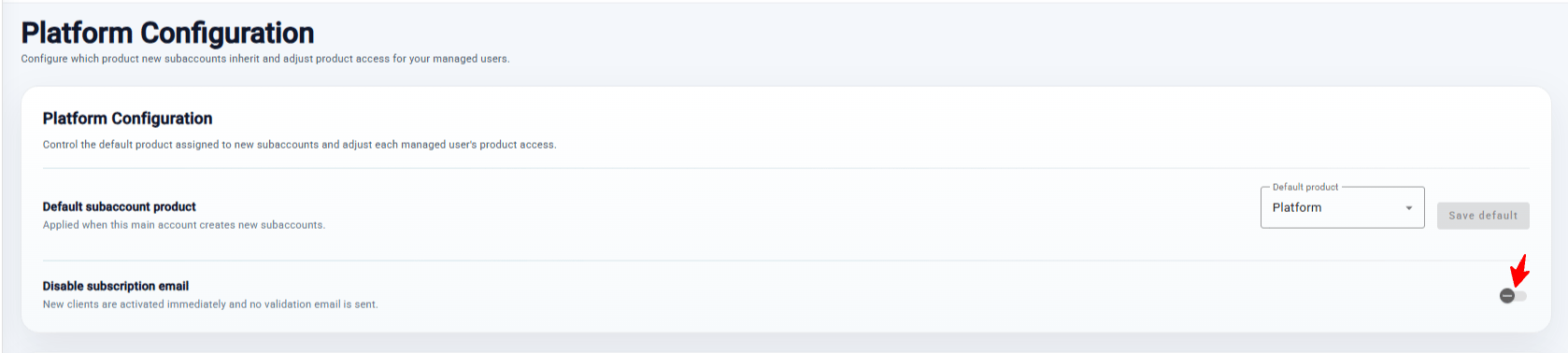
Managed User Products
The Managed User Products table lists your end users with their name, email, and current product. Use the Product dropdown next to any user and click Save to change the product assigned to that client — without opening the full edit dialog. This is the quickest way to move an existing client between the full Platform and the Simplified receptionist view as their needs change.
Managed User Products — change the product assigned to each end user inline, then click Save.
Next step
Clients
Create and manage your end-client subaccounts.
Plans
Build the subscription plans your clients subscribe to.