

Where to find Stripe Setup
Stripe Setup is configured from the Rebilling section in the white-label admin sidebar. Click Rebilling in the left navigation — if your Stripe account is not yet configured, you’ll see a prompt and a Configure Stripe button.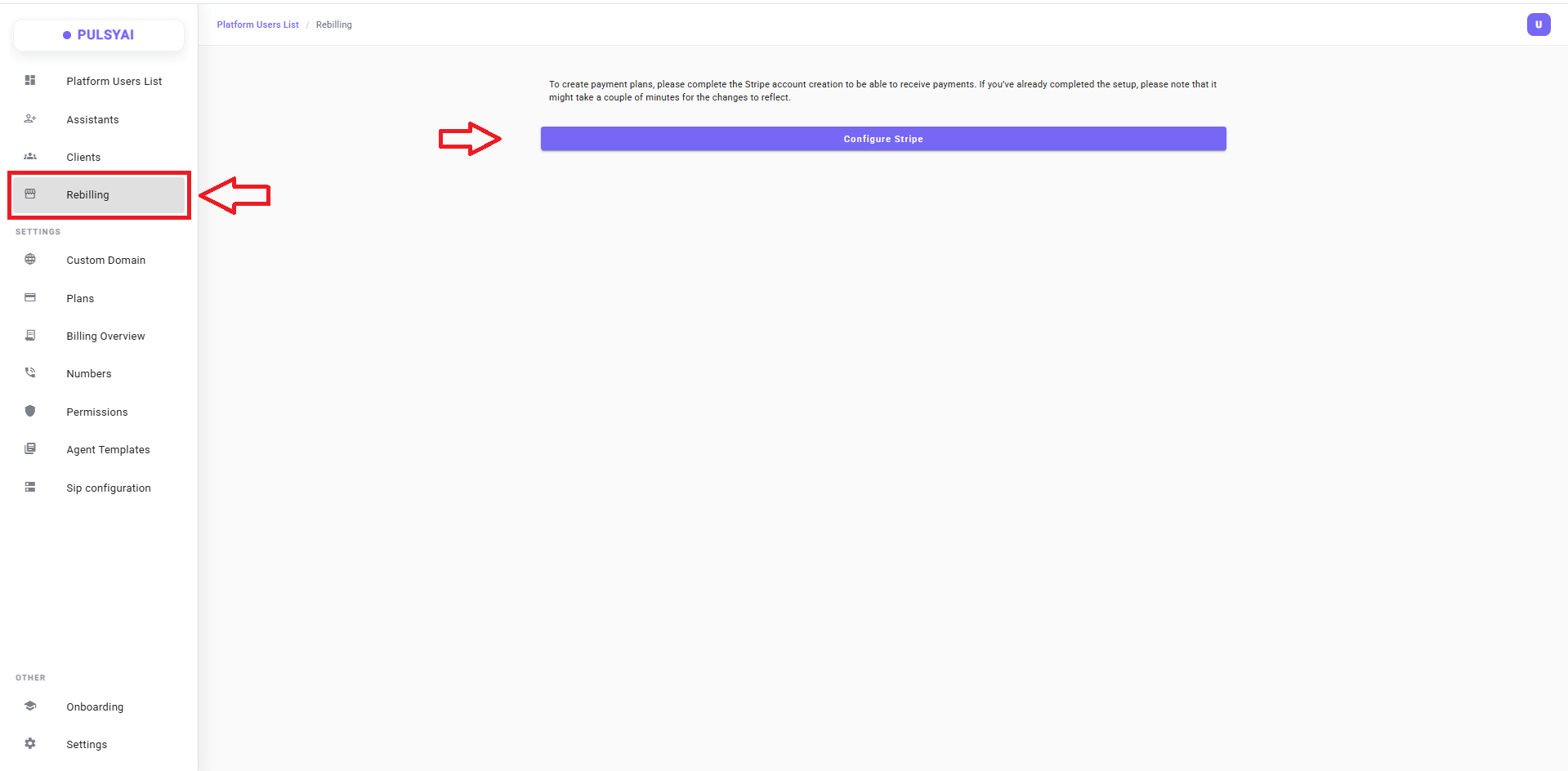
Before you start
To complete Stripe’s onboarding, you’ll need the following ready:- A valid email address (Stripe uses this as your account login).
- Your business details — legal name, address, tax identification number, and incorporation information if applicable.
- A government-issued ID for identity verification (required by financial regulations).
- A bank account in your business’s name to receive payouts.
- Roughly 10 to 15 minutes to complete the onboarding form.
Set up your Stripe account
1
Open the Rebilling page
Click Rebilling in the left sidebar of your white-label admin. You’ll see a message explaining that Stripe must be configured before you can create payment plans, along with a Configure Stripe button.
2
Launch Stripe Connect
Click the Configure Stripe button. You’ll be redirected to Stripe’s secure onboarding flow at 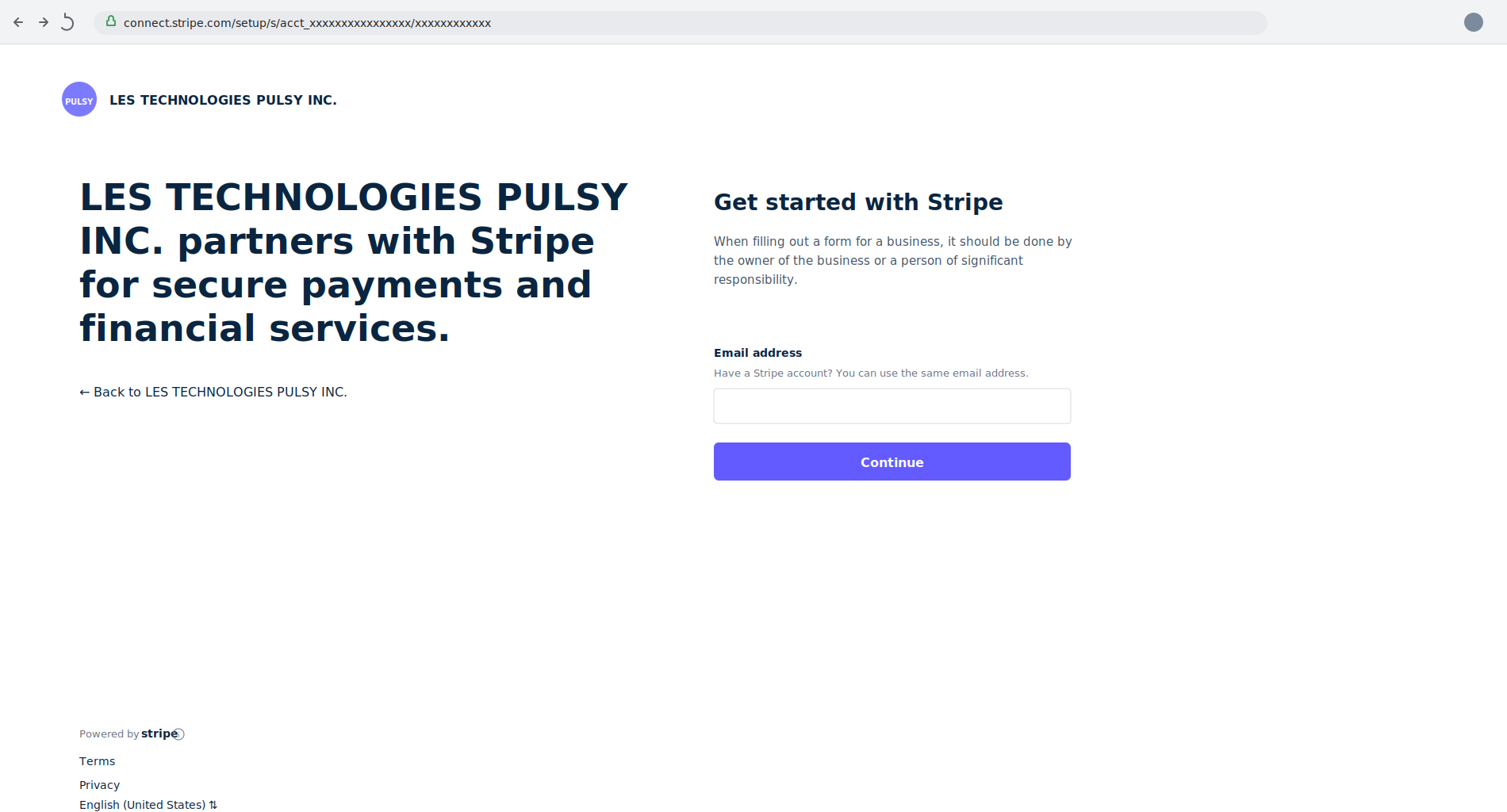
connect.stripe.com, where Stripe takes over the rest of the setup.3
Complete Stripe's onboarding questions
Stripe will guide you through a series of questions about your business — these are required by Stripe’s compliance and Know-Your-Customer (KYC) standards, and they vary slightly by country.Typical information requested:
- Business name, address, and type (sole proprietorship, corporation, LLC, etc.)
- Tax identification number
- Personal information for the business owner or representative
- Bank account details for receiving payouts
- Identity verification documents
These questions are part of Stripe’s own onboarding flow — not PulsyAI. The information you provide goes directly to Stripe and is subject to Stripe’s privacy policy and terms of service. PulsyAI does not see, store, or have access to the data you submit during Stripe onboarding.
4
Return to PulsyAI and refresh
Once Stripe confirms your onboarding is complete, navigate back to the PulsyAI Rebilling page and refresh your browser. Your connected Stripe account is now linked to your PulsyAI white-label platform.
After successful setup
Once your Stripe account is connected and verified, you’re ready to start charging your end-clients. The next step is to create the subscription plans they’ll see when they sign up to your white-labeled platform.What if I need to update my Stripe details later?
For changes to your Stripe account — bank account updates, business information edits, tax document submission, identity re-verification — log directly into your Stripe dashboard atdashboard.stripe.com. PulsyAI doesn’t store or proxy your Stripe details; everything lives in Stripe itself.
Next step
Plans
Create the subscription plans your end-clients will subscribe to on your white-labeled platform.