

Adding a Knowledge Base
You can build a knowledge base from two source types:Website
Enter a website URL and PulsyAI scrapes the page content to build the knowledge base automatically.
📃
**PDF Document ** Upload a PDF document and PulsyAI extracts its content into the knowledge base.
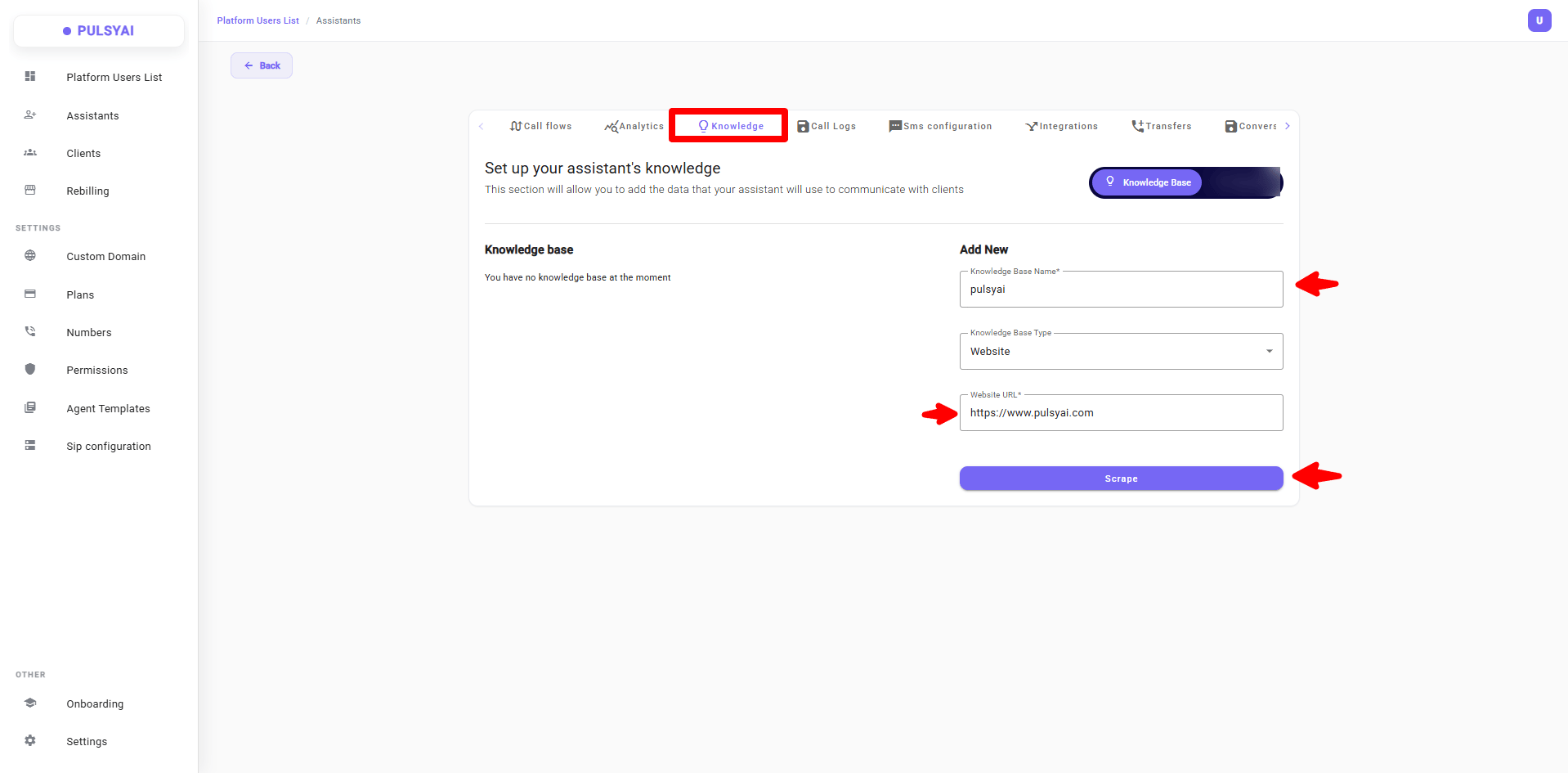
Adding from a Website
1
Open the Add New panel
In the Knowledge tab, go to the Add New panel.
2
Name your knowledge base
Enter a name in the Knowledge Base Name field.
3
Select the source type
Set Knowledge Base Type to Website.
4
Paste the URL
Paste the Website URL.
5
Scrape the content
Click Scrape. PulsyAI begins extracting the page content.
Adding from a PDF Document
The process is the same as for a website — just select PDF Document as the Knowledge Base Type and upload your file instead of pasting a URL.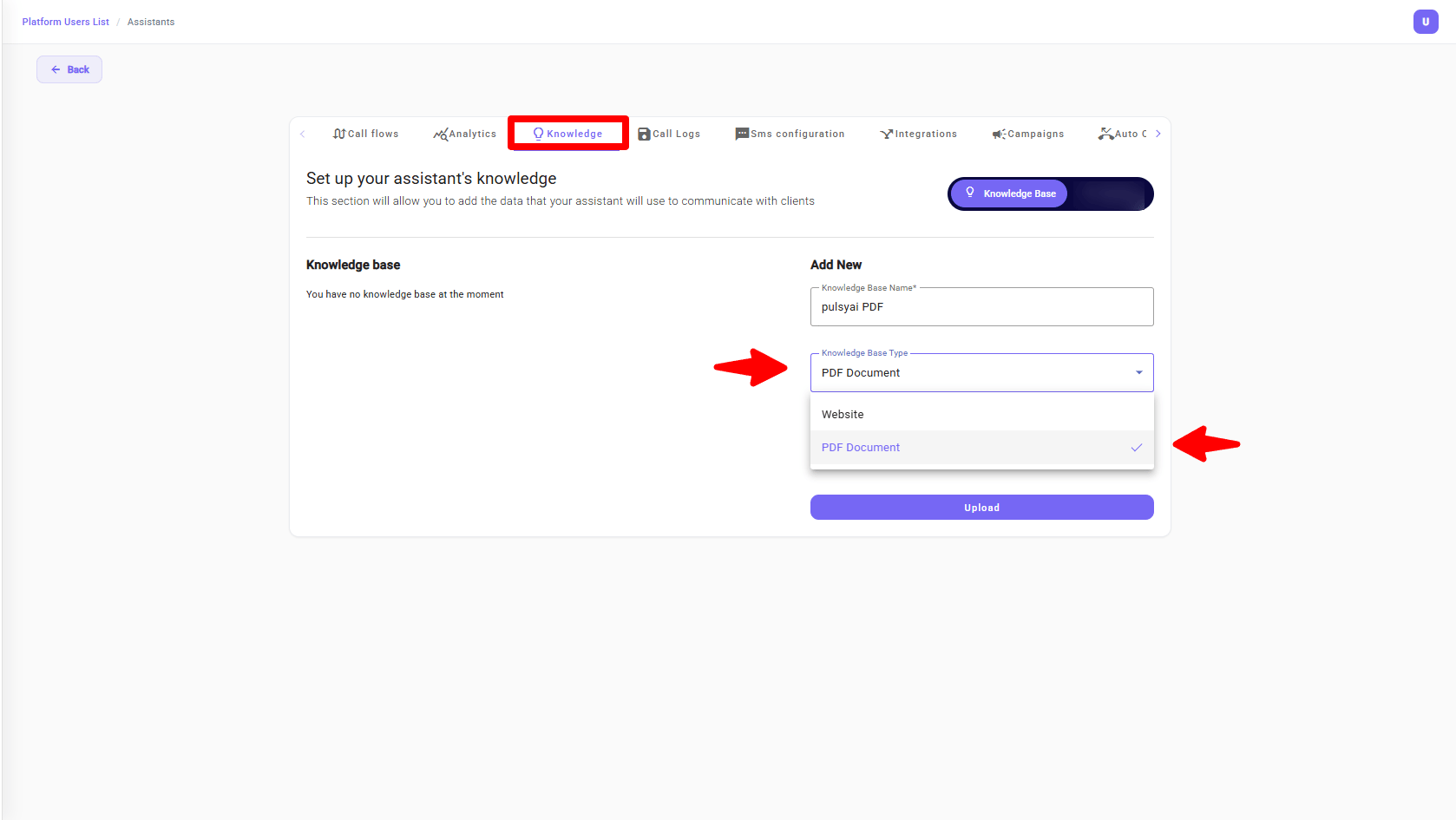
1
Name your knowledge base
In the Add New panel, enter a Knowledge Base Name.
2
Select the source type
Set Knowledge Base Type to PDF Document.
3
Upload your file
Upload your PDF file. PulsyAI begins processing it automatically.
Processing Status
After you add a website or PDF, the knowledge base does not become active immediately. Its status starts as Pending while PulsyAI processes the content. Once processing is complete, the status changes to Ready, and the knowledge base becomes the agent’s memory. You will also receive an email letting you know when processing is finished.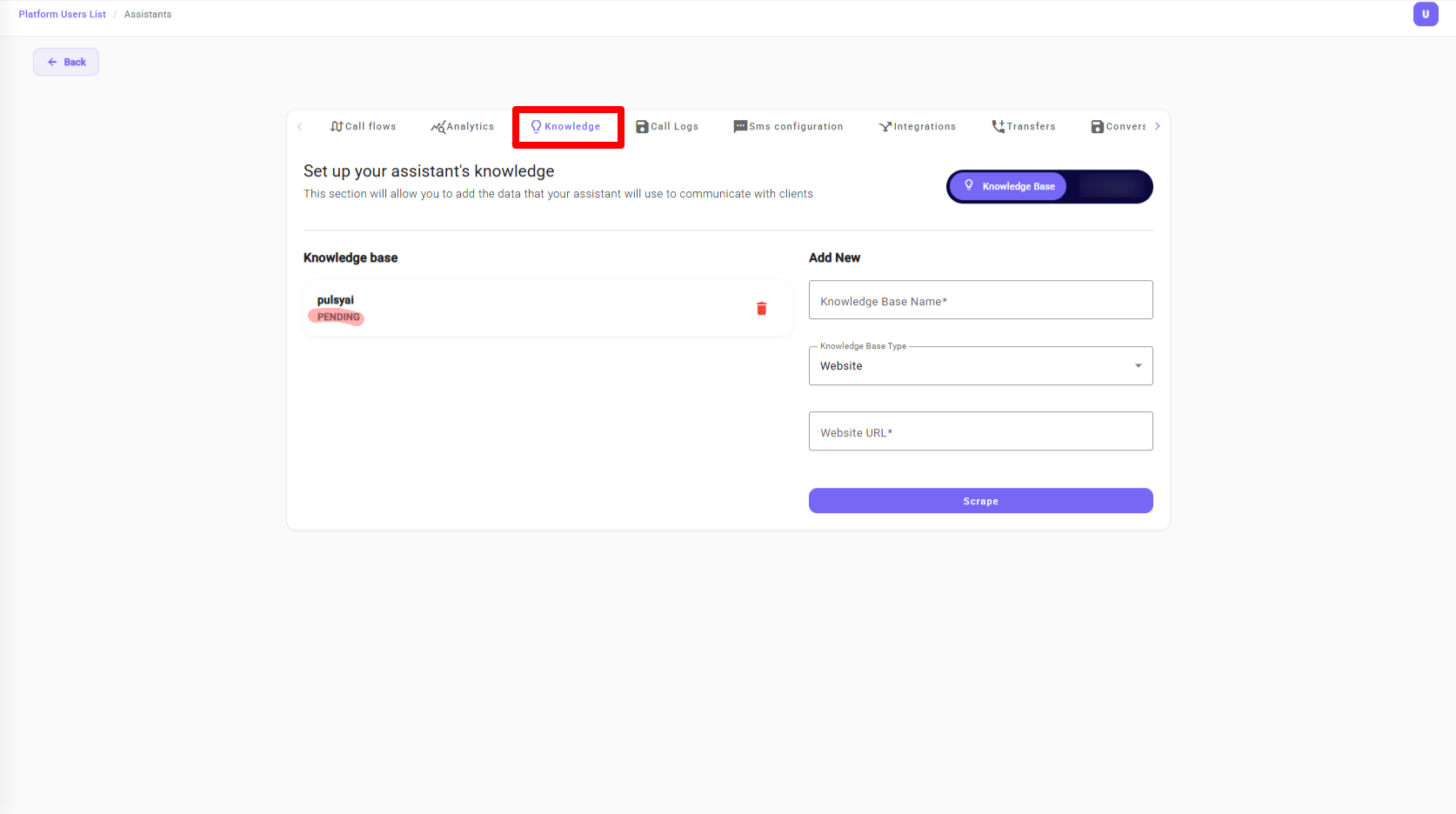
Next Steps
Build your call flow
Design how your agent guides conversations and uses knowledge during calls.
Connect integrations
Link PulsyAI to your tools to act on what the agent learns.