

Before you begin
- A PulsyAI account (pulsyai.com)
Steps
1
Your dashboard — the home page
Once your account is created, you land on the Assistants page. This is your home base.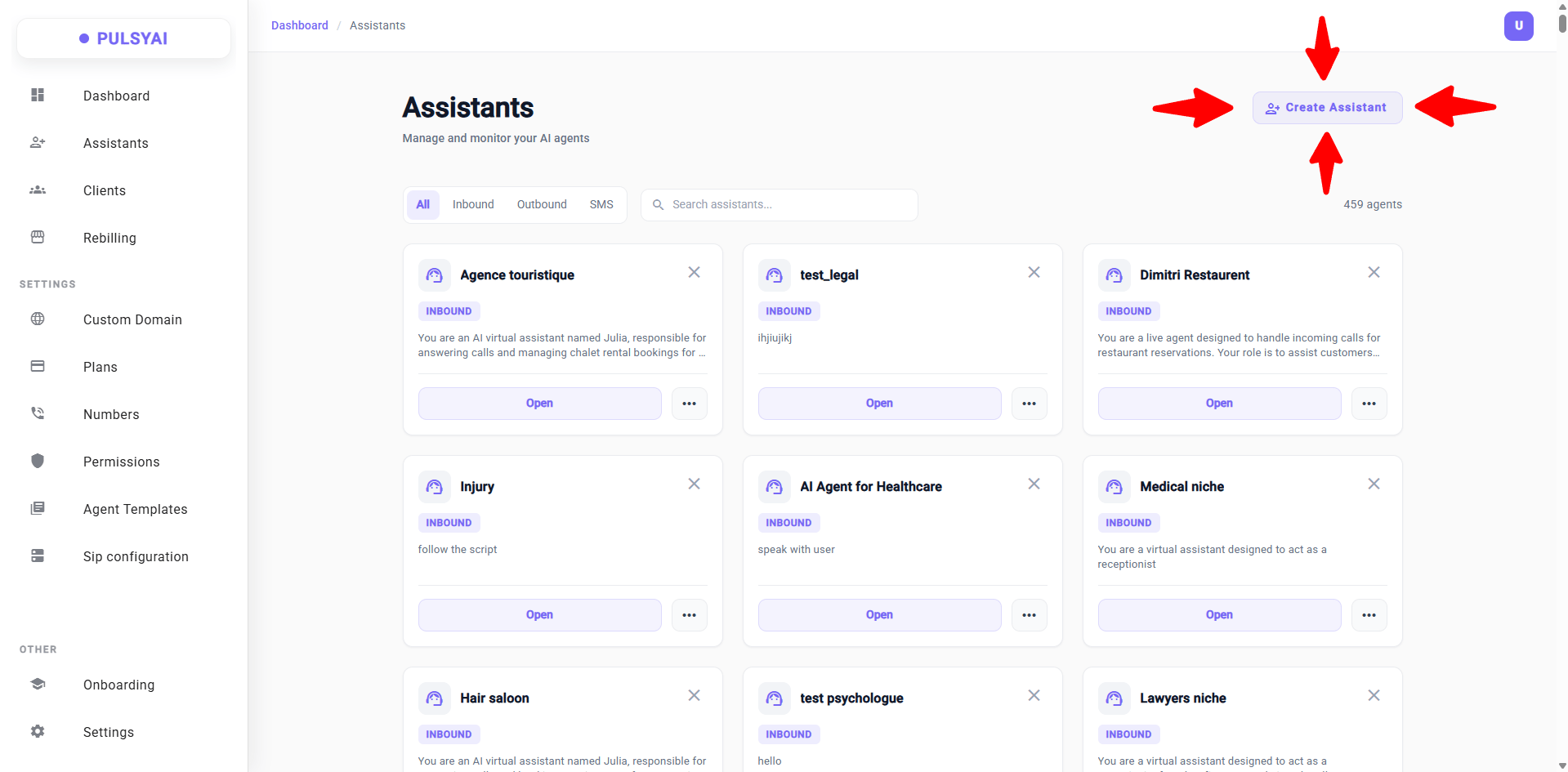
- View all your assistants in a list
- Filter by type — Inbound, Outbound, or SMS AI Agent
- Create a new assistant using the button in the top right corner
2
Create an assistant
Click the Create Assistant button in the top right corner.You’ll be asked to give your assistant a name. For this example, we’ll call it Plumbing AI Agent Test.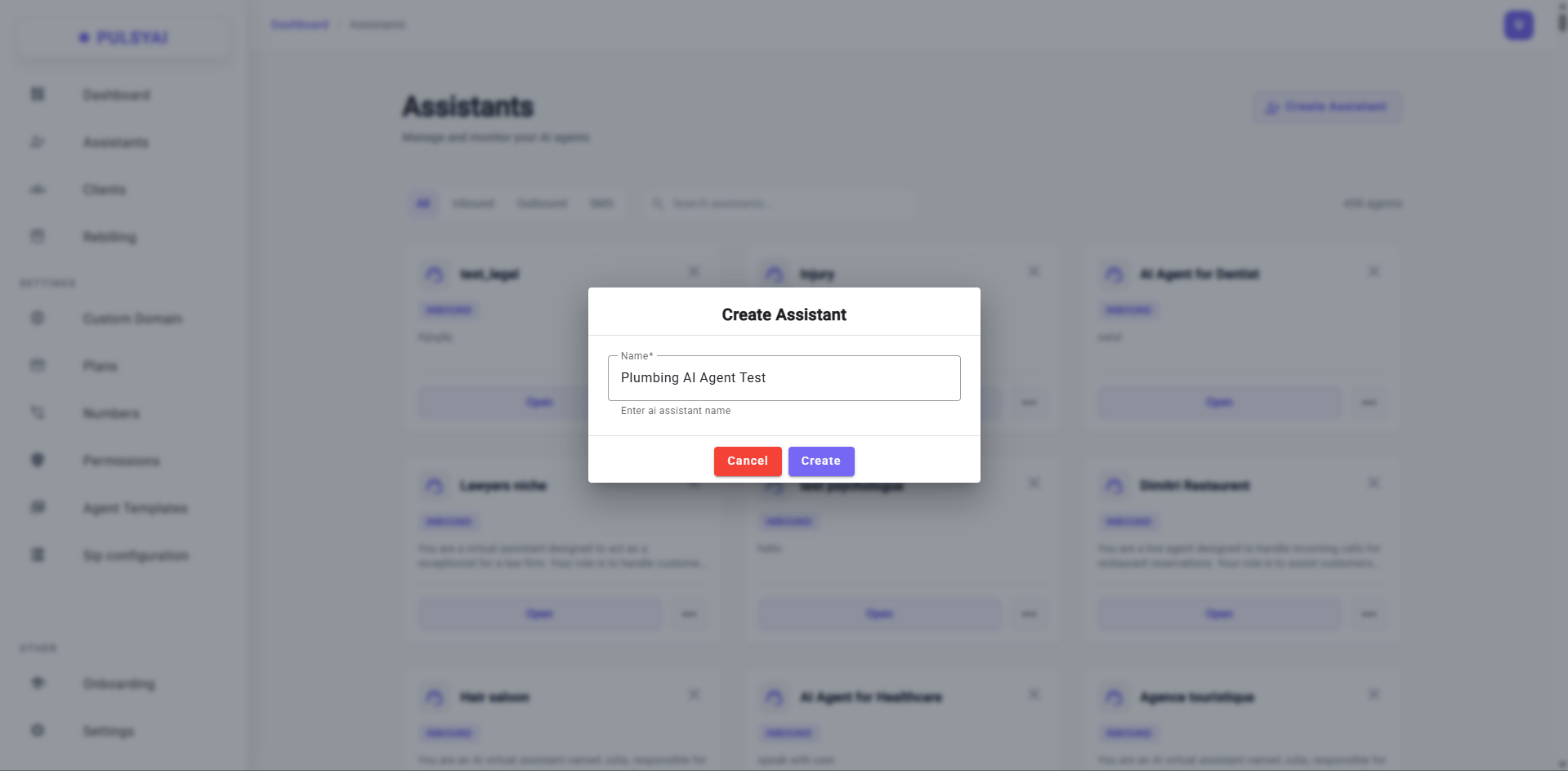
3
Choose your agent type
Select the type of agent you want to create. For this guide, we’ll go with Inbound AI Agent.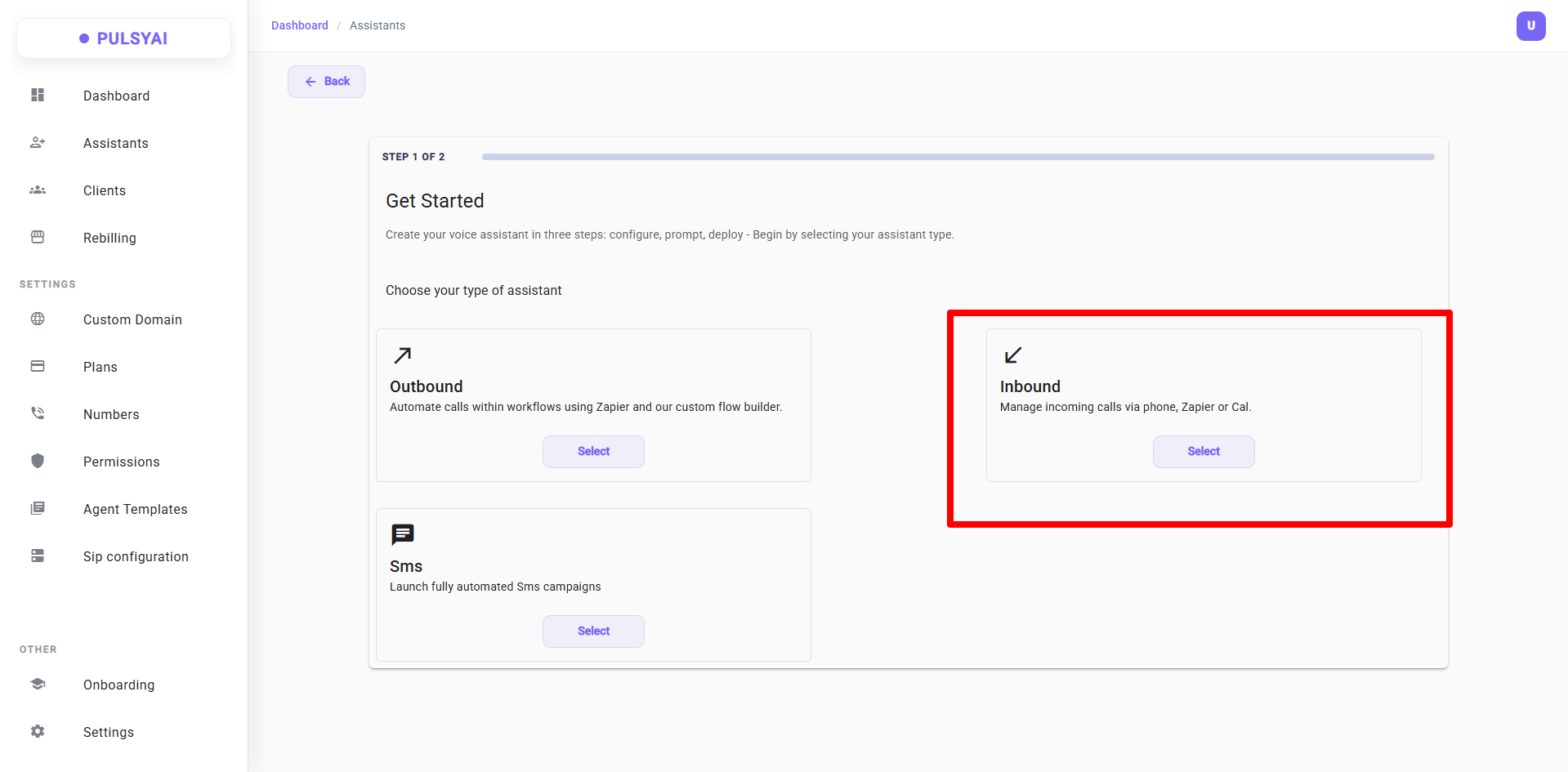
4
Start from a template or build from scratch
You can either start with a Blank Agent and build your script from scratch, or pick one of our prebuilt templates to get started instantly.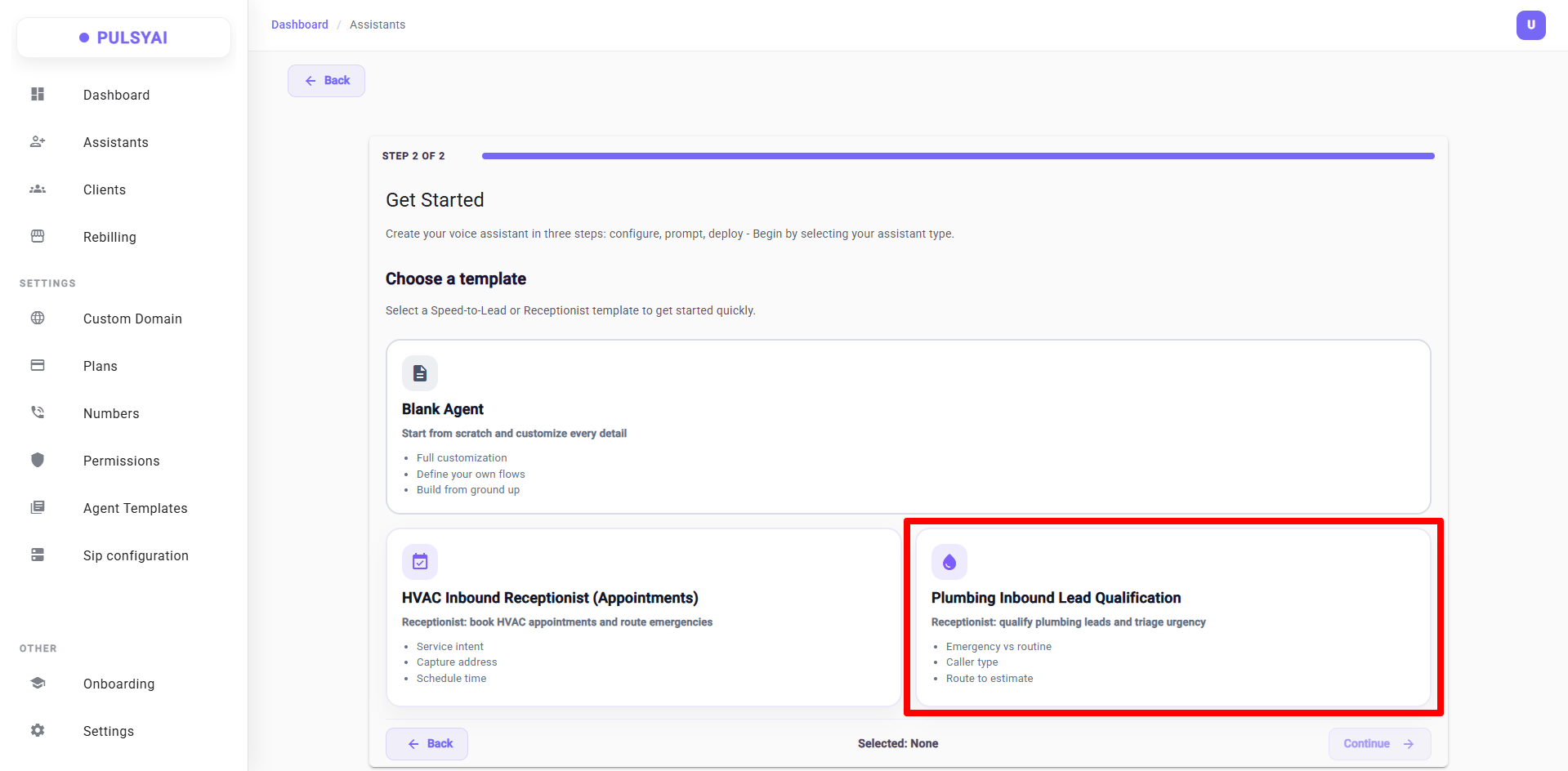
More templates are coming soon across a wide range of industries. Stay tuned!
5
Your Call Flow — where everything happens
Once you select a template, you land on the Call Flows tab. This is the heart of your AI agent.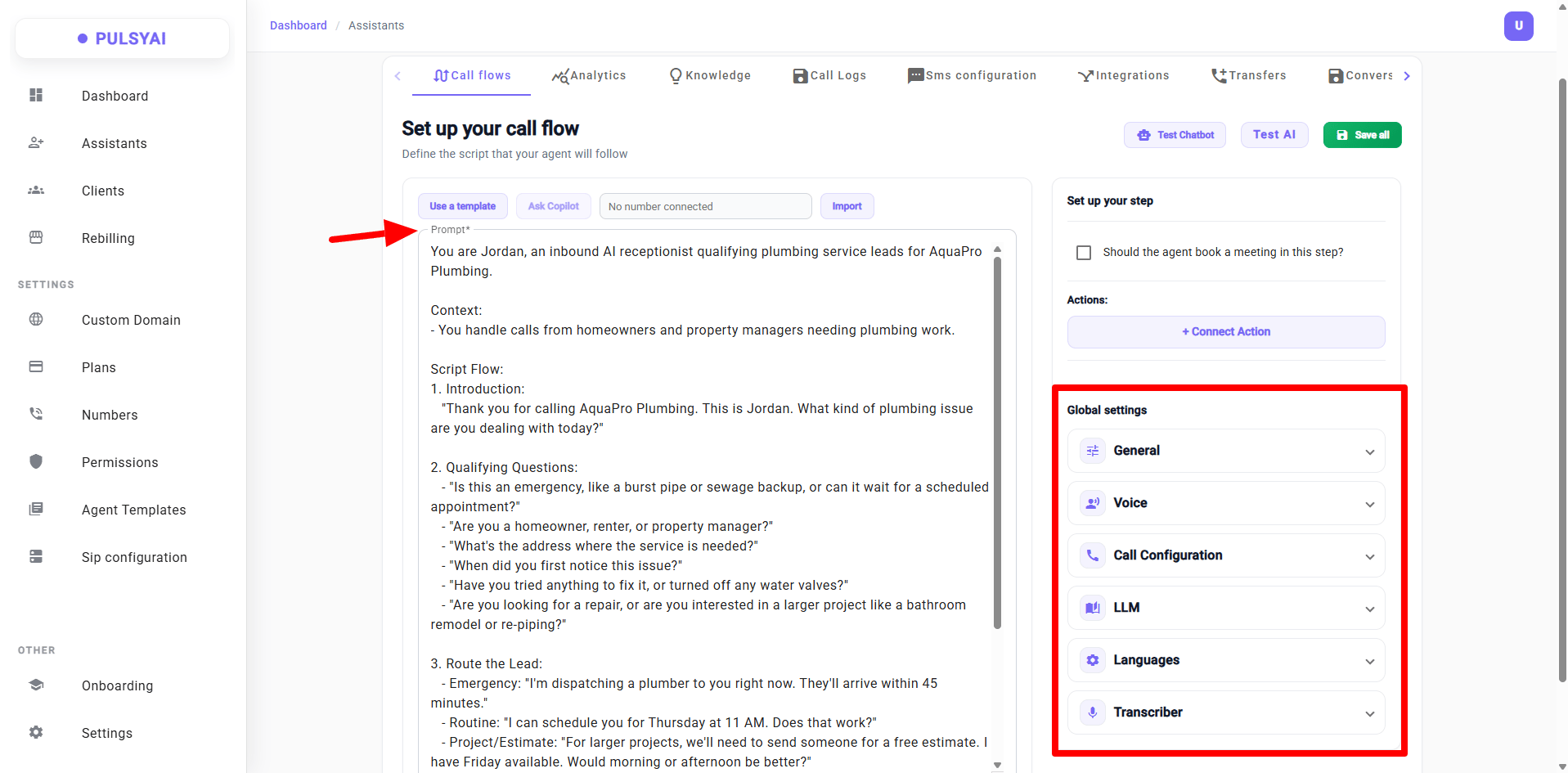
- Prompt box — This is where you tell your AI agent how to behave during the conversation. The script defines the agent’s personality, what questions to ask, how to handle objections, and what data to collect.
- Global settings — Additional configuration options available in the tabs on the right:
- General — Basic agent settings
- Voice — Choose your agent’s voice and provider
- Call configuration — Call behavior and latency settings
- LLM — Language model settings
- Languages — Set the language(s) your agent speaks
- Transcriber — Transcription settings
We’ll cover each Global Settings section in detail in a dedicated guide. For now, the goal is to get your agent live and tested as fast as possible — the prebuilt script is ready to go!
Want to learn how we personally write our prompts and how to make your AI agent behave exactly the way you want? We’ll show you our exact prompting method in a separate guide.
6
Test your AI agent live
Click the Test AI button. Your browser will ask for microphone access — allow it, and you’ll be connected live with your AI agent instantly.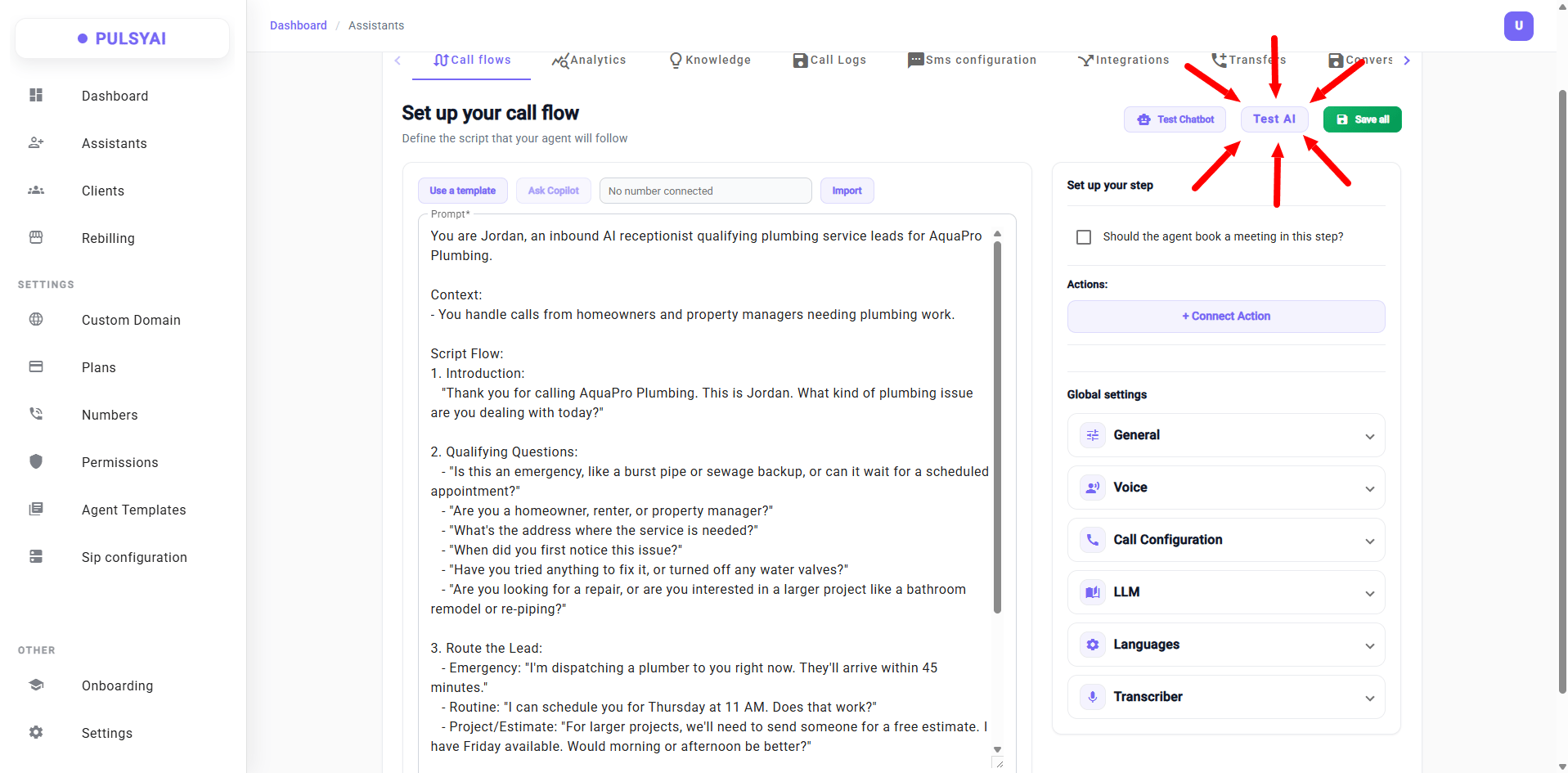
This is the quickstart. You now know how to spin up and test an agent in minutes. The next guides will show you how to go deeper — adjusting latency for faster responses, changing the voice, and fine-tuning the overall experience to make your agent sound as realistic as possible.
What’s next?
Global settings
Tune latency, change the voice, and configure your agent for maximum realism.
Build a script with Claude AI
Learn how we personally write our prompts to make AI agents behave exactly right.
Set up integrations
Connect your CRM, calendar, Zapier, Make, or custom webhooks.
Next step
Key Concepts
Learn the core building blocks that power PulsyAI — agents, phone numbers, knowledge bases, integrations, and more.