

Where to find Permissions
Click Permissions in the left sidebar of your white-label admin, under the SETTINGS section. The page opens to the Permission Configuration view with two tabs at the top: Default permissions and Client permissions.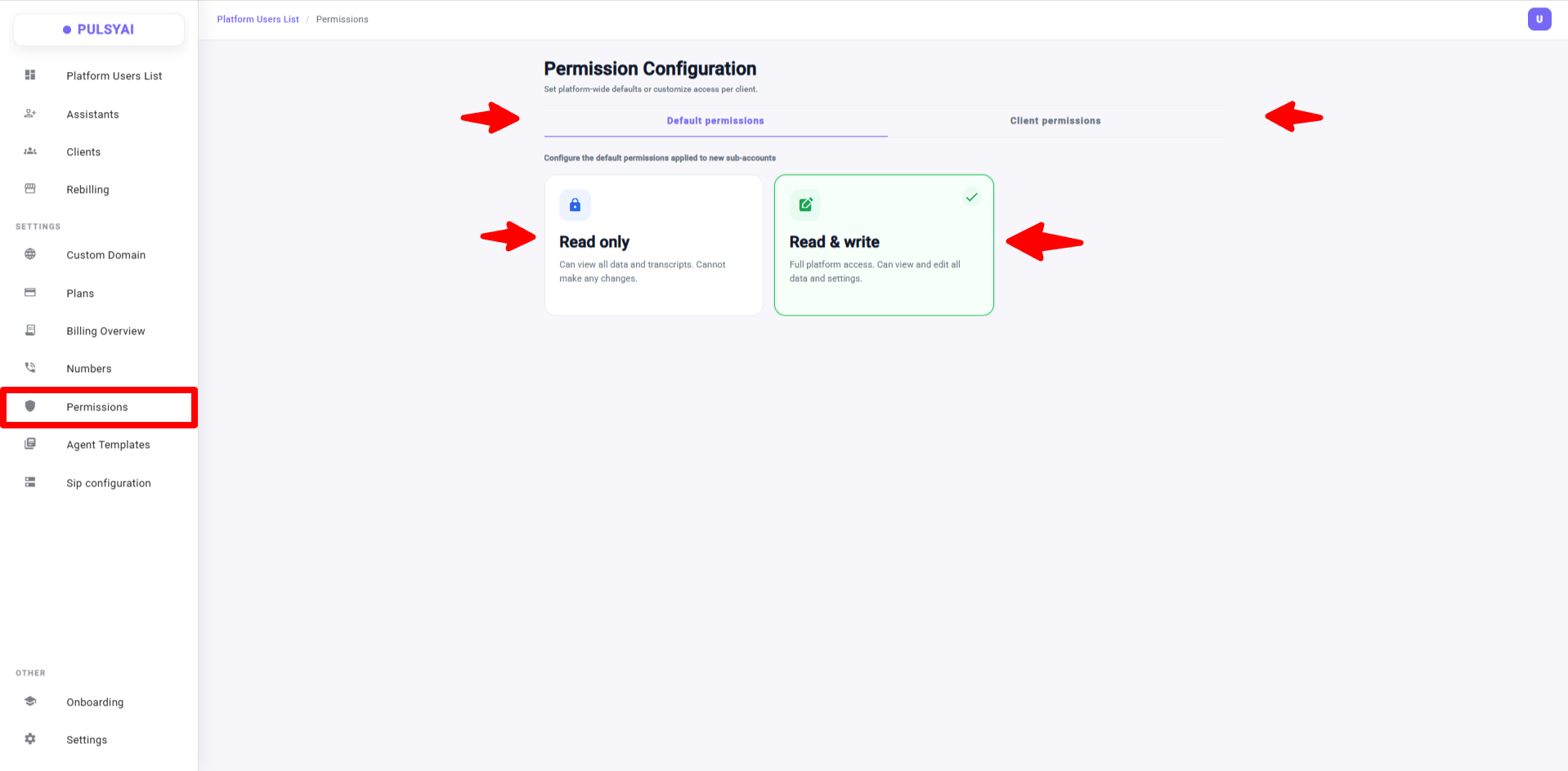
The two permission levels
Every subaccount in your white-labeled platform operates at one of two access levels: Read only — The subaccount can monitor their AI agents but cannot change anything. Inside their dashboard they only see three tabs:- Analytics — Aggregate performance metrics and KPIs for their agents.
- Call Logs — The history of every call their voice AI agents have handled, with recordings and transcripts.
- Conversations — The full history of every SMS thread their SMS AI agents have exchanged.
Why use Read only
Read only is one of the most-requested features from PulsyAI resellers. The reasoning is straightforward: many end-clients are business owners who don’t have the technical chops to safely edit AI prompts. When they tinker with the prompt or call flow, they sometimes break the agent — the AI starts hallucinating, misroutes calls, or stops behaving correctly — and then they blame the reseller for an AI that “doesn’t work anymore.” Locking these clients into Read only gives them everything they need to validate the value of the AI for their business:- They see analytics — proof that the AI is generating ROI.
- They see call logs — they can listen to recordings and review transcripts to confirm call quality.
- They see SMS conversations — they can monitor what their SMS agent is saying to leads.
What a Read only client sees
When a client is set to Read only, their dashboard inside any AI agent they own collapses to three tabs only: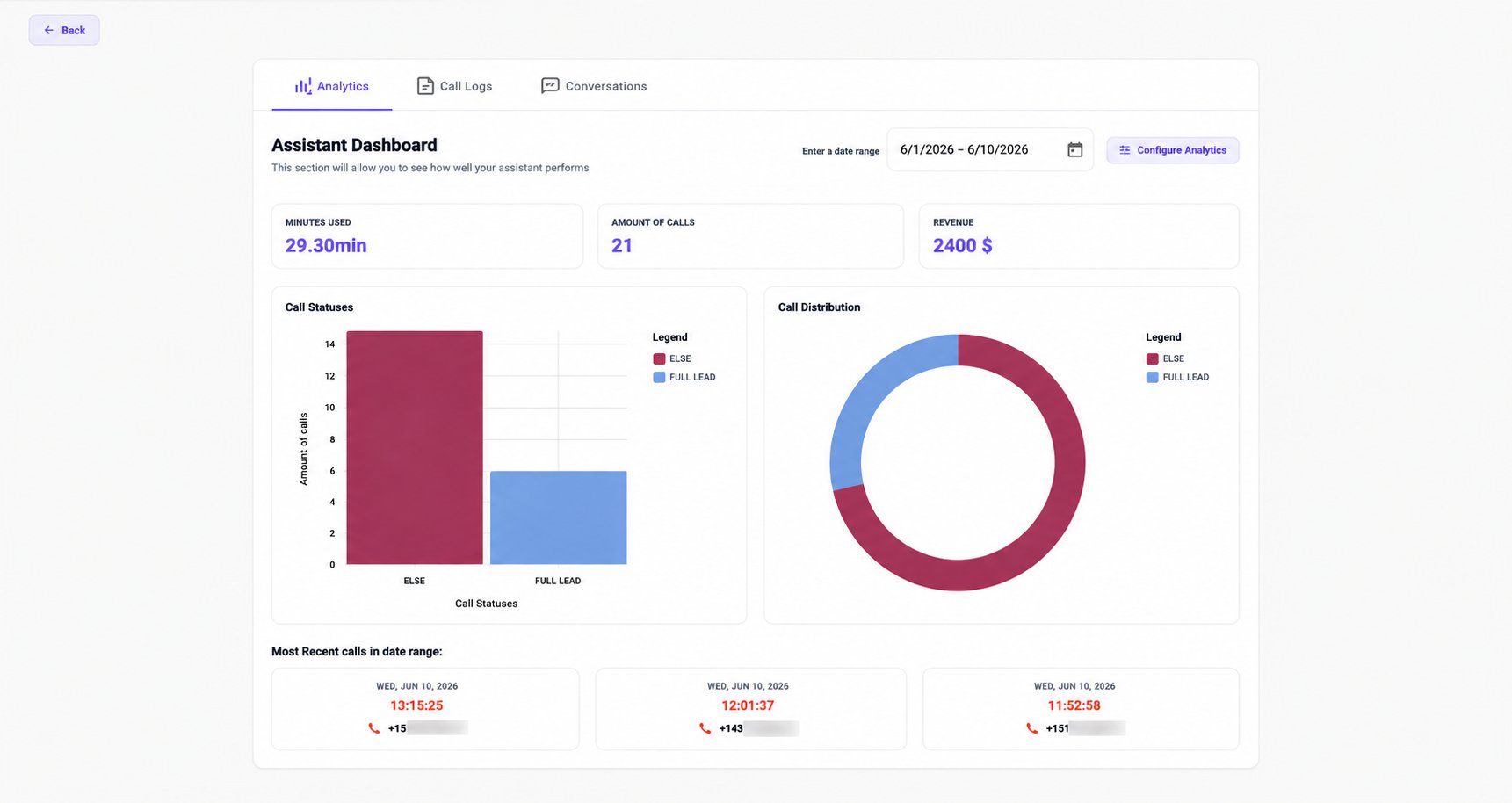
- Analytics — The Assistant Dashboard with minutes used, amount of calls, revenue, call status breakdowns, call distribution charts, and the most recent calls in the selected date range. The client can adjust the date range and click Configure Analytics to set how revenue is calculated, but they cannot edit the agent itself.
- Call Logs — The full call history for the voice agent, with recordings, transcripts, durations, and call statuses. The client can listen, read, and review — they cannot edit any call data or the agent producing the calls.
- Conversations — The same observability for SMS agents — full conversation threads with the client’s leads or customers.
Set the default permission level
The Default permissions tab sets the access level that automatically applies to every new subaccount created on your branded platform.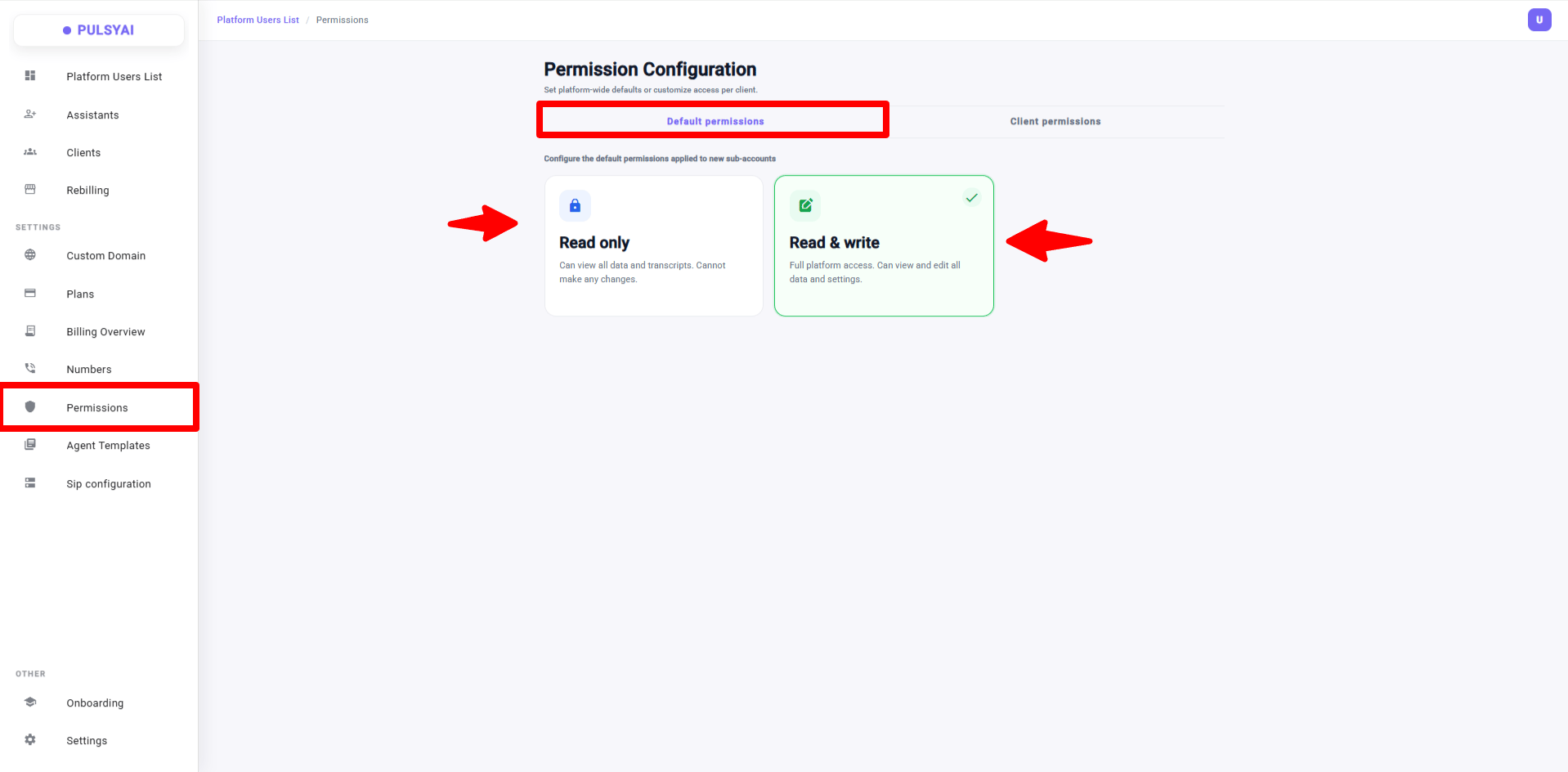
Override permissions per client
The Client permissions tab lets you set the access level for individual subaccounts, overriding the platform-wide default.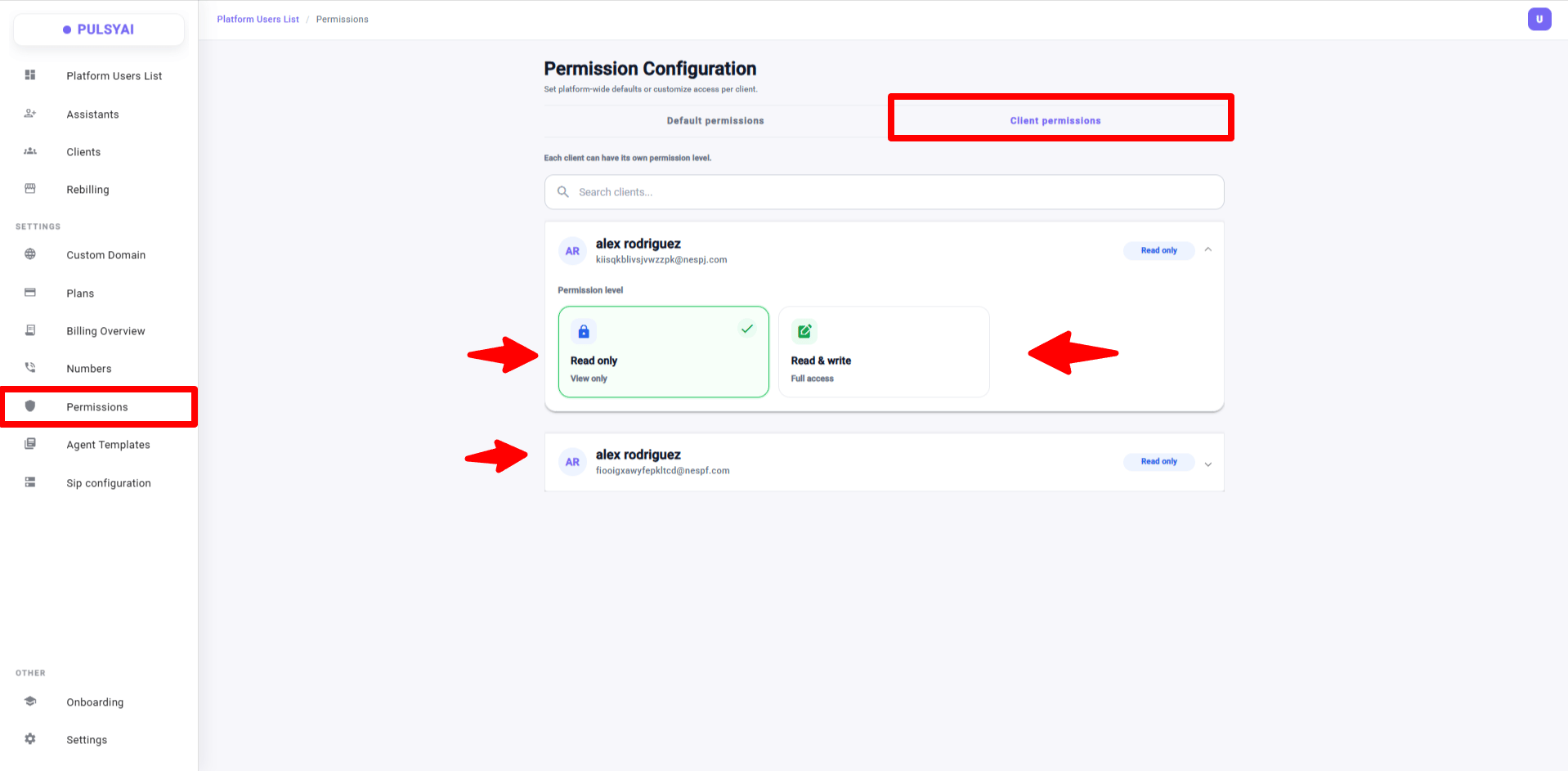
- Find the client using the Search clients field — search by name or email.
- Click the client’s card to expand it. The permission level options appear inside.
- Click either Read only or Read & write to set the level for this specific client.
Testing Read only permissions correctly
Next step
Agent Templates
Build pre-configured agent templates your end-clients can deploy in seconds.