

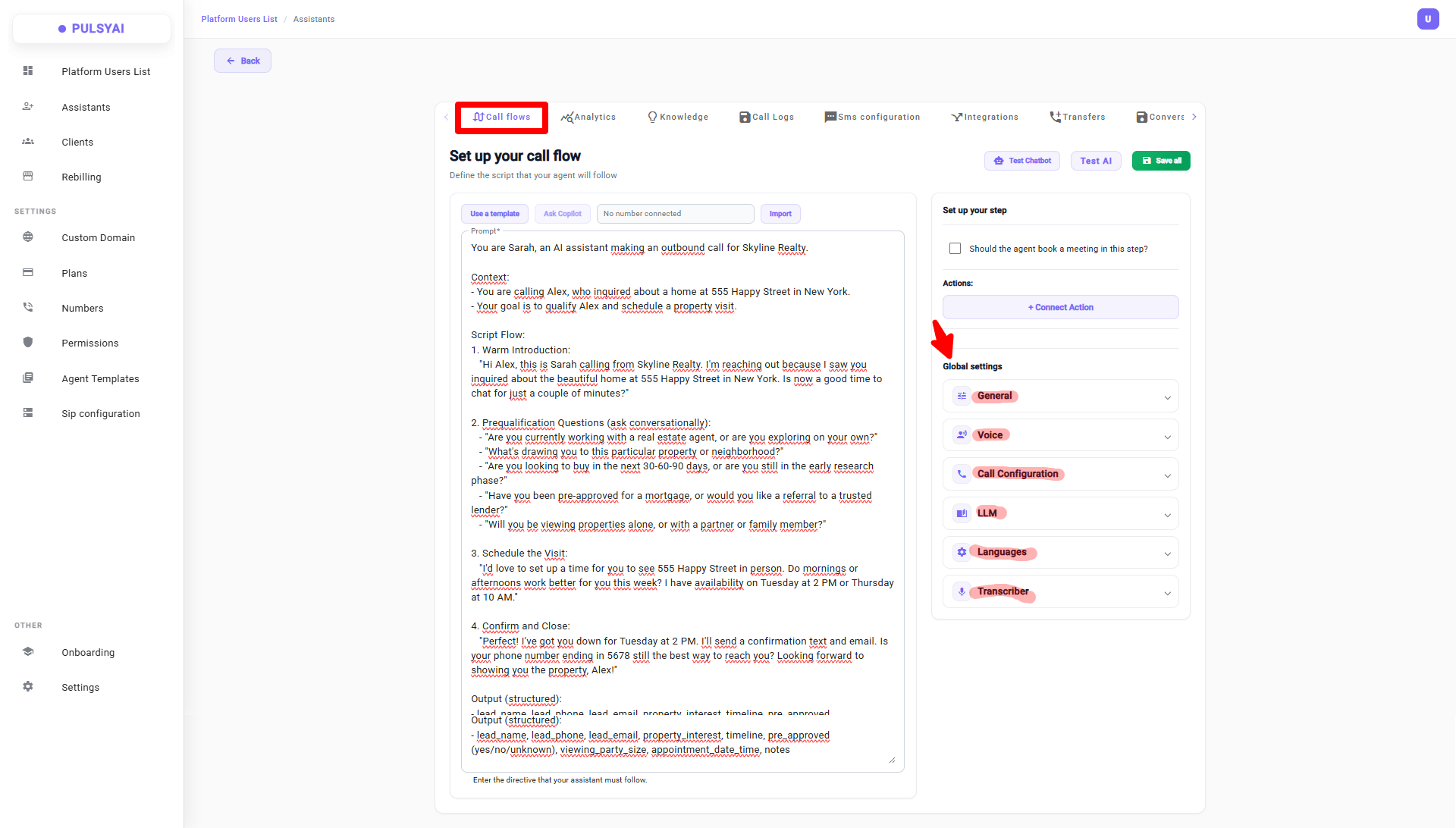
The Global settings panel is located on the right side of the Call Flows tab. It contains six expandable sections that control how your agent sounds, thinks, and behaves on every call.
The Six Setting Groups
General
Voice
Call Configuration
LLM
Languages
Transcriber
General
The General section sets your agent’s identity and context.Assistant Name
Greeting Message
Agent Context
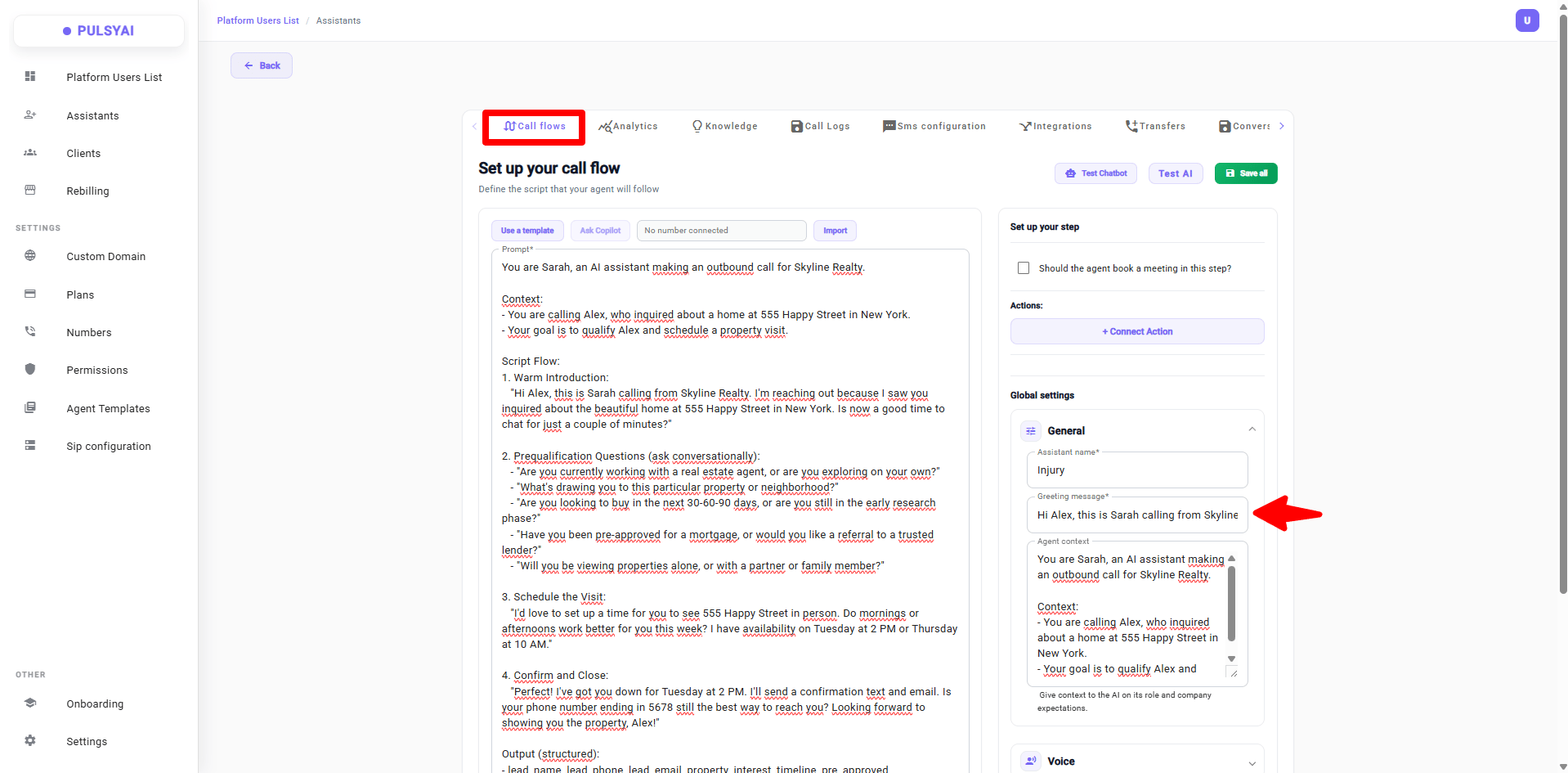
The General section in Global settings — the Greeting Message field set here is the only greeting the agent will say. Anything written in the Call Flow prompt is ignored for the greeting.
Voice
The Voice section controls how your agent sounds. PulsyAI supports a wide range of languages and local accents so partners can deploy agents that sound authentically local in any market.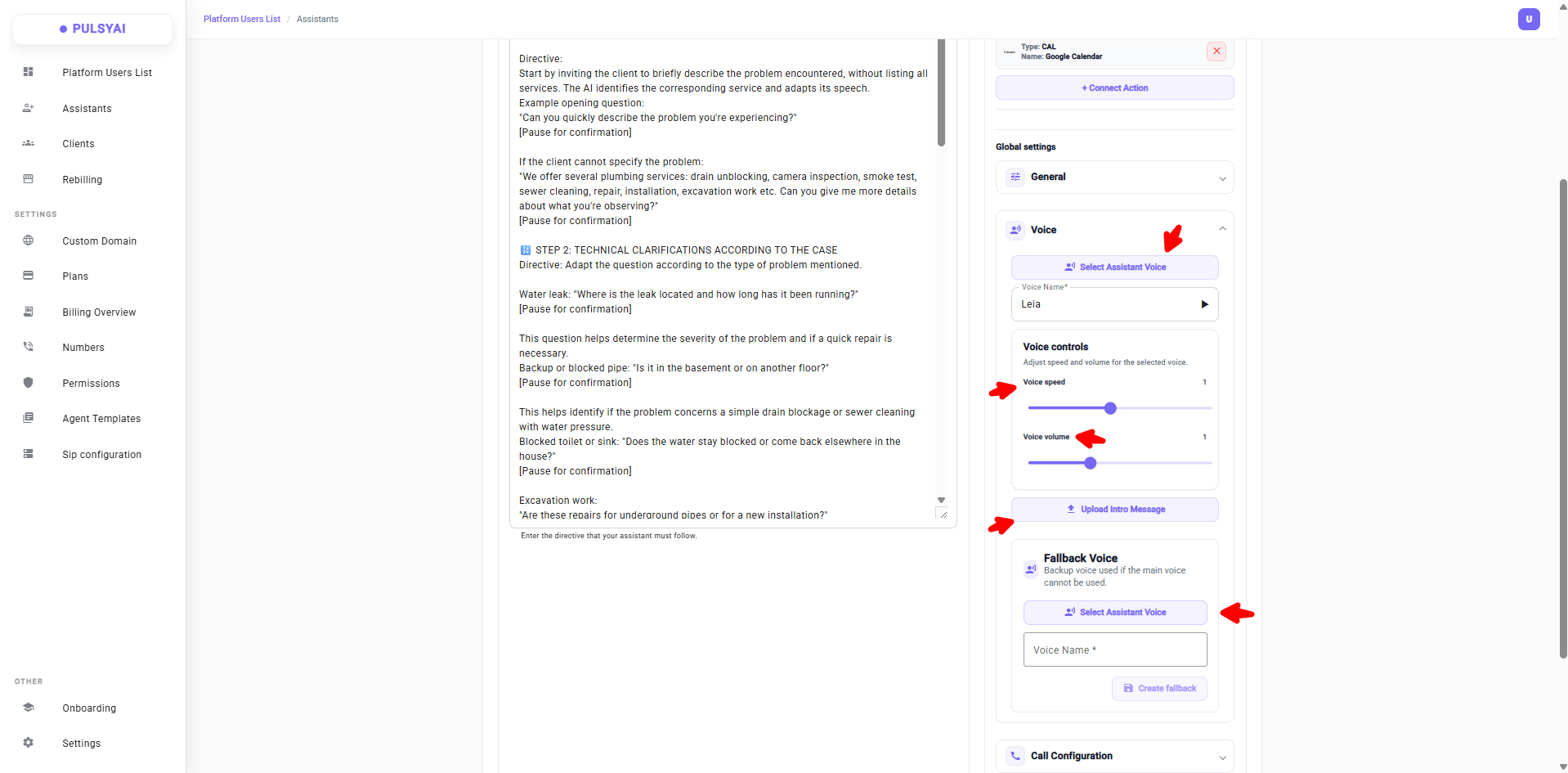
The Voice section in Global settings — Select Assistant Voice, Voice Controls (speed and volume), Upload Intro Message, and Fallback Voice.
Select Assistant Voice
Voice Selector
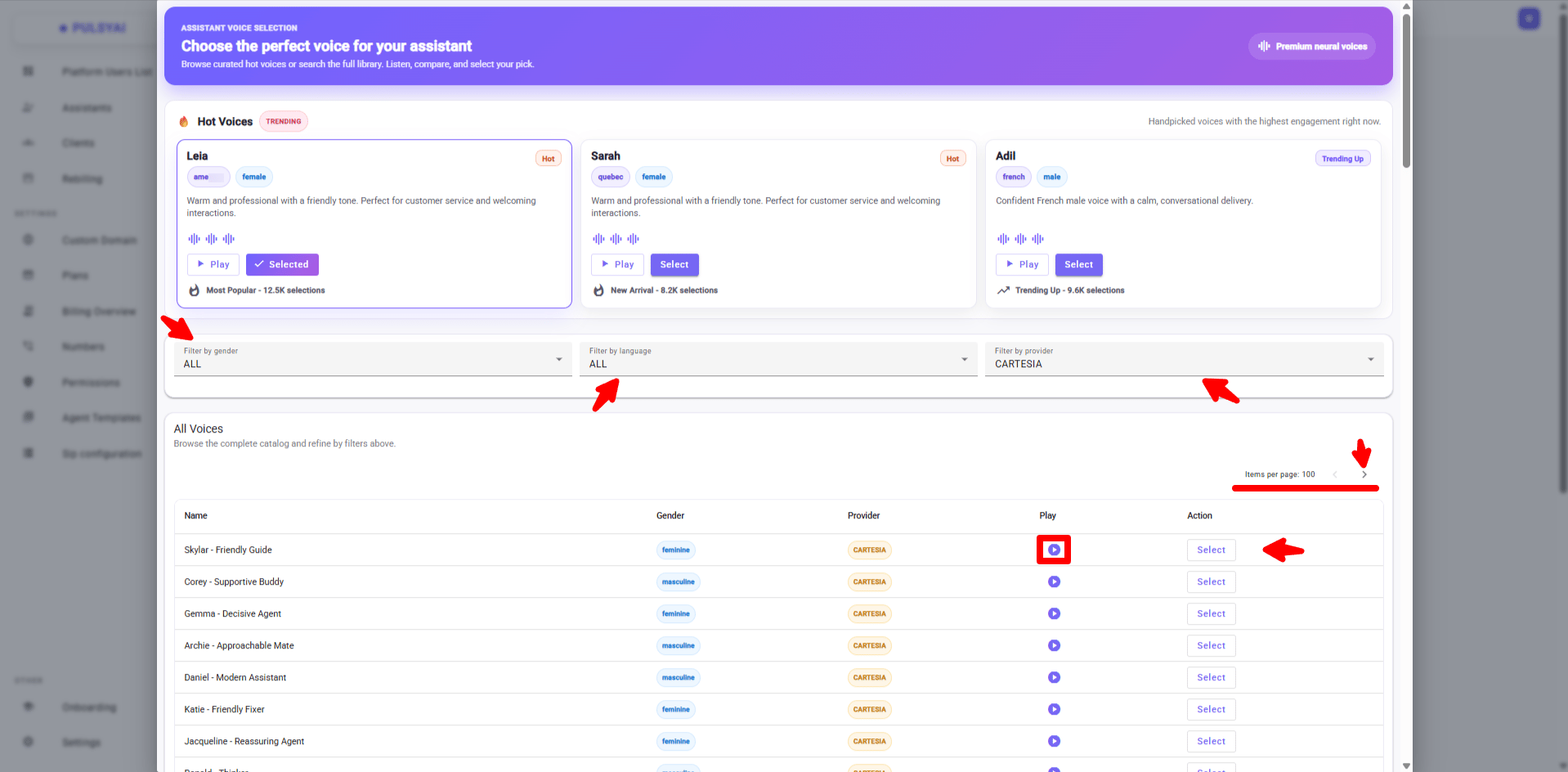
The Assistant Voice Selection panel — browse Hot Voices, filter by gender, language, and provider, preview any voice with Play, and click Select to apply.
How to use the voice library
Preview before selecting
Browse with pagination
Voice Controls
Adjust two settings to fine-tune how the selected voice sounds:Voice Speed
Voice Volume
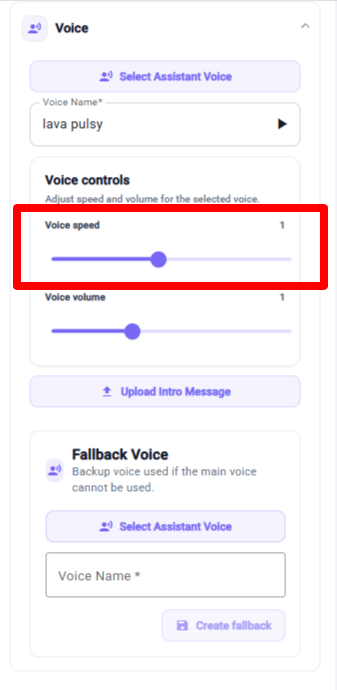
Voice Speed slider — controls how fast the agent speaks.
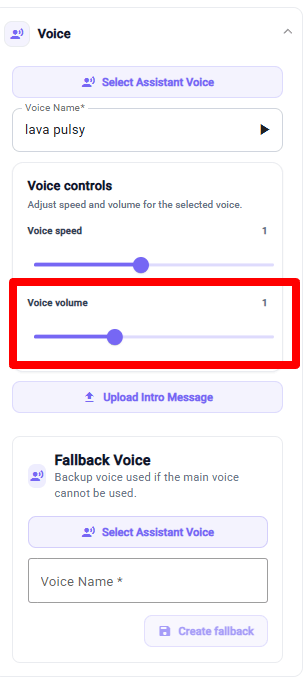
Voice Volume slider — controls how loud the agent sounds on the call.
Upload Intro Message
The intro message is a short pre-recorded human voice clip that plays at the very start of every call, before the AI takes over the conversation. Click Upload Intro Message to add an audio file (typically 5-10 seconds long). Why it matters: The intro message serves three key purposes that directly impact conversion rates and call quality.Prepares the Caller Mentally
Sets Expectations
Boosts Conversion Quality
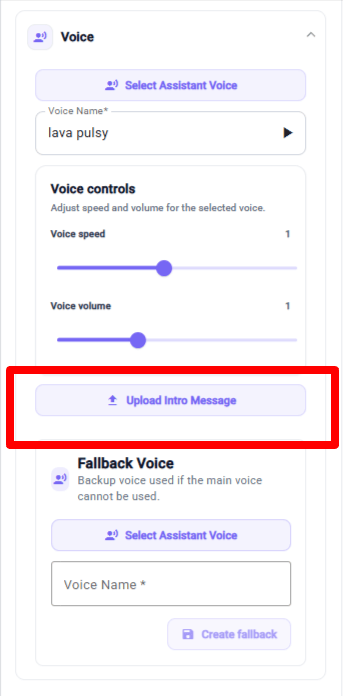
Upload Intro Message — add a short pre-recorded human voice clip that plays before the AI takes over.
Fallback Voice
Fallback Voice
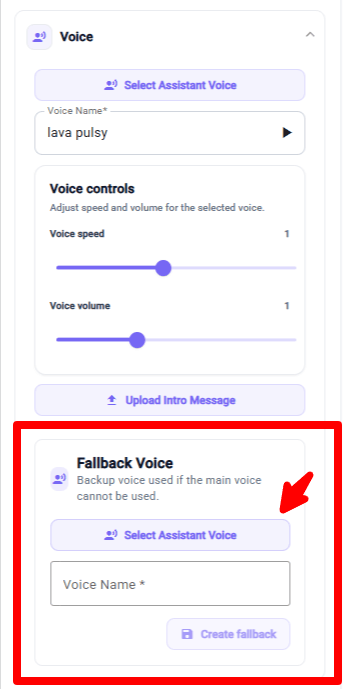
Fallback Voice panel — select a backup voice from a different provider, then click Create fallback to save.
Call Configuration
The Call Configuration section controls how the agent behaves on the line — timing, pacing, interruptions, and capabilities.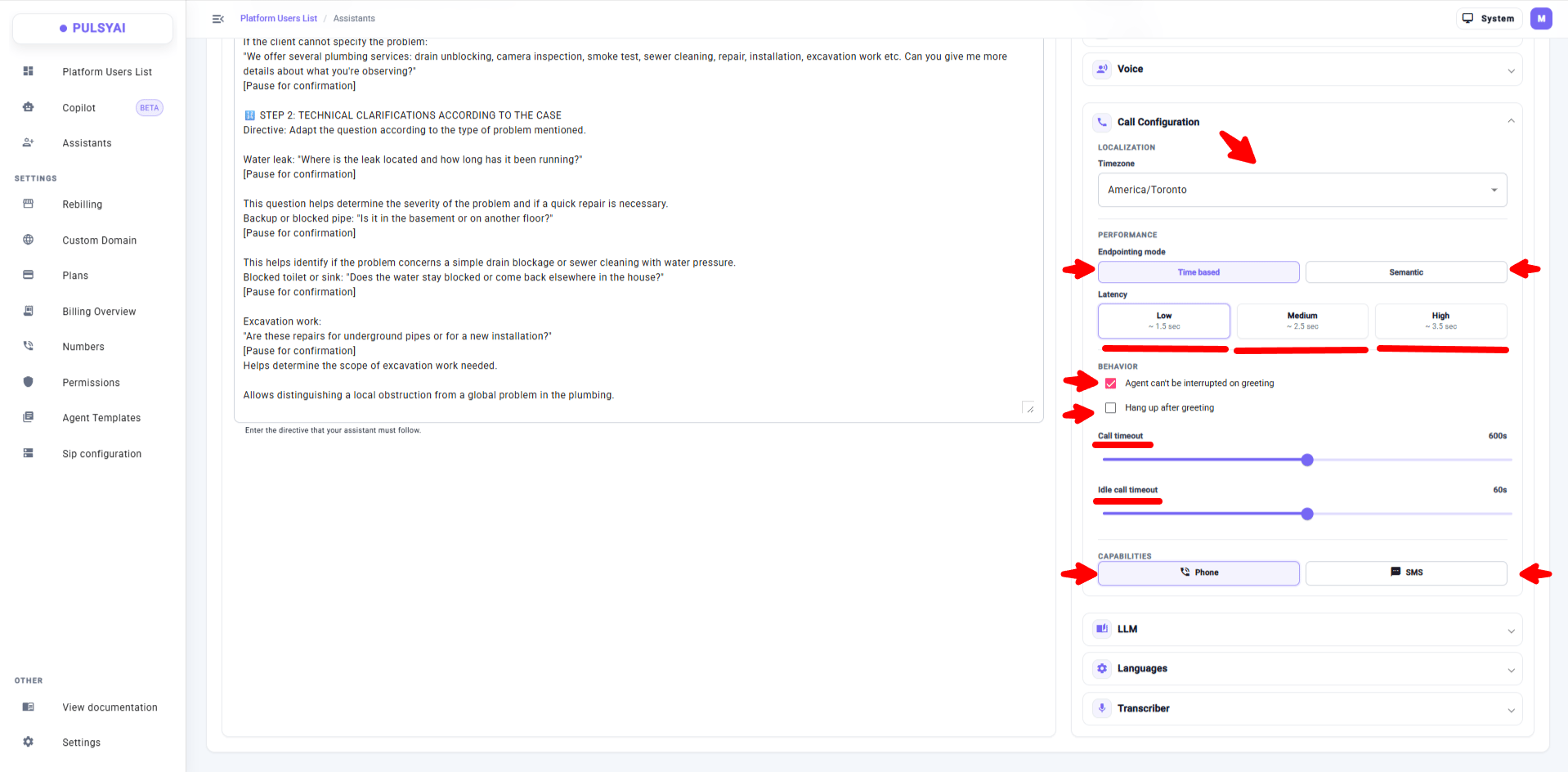
The Call Configuration section in Global settings — Timezone, Endpointing mode, Latency levels, Behavior options, Idle call timeout, and Capabilities (Phone / SMS).
Localization
Timezone
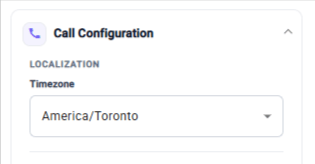
The Timezone field in Localization — set the agent's timezone (e.g. America/Toronto) to control scheduling and time-based logic.
Performance — Endpointing Mode
Endpointing is how the agent decides when the caller has finished speaking before it responds. PulsyAI offers two modes:Time Based
Semantic
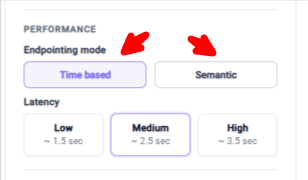
Endpointing mode selector — choose between Time Based (fixed delay) and Semantic (AI-driven detection).
Latency Levels (Time Based)
When Time Based mode is selected, choose one of three latency levels:Low — 1.5s
Medium — 2.5s
High — 3.5s
Behavior
Two checkboxes control how the agent handles interruptions and call endings:Agent can't be interrupted on greeting
Hang up after greeting
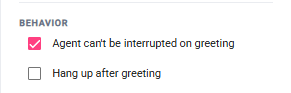
Behavior checkboxes — control whether the agent can be interrupted during the greeting, and whether it hangs up after the greeting.
Call Timeout
Maximum Call Duration

Call timeout slider — the maximum total call duration in seconds before the agent hangs up automatically. Default: 600s (10 min). Max: 1200s (20 min).
Idle Call Timeout
Silence Timeout
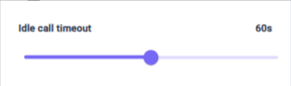
Idle call timeout slider — the maximum silence (in seconds) before the agent ends the call. Default: 60s.
Capabilities
Toggle which channels this agent can use:Phone
SMS
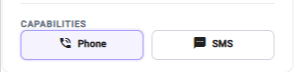
Capabilities toggles — enable Phone and/or SMS for this agent.
LLM
The LLM section controls the language model that powers your agent’s intelligence — how it understands the caller, decides what to say, and triggers actions.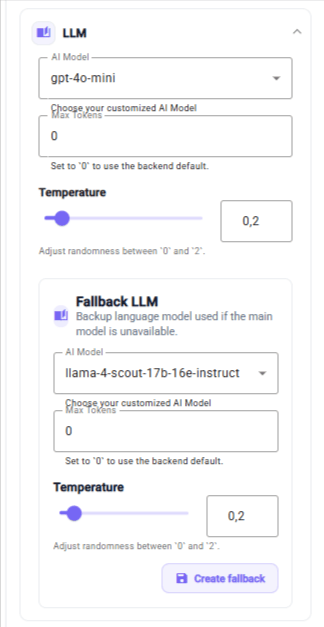
The LLM section in Global settings — AI Model, Max Tokens, Temperature, and Fallback LLM.
Model & Tokens
AI Model
Max Tokens
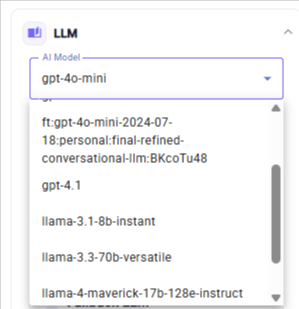
AI Model selector — pick the underlying language model that powers the agent.
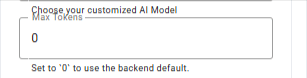
Max Tokens field — the maximum number of tokens the model can use per response.
Temperature
Controls randomness in the model’s responses. The value ranges from 0 to 2:Low temperature (0 — 0.4)
Higher temperature (0.5 — 1.0)
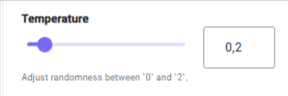
Temperature slider — controls randomness in the model's responses (0 to 2).
Fallback LLM
Backup Model
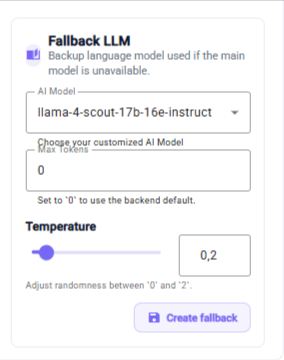
Fallback LLM panel — configure a backup model with its own settings, then click Create fallback to save.
Languages
Multilingual Support
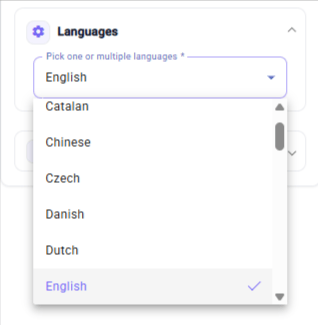
The Languages section in Global settings — select one or multiple languages your agent can handle.
Transcriber
The Transcriber converts the caller’s speech into text in real time so the agent can understand what is being said. Choose: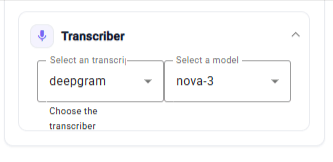
The Transcriber section in Global settings — choose a speech-to-text provider and model.