

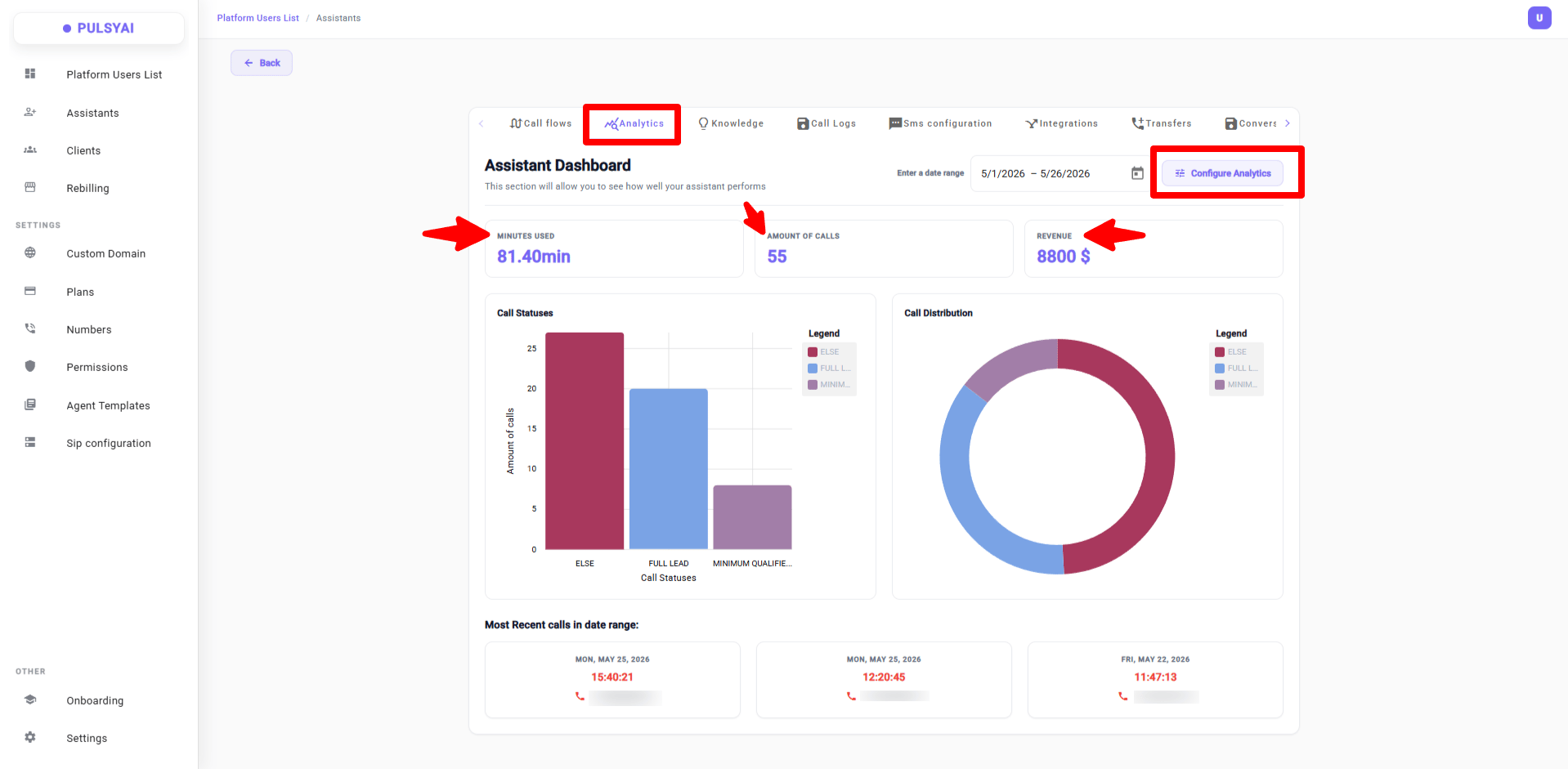
Key Metrics
At the top of the Analytics page, a row of KPI cards gives you an instant snapshot of activity across your agents.Configure Analytics
The Revenue metric is powered by your own custom call statuses. Click Configure Analytics to define what counts as a qualified lead — and what monetary value to assign to each outcome.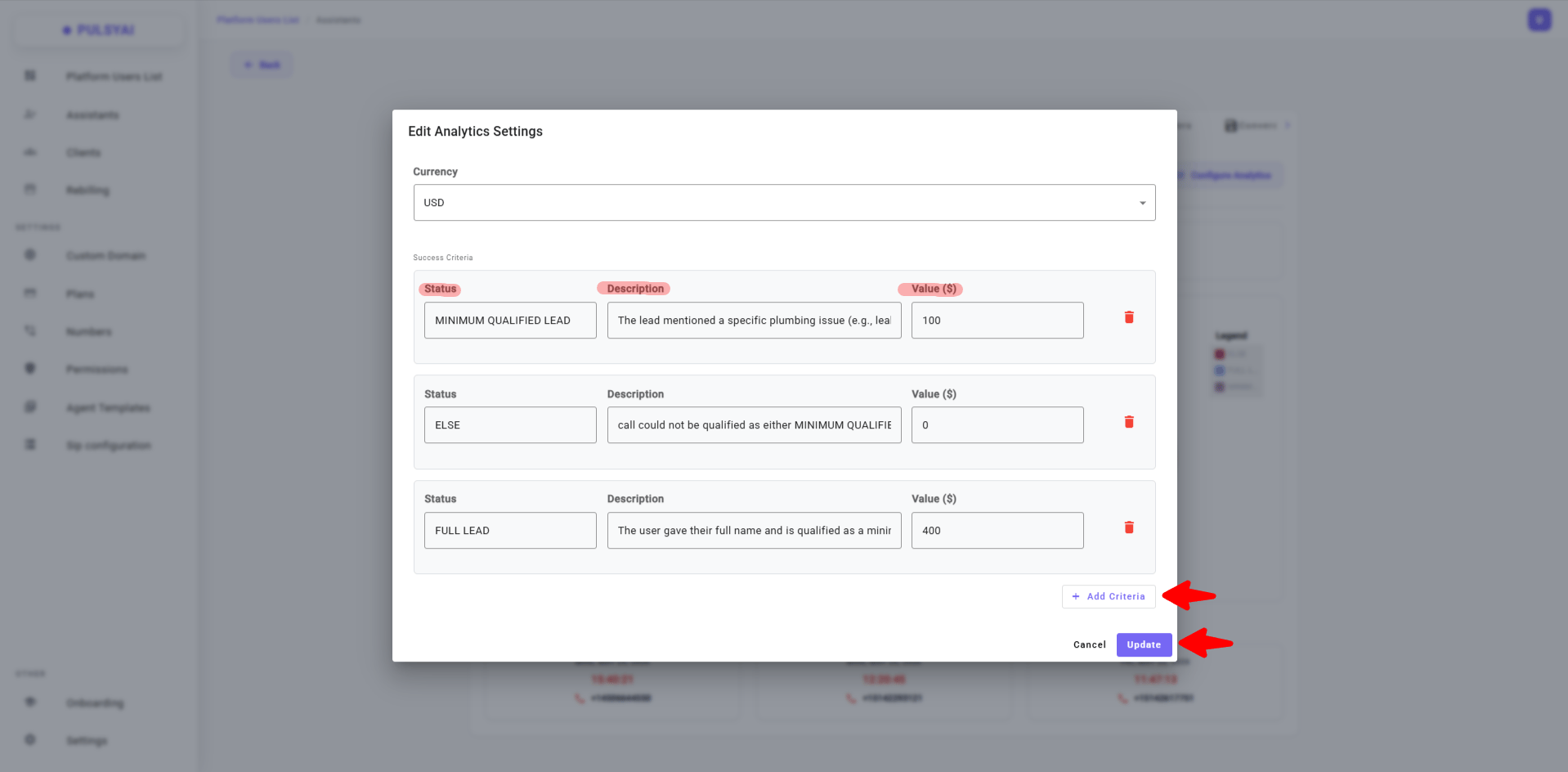
How It Works
PulsyAI comes with default call statuses out of the box. But with Configure Analytics, you can define your own custom statuses that match your business — along with a description written as a prompt, which our AI uses at the end of every call to automatically classify the conversation. Each status has three fields:- Name — The label for the outcome (e.g. MQL, Full Lead, Else)
- Description — A prompt that tells the AI exactly when a call qualifies for this status
- Value — The dollar amount assigned to this outcome, used to calculate the Revenue metric
Example
A plumbing business might configure their statuses like this:
After every call, PulsyAI’s AI analyzes the conversation transcript and assigns the appropriate status. The value of each classified call is then summed up to populate the Revenue metric — giving you a real, monetized view of what your agent is generating for the business.
You can add as many custom statuses as you need, and delete any you no longer want. Just make sure to click Update when you’re done to save your changes.
Filters & Date Range
Use the date picker at the top of the page to define the time window for all metrics and charts. Select a start date and an end date to view statistics for any specific period. All KPI cards, the performance chart, and the call logs table update based on the selected range. You can filter by Assistant to view data for one specific agent at a time.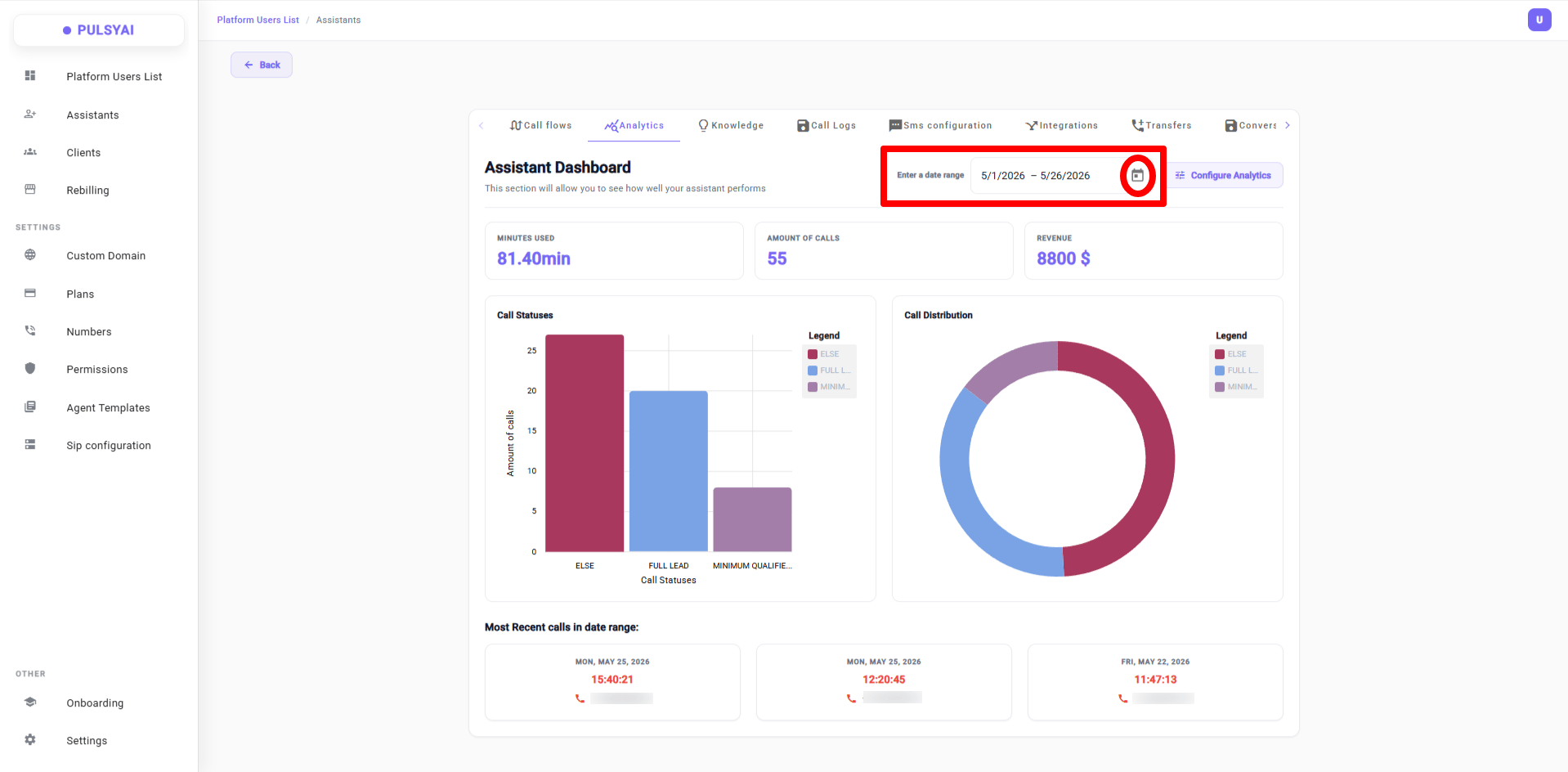
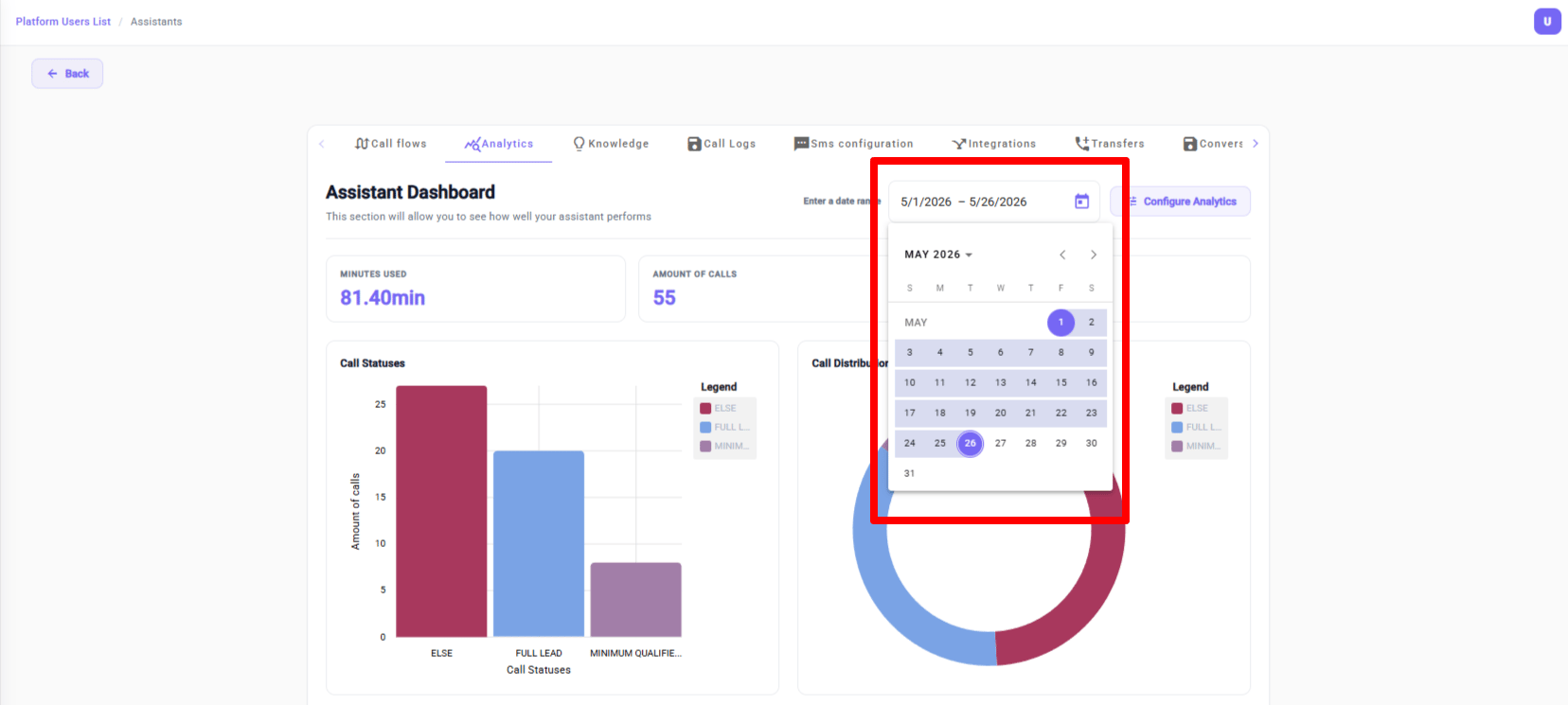
Recent Calls
At the bottom of the Analytics page, you’ll see a preview of the 3 most recent calls handled by your agent — a quick snapshot of the latest activity without leaving the dashboard.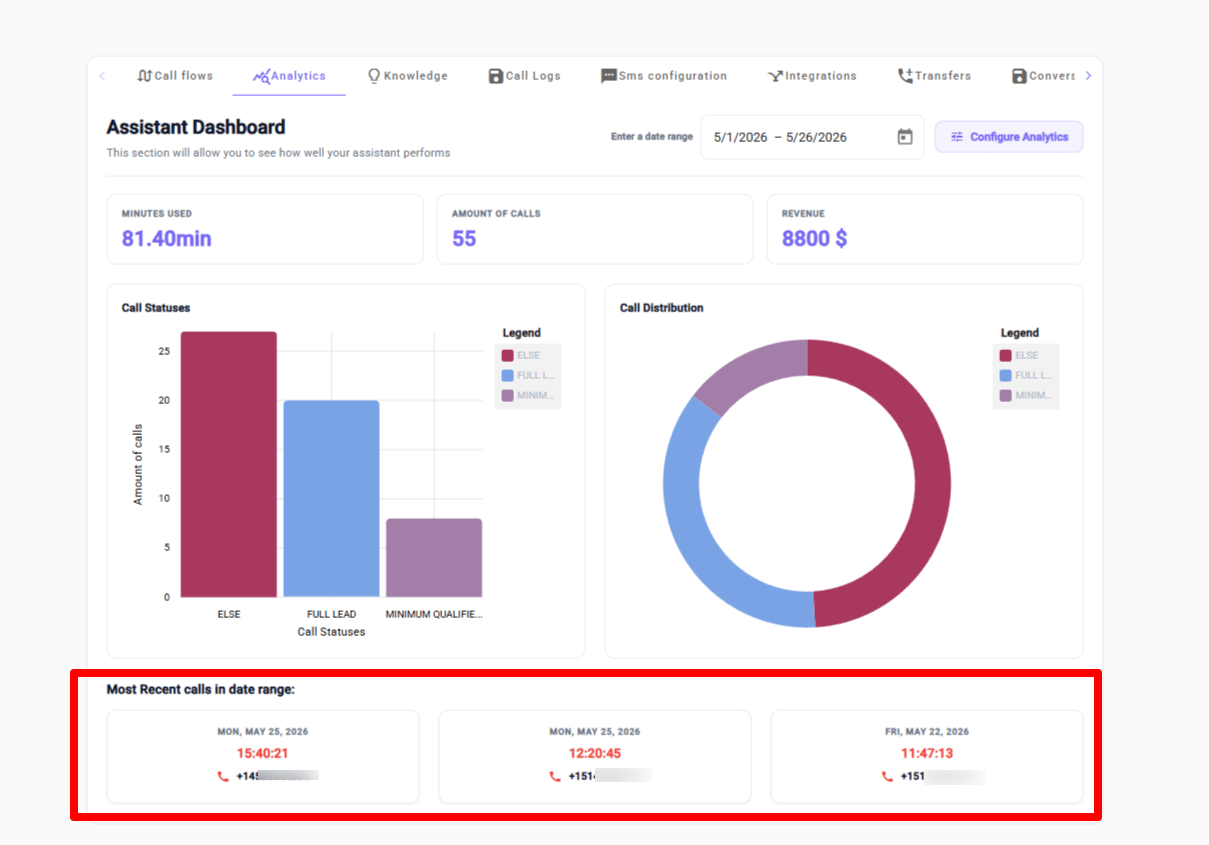
Next Steps
Call Logs
Deep-dive into individual call records, transcripts, and recordings.
Call Flows
Optimize your agent scripts based on what the analytics reveal.