

Auto Call Back is available only on Outbound voice AI agents. The tab does not appear on Inbound voice agents or SMS AI agents.
Where to find Auto Call Back
Auto Call Back lives in its own tab inside every Outbound voice AI agent.1
Open your Outbound voice AI agent
Navigate to your Outbound voice AI agent from the Assistants list.
2
Open the Auto Call Back tab
Click the Auto Call Back tab in the agent navigation.
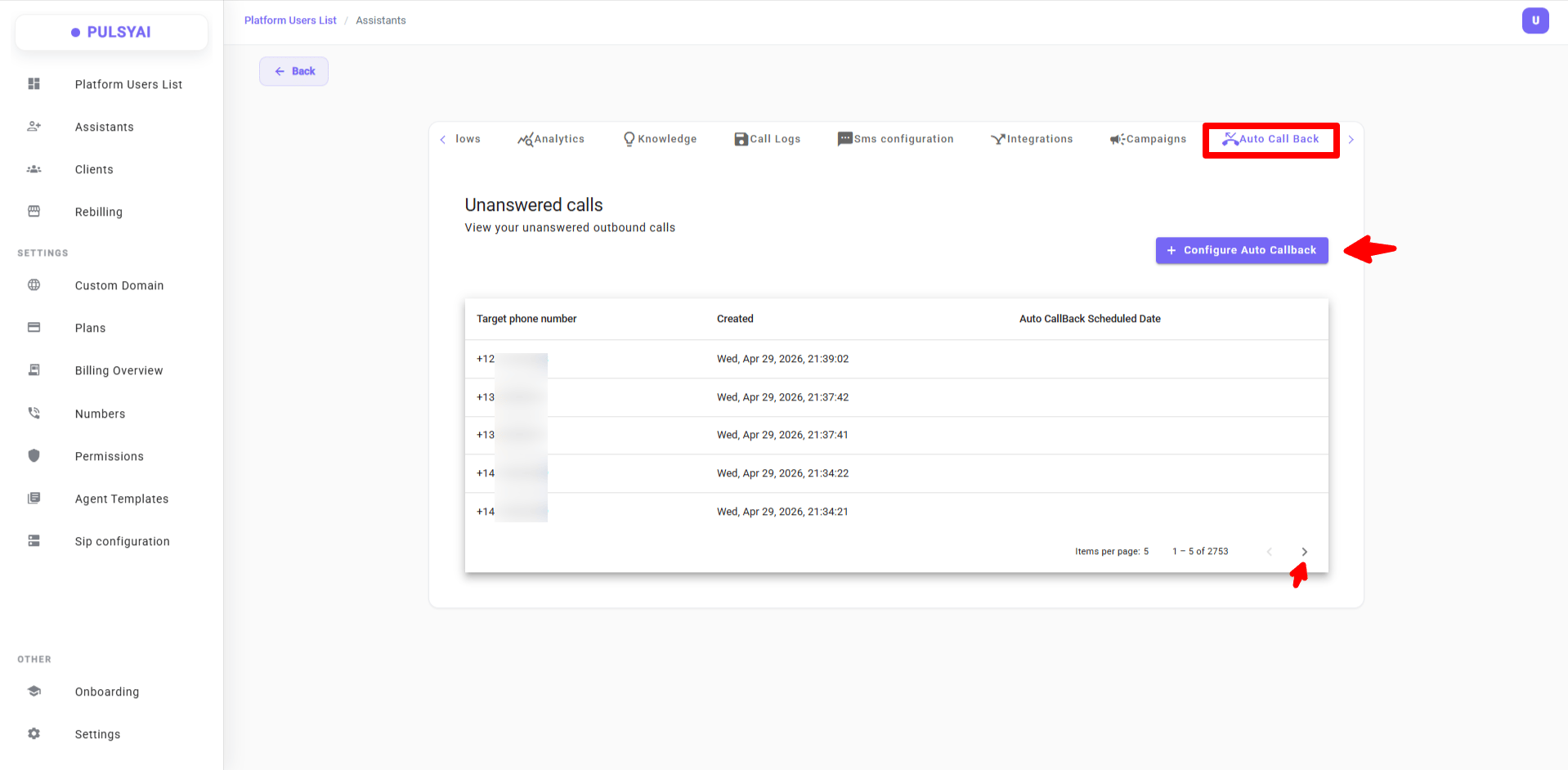
Normally, this tab is blank if your Outbound AI agent has never placed a call. The screenshot above is from an agent that has already run — it shows what the tab looks like once unanswered calls start accumulating.
Configure Auto Call Back
Open the Auto Call Back Settings modal to define how retries are scheduled and bounded.1
Open the settings modal
Click + Configure Auto Callback at the top right of the Auto Call Back tab.
2
Fill in your settings
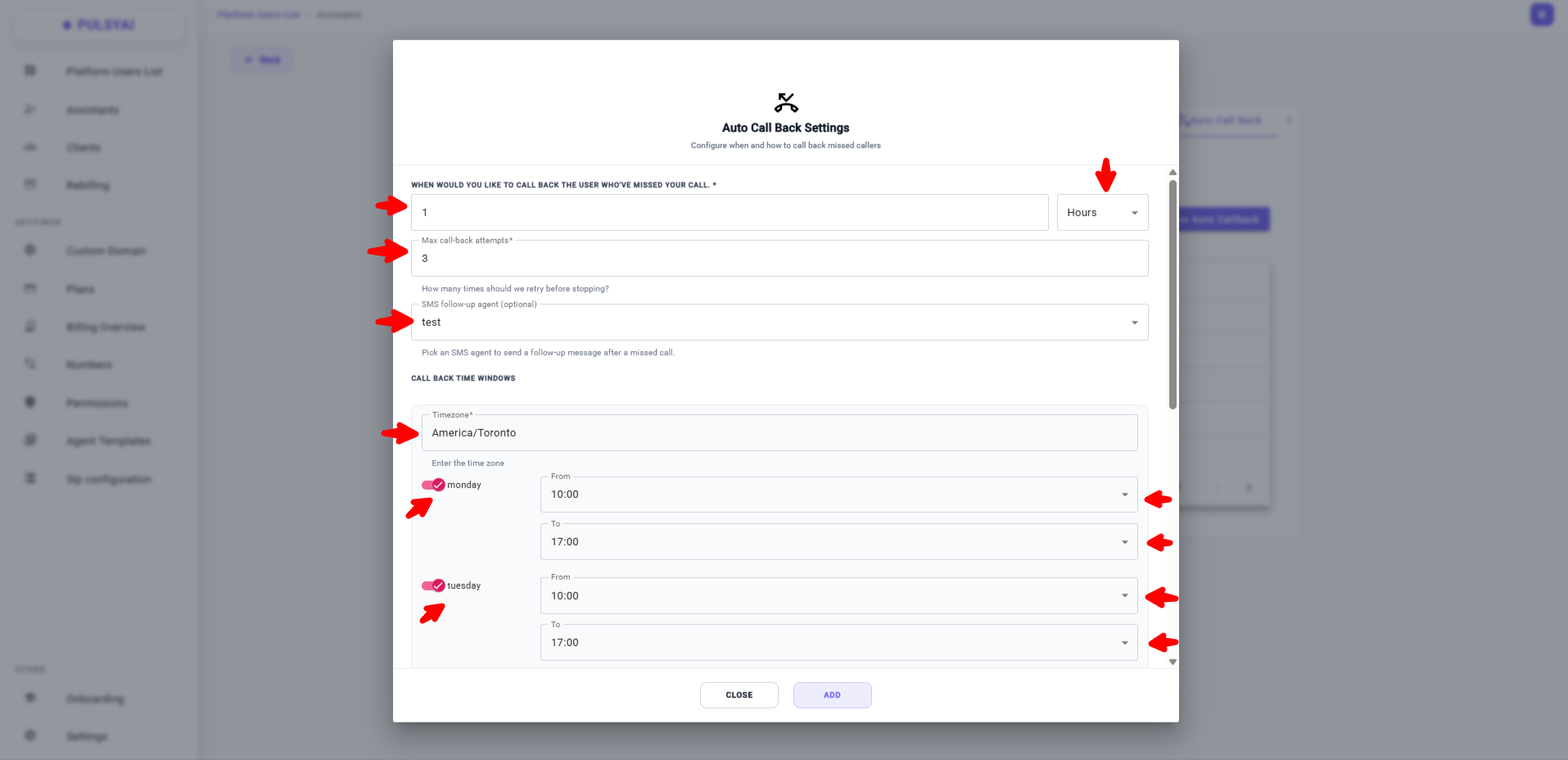
Configure the four sections described below: callback delay, max attempts, optional SMS follow-up agent, and call back time windows.
3
Save your configuration
Click Add to save your Auto Call Back configuration. From that point on, every unanswered outbound call from this agent is automatically processed according to your settings.
Auto Call Back settings
Auto Call Back has four configuration areas: the retry delay, the maximum number of attempts, an optional SMS follow-up agent, and the call back time windows.Callback delay
The callback delay defines how long PulsyAI waits after a missed call before placing the first retry attempt.- Enter a number, then choose the unit: Minutes, Hours, or Days.
- The first retry is placed exactly this long after the original unanswered call.
Max call-back attempts
The maximum number of retry attempts caps how many times your agent will try to reach an unanswered contact.- Once this cap is hit and the contact has still not been reached, no further voice retries are placed for that contact.
- If you’ve configured an SMS follow-up agent below, an SMS message is sent at this point instead.
SMS follow-up agent (optional)
The SMS follow-up agent is an optional fallback that sends an SMS message to the contact after every voice retry has been exhausted.- The dropdown lists every SMS AI agent in your platform, plus the current Outbound voice agent itself — since voice agents can also send SMS through their SMS Configuration. Each option is shown under the name you gave the agent at creation.
- Pick the agent you want to handle the SMS follow-up.
- Leave this field blank to disable the SMS fallback — unanswered calls will simply be marked closed once the retry cap is reached.
Call back time windows
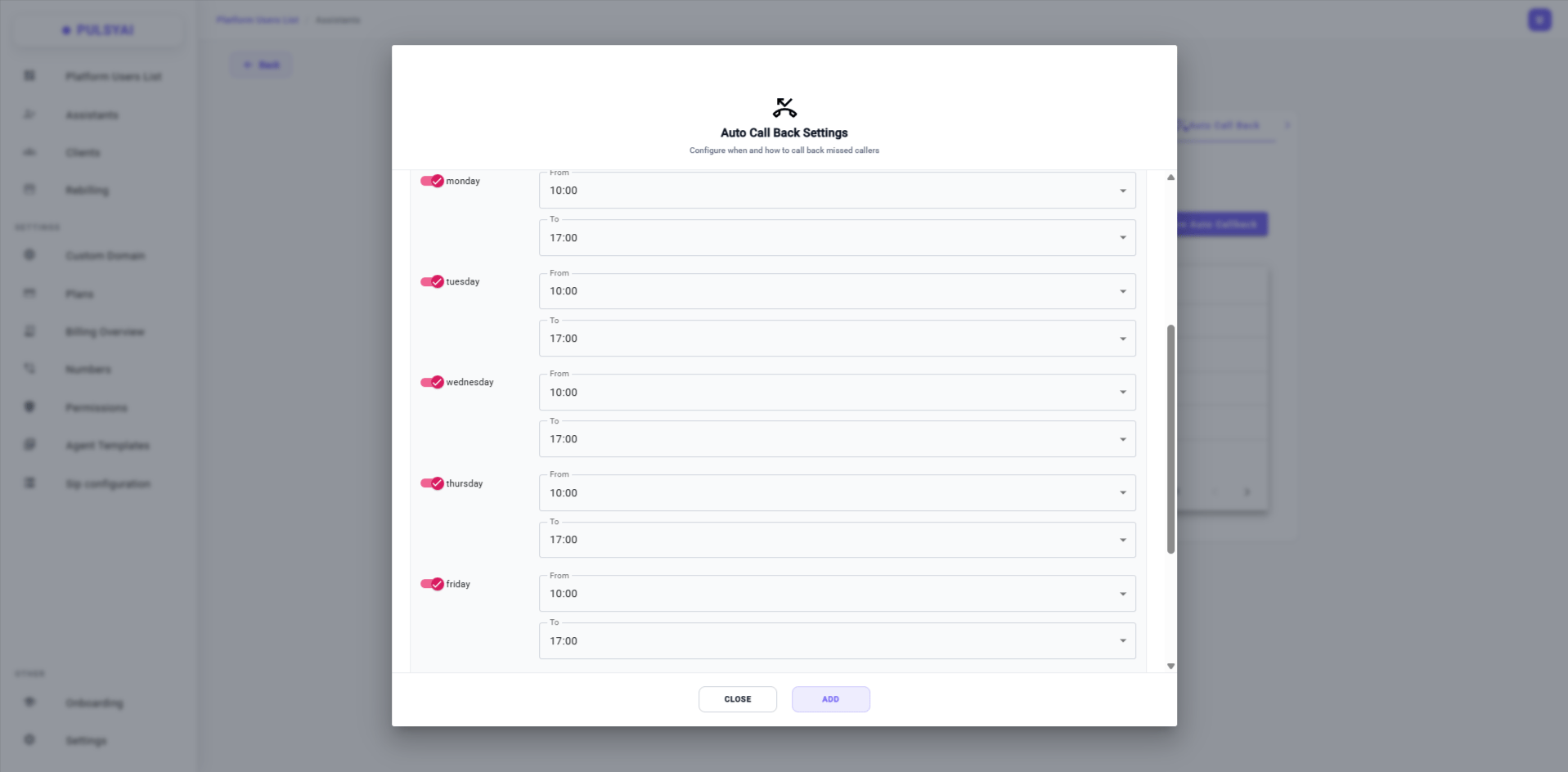
Call back time windows restrict when PulsyAI is allowed to place retry calls — useful for staying within business hours and respecting recipient time zones.- Set a Timezone — this is the timezone the daily From/To times refer to. Match it to where your leads are located, not where your business operates from, so retries reach recipients during their local business hours.
- For each day of the week (Monday through Sunday), use the toggle to enable that day, then set a From time and a To time. Disabled days have no retries.
Unanswered calls list
The Unanswered calls list shows every outbound call from this agent that was not answered. A call is considered unanswered if the recipient lets it ring out, the call goes to voicemail, or the line is busy. The list shows three columns:- Target phone number — the contact number that did not pick up.
- Created — the date and time of the original outbound call attempt.
- Auto CallBack Scheduled Date — the date and time of the next scheduled retry, when Auto Call Back is configured.
How retries work
Here is the full lifecycle of an unanswered call once Auto Call Back is configured.- Your Outbound voice agent places an outbound call (manually, via API, or from a Campaign).
- The recipient does not answer — the call rings out, hits voicemail, or the line is busy.
- PulsyAI logs the call in the Unanswered calls list and schedules a retry based on your configured callback delay.
- If the scheduled retry falls inside one of your time windows, the call is placed. If it falls outside, the retry is rescheduled to the next valid window.
- If the contact still does not answer, PulsyAI schedules the next retry — repeating this loop until the maximum attempts cap is reached.
- Once the cap is reached, the SMS follow-up agent (if configured) sends an SMS message to the contact. The unanswered call is then closed.
Example configuration
Below is an example Auto Call Back configuration suitable for a typical B2B outbound campaign in North America.- The first retry fires 1 hour after each unanswered call.
- Each contact is retried up to 3 times before voice retries stop.
- After all 3 retries are exhausted, the SMS AI agent named test sends a follow-up message — covering contacts who don’t engage by phone.
- Retries are placed Monday through Friday between 10:00 and 17:00 in the America/Toronto timezone.
Time window best practices
Connection rates vary heavily by time of day and day of week. As a general rule for outbound campaigns:- Weekday mornings (10:00 – 12:00 local time) and late afternoons (16:00 – 18:00 local time) tend to produce the highest connection rates for B2B outbound calls.
- Lunch hours (12:00 – 14:00) typically show the lowest pickup rates, as recipients are often away from their desks.
- Weekends depend on your audience. For B2B prospects, leave weekends disabled — calls placed on Saturday or Sunday rarely connect. For B2C consumer outreach, Saturday late morning (10:00 – 12:00) can perform well, while Sunday tends to underperform across the board.
Europe/London, not America/Toronto, so retries hit recipients during their local business hours.