

E.164 Format
All imported phone numbers must be entered in E.164 format. This means the number starts with a+ sign, followed by the country code, followed by the number — with no spaces, dashes, or parentheses.
The country code
+1 covers both the United States and Canada. Other countries use their own code, such as +44 for the UK or +33 for France.Buying a Number In-App
The fastest way to get a phone number is to buy one directly inside PulsyAI through the built-in store. No external provider account is required.1
Open the Numbers section
Navigate to Numbers in the main menu.
2
Search for a number
Filter by country, and optionally enter specific digits or an area code to narrow results.
3
Purchase and assign
Select an available number and confirm the purchase. The number is added to your account, ready to assign to an agent.
Two Ways to Import a Phone Number
There are two entry points to open the import modal.Option 1 — From the Numbers section
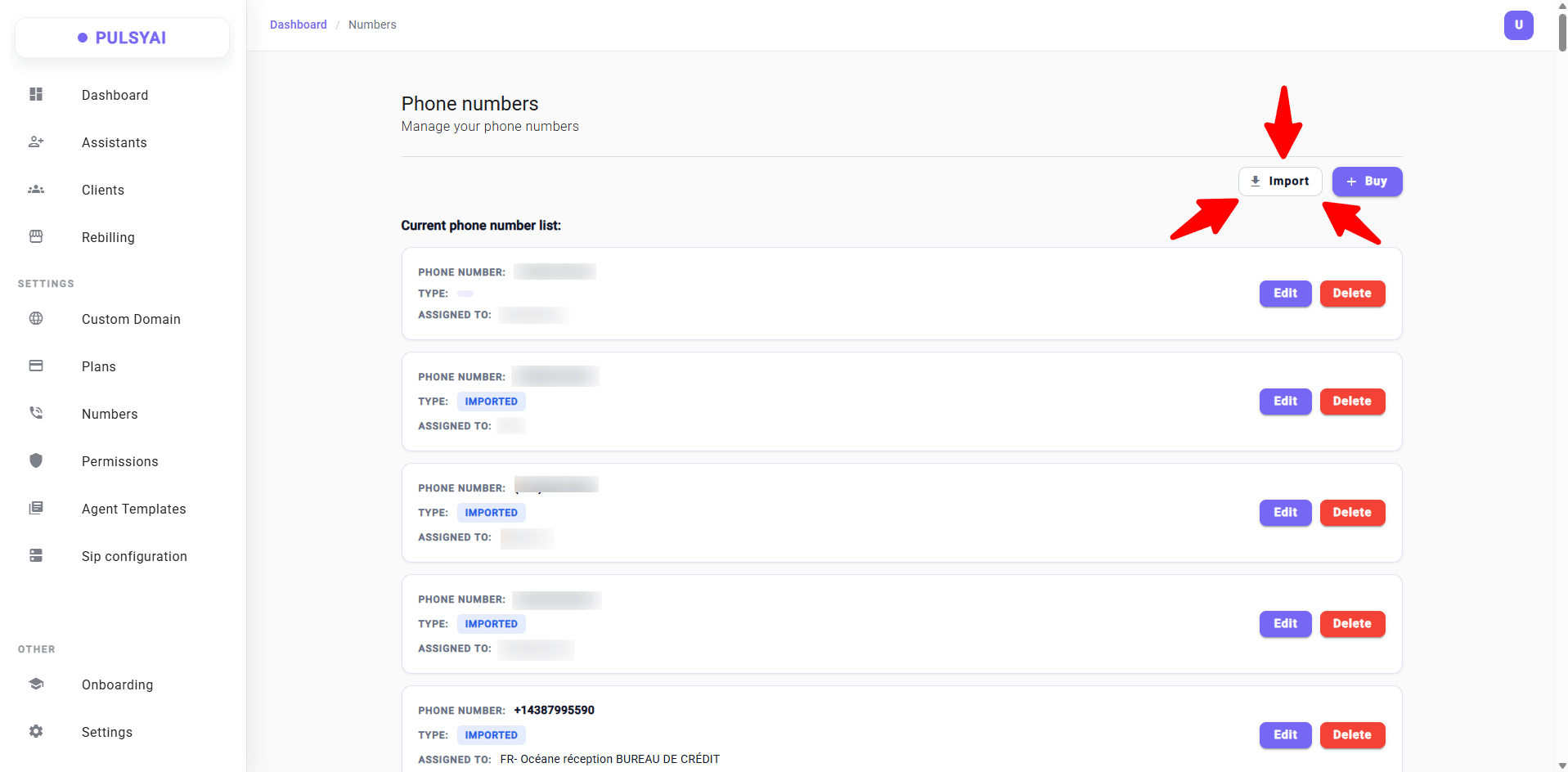
Navigate to the Numbers section in the left sidebar. This is the dedicated area for managing all phone numbers across your account.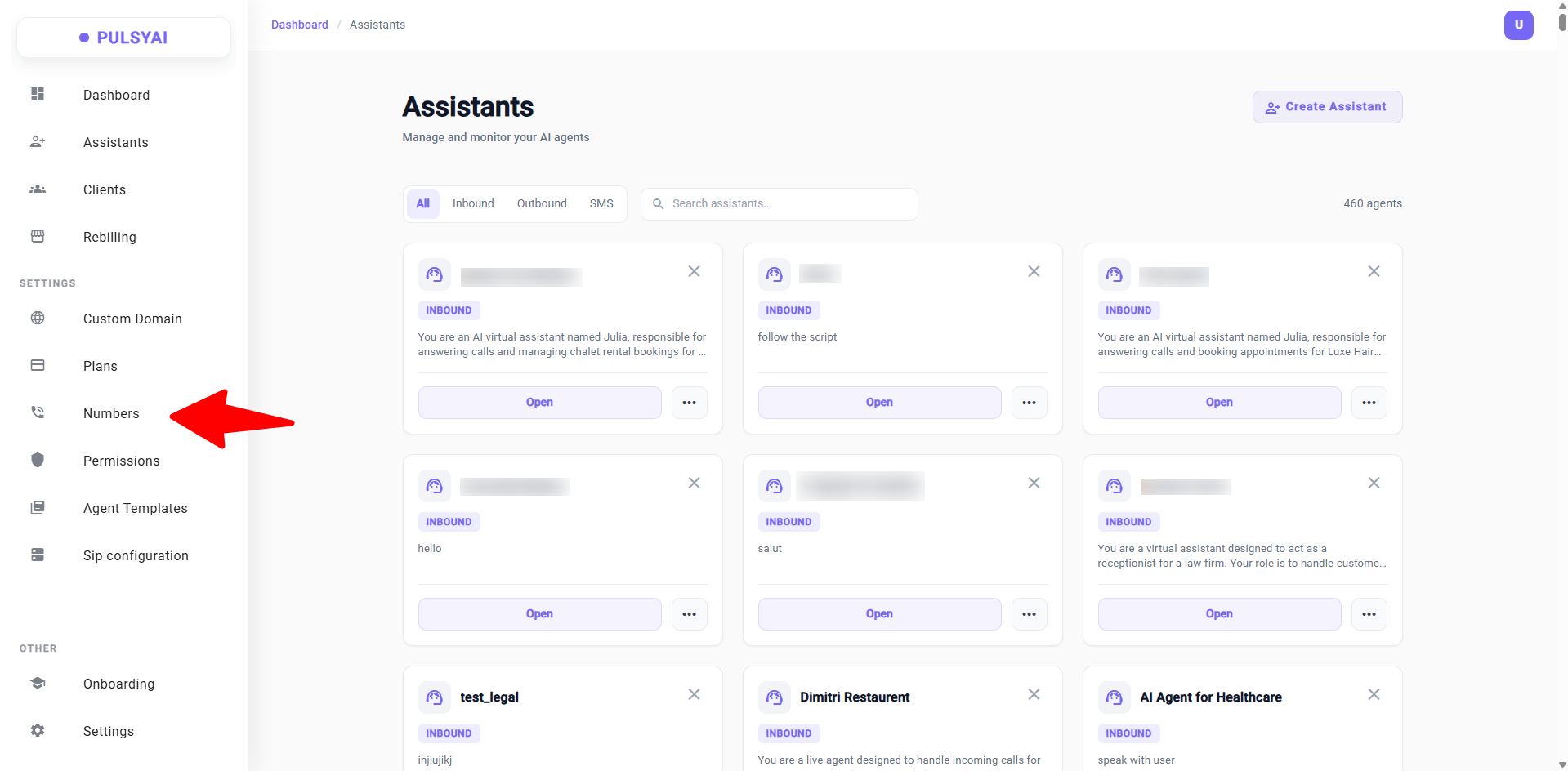 Once inside, you will land on the Numbers page where all your existing numbers are listed. Click Import to open the import modal.
Option 2 — From within an AI Assistant
You can also import a number directly from inside an assistant. Open the assistant, go to the Call Flows tab, and you will find the option to assign or import a phone number from there.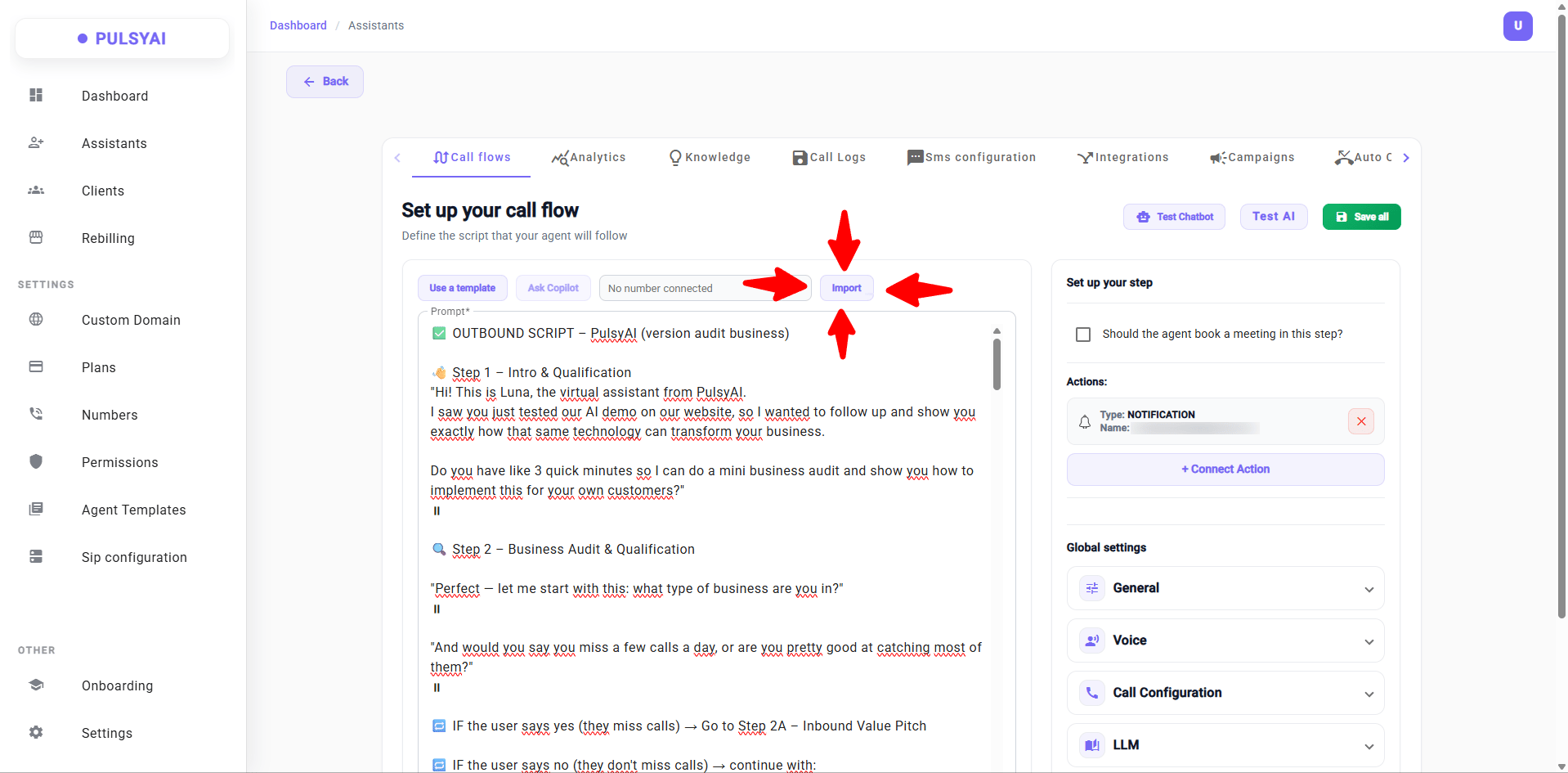
Twilio
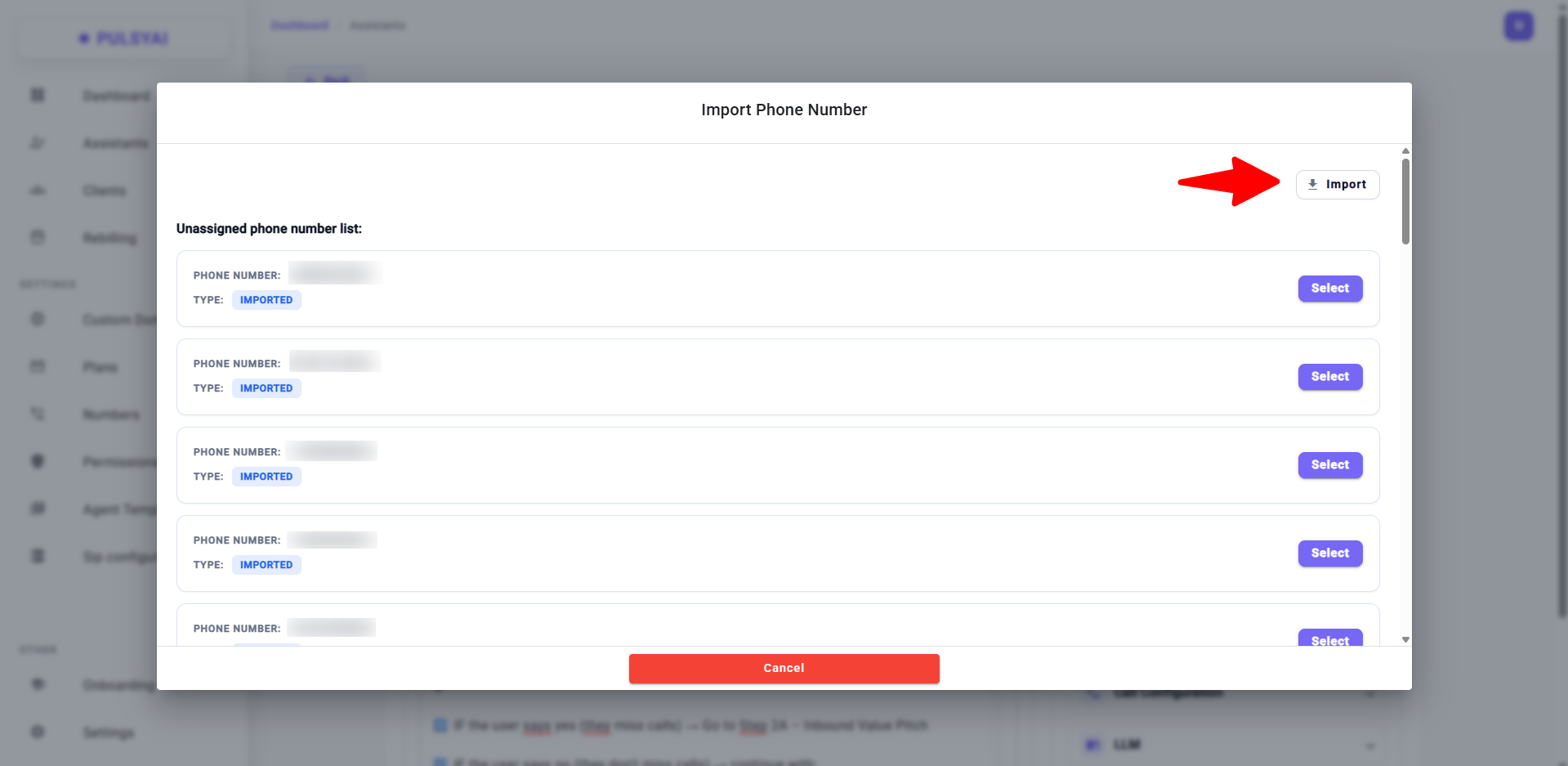
In the import modal, select the Twilio tab. Fill in the following 4 fields: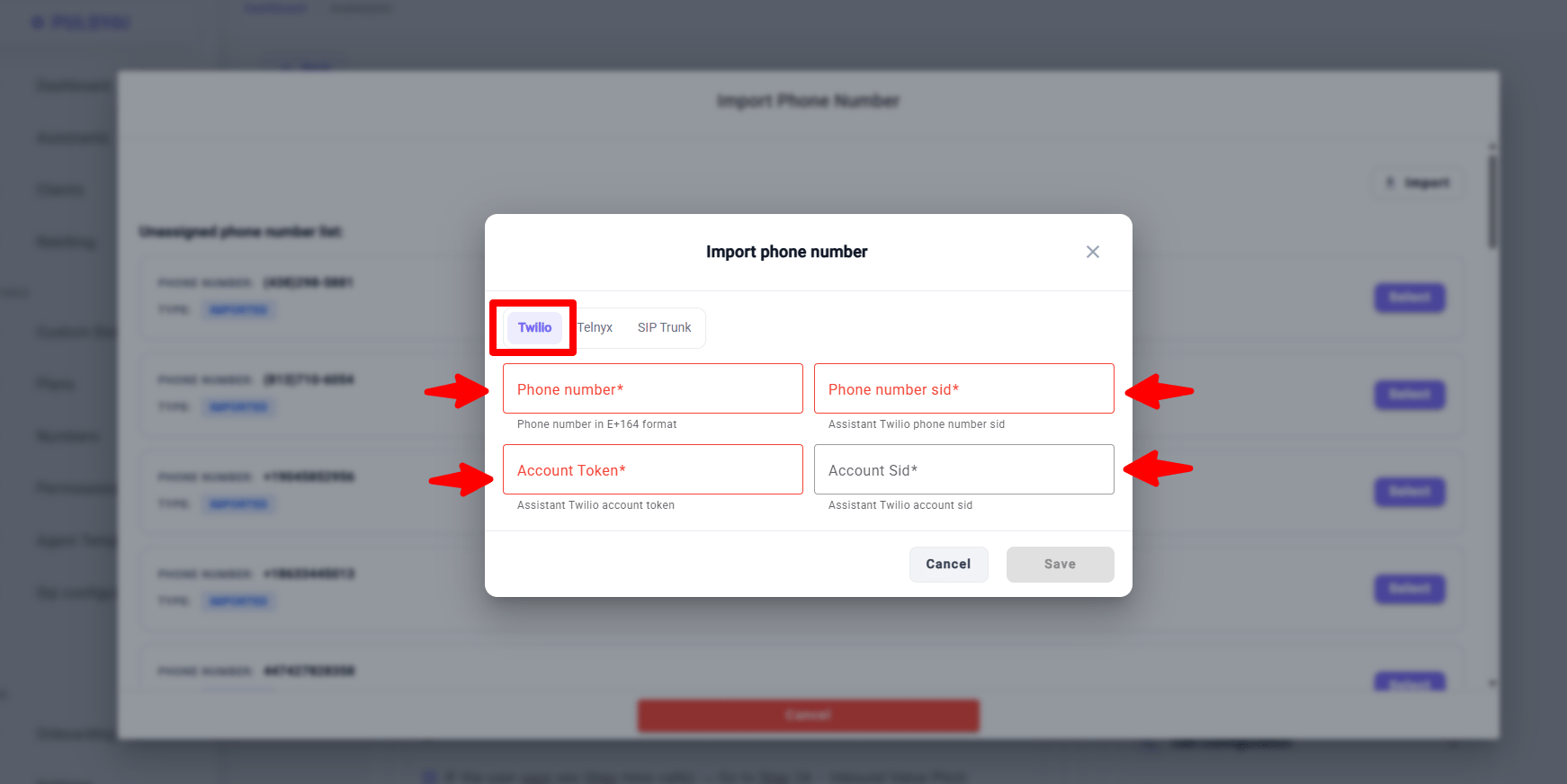
Step 1 — Purchase a phone number in Twilio
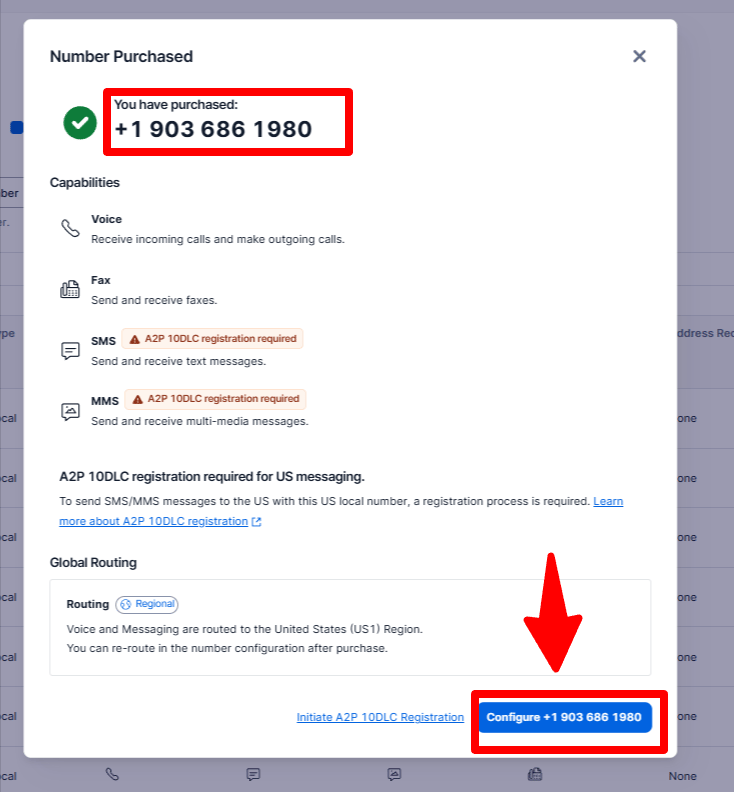
Before importing, you need an active phone number in your Twilio account. In the Twilio console, go to Develop → Phone Numbers → Buy a Number.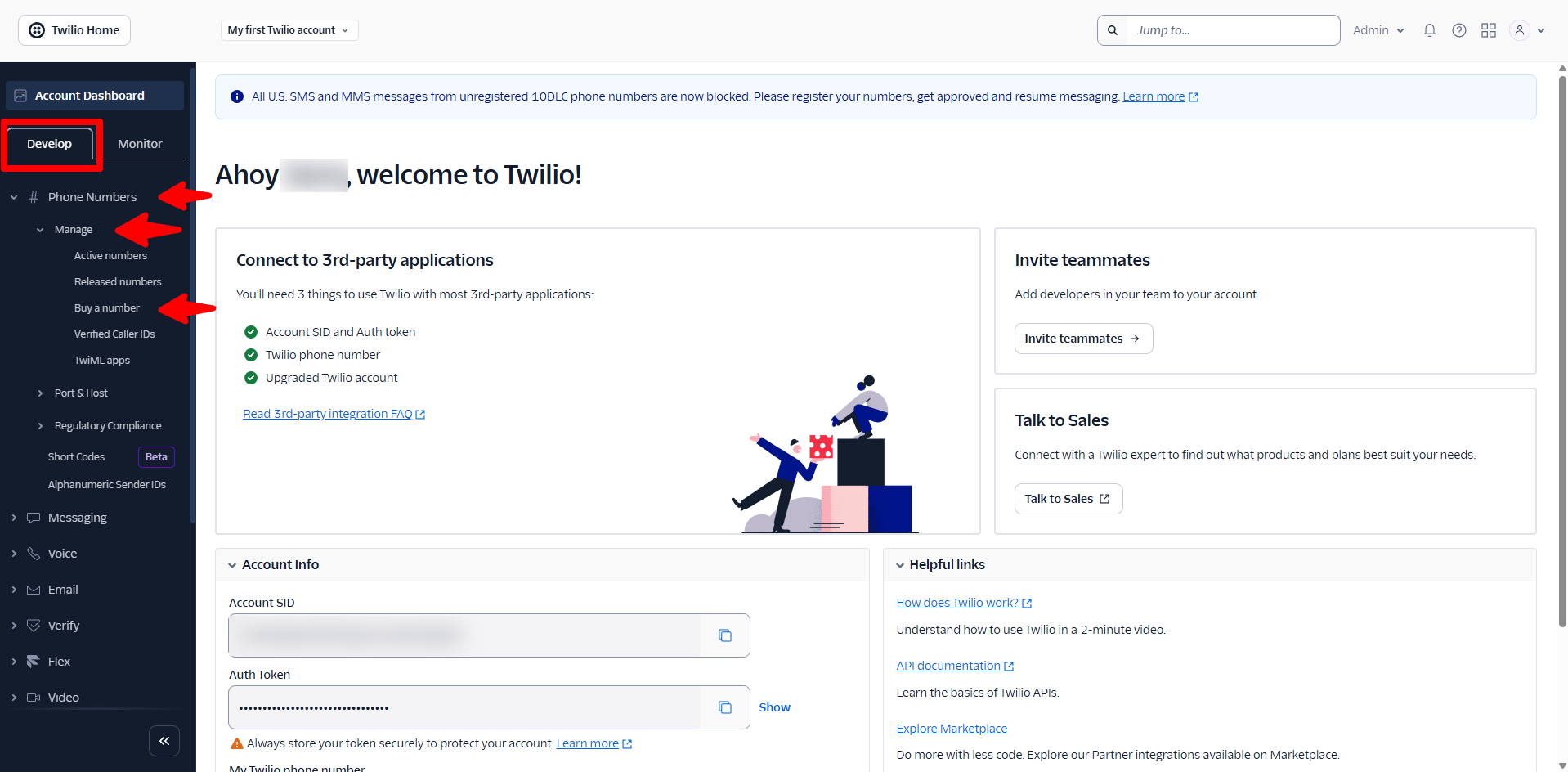
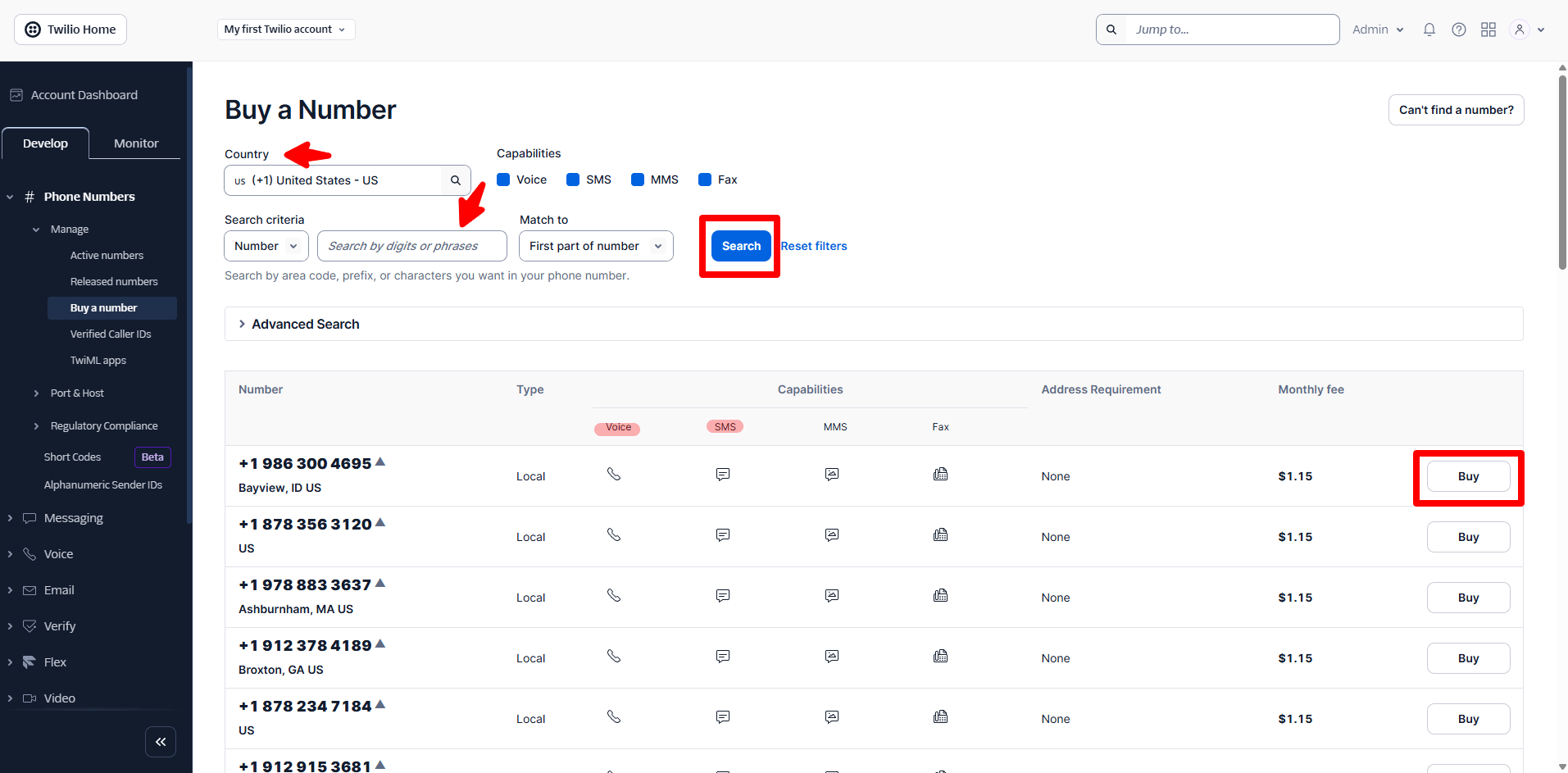
If you also want your assistant to send or receive SMS, make sure the number also shows the SMS (💬) capability icon. If you only need voice calls, SMS is not required.
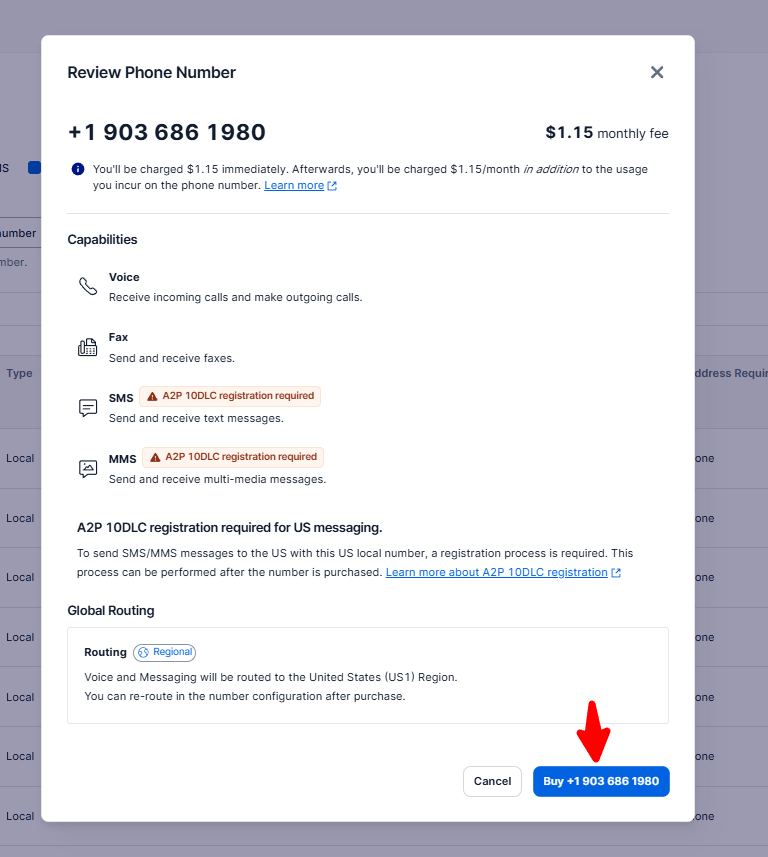
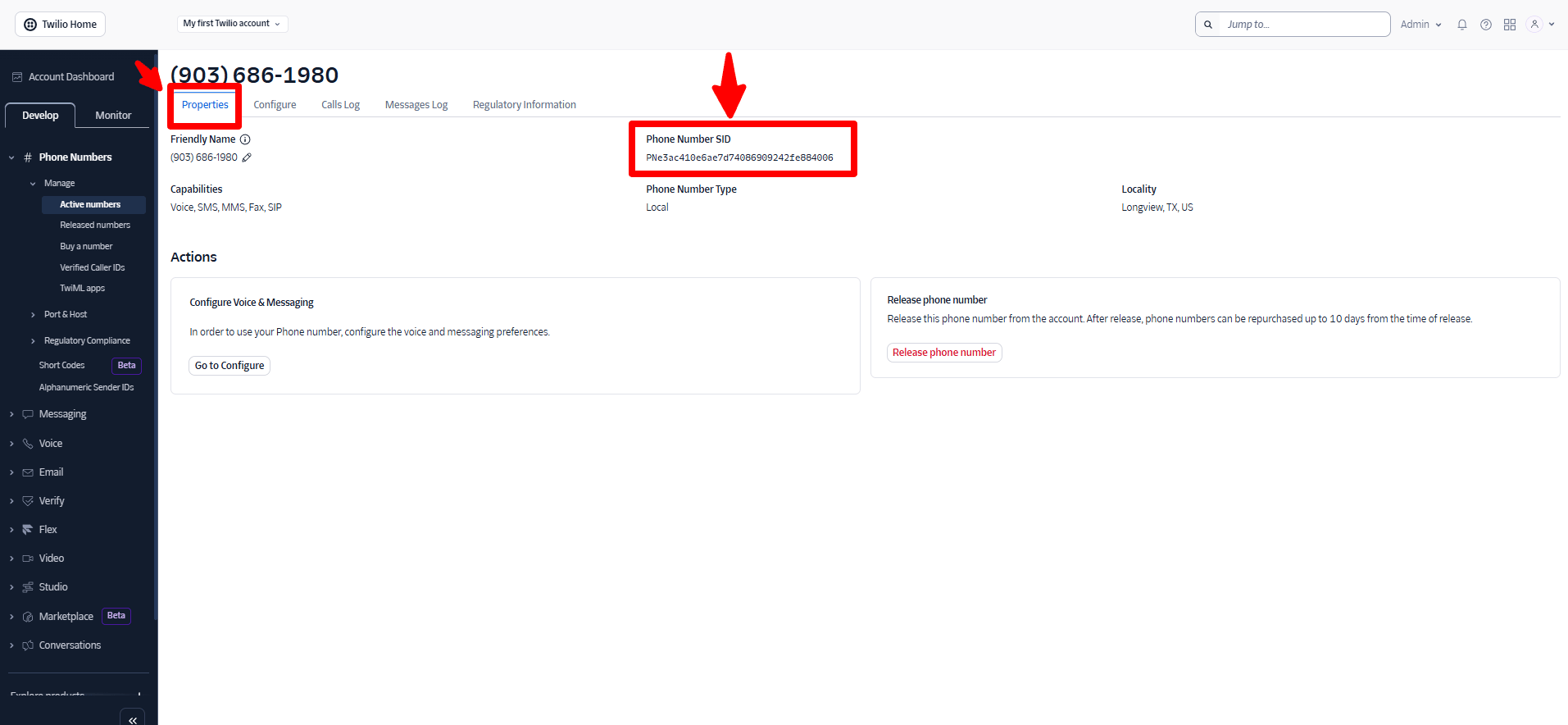
Step 2 — Get your Account SID and Auth Token
Navigate to the Account Dashboard in your Twilio console. Your Account SID and Auth Token are both displayed there. Click the copy icon (□) next to each value to copy them, then paste them into the corresponding fields in PulsyAI.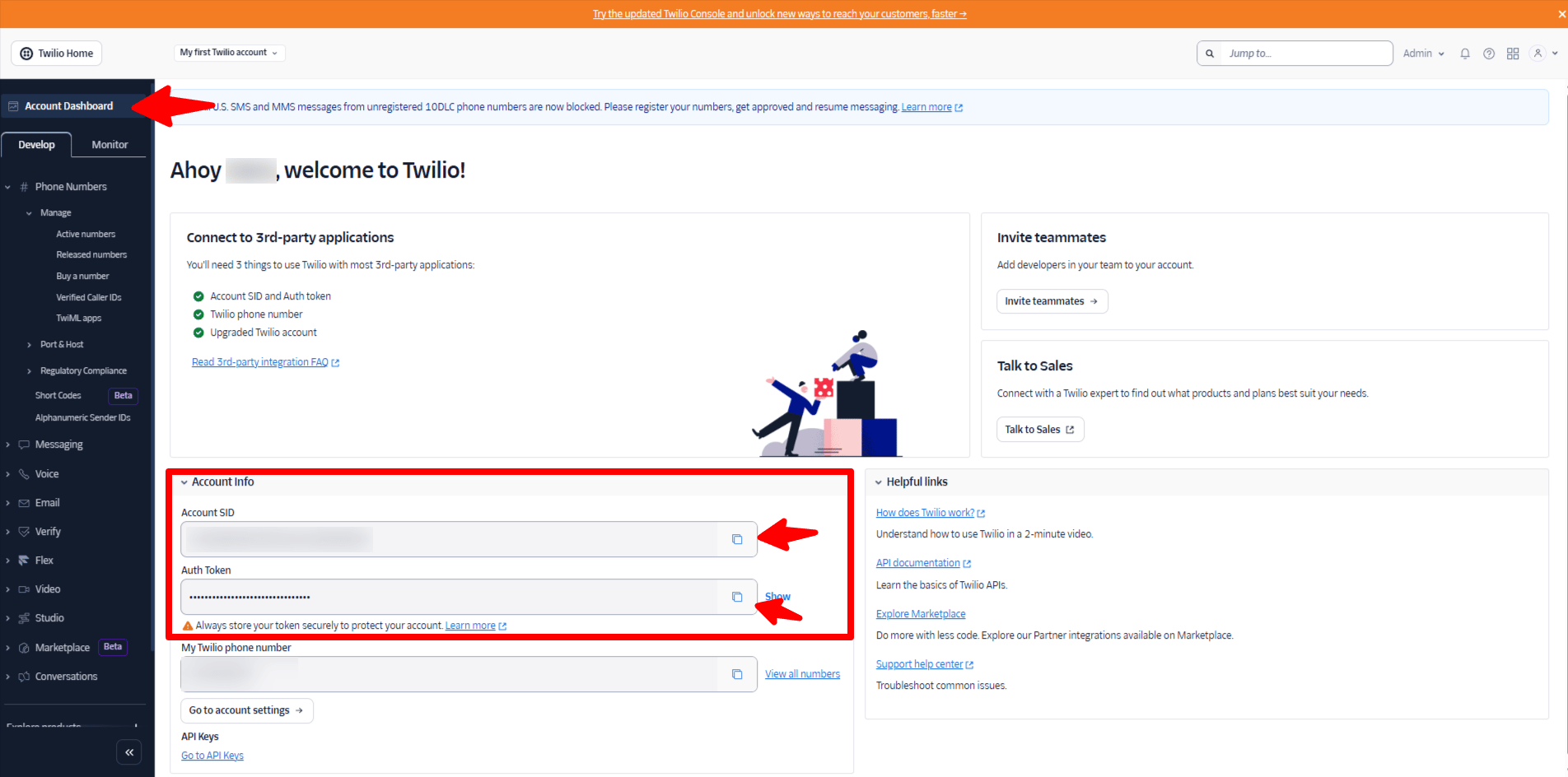
Step 3 — Save in PulsyAI
Once all four fields are filled in, click Save to complete the import.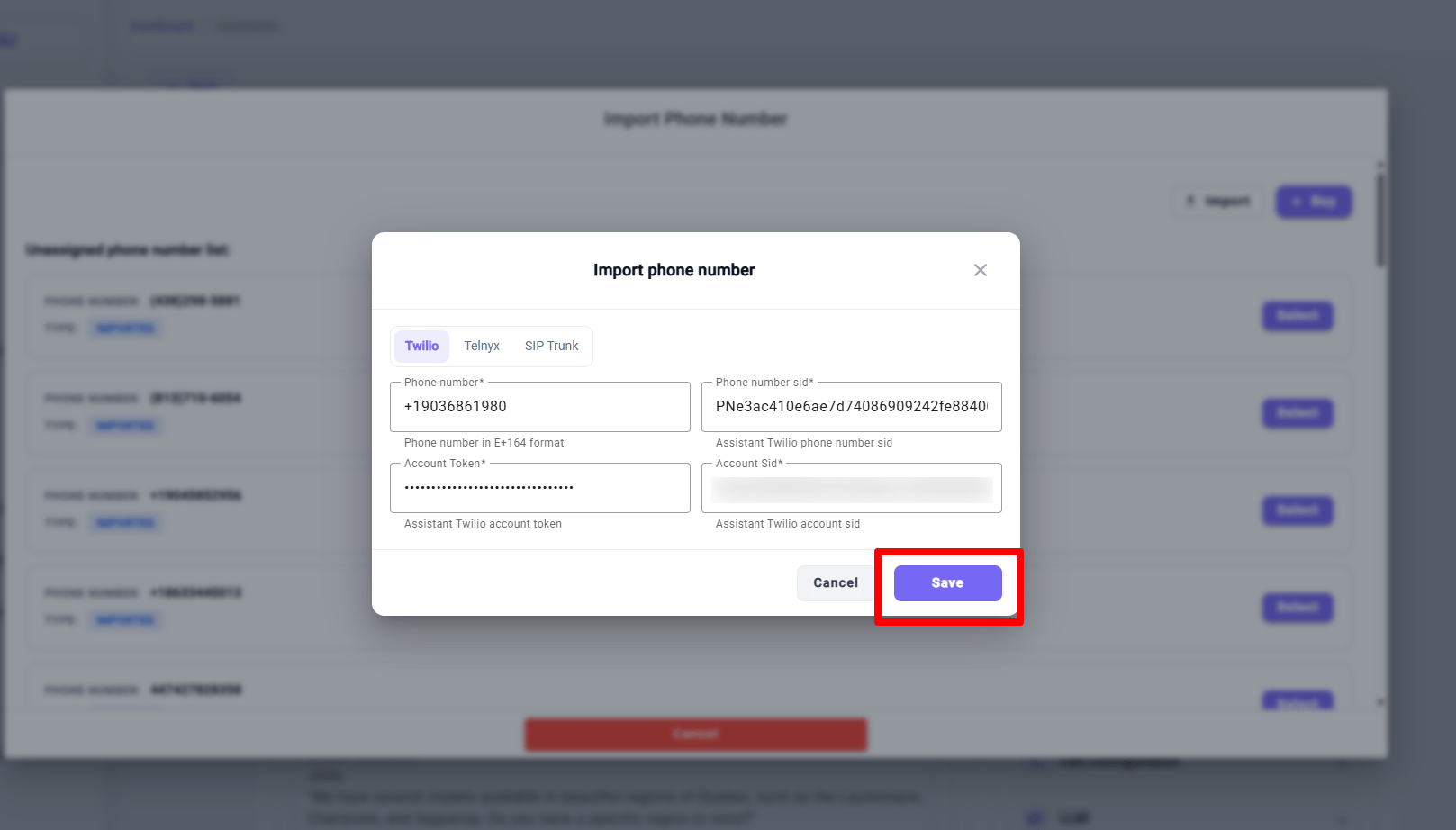
Step 4 — Select the number and assign it to your assistant
Your imported number now appears in the dropdown. Select it to attach it to your AI agent — and that’s it, the number is live.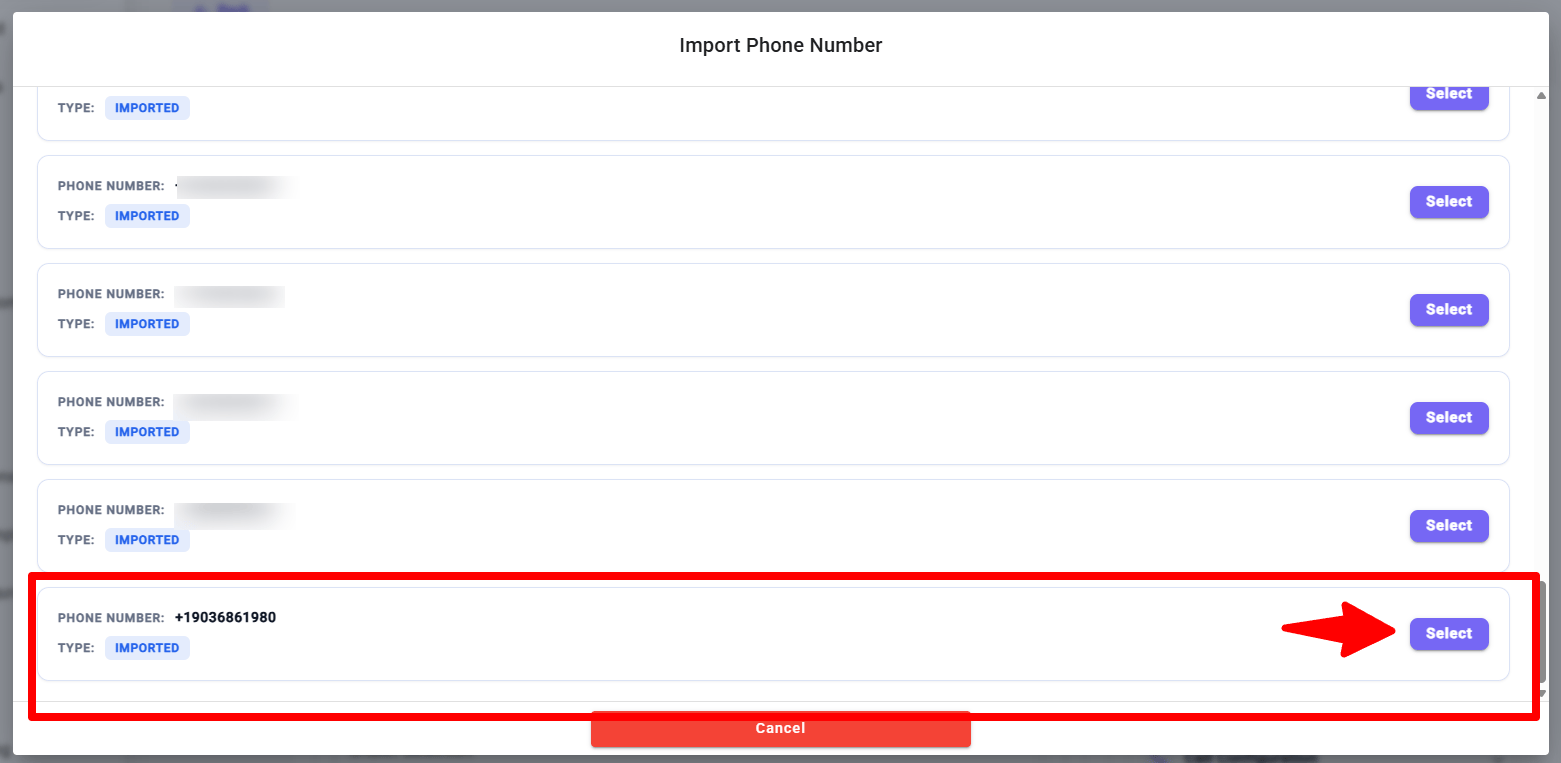
Telnyx
The Telnyx tab requires the following 5 fields:1
Phone number
Enter your Telnyx number in E.164 format (e.g.
+14385950345).2
Phone SID
The unique identifier for your phone number in Telnyx. Found under Numbers → My Numbers.
3
Account Token
Your Telnyx API key. Found under Account → API Keys.
4
Application ID
The ID of the Telnyx application connected to your number. Found under Voice → Applications.
5
Message Profile ID (UUID)
Required for SMS-enabled numbers. Found under Messaging → Messaging Profiles. Format is a UUID.
SIP Trunk
Importing a SIP trunk number is a two-part process:1
Configure your SIP trunk
Before importing the number, go to SIP Configuration in the main menu and set up your SIP trunk connection. This is where you configure the SIP server credentials and routing.
2
Import the number
Once the SIP trunk is configured, go to Numbers → Import and select the SIP Trunk tab. Enter your phone number in E.164 format and complete the import.
Next step
Call Flows
Design how your AI agent handles calls — greetings, scripts, transfers, and edge cases.