

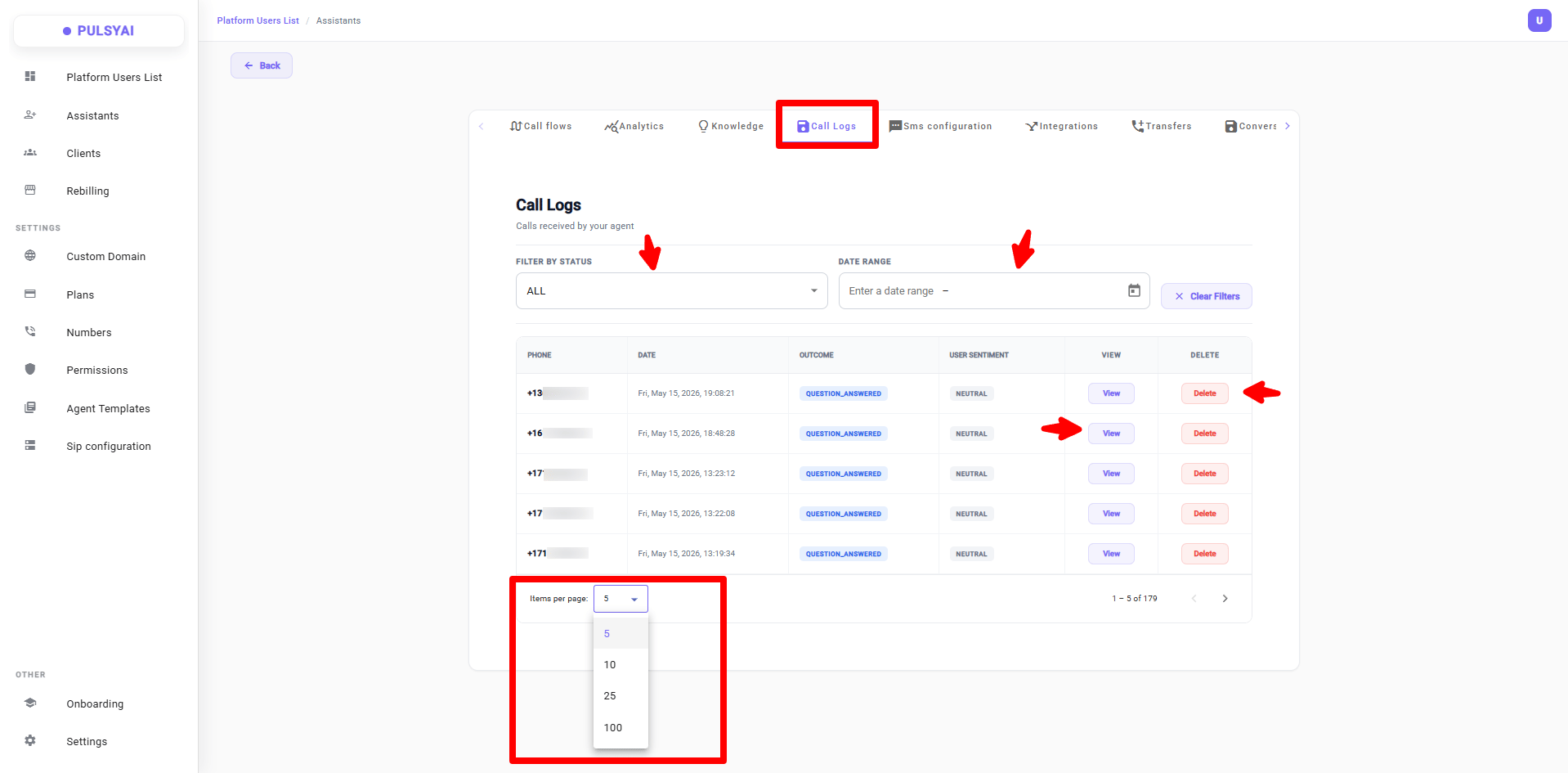
What You See in the Table
Each row in the Call Logs table represents one call. The columns include:Filters
Use the filters at the top of the table to narrow down the list:- Filter by Status — Show only calls with a specific outcome (e.g. Full Lead, No Answer).
The statuses available in this filter reflect the outcomes you have configured. To create or customize your own statuses, go to Analytics → Configure Analytics.
- Filter by Date Range — Focus on a specific time window using the date picker.
Items Per Page
Use the Items per page selector to control how many call records are displayed at once — up to 100 calls per page. Use this when you want to review a large volume of calls without paginating.Viewing a Call
Click View on any row to open the full call detail modal.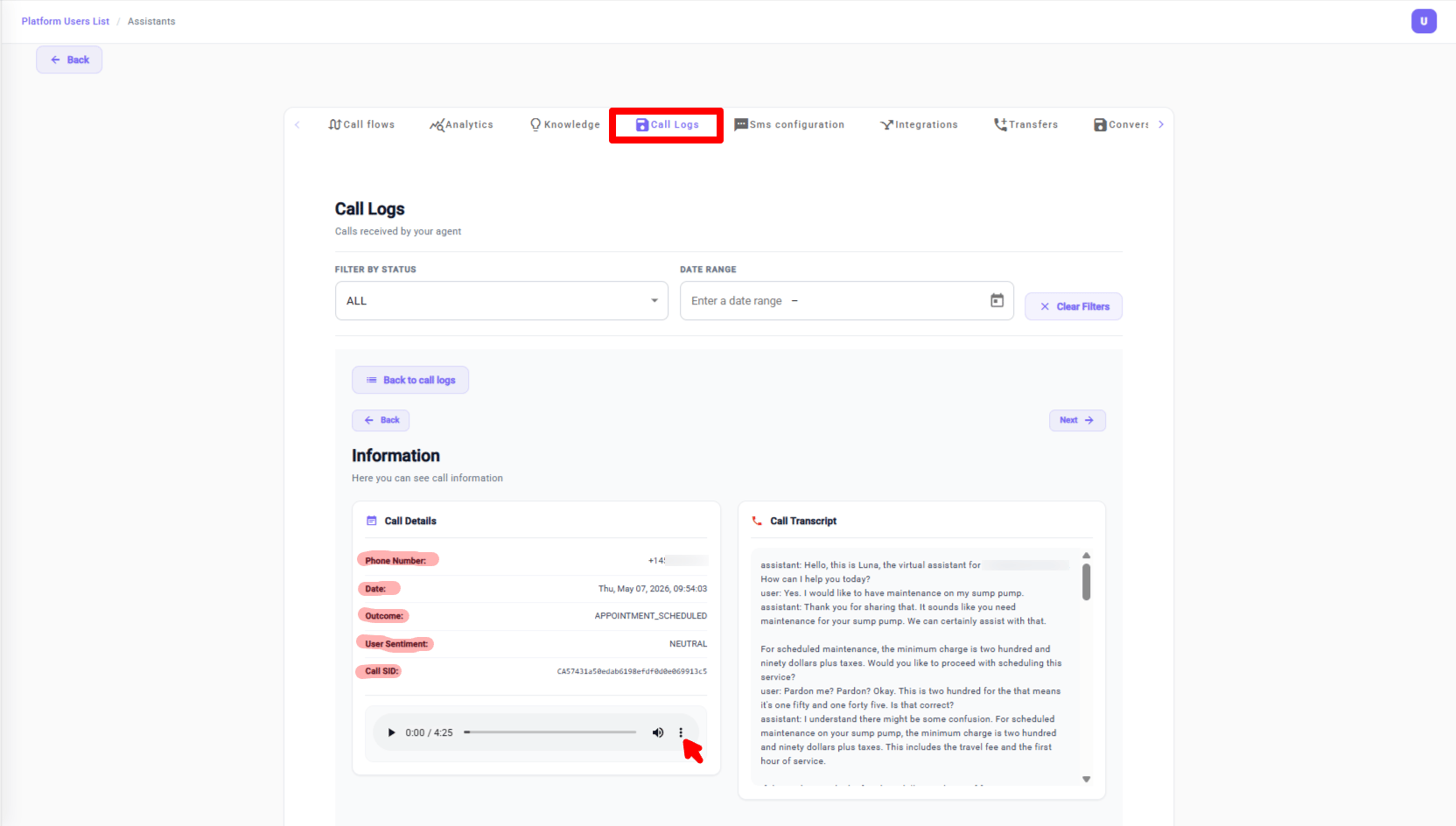
- Call recording — An audio player to listen back to the full call. Click the three dots (⋯) menu to download the recording or adjust the playback speed.
- Transcript — A full text transcript of the conversation. Messages labeled User are the human caller’s responses. Messages labeled Assistant are what the AI agent said. The call detail panel also shows:
Next Steps
Analytics
See aggregated performance metrics and revenue across all your agents.
Call Flows
Optimize your agent script based on what you find in the call logs.