

How to add an integration
1
Open the Integrations tab
Open your assistant and click the Integrations tab.
2
Add a new integration
Click + Add Integration at the top right.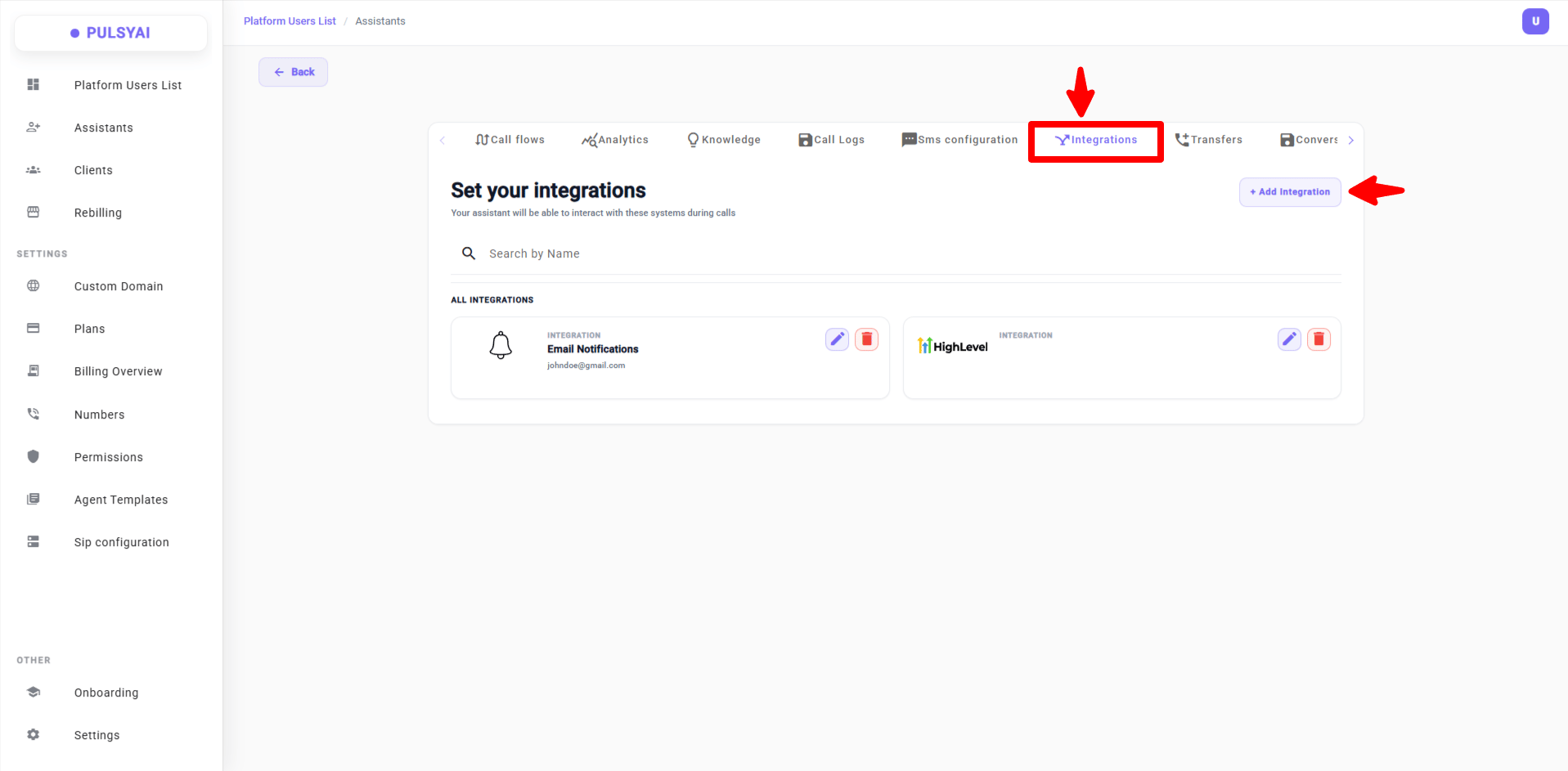
3
Choose your integration
In the Choose your integration modal, click Select on the integration you want.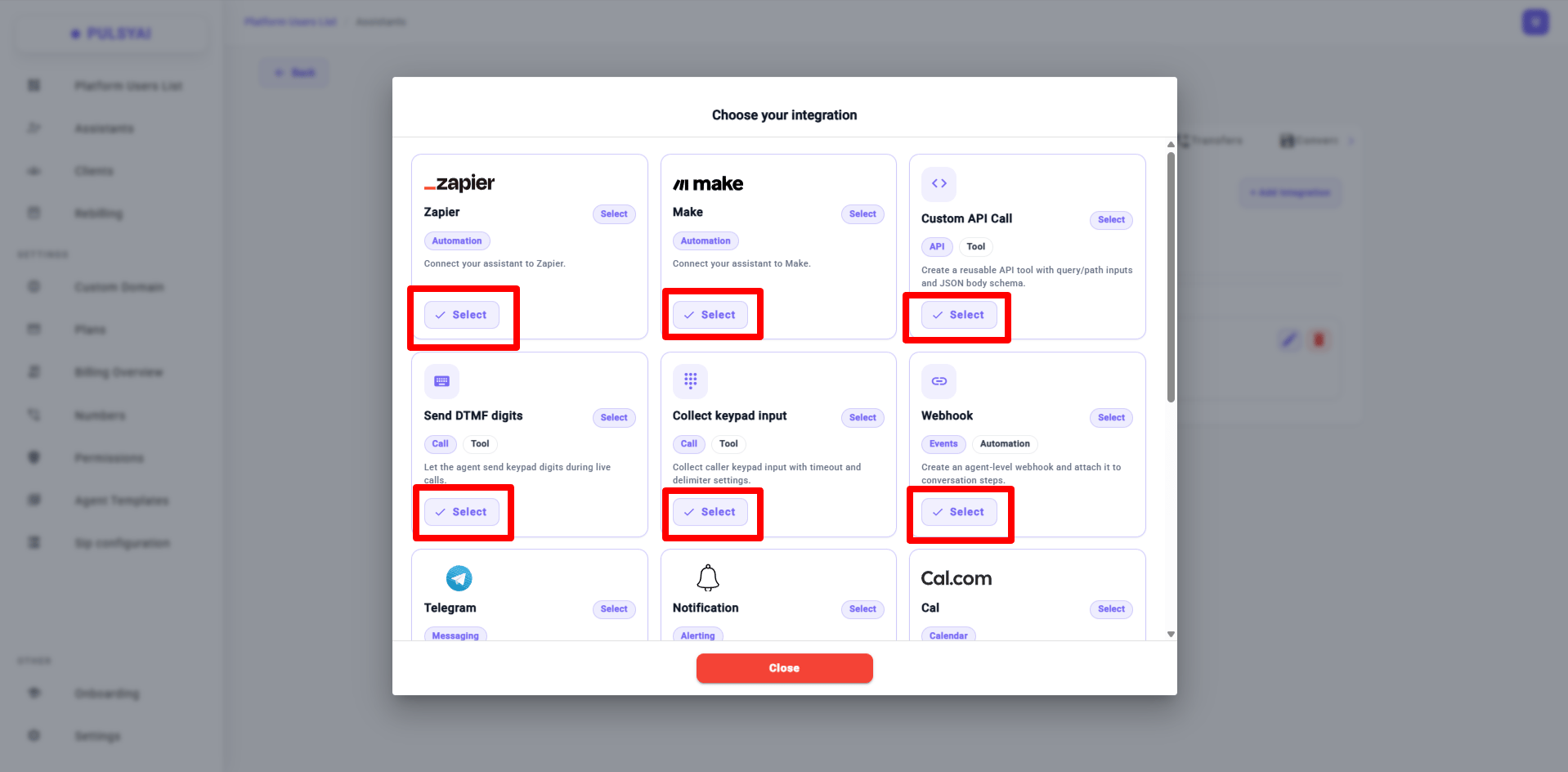
4
Configure and save
Fill in the required fields, then click Add or Save.
5
(If applicable) Attach to a Call Flow step
Open the Call Flows tab → click the step where the integration should fire → click + Connect Action → if your integration appears in the list, attach it. If it doesn’t appear, the integration runs automatically — no further action needed.
Defining extractable fields
An extractable field is a piece of structured data your PulsyAI voice agent collects from the live conversation and passes to a connected integration. Many PulsyAI integrations (Zapier, Make, Notifications, and others that send structured call data) share the same 4-input pattern for each field you want to capture:- Field name — the human-readable name of the data point.
- Field description — the instruction that tells the LLM what to extract. The clearer this is, the more accurate the extraction.
- Field key — the exact key your downstream integration expects (must match your Zap, scenario, or notification template).
- Data type — string, number, or boolean.
Available integrations
PulsyAI ships with integrations across seven categories. Each one is configured from the Integrations tab inside your assistant.Calendar & Booking
Cal.com
CRM
GoHighLevel
Messaging
Telegram, Meta pages
Automation
Zapier, Make, Webhook, Call Back, Stale Conversations
In-Call Tools
Send DTMF digits, Collect keypad input
API
Custom API Call
Alerting
Notifications
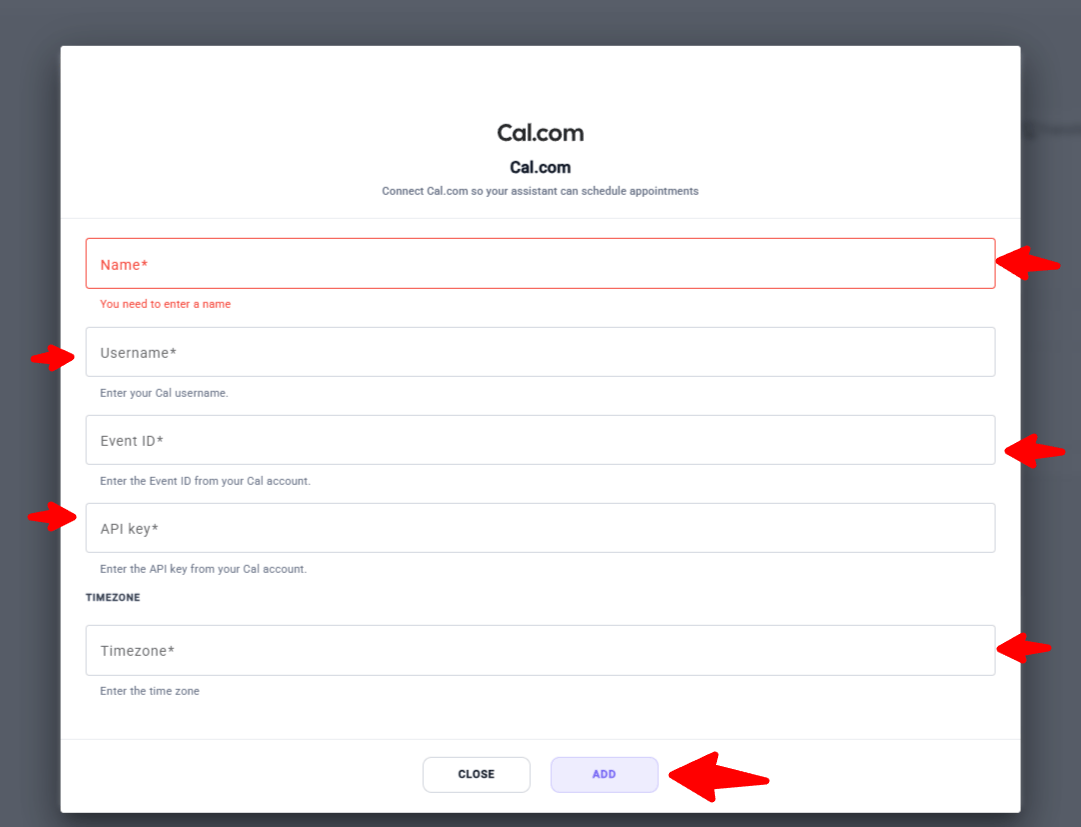
Cal.com
Cal.com is a calendar integration that lets your PulsyAI voice agent book appointments directly into your Cal.com schedule during a phone call. Configuration fields:- Name — any descriptive name.
- Username — your Cal username.
- Event ID — from your Cal account; identifies the specific event type.
- API key — from your Cal account.
- Timezone.
GoHighLevel (GHL)
GoHighLevel is a CRM integration that connects your PulsyAI voice agent to your GoHighLevel subaccount — syncing contacts, calendars, opportunities, and conversations. Setup uses an OAuth flow. Click Select, then follow the on-screen authentication steps to authorize your GHL subaccount.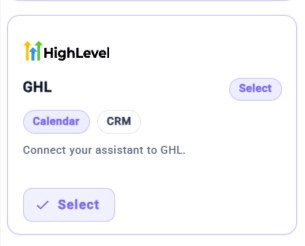
Telegram
Telegram is a messaging integration that connects your PulsyAI chatbot to a Telegram bot, enabling text-based conversations with your customers directly through Telegram chats. Configuration fields:- Bot token — paste the token from BotFather.
Meta pages
Meta pages is a messaging integration that connects your PulsyAI chatbot to Facebook Messenger through your Meta account, letting you handle inbound messages from customers who chat with your business pages. Setup uses OAuth via Meta. Click Select, sign in with your Meta account, and authorize the pages you want connected.
Zapier
Zapier is an automation integration that pushes structured call data from your PulsyAI voice agent to any Zapier-connected app. Configuration fields:- Name — a descriptive name.
- Zap ID — found at the end of your Zap URL.
- Fields — uses the extractable fields pattern documented above.
Make
Make is an automation integration identical in structure to Zapier — it pushes structured call data from your PulsyAI voice agent to your Make scenarios. Configuration mirrors Zapier exactly (Name + scenario ID + extractable fields). See the Zapier section above for the field pattern.
Webhook
A webhook is an automation integration that posts call lifecycle events from your PulsyAI voice agent to your own HTTPS endpoint. Configuration fields:- Webhook URL — your endpoint.
- Event — dropdown; either
call_startorcall_end.
Custom API Call
A Custom API Call is a reusable API tool your PulsyAI voice agent can invoke during a call to send or fetch data from any HTTP endpoint. Configuration fields:- Action Name — letters, numbers, and underscores only; must start with a letter or underscore. This is the name the LLM uses to invoke the tool.
- HTTP Method — dropdown, default POST.
- Endpoint URL — full
http://orhttps://URL. - Description — the prompt-side hint that teaches the LLM when to call this tool. Write it clearly and intent-focused.
- Headers — key/value pairs (auth tokens, content-type, etc.).
- Request Schema — JSON Schema. Use
{}for no schema, or definequery(for query string / path params) and/orbody(for JSON payload) sections. - Args only toggle — pass arguments directly without wrapping them in a body object.
- Schema Examples — pre-built starting templates: Customer Lookup, New Customer, Support Ticket Update.
Send DTMF digits
Send DTMF digits is an in-call tool that lets your PulsyAI voice agent send keypad digits during an active phone call — useful for navigating IVR menus, entering extensions, or submitting keypad codes during outbound calls. Configuration fields:- Name and Description — both pre-filled with sensible defaults.
Collect keypad input
Collect keypad input is an in-call tool that captures DTMF digits pressed by the caller, then processes them once a timeout or delimiter is reached. Configuration fields:- Timeout — seconds to wait before processing gathered input (default 10).
- Delimiters — comma-separated single characters that signal input is complete (default
#,*; leave blank for no delimiter).
Notifications
Notifications is an alerting integration that sends call summaries or extracted call data to a team member by SMS or email after the call ends. Configuration fields:- Type — Text message or Email.
- Targets — one or more phone numbers or email addresses (add as many as you need).
- Fields — extractable fields pattern (see the section above).
Call Back
Call Back is an automation integration that re-engages callers who disconnected early — either through an automated SMS or an automated phone callback by your PulsyAI voice agent. Configuration fields:- Condition — defines when the callback fires (for example: “caller hung up before the booking was confirmed”).
- Action — choose between SMS Agent (re-engage by text) or Phone agent (the AI calls the missed caller back).
Stale Conversations
Stale Conversations is an automation integration that handles silent conversations with two independent timers — one that pushes lead data to your connected integrations, and one that triggers your PulsyAI voice agent to automatically re-engage the caller by SMS. Configuration fields:- How long until stale conversations are pushed to your integrations — the delay after which lead data is automatically forwarded to your connected CRM, automation platform, or webhook (minutes / hours / days).
- How long until stale conversations are relaunched by the assistant — the delay after which the assistant sends a re-engagement SMS.
- Max relaunch attempts — caps how many re-engagement messages the assistant sends before giving up.
Stale Conversations is always-on once configured. It does not need to be connected to a Call Flow step.
Always-on vs step-attached integrations
Some PulsyAI integrations run automatically once configured (always-on), while others must be attached to a specific Call Flow step using + Connect Action.Always-on integrations
Configure them in the Integrations tab and they fire on their own based on the conditions you set:- Stale Conversations
- Call Back
Step-attached integrations
Configure them first in the Integrations tab, then attach them to a specific step in the Call Flow editor via + Connect Action:- Cal.com
- GoHighLevel
- Zapier
- Make
- Webhook (when configured for
call_endwith form entries) - Custom API Call
- Send DTMF digits
- Collect keypad input
- Notifications
- Telegram
- Meta pages