> ## Documentation Index
> Fetch the complete documentation index at: https://docs.pulsyai.com/llms.txt
> Use this file to discover all available pages before exploring further.
# Interface Colors
> Customize the PulsyAI platform color scheme to match your brand identity. Configure primary, secondary, and accent colors across the entire interface.
Interface colors let you customize the PulsyAI platform's color scheme to match your brand — your selected color becomes the primary accent across buttons, active navigation states, interactive controls, and other branding touchpoints throughout your white-labeled platform.
## Where to find Interface Colors
Interface colors are configured from the **Settings** page in the white-label admin. Click **Settings** at the bottom of the left sidebar — the **Change Theme Color** button sits at the top of the Settings page, next to **Add Logo**.
.png?fit=max&auto=format&n=6GTIrmu0x2zb1-oE&q=85&s=2300894ed2633c15de5738901fc15f35) ## Three ways to choose your color
Clicking **Change Theme Color** opens a modal with three different ways to select your brand color — use whichever fits your workflow.
## Three ways to choose your color
Clicking **Change Theme Color** opens a modal with three different ways to select your brand color — use whichever fits your workflow.
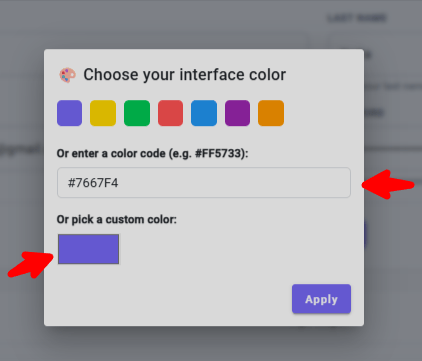 **1. Preset color swatches** — A row of seven curated presets sits at the top of the modal. Click any swatch to select it instantly. Useful when you want a clean, balanced color without thinking about exact values.
**2. HEX code input** — Enter any HEX color value (for example, `#FF5733`) in the input field. This is the most direct way to use an exact brand color from your design system or company style guide.
**3. Custom color picker** — Click the colored square under **Or pick a custom color** to open a full visual picker.
**1. Preset color swatches** — A row of seven curated presets sits at the top of the modal. Click any swatch to select it instantly. Useful when you want a clean, balanced color without thinking about exact values.
**2. HEX code input** — Enter any HEX color value (for example, `#FF5733`) in the input field. This is the most direct way to use an exact brand color from your design system or company style guide.
**3. Custom color picker** — Click the colored square under **Or pick a custom color** to open a full visual picker.
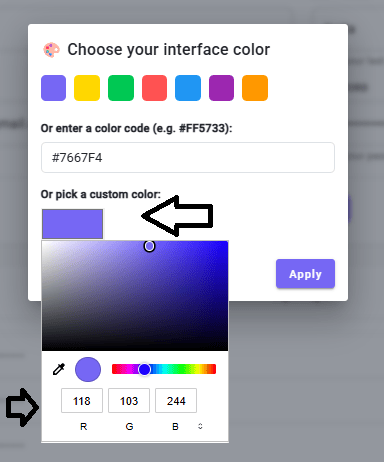 The custom picker gives you:
* A **saturation and lightness gradient** to fine-tune the exact shade.
* A **hue slider** (rainbow strip) to scan through the color spectrum.
* An **eyedropper** to sample colors from anywhere on your screen — handy for matching a color from your existing website or logo.
* Editable **RGB values** for pixel-precise color matching when you know your exact target values.
## Apply your color
From the Settings page, click **Change Theme Color** at the top.
Choose your color using one of the three methods above — a preset swatch, a HEX code, or the custom picker. As you make a selection, the preview square under **Or pick a custom color** updates to show your current choice.
Click **Apply** in the bottom-right of the modal. Your color is saved and immediately applied across your white-labeled platform — every user who accesses your platform, including your end-clients, sees the new color on their next interaction.
## Where your color appears
Your selected color becomes the primary accent across the PulsyAI interface. Visible elements include:
* Primary action buttons (Edit, Save, Add, Apply, and similar)
* Selected and active states in the left sidebar navigation
* Interactive controls, toggles, and form focus indicators
* Highlights, badges, and branding accents throughout the dashboard
The change is platform-wide, not user-specific — every account on your white-labeled platform displays the same selected color.
## Change your color later
To update your theme color, open the **Change Theme Color** modal again, select a new color, and click **Apply**. The new color overwrites the previous one immediately. There is no separate "Reset" option — to revert to PulsyAI's default, set the HEX value back to `#7667F4` (or to whichever default color your platform shipped with).
For the cleanest brand consistency, match your interface color to the primary color of your logo and website. Avoid extremely light or extremely dark colors — they reduce contrast against text and can make buttons harder to read or interactive states harder to spot.
## Next step
Connect your Stripe account so you can rebill your end-clients directly on your own pricing.
The custom picker gives you:
* A **saturation and lightness gradient** to fine-tune the exact shade.
* A **hue slider** (rainbow strip) to scan through the color spectrum.
* An **eyedropper** to sample colors from anywhere on your screen — handy for matching a color from your existing website or logo.
* Editable **RGB values** for pixel-precise color matching when you know your exact target values.
## Apply your color
From the Settings page, click **Change Theme Color** at the top.
Choose your color using one of the three methods above — a preset swatch, a HEX code, or the custom picker. As you make a selection, the preview square under **Or pick a custom color** updates to show your current choice.
Click **Apply** in the bottom-right of the modal. Your color is saved and immediately applied across your white-labeled platform — every user who accesses your platform, including your end-clients, sees the new color on their next interaction.
## Where your color appears
Your selected color becomes the primary accent across the PulsyAI interface. Visible elements include:
* Primary action buttons (Edit, Save, Add, Apply, and similar)
* Selected and active states in the left sidebar navigation
* Interactive controls, toggles, and form focus indicators
* Highlights, badges, and branding accents throughout the dashboard
The change is platform-wide, not user-specific — every account on your white-labeled platform displays the same selected color.
## Change your color later
To update your theme color, open the **Change Theme Color** modal again, select a new color, and click **Apply**. The new color overwrites the previous one immediately. There is no separate "Reset" option — to revert to PulsyAI's default, set the HEX value back to `#7667F4` (or to whichever default color your platform shipped with).
For the cleanest brand consistency, match your interface color to the primary color of your logo and website. Avoid extremely light or extremely dark colors — they reduce contrast against text and can make buttons harder to read or interactive states harder to spot.
## Next step
Connect your Stripe account so you can rebill your end-clients directly on your own pricing.