> ## Documentation Index
> Fetch the complete documentation index at: https://docs.pulsyai.com/llms.txt
> Use this file to discover all available pages before exploring further.
# Agent Templates
> Build pre-configured agent templates your end-clients can deploy in seconds. Define scripts, knowledge bases, integrations, and settings as reusable templates.
Agent Templates are pre-configured AI agents that you build once in your own PulsyAI account and publish as reusable templates for every end-client in your white-labeled workspace. When a client creates a new AI agent, your published templates appear as one-click starting points — fully configured with your prompt, voice provider, integrations, and call flow settings — so the client only needs to add their business-specific knowledge to be production-ready.
## Where to find Agent Templates
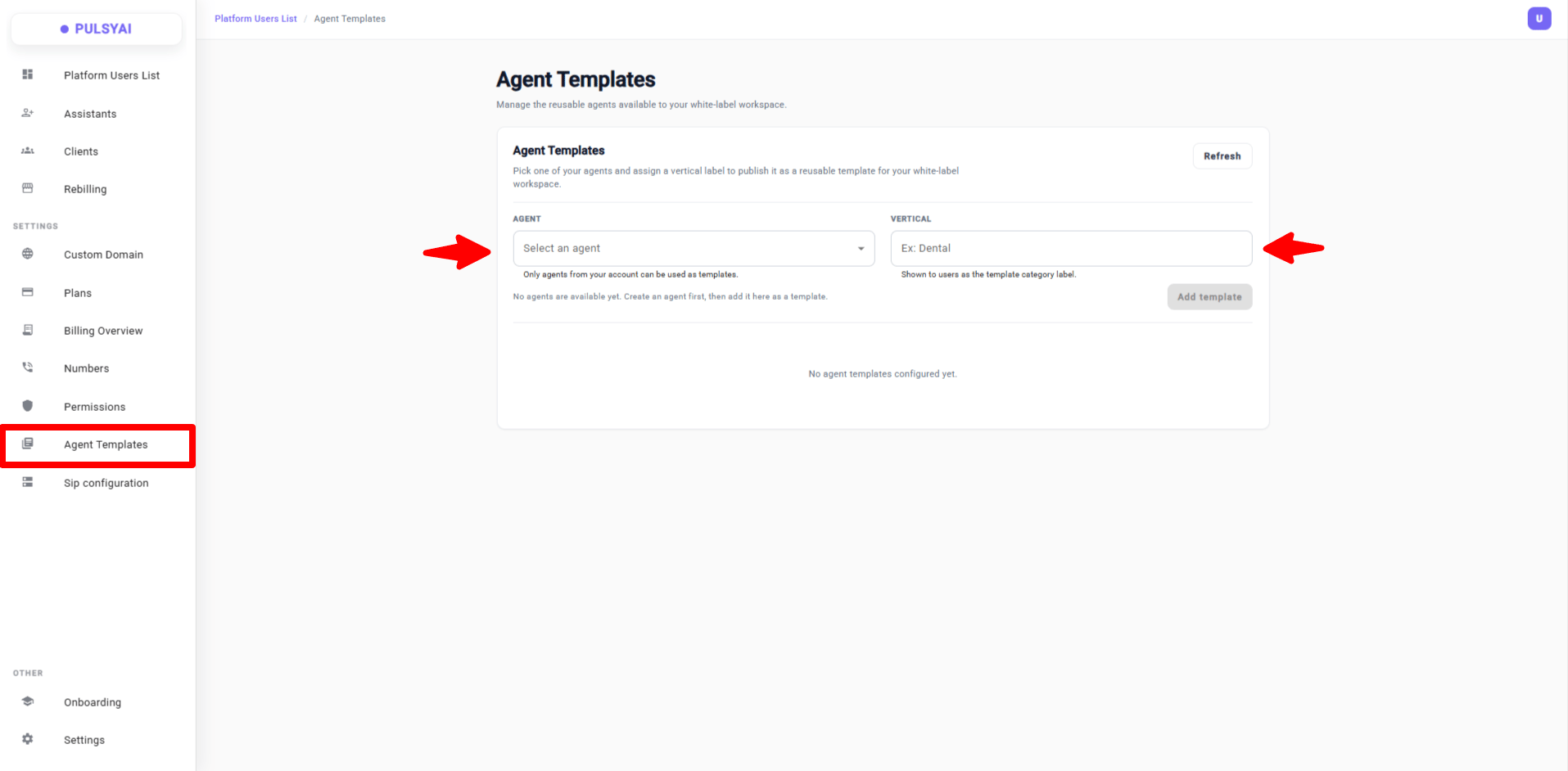
Click **Agent Templates** in the left sidebar of your white-label admin, under the **SETTINGS** section. The page opens to the Agent Templates management view, where you can publish new templates and review the ones you've already configured.
 ## Why use Agent Templates
Most PulsyAI resellers operate in a specific vertical — insurance brokerages, dental clinics, real estate agencies, plumbing companies, restaurants, auto dealerships, and so on. The AI agent script that works for a dental clinic is fundamentally different from the one that works for an insurance broker. Without templates, every one of your clients would have to write their own prompt from scratch — and they will almost certainly write a worse one than you would, because prompt engineering for voice AI is genuinely hard.
Agent Templates solve this by letting you do the high-skill work once:
* You craft a finely-tuned prompt for your vertical.
* You select the optimal voice provider and voice for the use case.
* You configure the call flow, integrations, transfers, and SMS behaviour the niche demands.
* You publish the agent as a template under a vertical label (for example, "Insurance" or "Dental").
From that point forward, every client in your workspace can deploy a pre-built, vertical-specific agent in a single click. They skip the prompt engineering entirely and only personalize the parts that are genuinely unique to their business.
The result: client onboarding goes from hours of back-and-forth prompt iteration to minutes of plug-and-play deployment.
## Create an Agent Template
To publish a template, you first need to have built and fully configured the source AI agent in your own account. The complete configuration of that agent becomes the template that your clients will receive.
Click **Agent Templates** in the left sidebar under SETTINGS.
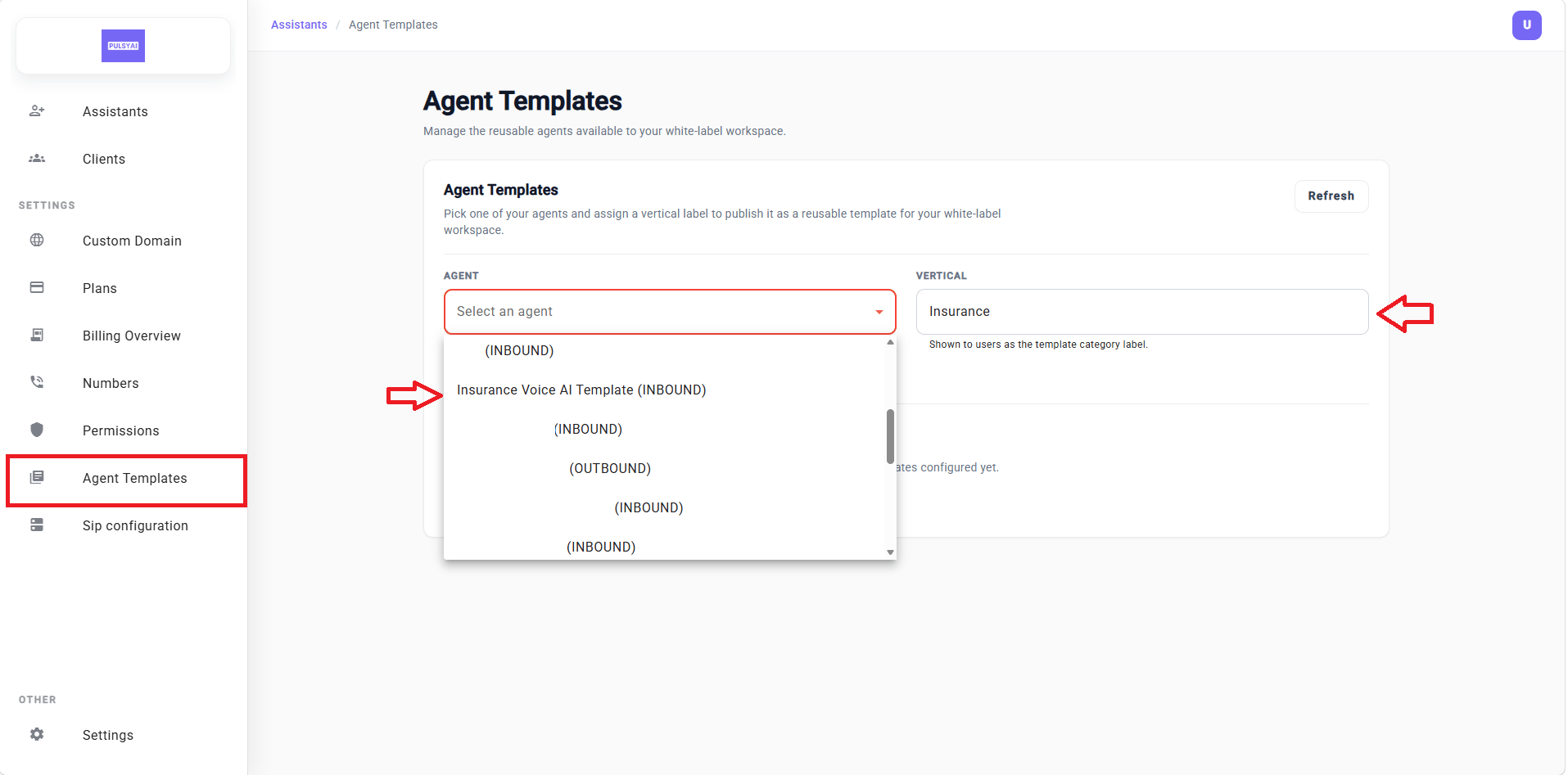
Open the **Agent** dropdown and choose one of the AI agents you have already created on your account. The dropdown lists every agent in your account along with its type — INBOUND, OUTBOUND, or SMS.
In the **Vertical** field, type the niche or category this template represents. Examples: "Insurance", "Dental", "Real Estate", "Plumbing", "Auto Repair", "Restaurants". This label is shown to your clients as the template category name when they browse available templates inside their account.
Click **Add template** to publish. The template immediately becomes available to every client who creates a new agent on your branded platform — both existing clients and any new client who signs up from this point on.
## Why use Agent Templates
Most PulsyAI resellers operate in a specific vertical — insurance brokerages, dental clinics, real estate agencies, plumbing companies, restaurants, auto dealerships, and so on. The AI agent script that works for a dental clinic is fundamentally different from the one that works for an insurance broker. Without templates, every one of your clients would have to write their own prompt from scratch — and they will almost certainly write a worse one than you would, because prompt engineering for voice AI is genuinely hard.
Agent Templates solve this by letting you do the high-skill work once:
* You craft a finely-tuned prompt for your vertical.
* You select the optimal voice provider and voice for the use case.
* You configure the call flow, integrations, transfers, and SMS behaviour the niche demands.
* You publish the agent as a template under a vertical label (for example, "Insurance" or "Dental").
From that point forward, every client in your workspace can deploy a pre-built, vertical-specific agent in a single click. They skip the prompt engineering entirely and only personalize the parts that are genuinely unique to their business.
The result: client onboarding goes from hours of back-and-forth prompt iteration to minutes of plug-and-play deployment.
## Create an Agent Template
To publish a template, you first need to have built and fully configured the source AI agent in your own account. The complete configuration of that agent becomes the template that your clients will receive.
Click **Agent Templates** in the left sidebar under SETTINGS.
Open the **Agent** dropdown and choose one of the AI agents you have already created on your account. The dropdown lists every agent in your account along with its type — INBOUND, OUTBOUND, or SMS.
In the **Vertical** field, type the niche or category this template represents. Examples: "Insurance", "Dental", "Real Estate", "Plumbing", "Auto Repair", "Restaurants". This label is shown to your clients as the template category name when they browse available templates inside their account.
Click **Add template** to publish. The template immediately becomes available to every client who creates a new agent on your branded platform — both existing clients and any new client who signs up from this point on.
 There is no limit on the number of templates you can publish. Most resellers create one template per vertical they serve.
## Manage your published templates
Once you've published at least one template, it appears in a list directly below the publishing form. Each entry shows the template name, the source agent ID, the vertical label currently assigned, and two actions: **Save** (to update the vertical label) and **Delete** (to remove the template entirely).
There is no limit on the number of templates you can publish. Most resellers create one template per vertical they serve.
## Manage your published templates
Once you've published at least one template, it appears in a list directly below the publishing form. Each entry shows the template name, the source agent ID, the vertical label currently assigned, and two actions: **Save** (to update the vertical label) and **Delete** (to remove the template entirely).
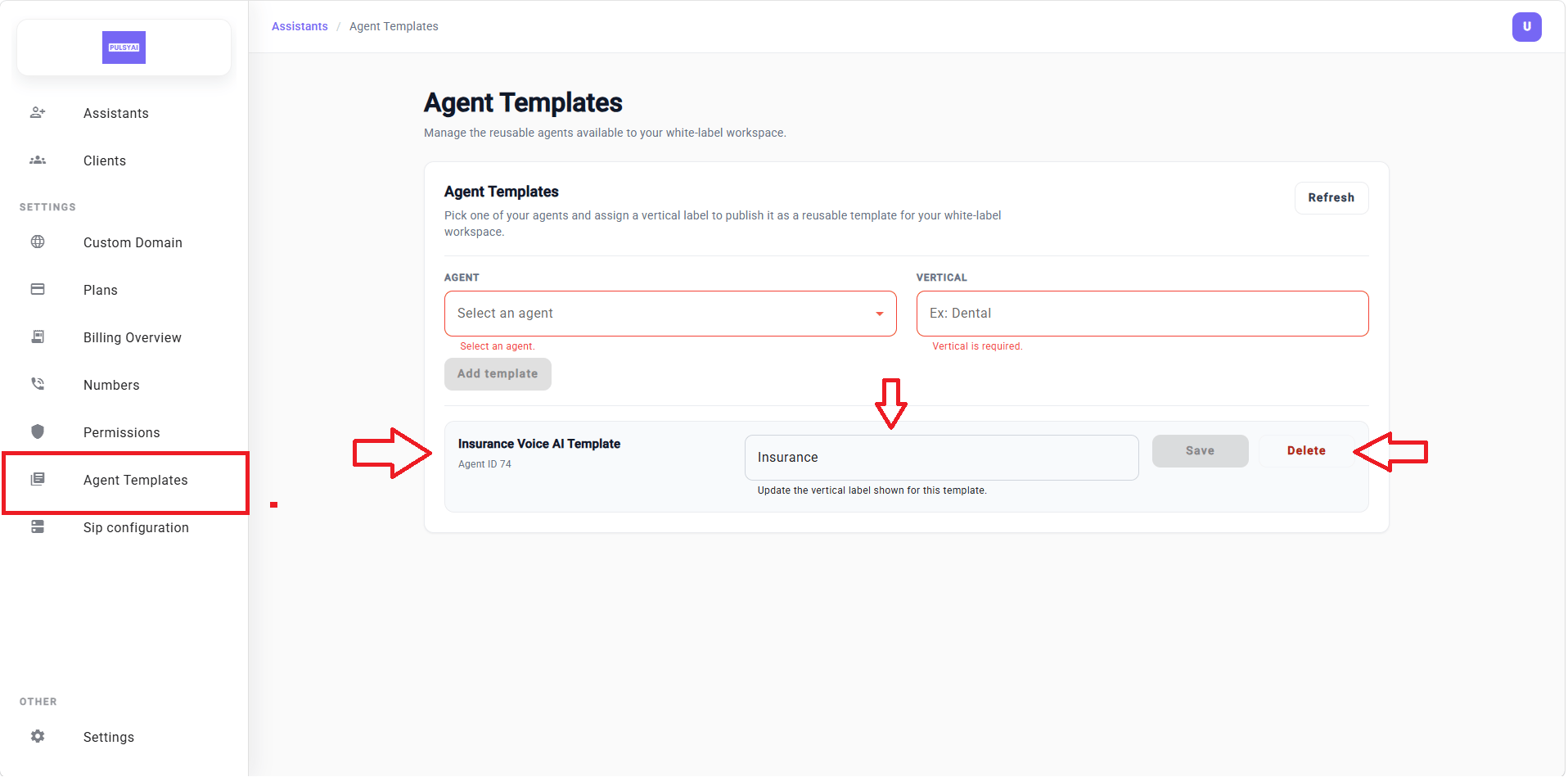 To rename the vertical label, type the new label into the field next to the template and click **Save**. The new label takes effect immediately across your workspace.
To remove a template entirely, click **Delete**. The template will no longer appear for any client and cannot be deployed by new ones.
**Editing your source agent does not update the published template or any existing client deployments.** Each piece is independent:
* **The template itself** — To refresh a template after editing its source agent, delete the current template and re-publish it. Only clients who deploy from this point on will receive the new configuration.
* **Existing client deployments** — Agents your clients have already created from a template are independent copies, frozen at the moment of deployment. They continue running with the original configuration even after you edit the source agent, delete the template, or re-publish it.
If you need to update an existing client's deployed agent, you can impersonate their subaccount and apply the change manually — but this is generally not recommended, as inconsistencies between your master agent and individual client deployments can introduce hard-to-debug behaviour over time. The safer approach is to publish a new template and let it apply forward to future deployments only.
You can also click the **Refresh** button at the top right of the card to reload the templates list if you've made changes elsewhere in your account.
## How clients deploy a template
When one of your end-clients creates a new AI agent in their subaccount, your published templates appear automatically inside their agent creation flow — branded under your white-label workspace and presented as one-click starting points.
The first choice a client makes when creating a new agent is the **agent type** — Inbound voice, Outbound voice, or SMS. Based on that choice, PulsyAI automatically filters the available templates to show only those that match the chosen type:
* If the client selects **Inbound**, they only see templates published from inbound source agents.
* If the client selects **Outbound**, they only see templates published from outbound source agents.
* If the client selects **SMS**, they only see templates published from SMS source agents.
Templates never cross over between types. This means you can confidently publish multiple templates for the same vertical — for example, an inbound "Insurance Voice AI Template" for inbound lead qualification calls and a separate outbound "Insurance Voice AI Template" for cold outreach — and each will only surface in the flow that matches its type.
To rename the vertical label, type the new label into the field next to the template and click **Save**. The new label takes effect immediately across your workspace.
To remove a template entirely, click **Delete**. The template will no longer appear for any client and cannot be deployed by new ones.
**Editing your source agent does not update the published template or any existing client deployments.** Each piece is independent:
* **The template itself** — To refresh a template after editing its source agent, delete the current template and re-publish it. Only clients who deploy from this point on will receive the new configuration.
* **Existing client deployments** — Agents your clients have already created from a template are independent copies, frozen at the moment of deployment. They continue running with the original configuration even after you edit the source agent, delete the template, or re-publish it.
If you need to update an existing client's deployed agent, you can impersonate their subaccount and apply the change manually — but this is generally not recommended, as inconsistencies between your master agent and individual client deployments can introduce hard-to-debug behaviour over time. The safer approach is to publish a new template and let it apply forward to future deployments only.
You can also click the **Refresh** button at the top right of the card to reload the templates list if you've made changes elsewhere in your account.
## How clients deploy a template
When one of your end-clients creates a new AI agent in their subaccount, your published templates appear automatically inside their agent creation flow — branded under your white-label workspace and presented as one-click starting points.
The first choice a client makes when creating a new agent is the **agent type** — Inbound voice, Outbound voice, or SMS. Based on that choice, PulsyAI automatically filters the available templates to show only those that match the chosen type:
* If the client selects **Inbound**, they only see templates published from inbound source agents.
* If the client selects **Outbound**, they only see templates published from outbound source agents.
* If the client selects **SMS**, they only see templates published from SMS source agents.
Templates never cross over between types. This means you can confidently publish multiple templates for the same vertical — for example, an inbound "Insurance Voice AI Template" for inbound lead qualification calls and a separate outbound "Insurance Voice AI Template" for cold outreach — and each will only surface in the flow that matches its type.
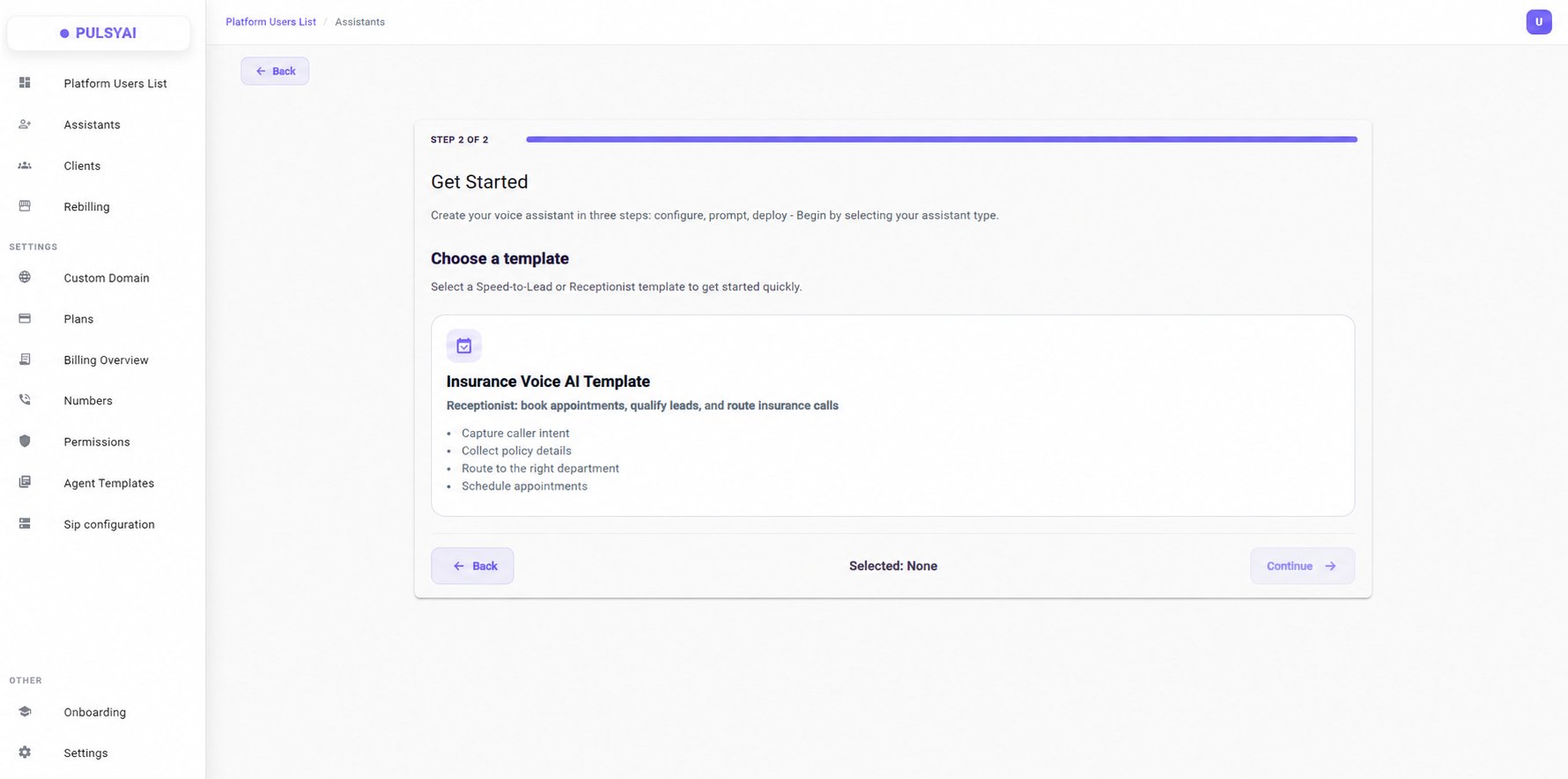 In the example shown, a client is creating an inbound agent on the reseller's branded platform and sees the **Insurance Voice AI Template** the reseller published earlier. Clicking the template instantly clones the reseller's full inbound configuration — prompt, voice provider, call flow, integrations, and all other settings — into the client's new agent. From there, the client only needs to add their Knowledge Base to make the agent production-ready for their business.
## What carries over to the client
When one of your clients deploys an agent from a template, the full configuration of your source agent is cloned into their new agent at the moment of deployment. This includes:
* **The full prompt or call script** — persona, opening line, conversation goals, objection handling, qualification questions, and closing logic.
* **The voice provider and selected voice** — including any provider-specific tuning applied to the source agent.
* **Call flow logic** — branching, conditions, transfers, and end-of-call destinations.
* **Agent settings** — language, timezone, greeting message, agent context variables, and other operational parameters.
The client receives a fully production-ready agent the moment they pick the template. They do not start from a blank prompt or default voice — every piece of expertise you encoded into the source agent is already in place on their side.
## What clients add on their end
After a client deploys a template, they (or you on their behalf during onboarding) need to handle a few things to make the agent fully production-ready for their business:
* **Knowledge Base** — Documents, files, or text snippets describing the client's specific business: services offered, pricing tables, hours of operation, FAQ content, team member names, and anything else the AI agent should know about that particular company.
* **Integrations** — Every AI agent on PulsyAI has its own unique agent ID, and integrations (webhook destinations, CRM connectors, automation triggers) are wired to a specific agent ID. Integrations do not carry over from the source agent because they would still be pointing to the original agent's ID. The deployed agent needs its integrations configured fresh — the same external services and accounts can be reused, only the wiring to the new agent ID is required.
* **SMS configuration** — For the same per-agent-ID reason, any SMS rules, send-live conditions, or text behaviour need to be reconfigured on the deployed agent rather than inherited from the source.
This is the right division of work between you and your client:
* **You** ship the expertise — the prompt engineering, voice selection, and call flow design that takes deep technical knowledge to get right.
* **The client** (or you during onboarding) ships the local context — business-specific knowledge, integration wiring, and SMS rules tailored to their account.
The result is an agent that sounds like your vertical-tuned product but knows about and connects to the client's specific company. The client still gets a high-quality voice AI in a fraction of the time it would take to build one from scratch — you scale across an entire niche without spending hours rewriting prompts.
## Next step
You've completed the white-label setup. Your branded platform is ready for end-clients — they can sign up, subscribe to your plans, and deploy production-ready AI agents from your templates with minimal friction. The next step is making sure you have great agents to publish in the first place.
Learn how to design, configure, and tune AI agents on PulsyAI — the foundation every Agent Template starts from.
In the example shown, a client is creating an inbound agent on the reseller's branded platform and sees the **Insurance Voice AI Template** the reseller published earlier. Clicking the template instantly clones the reseller's full inbound configuration — prompt, voice provider, call flow, integrations, and all other settings — into the client's new agent. From there, the client only needs to add their Knowledge Base to make the agent production-ready for their business.
## What carries over to the client
When one of your clients deploys an agent from a template, the full configuration of your source agent is cloned into their new agent at the moment of deployment. This includes:
* **The full prompt or call script** — persona, opening line, conversation goals, objection handling, qualification questions, and closing logic.
* **The voice provider and selected voice** — including any provider-specific tuning applied to the source agent.
* **Call flow logic** — branching, conditions, transfers, and end-of-call destinations.
* **Agent settings** — language, timezone, greeting message, agent context variables, and other operational parameters.
The client receives a fully production-ready agent the moment they pick the template. They do not start from a blank prompt or default voice — every piece of expertise you encoded into the source agent is already in place on their side.
## What clients add on their end
After a client deploys a template, they (or you on their behalf during onboarding) need to handle a few things to make the agent fully production-ready for their business:
* **Knowledge Base** — Documents, files, or text snippets describing the client's specific business: services offered, pricing tables, hours of operation, FAQ content, team member names, and anything else the AI agent should know about that particular company.
* **Integrations** — Every AI agent on PulsyAI has its own unique agent ID, and integrations (webhook destinations, CRM connectors, automation triggers) are wired to a specific agent ID. Integrations do not carry over from the source agent because they would still be pointing to the original agent's ID. The deployed agent needs its integrations configured fresh — the same external services and accounts can be reused, only the wiring to the new agent ID is required.
* **SMS configuration** — For the same per-agent-ID reason, any SMS rules, send-live conditions, or text behaviour need to be reconfigured on the deployed agent rather than inherited from the source.
This is the right division of work between you and your client:
* **You** ship the expertise — the prompt engineering, voice selection, and call flow design that takes deep technical knowledge to get right.
* **The client** (or you during onboarding) ships the local context — business-specific knowledge, integration wiring, and SMS rules tailored to their account.
The result is an agent that sounds like your vertical-tuned product but knows about and connects to the client's specific company. The client still gets a high-quality voice AI in a fraction of the time it would take to build one from scratch — you scale across an entire niche without spending hours rewriting prompts.
## Next step
You've completed the white-label setup. Your branded platform is ready for end-clients — they can sign up, subscribe to your plans, and deploy production-ready AI agents from your templates with minimal friction. The next step is making sure you have great agents to publish in the first place.
Learn how to design, configure, and tune AI agents on PulsyAI — the foundation every Agent Template starts from.