> ## Documentation Index
> Fetch the complete documentation index at: https://docs.pulsyai.com/llms.txt
> Use this file to discover all available pages before exploring further.
# Knowledge Base
> Upload websites and PDF documents to give your AI assistant the source material it needs to answer caller questions accurately and consistently.
A knowledge base is the information your AI agent uses to answer questions accurately. It acts as the agent's source of truth — when a caller asks a question, the agent pulls the answer directly from the knowledge base instead of guessing. To open it, select an assistant and click the **Knowledge** tab.
## Adding a Knowledge Base
You can build a knowledge base from two source types:
Enter a website URL and PulsyAI scrapes the page content to build the knowledge base automatically.
\*\*PDF Document \*\* Upload a PDF document and PulsyAI extracts its content into the knowledge base.
## Adding from a Website
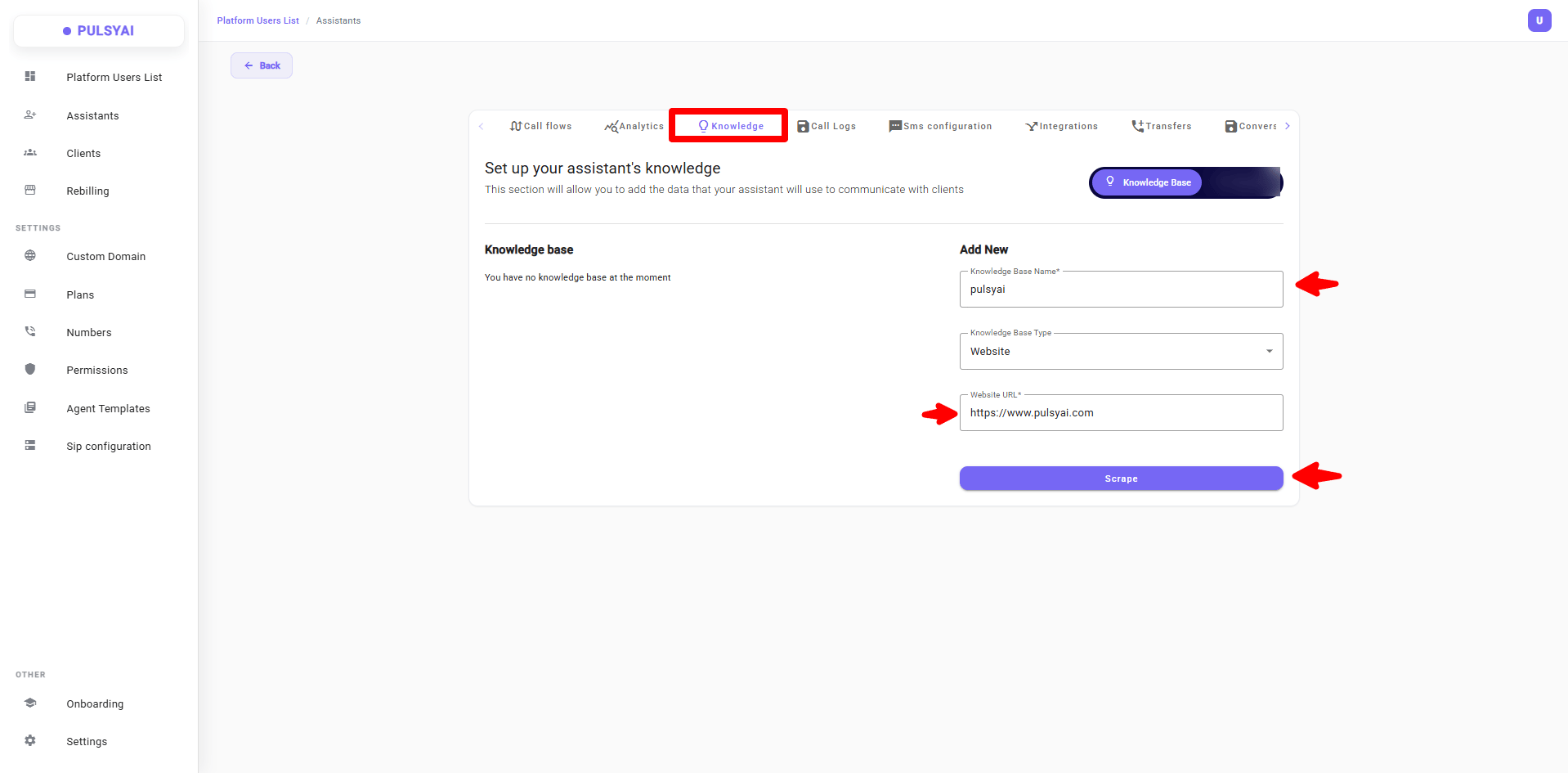 In the **Knowledge** tab, go to the **Add New** panel.
Enter a name in the **Knowledge Base Name** field.
Set **Knowledge Base Type** to **Website**.
Paste the **Website URL**.
Click **Scrape**. PulsyAI begins extracting the page content.
## Adding from a PDF Document
The process is the same as for a website — just select **PDF Document** as the **Knowledge Base Type** and upload your file instead of pasting a URL.
In the **Knowledge** tab, go to the **Add New** panel.
Enter a name in the **Knowledge Base Name** field.
Set **Knowledge Base Type** to **Website**.
Paste the **Website URL**.
Click **Scrape**. PulsyAI begins extracting the page content.
## Adding from a PDF Document
The process is the same as for a website — just select **PDF Document** as the **Knowledge Base Type** and upload your file instead of pasting a URL.
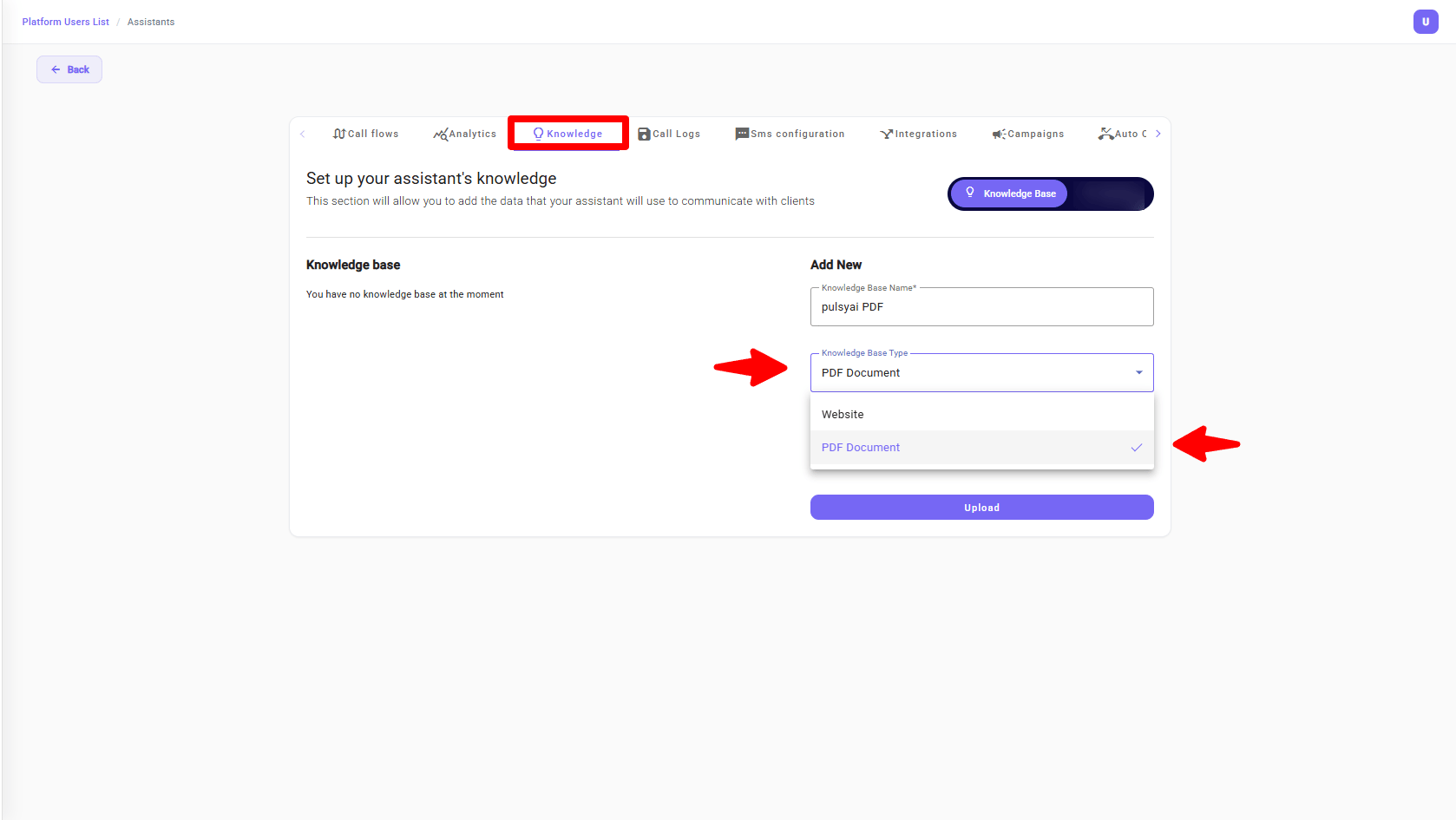 In the **Add New** panel, enter a **Knowledge Base Name**.
Set **Knowledge Base Type** to **PDF Document**.
Upload your PDF file. PulsyAI begins processing it automatically.
## Processing Status
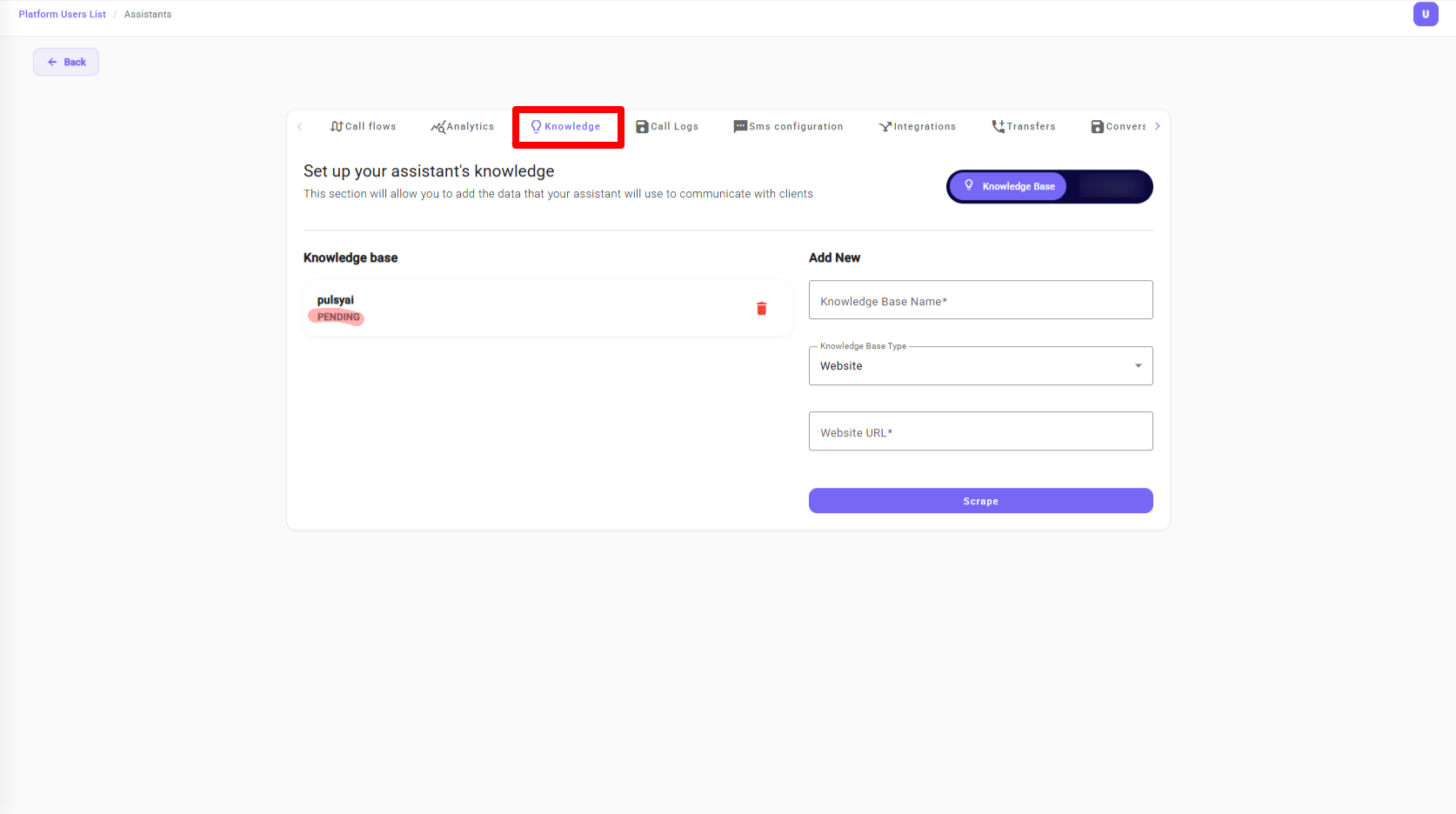
After you add a website or PDF, the knowledge base does not become active immediately. Its status starts as **Pending** while PulsyAI processes the content. Once processing is complete, the status changes to **Ready**, and the knowledge base becomes the agent's memory. You will also receive an email letting you know when processing is finished.
In the **Add New** panel, enter a **Knowledge Base Name**.
Set **Knowledge Base Type** to **PDF Document**.
Upload your PDF file. PulsyAI begins processing it automatically.
## Processing Status
After you add a website or PDF, the knowledge base does not become active immediately. Its status starts as **Pending** while PulsyAI processes the content. Once processing is complete, the status changes to **Ready**, and the knowledge base becomes the agent's memory. You will also receive an email letting you know when processing is finished.
 You can also paste knowledge directly into the Call Flow prompt box to reduce response latency. The knowledge base is best for larger reference content like full websites or documents.
## Next Steps
Design how your agent guides conversations and uses knowledge during calls.
Link PulsyAI to your tools to act on what the agent learns.
You can also paste knowledge directly into the Call Flow prompt box to reduce response latency. The knowledge base is best for larger reference content like full websites or documents.
## Next Steps
Design how your agent guides conversations and uses knowledge during calls.
Link PulsyAI to your tools to act on what the agent learns.