> ## Documentation Index
> Fetch the complete documentation index at: https://docs.pulsyai.com/llms.txt
> Use this file to discover all available pages before exploring further.
# Outbound campaigns
> Launch bulk outbound calling campaigns by uploading an XLSX contact list, mapping dynamic variables, and letting your AI agent personalize every call.
A PulsyAI Campaign is a scheduled outbound voice or SMS sequence that automatically reaches a list of contacts at a chosen date and time, using a contact list uploaded from an Excel (XLSX) file. Each contact is handled by your agent according to its Call Flow script, and any custom column in your Excel becomes a dynamic variable you can reference directly inside the script.
Campaigns are available on **Outbound voice AI agents** (for voice campaigns) and **SMS AI agents** (for SMS campaigns). They are not available on Inbound voice AI agents. For an overview of the three agent types, see [Key Concepts](/platform/key-concepts).
## Create a campaign
Campaigns are created from the **Campaigns** tab inside an Outbound voice AI agent or SMS AI agent.
Open your Outbound voice AI agent or SMS AI agent, then click the **Campaigns** tab.
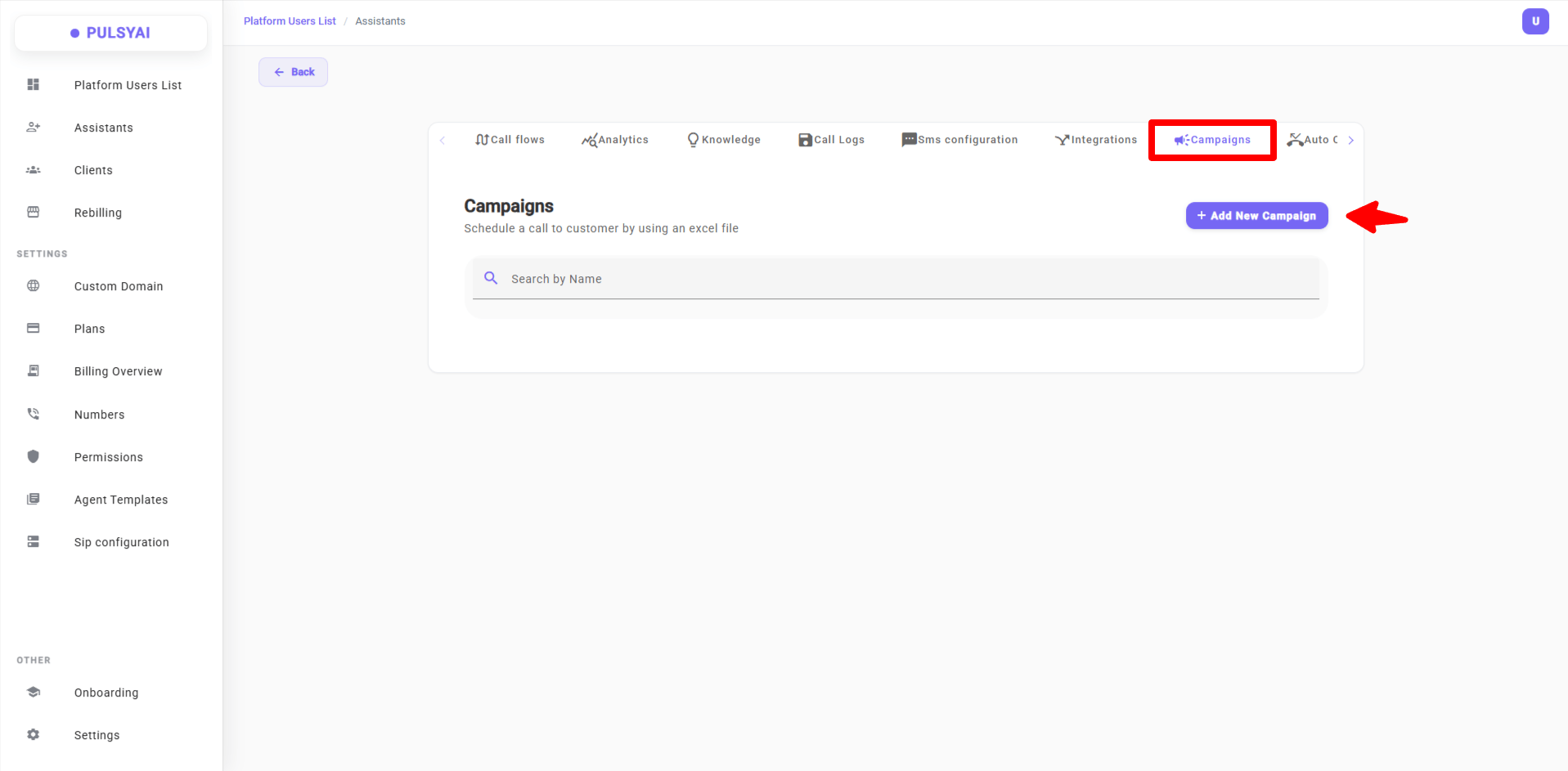 Click **+ Add New Campaign** at the top right.
In the **Create Campaign** modal, fill in:
* **Campaign Name** — a descriptive name for tracking.
* **Choose a date** — click the small calendar button to open the date picker and select the date the campaign should run (MM/DD/YYYY format).
* **Time** — the time the campaign should fire on that date.
* **Timezone** — the timezone of your contact list. The campaign fires at the chosen date and time in this timezone, so leads are reached at the appropriate local time for them.
Click **+ Add New Campaign** at the top right.
In the **Create Campaign** modal, fill in:
* **Campaign Name** — a descriptive name for tracking.
* **Choose a date** — click the small calendar button to open the date picker and select the date the campaign should run (MM/DD/YYYY format).
* **Time** — the time the campaign should fire on that date.
* **Timezone** — the timezone of your contact list. The campaign fires at the chosen date and time in this timezone, so leads are reached at the appropriate local time for them.
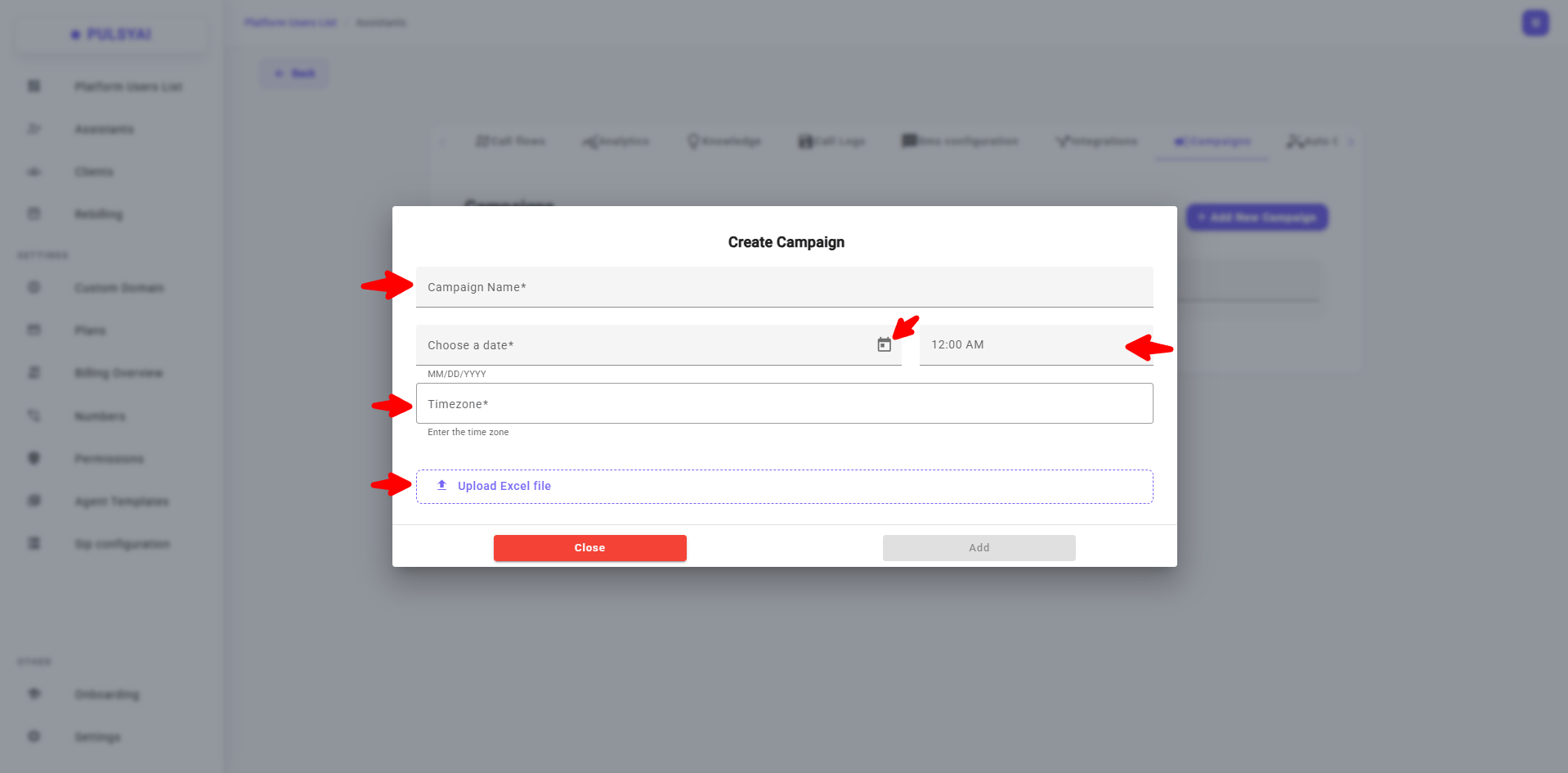 Click **Upload Excel file** and select your contact list (XLSX format only).
Click **Add** to save and schedule the campaign.
## Excel file format
Your Excel file is the contact list that powers your PulsyAI campaign — it tells the agent who to reach and supplies any additional data the script needs.
* **File format**: XLSX only.
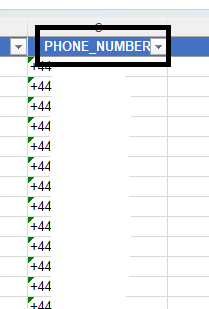
* **Required column**: `PHONE_NUMBER` — must be spelled exactly this way (uppercase with underscore). The phone number must be in E.164 format (international country code included), for example `+447733696134`.
Click **Upload Excel file** and select your contact list (XLSX format only).
Click **Add** to save and schedule the campaign.
## Excel file format
Your Excel file is the contact list that powers your PulsyAI campaign — it tells the agent who to reach and supplies any additional data the script needs.
* **File format**: XLSX only.
* **Required column**: `PHONE_NUMBER` — must be spelled exactly this way (uppercase with underscore). The phone number must be in E.164 format (international country code included), for example `+447733696134`.
 * **Custom columns**: all other columns are fully customizable. Name them however you want — `first_name`, `full_name`, `email_address`, `balance_due`, `last_purchase_date`, etc. Each becomes a dynamic variable available inside your agent's script.
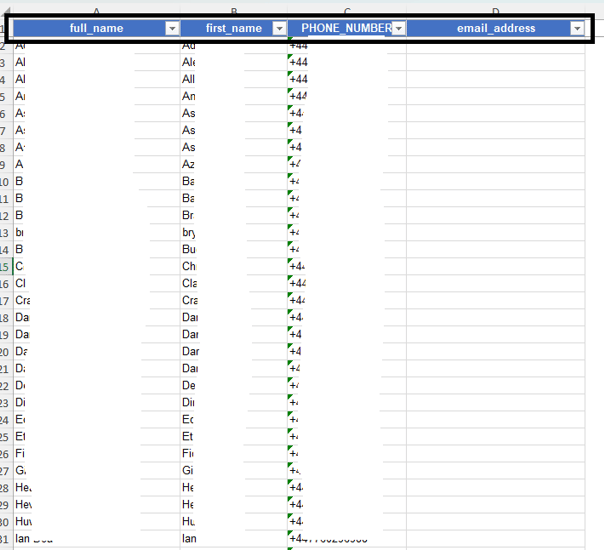 The `PHONE_NUMBER` column name is strict — it must be uppercase with an underscore, exactly as shown. Variations like `phone_number`, `Phone Number`, `PHONENUMBER`, or `Phone-Number` will not be recognized by PulsyAI and the campaign will fail to import.
If your Excel file contains multiple worksheets, use a single worksheet for your contact list to avoid ambiguity. Keep your campaign-specific data on one clean sheet.
## Using your Excel data in the agent script
Every column in your Excel file becomes a dynamic variable inside your agent's Call Flow script — letting the agent address each contact personally and adapt the conversation based on their data.
* Reference any Excel column using **single curly braces** with the **exact column name** from your file: `{first_name}`, `{full_name}`, `{email_address}`.
* The column name in your script must match the Excel header **exactly**, including case sensitivity. `{first_name}` matches `first_name`, but not `First_Name` or `firstname`.
* The `PHONE_NUMBER` column can also be referenced as `{PHONE_NUMBER}` in your script if you want the agent to confirm the number with the contact.
Example greeting line in your script:
> *"Hello `{first_name}`, this is your PulsyAI assistant calling from Acme Corp..."*
When the campaign fires, each call replaces `{first_name}` with the value from that contact's row in the Excel file.
For a complete walkthrough on building an outbound script with dynamic variables, conversational flows, objection handling, and best practices, see the [Build an Outbound AI Agent](/platform/build-an-outbound-ai-agent) guide.
## Campaign lifecycle
A PulsyAI campaign moves through three states during its lifetime:
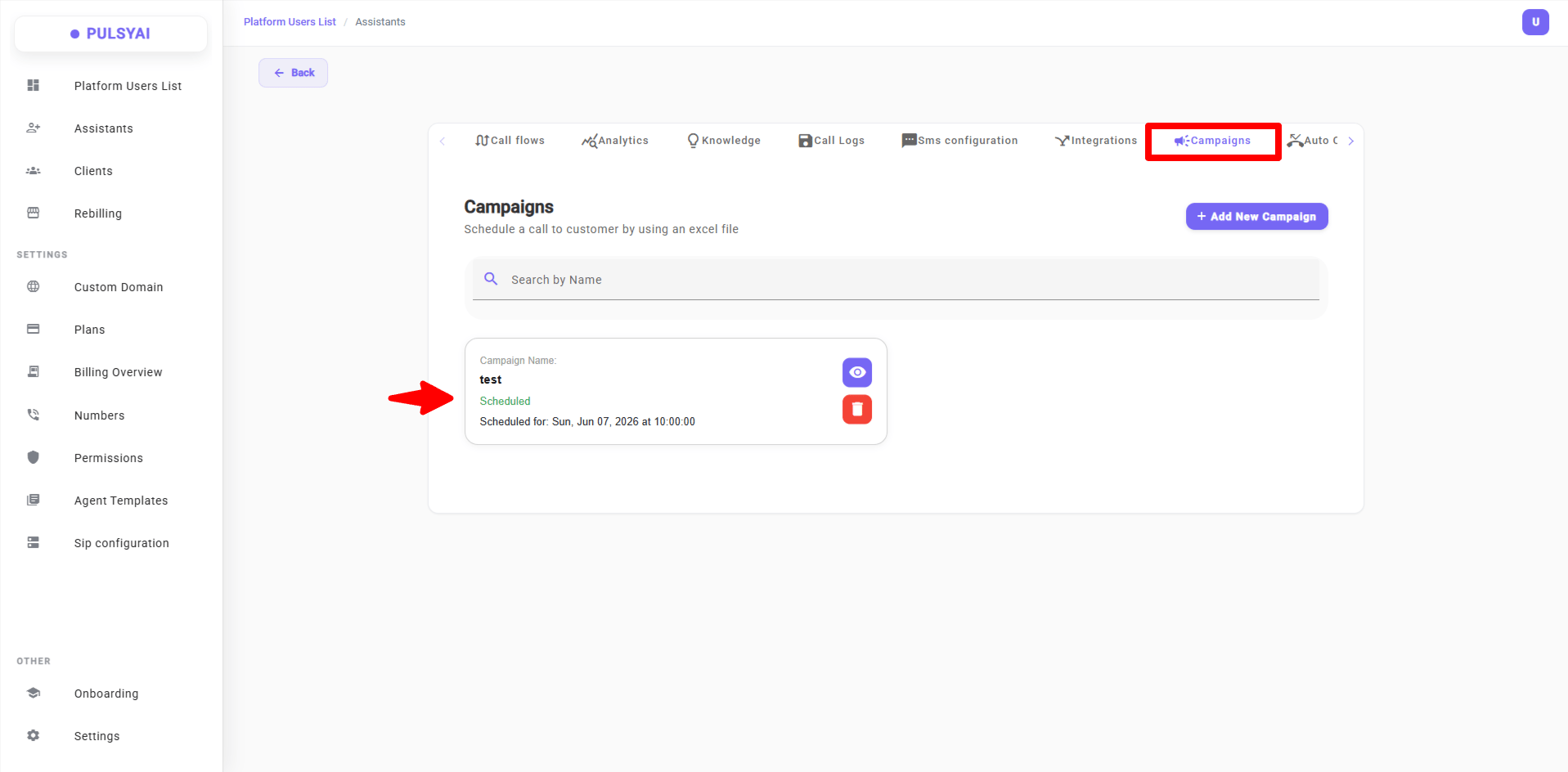
* **Scheduled** (green badge) — the campaign is queued and will start at the configured date and time. The card shows the scheduled execution time.
The `PHONE_NUMBER` column name is strict — it must be uppercase with an underscore, exactly as shown. Variations like `phone_number`, `Phone Number`, `PHONENUMBER`, or `Phone-Number` will not be recognized by PulsyAI and the campaign will fail to import.
If your Excel file contains multiple worksheets, use a single worksheet for your contact list to avoid ambiguity. Keep your campaign-specific data on one clean sheet.
## Using your Excel data in the agent script
Every column in your Excel file becomes a dynamic variable inside your agent's Call Flow script — letting the agent address each contact personally and adapt the conversation based on their data.
* Reference any Excel column using **single curly braces** with the **exact column name** from your file: `{first_name}`, `{full_name}`, `{email_address}`.
* The column name in your script must match the Excel header **exactly**, including case sensitivity. `{first_name}` matches `first_name`, but not `First_Name` or `firstname`.
* The `PHONE_NUMBER` column can also be referenced as `{PHONE_NUMBER}` in your script if you want the agent to confirm the number with the contact.
Example greeting line in your script:
> *"Hello `{first_name}`, this is your PulsyAI assistant calling from Acme Corp..."*
When the campaign fires, each call replaces `{first_name}` with the value from that contact's row in the Excel file.
For a complete walkthrough on building an outbound script with dynamic variables, conversational flows, objection handling, and best practices, see the [Build an Outbound AI Agent](/platform/build-an-outbound-ai-agent) guide.
## Campaign lifecycle
A PulsyAI campaign moves through three states during its lifetime:
* **Scheduled** (green badge) — the campaign is queued and will start at the configured date and time. The card shows the scheduled execution time.
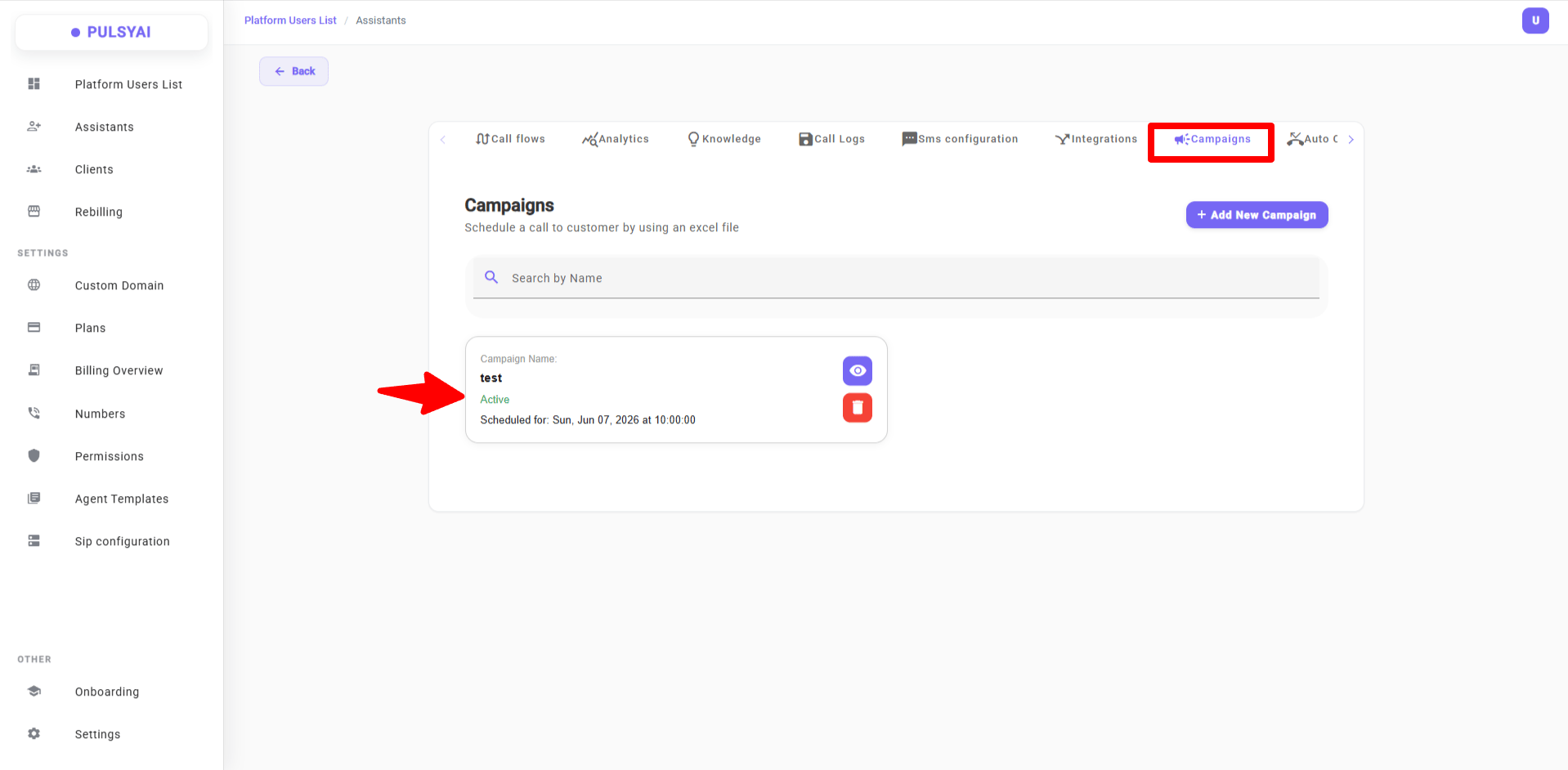
 * **Active** — the campaign is currently running. Calls or messages are being placed.
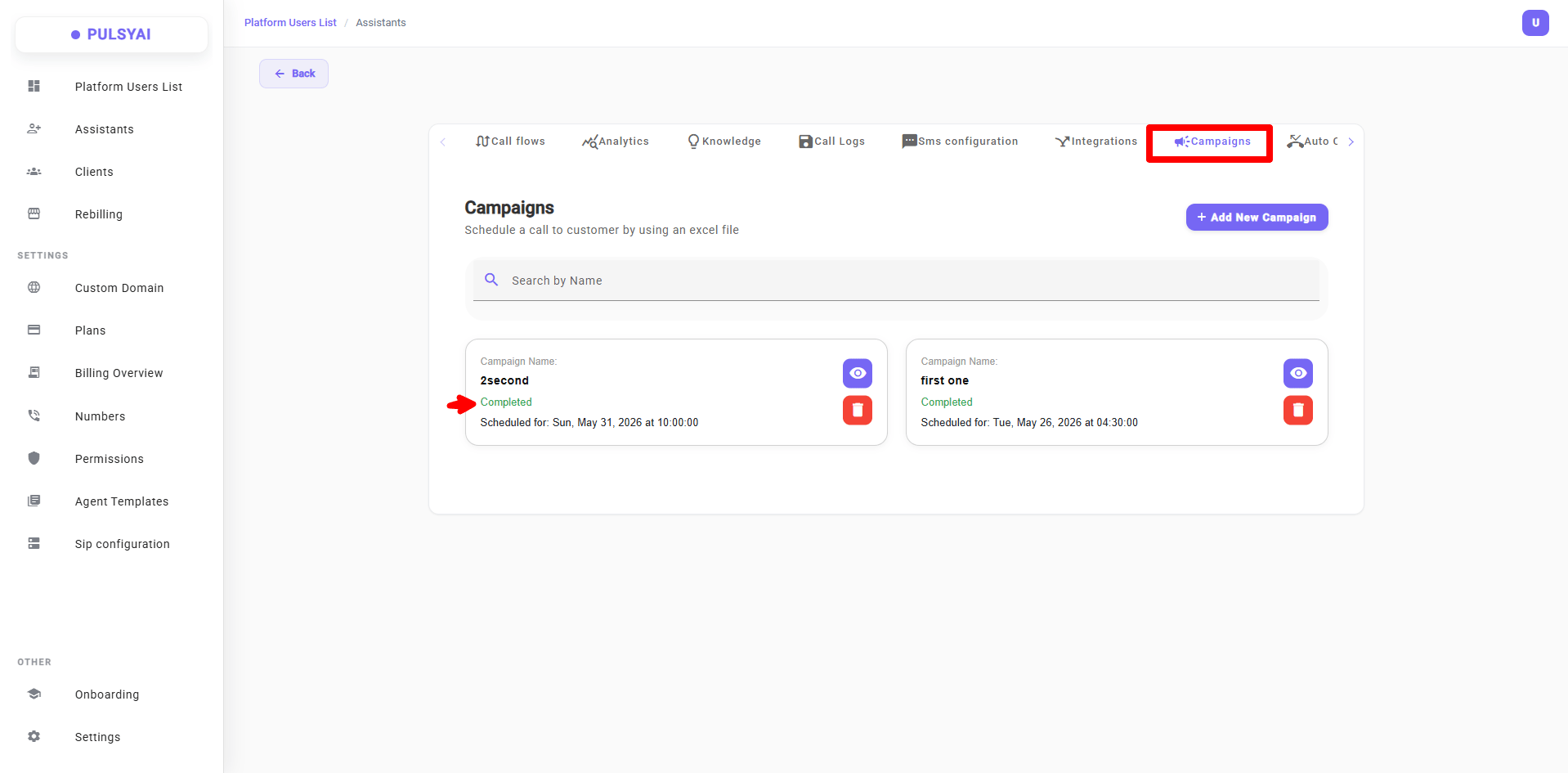
 * **Completed** — all contacts in the Excel file have been processed.
 ## Managing campaigns
Each campaign card includes a **Delete** action (red trash icon) that removes the campaign entirely from your list.
## Where to see campaign results
Every call or message placed by a PulsyAI campaign is logged in your agent's standard dashboards:
* **Call Logs** — individual call records, including duration, outcome, and transcripts.
* **Analytics** — aggregate metrics across your campaign and all your agent's activity.
You are responsible for ensuring your outbound campaigns comply with applicable telecom and consumer protection regulations in every jurisdiction where your contacts reside — including consent requirements, do-not-call (DNC) lists, calling-hour restrictions, and caller identification disclosure rules. PulsyAI provides the infrastructure to schedule and run campaigns; compliance with the laws of your region and your contacts' regions is your responsibility. For a broader overview of regulatory considerations, see [Compliance](/platform/compliance).
Most outbound calls will go unanswered on the first attempt. Use [Auto Call Back](/platform/auto-call-back) to automatically retry unanswered contacts within your configured business hours, and fall back to SMS if the contact never picks up.
## Managing campaigns
Each campaign card includes a **Delete** action (red trash icon) that removes the campaign entirely from your list.
## Where to see campaign results
Every call or message placed by a PulsyAI campaign is logged in your agent's standard dashboards:
* **Call Logs** — individual call records, including duration, outcome, and transcripts.
* **Analytics** — aggregate metrics across your campaign and all your agent's activity.
You are responsible for ensuring your outbound campaigns comply with applicable telecom and consumer protection regulations in every jurisdiction where your contacts reside — including consent requirements, do-not-call (DNC) lists, calling-hour restrictions, and caller identification disclosure rules. PulsyAI provides the infrastructure to schedule and run campaigns; compliance with the laws of your region and your contacts' regions is your responsibility. For a broader overview of regulatory considerations, see [Compliance](/platform/compliance).
Most outbound calls will go unanswered on the first attempt. Use [Auto Call Back](/platform/auto-call-back) to automatically retry unanswered contacts within your configured business hours, and fall back to SMS if the contact never picks up.