> ## Documentation Index
> Fetch the complete documentation index at: https://docs.pulsyai.com/llms.txt
> Use this file to discover all available pages before exploring further.
# Call Logs
> Review, filter, and analyze every call handled by your PulsyAI assistants — listen to recordings, inspect transcripts, and segment by outcome or date range.
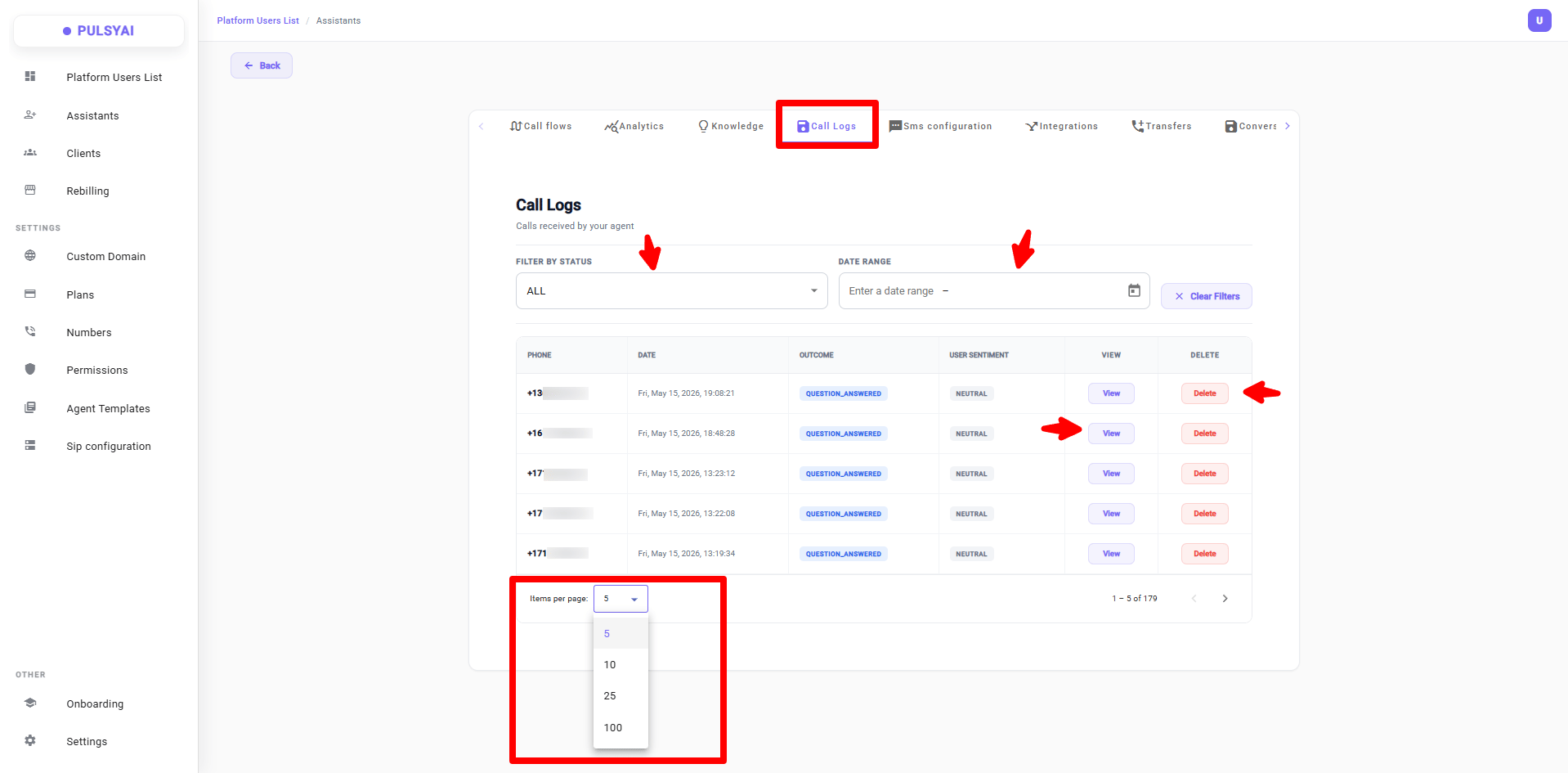
The Call Logs tab is the complete record of every call handled by your AI agents — inbound and outbound. For each call you can see the outcome, the caller's sentiment, and access the full transcript and recording.
To access it, open an assistant and click the **Call Logs** tab.
 ***
## What You See in the Table
Each row in the Call Logs table represents one call. The columns include:
| Column | Description |
| ------------------ | ------------------------------------------------------------------------------------------------------------------------------------------------------------------------------------------------------------------------------------------------------------------------- |
| **Phone** | The caller's or contact's phone number. |
| **Date / Time** | When the call occurred. |
| **Outcome** | The result of the call — e.g. Full Lead, MQL, Voicemail, No Answer, or any custom status you defined. You can define your own outcomes and assign a monetary value to each one in the [Analytics → Configure Analytics](/platform/analytics#configure-analytics) section. |
| **User Sentiment** | AI-assessed tone of the caller: positive, neutral, or negative. |
| **View** | Opens the full call detail — transcript, recording, and extracted data. |
| **Delete** | Permanently removes the call record. |
***
## Filters
Use the filters at the top of the table to narrow down the list:
* **Filter by Status** — Show only calls with a specific outcome (e.g. Full Lead, No Answer).
The statuses available in this filter reflect the outcomes you have configured. To create or customize your own statuses, go to [Analytics → Configure Analytics](/platform/analytics#configure-analytics).
* **Filter by Date Range** — Focus on a specific time window using the date picker.
***
## Items Per Page
Use the **Items per page** selector to control how many call records are displayed at once — up to **100 calls per page**. Use this when you want to review a large volume of calls without paginating.
***
## Viewing a Call
Click **View** on any row to open the full call detail modal.
***
## What You See in the Table
Each row in the Call Logs table represents one call. The columns include:
| Column | Description |
| ------------------ | ------------------------------------------------------------------------------------------------------------------------------------------------------------------------------------------------------------------------------------------------------------------------- |
| **Phone** | The caller's or contact's phone number. |
| **Date / Time** | When the call occurred. |
| **Outcome** | The result of the call — e.g. Full Lead, MQL, Voicemail, No Answer, or any custom status you defined. You can define your own outcomes and assign a monetary value to each one in the [Analytics → Configure Analytics](/platform/analytics#configure-analytics) section. |
| **User Sentiment** | AI-assessed tone of the caller: positive, neutral, or negative. |
| **View** | Opens the full call detail — transcript, recording, and extracted data. |
| **Delete** | Permanently removes the call record. |
***
## Filters
Use the filters at the top of the table to narrow down the list:
* **Filter by Status** — Show only calls with a specific outcome (e.g. Full Lead, No Answer).
The statuses available in this filter reflect the outcomes you have configured. To create or customize your own statuses, go to [Analytics → Configure Analytics](/platform/analytics#configure-analytics).
* **Filter by Date Range** — Focus on a specific time window using the date picker.
***
## Items Per Page
Use the **Items per page** selector to control how many call records are displayed at once — up to **100 calls per page**. Use this when you want to review a large volume of calls without paginating.
***
## Viewing a Call
Click **View** on any row to open the full call detail modal.
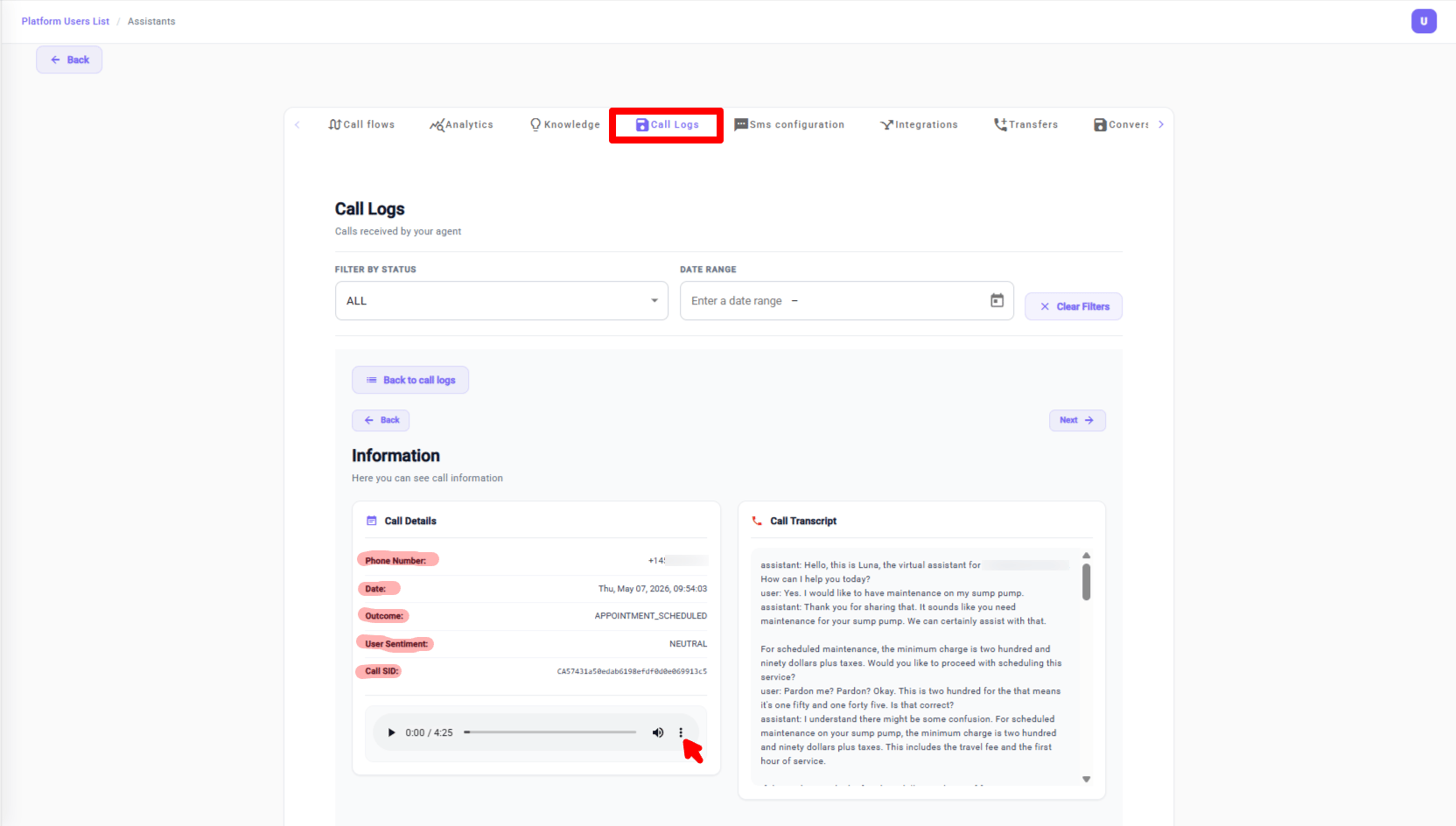 Inside you will find:
* **Call recording** — An audio player to listen back to the full call. Click the **three dots (⋯)** menu to download the recording or adjust the playback speed.
* **Transcript** — A full text transcript of the conversation. Messages labeled **User** are the human caller's responses. Messages labeled **Assistant** are what the AI agent said. The call detail panel also shows:
| Field | Description |
| ------------------ | --------------------------------------------------------------------------------------------------- |
| **Phone Number** | The caller's or contact's phone number. |
| **Date** | When the call occurred. |
| **Outcome** | The classified result of the call (e.g. Full Lead, MQL, No Answer). |
| **User Sentiment** | AI-assessed tone of the caller: positive, neutral, or negative. |
| **Call SID** | A unique identifier for this specific call. Always include it when contacting support about a call. |
***
## Next Steps
See aggregated performance metrics and revenue across all your agents.
Optimize your agent script based on what you find in the call logs.
Inside you will find:
* **Call recording** — An audio player to listen back to the full call. Click the **three dots (⋯)** menu to download the recording or adjust the playback speed.
* **Transcript** — A full text transcript of the conversation. Messages labeled **User** are the human caller's responses. Messages labeled **Assistant** are what the AI agent said. The call detail panel also shows:
| Field | Description |
| ------------------ | --------------------------------------------------------------------------------------------------- |
| **Phone Number** | The caller's or contact's phone number. |
| **Date** | When the call occurred. |
| **Outcome** | The classified result of the call (e.g. Full Lead, MQL, No Answer). |
| **User Sentiment** | AI-assessed tone of the caller: positive, neutral, or negative. |
| **Call SID** | A unique identifier for this specific call. Always include it when contacting support about a call. |
***
## Next Steps
See aggregated performance metrics and revenue across all your agents.
Optimize your agent script based on what you find in the call logs.