> ## Documentation Index
> Fetch the complete documentation index at: https://docs.pulsyai.com/llms.txt
> Use this file to discover all available pages before exploring further.
# Agent settings
> Configure PulsyAI agent settings — voice, language, AI model, latency, intro message, and behavior — to fine-tune how your assistant sounds and responds.
The Agent Settings panel — called **Global settings** in the Call Flows tab — controls how your AI agent sounds, thinks, and behaves on every call. These settings apply across the entire assistant, regardless of which call flow step is running. To open it, select an assistant, click the **Call flows** tab, and open the **Global settings** panel on the right side.
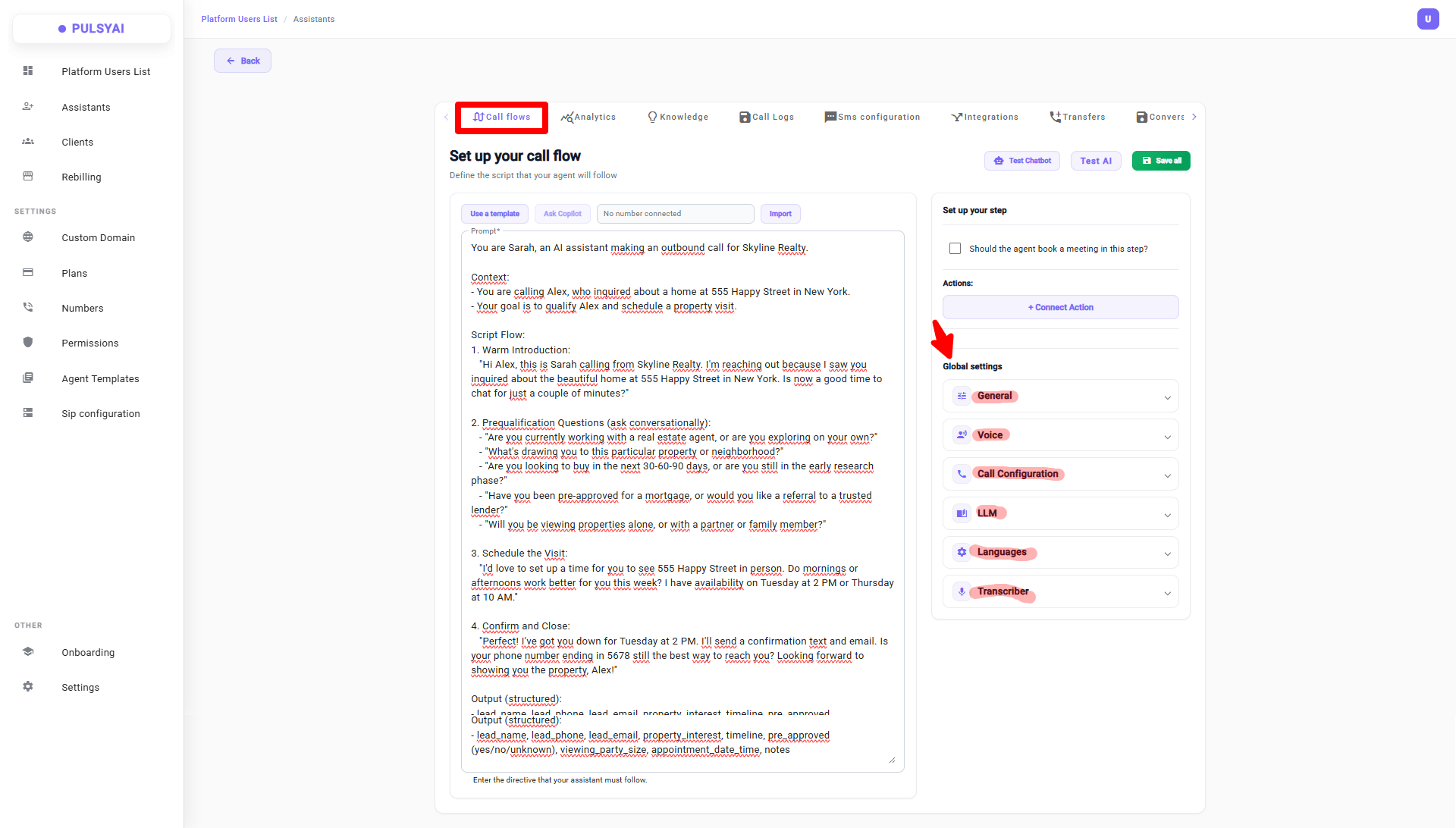 ## The Six Setting Groups
Assistant name, greeting message, and agent context.
Voice selection, speed and volume, intro message, and fallback voice.
Timezone, endpointing, latency, behavior, idle timeout, and capabilities.
AI model, max tokens, temperature, and fallback LLM.
One or multiple languages your agent can handle on a call.
Speech-to-text provider and model selection.
## General
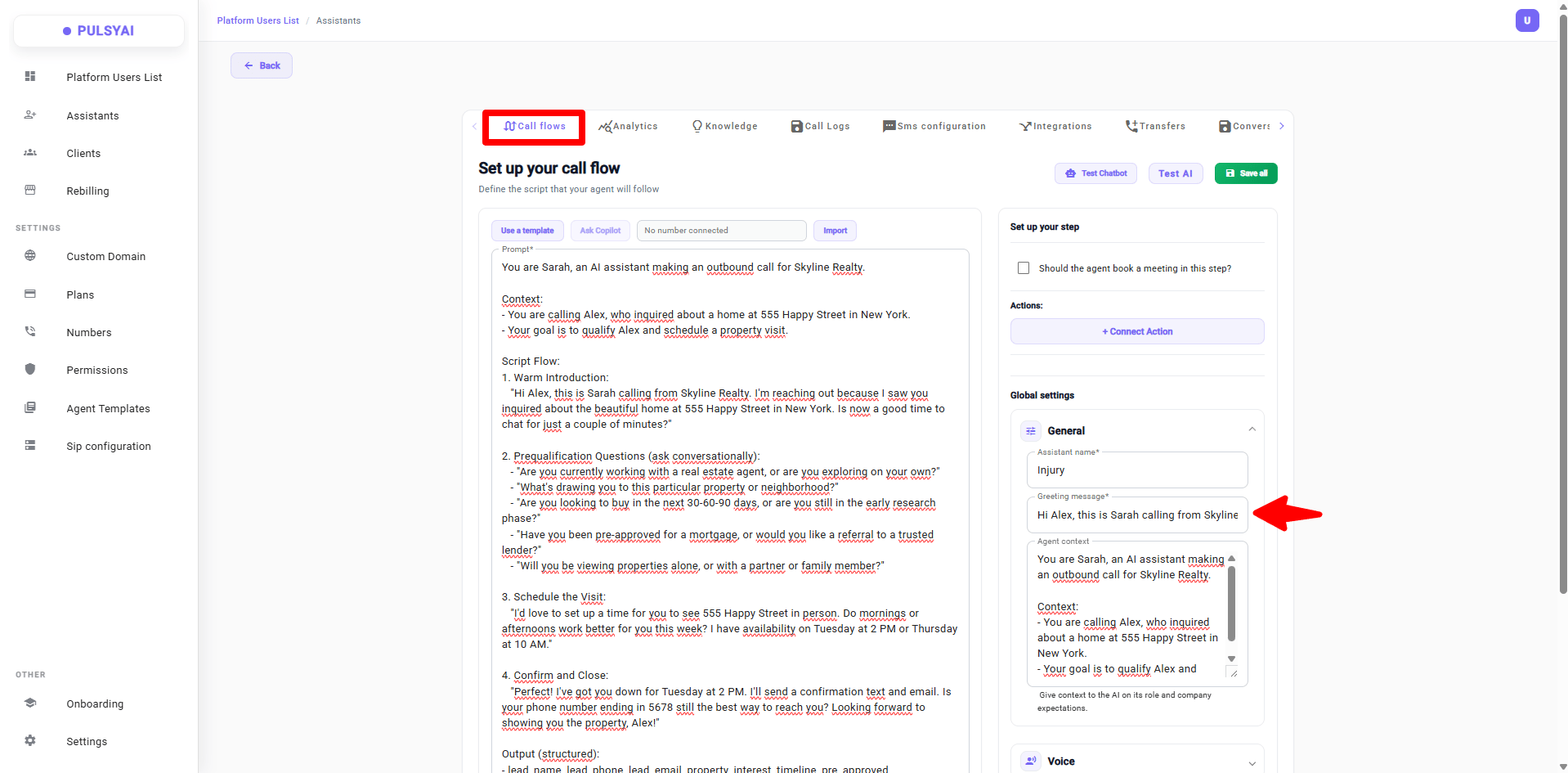
The General section sets your agent's identity and context.
The name used to identify this assistant internally — for example, "Front Desk Inbound" or "Sales Outbound US".
The first thing the agent says when a call starts — for example, "Hello and welcome to Chalets du Québec!"
Background information that gives the agent its role, tone, and company knowledge. For example: "You are an AI virtual assistant named Julia, responsible for answering calls and managing chalet rental bookings for a tourism agency in Quebec."
The greeting the agent actually says at the start of every call is the one set in the **Greeting Message** field above — not anything written in the Call Flow prompt box. If you write a different greeting inside the prompt box, it will be ignored. The **Greeting Message** field always takes priority and is the only greeting that gets used.
## The Six Setting Groups
Assistant name, greeting message, and agent context.
Voice selection, speed and volume, intro message, and fallback voice.
Timezone, endpointing, latency, behavior, idle timeout, and capabilities.
AI model, max tokens, temperature, and fallback LLM.
One or multiple languages your agent can handle on a call.
Speech-to-text provider and model selection.
## General
The General section sets your agent's identity and context.
The name used to identify this assistant internally — for example, "Front Desk Inbound" or "Sales Outbound US".
The first thing the agent says when a call starts — for example, "Hello and welcome to Chalets du Québec!"
Background information that gives the agent its role, tone, and company knowledge. For example: "You are an AI virtual assistant named Julia, responsible for answering calls and managing chalet rental bookings for a tourism agency in Quebec."
The greeting the agent actually says at the start of every call is the one set in the **Greeting Message** field above — not anything written in the Call Flow prompt box. If you write a different greeting inside the prompt box, it will be ignored. The **Greeting Message** field always takes priority and is the only greeting that gets used.
 ## Voice
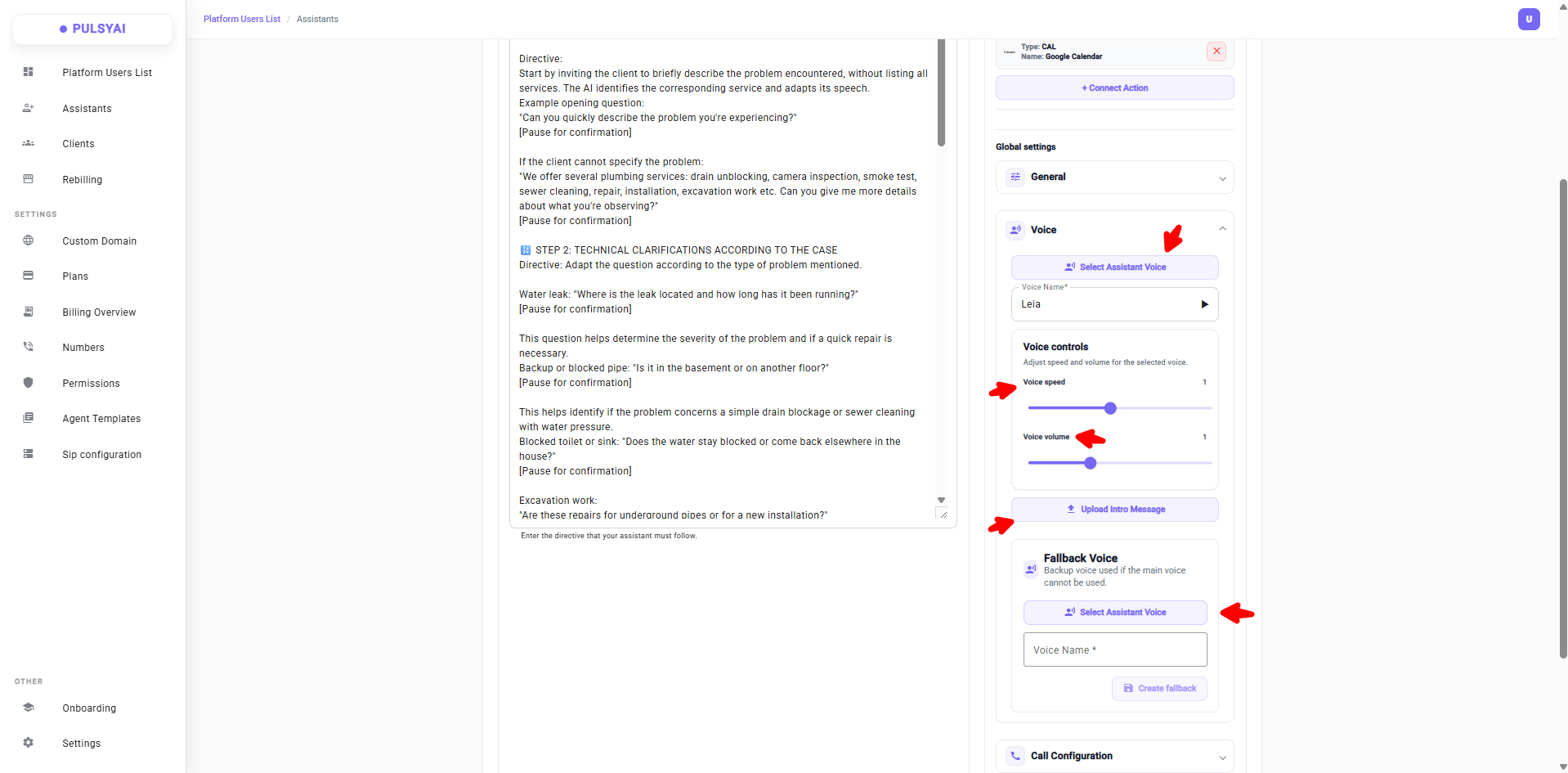
The Voice section controls how your agent sounds. PulsyAI supports a wide range of languages and local accents so partners can deploy agents that sound authentically local in any market.
## Voice
The Voice section controls how your agent sounds. PulsyAI supports a wide range of languages and local accents so partners can deploy agents that sound authentically local in any market.
 ### Select Assistant Voice
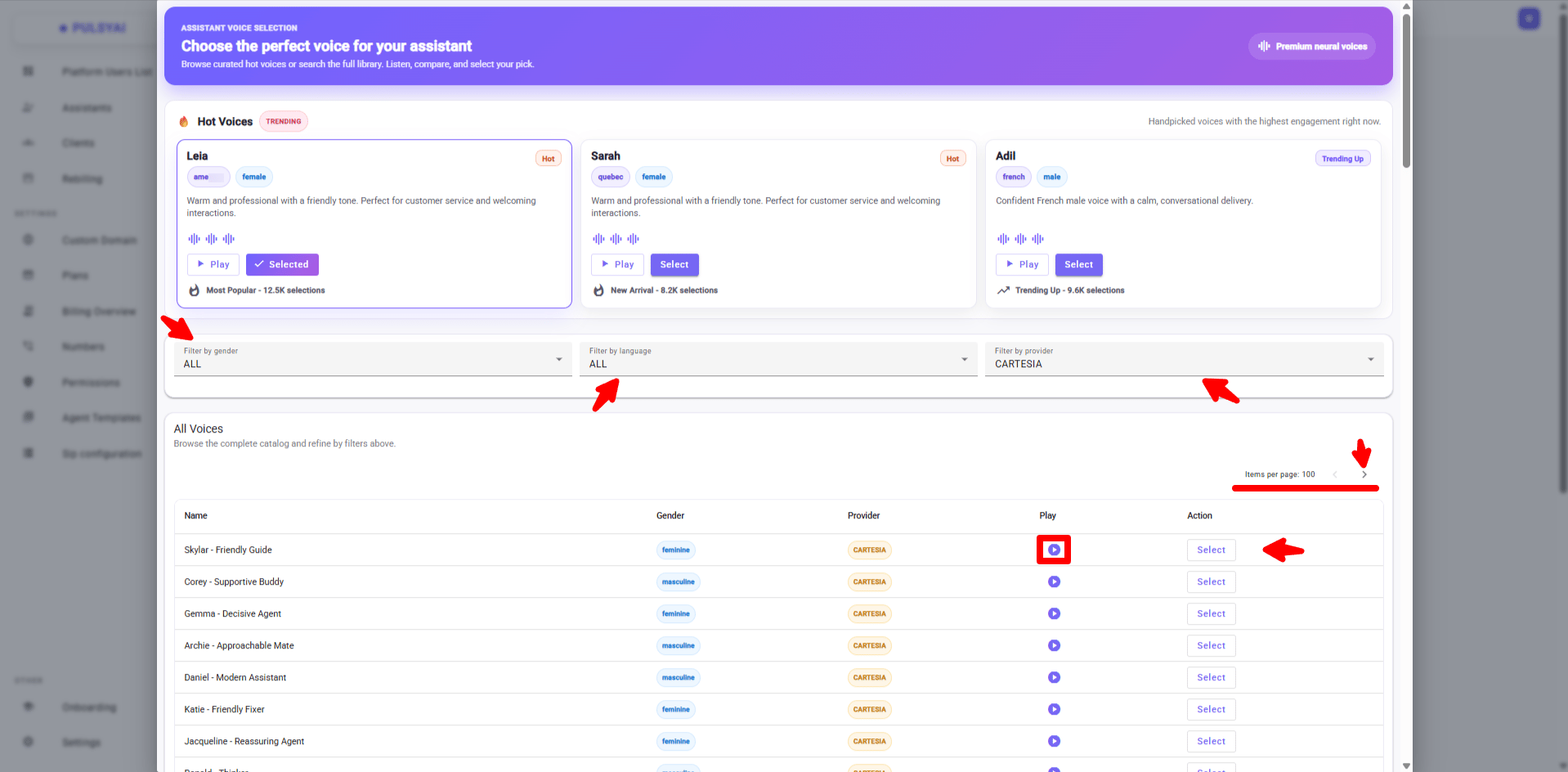
Click **Select Assistant Voice** to open the voice library. Browse curated **Hot Voices** at the top, or explore the full catalog of voices below. Use the filters to narrow down by **gender**, **language**, and **provider**.
### Select Assistant Voice
Click **Select Assistant Voice** to open the voice library. Browse curated **Hot Voices** at the top, or explore the full catalog of voices below. Use the filters to narrow down by **gender**, **language**, and **provider**.
 #### How to use the voice library
Click the **Play** button next to any voice to listen to a sample. When you find one you like, click **Select** to assign it to your assistant.
Use the small arrows in the top-right corner of the voice catalog to navigate from page to page through the full library.
**Cartesia is the recommended provider for most use cases.** It offers the lowest latency on the platform, the most natural human-sounding voices, and a library of over **700+ voices** — the largest selection of any provider supported in PulsyAI.
**Coming soon: Filter by accent.** You'll soon be able to filter voices by regional accent on top of language — making it even easier to find a voice that sounds authentically local to your market.
**Coming soon: Voice cloning.** Native voice cloning will be available directly inside PulsyAI, letting you clone any voice in just a few clicks and deploy it instantly to your agents.
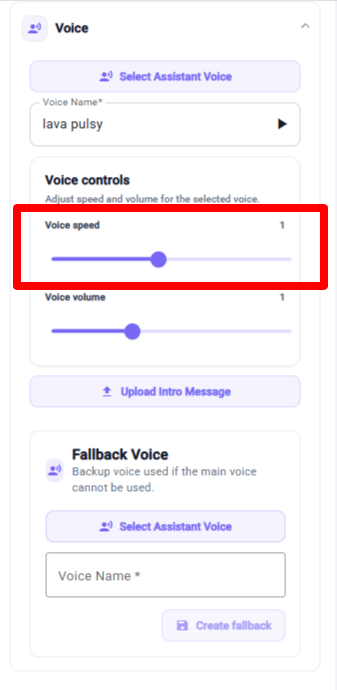
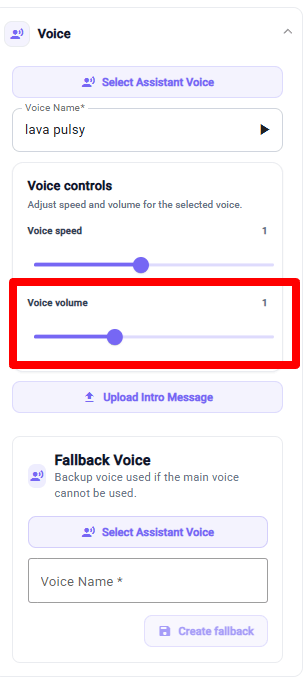
### Voice Controls
Adjust two settings to fine-tune how the selected voice sounds:
Controls how fast the agent speaks. Increase for outbound cold calling, decrease for inbound customer service to feel more natural.
Controls how loud the agent sounds on the call.
#### How to use the voice library
Click the **Play** button next to any voice to listen to a sample. When you find one you like, click **Select** to assign it to your assistant.
Use the small arrows in the top-right corner of the voice catalog to navigate from page to page through the full library.
**Cartesia is the recommended provider for most use cases.** It offers the lowest latency on the platform, the most natural human-sounding voices, and a library of over **700+ voices** — the largest selection of any provider supported in PulsyAI.
**Coming soon: Filter by accent.** You'll soon be able to filter voices by regional accent on top of language — making it even easier to find a voice that sounds authentically local to your market.
**Coming soon: Voice cloning.** Native voice cloning will be available directly inside PulsyAI, letting you clone any voice in just a few clicks and deploy it instantly to your agents.
### Voice Controls
Adjust two settings to fine-tune how the selected voice sounds:
Controls how fast the agent speaks. Increase for outbound cold calling, decrease for inbound customer service to feel more natural.
Controls how loud the agent sounds on the call.
 ### Upload Intro Message
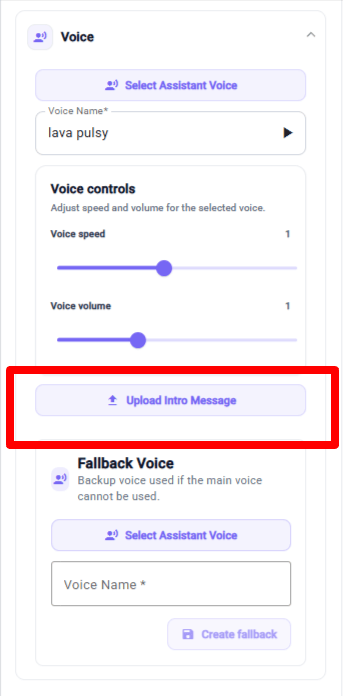
The intro message is a short pre-recorded human voice clip that plays at the very start of every call, before the AI takes over the conversation.
Click **Upload Intro Message** to add an audio file (typically 5-10 seconds long).
**Why it matters:**
The intro message serves three key purposes that directly impact conversion rates and call quality.
Callers expecting a human are often confused or even frustrated when an AI answers unexpectedly. A warm human intro mentally prepares them to interact with an AI assistant, leading to smoother, more natural conversations.
The intro can briefly explain what the agent can do — for example, "Press 1 for a quote, or stay on the line to speak with our AI assistant." This reduces friction and sets the right context before the conversation starts.
Callers who stay on the line after the intro are genuinely interested and ready to engage. Those who would hang up at the first sign of an AI do so before consuming any AI minutes, leaving you with higher-intent conversations and better data quality.
For best results, record the intro in the same voice tone and language as your AI agent so the transition feels seamless. Avoid generic robotic voices — a natural, human intro builds trust from the very first second.
### Upload Intro Message
The intro message is a short pre-recorded human voice clip that plays at the very start of every call, before the AI takes over the conversation.
Click **Upload Intro Message** to add an audio file (typically 5-10 seconds long).
**Why it matters:**
The intro message serves three key purposes that directly impact conversion rates and call quality.
Callers expecting a human are often confused or even frustrated when an AI answers unexpectedly. A warm human intro mentally prepares them to interact with an AI assistant, leading to smoother, more natural conversations.
The intro can briefly explain what the agent can do — for example, "Press 1 for a quote, or stay on the line to speak with our AI assistant." This reduces friction and sets the right context before the conversation starts.
Callers who stay on the line after the intro are genuinely interested and ready to engage. Those who would hang up at the first sign of an AI do so before consuming any AI minutes, leaving you with higher-intent conversations and better data quality.
For best results, record the intro in the same voice tone and language as your AI agent so the transition feels seamless. Avoid generic robotic voices — a natural, human intro builds trust from the very first second.
 ### Fallback Voice
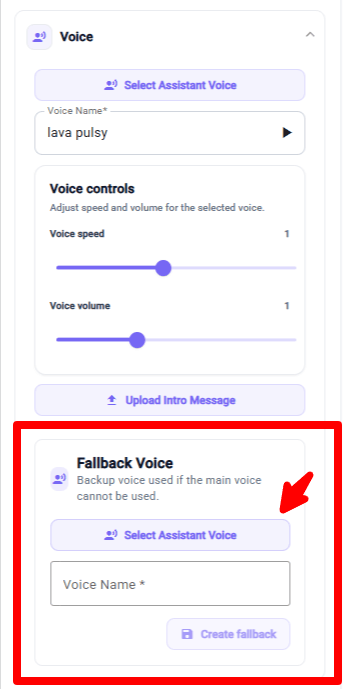
A backup voice used automatically if the main voice cannot be used during a call — for example, during a provider outage. Click **Select Assistant Voice** under Fallback Voice to choose one, then click **Create fallback** to save it.
**Important:** Always pick a voice from a **different provider** than your main voice. If the main provider goes down, a fallback on the same provider will fail too — defeating the purpose of a backup.
Always configure a fallback voice for production agents. It prevents calls from failing during a provider outage and keeps the agent online even in degraded conditions.
### Fallback Voice
A backup voice used automatically if the main voice cannot be used during a call — for example, during a provider outage. Click **Select Assistant Voice** under Fallback Voice to choose one, then click **Create fallback** to save it.
**Important:** Always pick a voice from a **different provider** than your main voice. If the main provider goes down, a fallback on the same provider will fail too — defeating the purpose of a backup.
Always configure a fallback voice for production agents. It prevents calls from failing during a provider outage and keeps the agent online even in degraded conditions.
 ## Call Configuration
The Call Configuration section controls how the agent behaves on the line — timing, pacing, interruptions, and capabilities.
## Call Configuration
The Call Configuration section controls how the agent behaves on the line — timing, pacing, interruptions, and capabilities.
 ### Localization
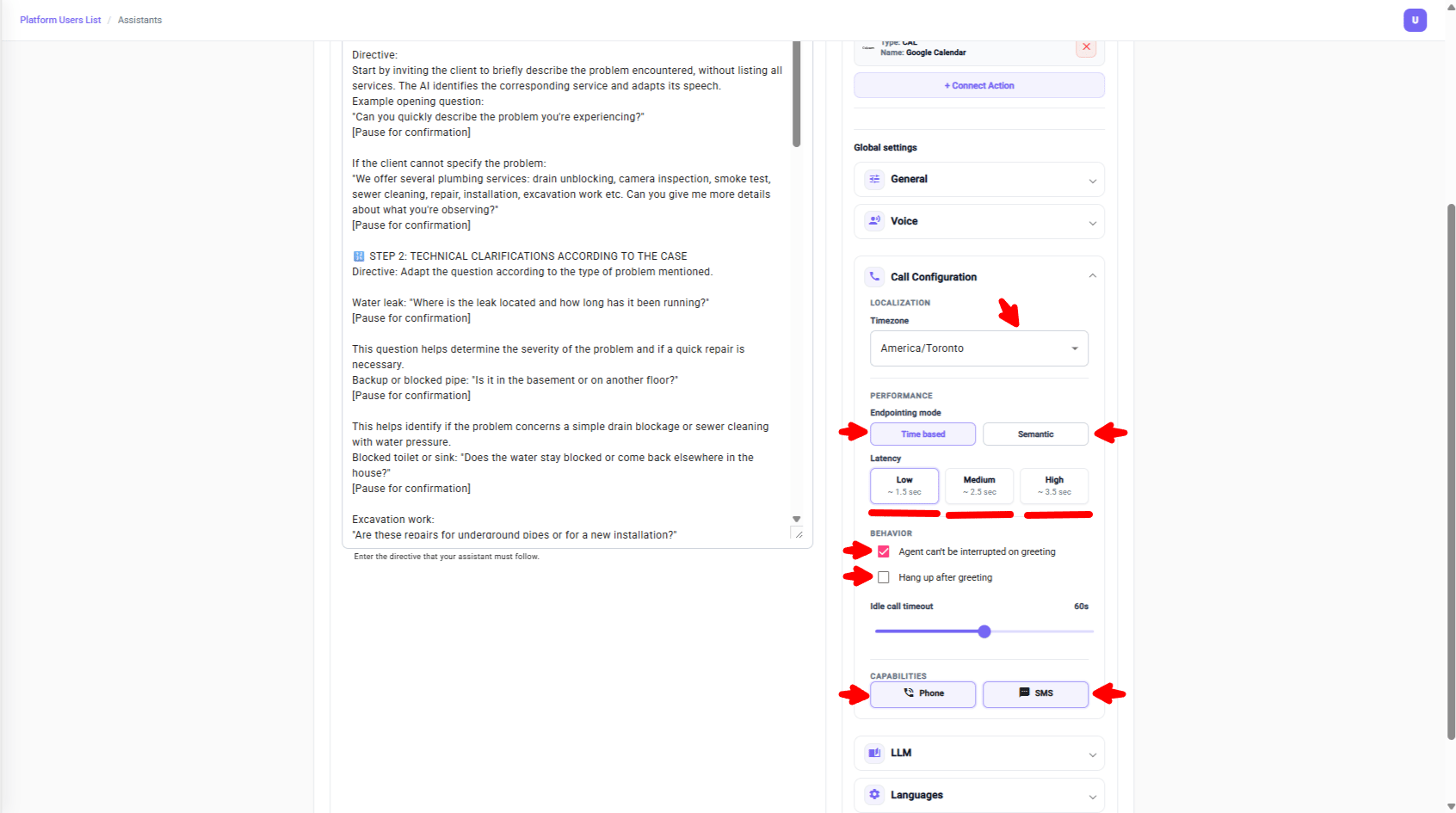
Set the **Timezone** for the agent (for example, America/Toronto). This affects scheduling, callbacks, and any time-based logic in the call flow.
Setting the timezone alone is not enough for the agent to know the current time. You must explicitly inject the current time into the prompt using a template variable. Add this line either in the **Call Flow prompt box** or in the **Agent Context** field of the General settings:
`**Current time:** {now}`
The `{now}` variable is automatically replaced at runtime with the actual current time in the timezone you configured. Without this line, the agent has no awareness of the current time and cannot make accurate statements like "it's currently 2 PM" or "I'll call you back in 30 minutes".
Inject the current time at the very top of your Agent Context or prompt so the agent considers it for every response throughout the call.
### Localization
Set the **Timezone** for the agent (for example, America/Toronto). This affects scheduling, callbacks, and any time-based logic in the call flow.
Setting the timezone alone is not enough for the agent to know the current time. You must explicitly inject the current time into the prompt using a template variable. Add this line either in the **Call Flow prompt box** or in the **Agent Context** field of the General settings:
`**Current time:** {now}`
The `{now}` variable is automatically replaced at runtime with the actual current time in the timezone you configured. Without this line, the agent has no awareness of the current time and cannot make accurate statements like "it's currently 2 PM" or "I'll call you back in 30 minutes".
Inject the current time at the very top of your Agent Context or prompt so the agent considers it for every response throughout the call.
 ### Performance — Endpointing Mode
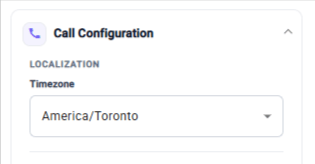
Endpointing is how the agent decides when the caller has finished speaking before it responds. PulsyAI offers two modes:
The agent waits a fixed delay after the caller stops speaking, then responds. Choose one of three latency levels — Low, Medium, or High.
The agent intelligently detects when the caller has finished their thought by understanding the meaning of what is being said. Best for natural, fluid conversations.
### Performance — Endpointing Mode
Endpointing is how the agent decides when the caller has finished speaking before it responds. PulsyAI offers two modes:
The agent waits a fixed delay after the caller stops speaking, then responds. Choose one of three latency levels — Low, Medium, or High.
The agent intelligently detects when the caller has finished their thought by understanding the meaning of what is being said. Best for natural, fluid conversations.
 ### Latency Levels (Time Based)
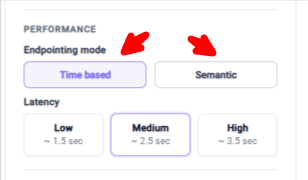
When Time Based mode is selected, choose one of three latency levels:
Best for outbound cold calling. Fast responses keep prospects engaged.
Best for inbound customer service. Balances natural pacing with accurate information capture.
Best for technical or legal calls. Maximum accuracy when precision matters more than speed.
### Behavior
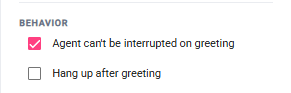
Two checkboxes control how the agent handles interruptions and call endings:
The caller cannot cut off the agent during the greeting. Useful when the intro message contains important information the caller must hear.
The agent ends the call immediately after the greeting. Useful for simple notification-style use cases where no conversation is expected.
### Latency Levels (Time Based)
When Time Based mode is selected, choose one of three latency levels:
Best for outbound cold calling. Fast responses keep prospects engaged.
Best for inbound customer service. Balances natural pacing with accurate information capture.
Best for technical or legal calls. Maximum accuracy when precision matters more than speed.
### Behavior
Two checkboxes control how the agent handles interruptions and call endings:
The caller cannot cut off the agent during the greeting. Useful when the intro message contains important information the caller must hear.
The agent ends the call immediately after the greeting. Useful for simple notification-style use cases where no conversation is expected.
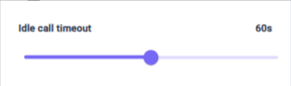
 ### Idle Call Timeout
The maximum time (in seconds) the agent waits during silence before ending the call. The default is 60 seconds. Increase it for situations where callers may need more time to think.
### Idle Call Timeout
The maximum time (in seconds) the agent waits during silence before ending the call. The default is 60 seconds. Increase it for situations where callers may need more time to think.
 ### Capabilities
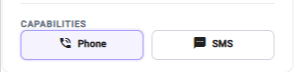
Toggle which channels this agent can use:
Enable to let the agent handle voice calls.
Enable to let the agent send and receive SMS — required for using SMS Configuration features.
### Capabilities
Toggle which channels this agent can use:
Enable to let the agent handle voice calls.
Enable to let the agent send and receive SMS — required for using SMS Configuration features.
 ## LLM
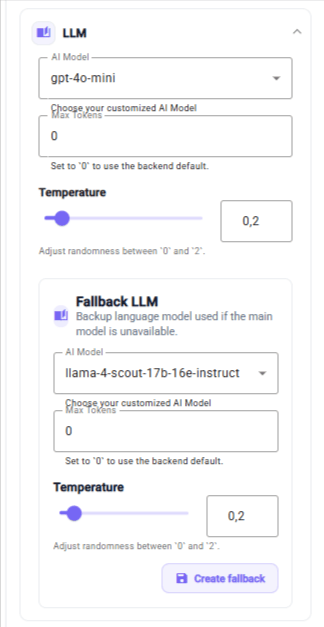
The LLM section controls the language model that powers your agent's intelligence — how it understands the caller, decides what to say, and triggers actions.
## LLM
The LLM section controls the language model that powers your agent's intelligence — how it understands the caller, decides what to say, and triggers actions.
 ### Model & Tokens
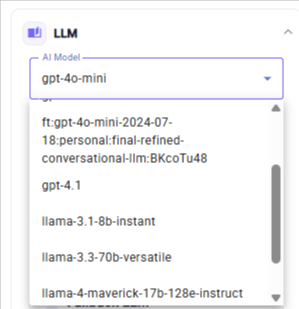
Choose the model that runs the agent. Smarter models produce more reliable conversations and better function calling, but may cost more per call.
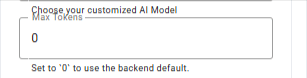
The maximum number of tokens the model can use per response. Set to **0** to use the backend default.
### Model & Tokens
Choose the model that runs the agent. Smarter models produce more reliable conversations and better function calling, but may cost more per call.
The maximum number of tokens the model can use per response. Set to **0** to use the backend default.
 ### Temperature
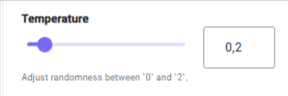
Controls randomness in the model's responses. The value ranges from 0 to 2:
Predictable, focused, deterministic responses. Best for scripted agents and function-heavy flows.
More creative, varied responses. Best for casual conversational agents.
For booking and any function-calling steps, use a more capable AI model such as GPT-4.1. Smarter models hallucinate far less and follow function-calling instructions more reliably.
### Temperature
Controls randomness in the model's responses. The value ranges from 0 to 2:
Predictable, focused, deterministic responses. Best for scripted agents and function-heavy flows.
More creative, varied responses. Best for casual conversational agents.
For booking and any function-calling steps, use a more capable AI model such as GPT-4.1. Smarter models hallucinate far less and follow function-calling instructions more reliably.
 ### Fallback LLM
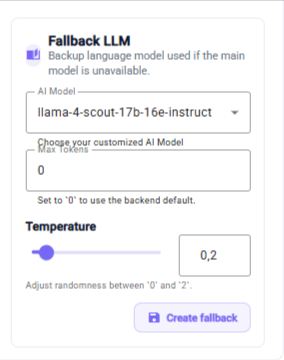
A backup model used automatically if the main LLM is unavailable — for example, during a provider outage. Configure it just like the main LLM with its own model, max tokens, and temperature, then click **Create fallback** to save.
### Fallback LLM
A backup model used automatically if the main LLM is unavailable — for example, during a provider outage. Configure it just like the main LLM with its own model, max tokens, and temperature, then click **Create fallback** to save.
 ## Languages
Pick one or multiple languages your agent can handle on a call. PulsyAI supports English, French, Spanish, German, Italian, Portuguese, and many regional and local accents so your agent sounds authentically local in any market.
## Languages
Pick one or multiple languages your agent can handle on a call. PulsyAI supports English, French, Spanish, German, Italian, Portuguese, and many regional and local accents so your agent sounds authentically local in any market.
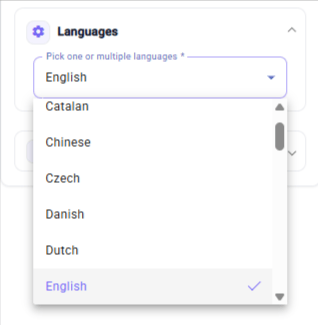 Enable multiple languages if your agent serves callers across different markets. The agent will detect the caller's language automatically and respond in the same one.
## Transcriber
The Transcriber converts the caller's speech into text in real time so the agent can understand what is being said. Choose:
Enable multiple languages if your agent serves callers across different markets. The agent will detect the caller's language automatically and respond in the same one.
## Transcriber
The Transcriber converts the caller's speech into text in real time so the agent can understand what is being said. Choose:
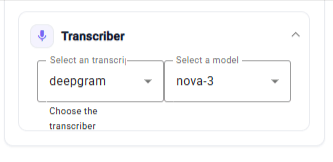 The service that handles speech-to-text — for example, Deepgram.
The specific transcription model from the chosen provider — for example, Nova-3.
The transcriber has a major impact on data accuracy, especially for emails, phone numbers, and names. For non-English calls, pair a strong transcriber with the Verify User Information feature in SMS Configuration to dramatically improve data quality.
## Next Steps
Write the script your agent follows during a call.
Set up conditional SMS messages and Verify User Information.
The service that handles speech-to-text — for example, Deepgram.
The specific transcription model from the chosen provider — for example, Nova-3.
The transcriber has a major impact on data accuracy, especially for emails, phone numbers, and names. For non-English calls, pair a strong transcriber with the Verify User Information feature in SMS Configuration to dramatically improve data quality.
## Next Steps
Write the script your agent follows during a call.
Set up conditional SMS messages and Verify User Information.