# Changelog
Source: https://docs.pulsyai.com/changelog
New features, improvements, and updates to the PulsyAI voice AI platform — the white-label voice AI solution for agencies, resellers, MSPs, and GoHighLevel partners.

The PulsyAI Changelog documents every meaningful update to the platform — new features, integrations, breaking changes, and documentation launches. Entries are ordered with the newest updates at the top. For a deeper look at any feature, follow the linked documentation pages.
**About PulsyAI:** PulsyAI is an AI voice agent platform built for resellers and agencies. Configure intelligent inbound and outbound voice agents, deploy them across verticals (dental, insurance, real estate, restaurants, legal, hair salons, and more), and manage all your clients from a single white-label dashboard. PulsyAI focuses on reseller workflows: agent templates, per-client permissions, billing overview, and custom domain support.
> [card] [Latest release](#september-october-2026)
>
> September & October 2026 — Simplified Platform, HIPAA tools & Copilot upgrades
> [card] [Roadmap](#roadmap-updated-june-2026)
>
> What's shipping next on PulsyAI
> [card] [RSS feed](/changelog/rss.xml)
>
> Subscribe to get every release
> [card] [Documentation](/platform/about)
>
> Explore the full PulsyAI docs
> [card] [PulsyAI website](https://www.pulsyai.com/)
>
> Visit pulsyai.com to learn more about the platform
**September & October 2026**
Two-month update — Simplified Platform, HIPAA tools, Copilot upgrades & more
**TL;DR:** Two busy months. We launched the new **Simplified Platform** — a streamlined receptionist view you can white-label and resell — made it much faster to get a receptionist live, added **privacy and HIPAA tools** for regulated businesses, gave you finer control over how your agents listen and speak, expanded voices, languages and models, and shipped a wave of billing, white-label and reliability improvements.
## Get Live Faster
### 01 · Simplified Platform — a new receptionist view
Launched mid-September, the **Simplified Platform** is a clean, focused workspace for businesses that just want a receptionist that works — without learning how to build agents. And it's built for resellers too: **white-label it under your own brand and sell the receptionist view to your clients**, with your own pricing and plans. Everything lives in one place:
* **Overview** — see how your receptionist is doing at a glance, plus billing and daily activity. 
* **Call Log & Conversations** — browse every inbound call, open any call for full details, and reply to SMS conversations. 

* **Business Profile** — paste your Google Business Profile and it auto-fills your business info, website, hours, services and pricing in under a minute (or update from a PDF). Every field stays editable. 
* **Assistant Settings** — choose the voice, give the agent context, and set up live call transfer. 
* **Conversation Rules** — set the greeting and toggle what to collect (name, email, phone, address, project questions, availability). No prompt engineering. 
* **Automations** — connect Cal.com, Zapier, GoHighLevel and notifications, turn on live booking, and send after-call SMS. 
* **Pricing & plans** — a dedicated receptionist plan with its own checkout flow.
Full walkthrough: [Simplified Platform](/platform/simplified-platform).
Getting started is guided: describe your business, pick your services and rates, and Pulsy builds the receptionist for you — Google Business info prefilled, with a progress bar while it loads. Home services and Google Business support are built into the setup, and you can set separate inbound and outbound greetings.
### 02 · Agency onboarding
Creating an AI agent is now guided. When you create a new **inbound, outbound or SMS AI agent**, a new onboarding flow walks you through it: a carousel of vertical templates to start from, customer reviews, a guided tour, and an integrations step — so you know exactly how to build your agent, even on day one. You also get an **email when your onboarding is complete**.

### 03 · Platform per client & product inheritance
Resellers can **choose which platform each client sees** — the full default platform for technical users, or the Simplified receptionist view for non-technical SMB owners — with a default platform for the main account. **Sub-accounts now inherit the parent's product**, with default product configurations, so new clients start correctly configured.

Choose which platform each client sees, with a default platform for the main account.
## Pulsy Copilot
### 04 · Copilot can do more
Copilot now handles more of the configuration for you, in plain English:
* Update your **cal.com integration**
* Update and upgrade your **SMS configuration**
* Create a **custom domain**
* Build **custom API calls** that follow the expected structure
## Building Agents
### 05 · Copy an agent across accounts
Built an agent on your main account and want it on a client's account? You can now **copy an existing assistant onto another account in a couple of clicks** — no more rebuilding it from scratch or copying every setting by hand.

Copy an existing assistant onto another account in a couple of clicks.
### 06 · Better conversations
Finer control over how your agent listens and speaks:
* **Configurable agent cutoff and interruption settings** — decide how your agent reacts when a caller talks over it.

* **Keyword boosting for transcription** — add the names, products and jargon your callers use and speech recognition picks them up more accurately. Paste a list and it splits into individual keywords for you.

* **Idle messages now appear in the conversation history.**
* A **custom message while an action runs**, so callers aren't left in silence during API calls.
* **Mute and unbrand the test agent** when you try it out.
## Voices, Languages & Models
### 07 · More voices, languages and models
* **Accent filter** in voice selection, to find the right voice faster.
* **Voice language follows your assistant's language** automatically.
* **New languages:** Urdu and Slovenian.
* **New AI models:** Qwen models and GPT-4.1-mini.
## Telephony & SIP
### 08 · SIP upgrades
* **SIP call logs and traces** — inspect SIP traffic for any call straight from the call log, which makes troubleshooting much easier.
* Use your **SIP username as the caller ID** (the "from" number).
* A **redesigned SIP trunk credentials screen**, with dark mode support.
* **Better gateway management**, with more reliable inbound and outbound routing.
## Privacy & Compliance
### 09 · Privacy and HIPAA tools
* **Privacy settings** for data retention and PII, managed from a new **compliance settings screen**.
* A **private, privacy-focused recording bucket**, with audio redaction.
* **Short-lived recording links** when HIPAA recording is enabled.

Compliance settings — data retention, PII controls, a private recording bucket and short-lived recording links.
## Billing, Plans & White-Label
### 10 · Stripe billing portal & flexible plans
* **Stripe billing portal** — your customers can manage their own subscription and payment details.
* **More flexible plan changes**, including rebilling plans and connected Stripe accounts, plus a new receptionist plan (**Starter Pro**).
* **Custom payment plans** have a reworked configuration and checkout experience.
### 11 · Turn off email verification for new sign-ups
White-label resellers can now **turn off the email verification step** for new client accounts — so clients signing up on your branded domain get access right away, without being required to verify their email first.

Turn off the email verification step for new client sign-ups on your branded domain.
### 12 · Turn off subscription emails to your customers
White-label resellers can also **turn off the subscription emails** PulsyAI sends to their customers — one more lever to keep the experience fully yours.
## Improvements & Fixes
**Speed & reliability**
* We now measure the delay between the caller finishing a sentence and the first audio reply, so we can keep tightening it.
* Fixed an audio issue on the LiveKit transport.
* Fixed agent cutoff behavior.
* More accurate error codes across the API, so failures are clearer and easier to diagnose.
**Billing**
* Fixed several billing overview calculations, including invoices, metered usage and per-user totals.
* Fixed the company display in the billing overview.
* Fixed pricing page redirects and plan usage.
* Fixed a phone number purchase issue.
**White-label & branding**
* Fixed a bug where white-label customers could see non-branded content when buying a phone number.
* Several branding fixes across the app.
**Interface**
* Dark mode fixes for the SIP configuration and the test agent.
* Dropdown, prompt sync and template fixes in the simplified setup.
* Fixed the French voice preview.
* Fixes to the account validation page, integration dialogs and the create-agent dialog.
* Fixed SMTP and email notification issues.
***
Updates will keep landing. Subscribe via RSS at [docs.pulsyai.com/changelog](https://docs.pulsyai.com/changelog) to catch every release.
More soon 🚀
**— The PulsyAI Team**
**August 2026**
Infrastructure month — 8 features + Copilot beta
**TL;DR:** August was our infrastructure month — 8 features focused on scale, privacy, and white-label polish. Highlights: a new Compliance tab (data retention + PII redaction, including redacted audio recordings), concurrent outbound calls with pause/resume, native Twilio phone number store, SMTP settings for white-label email delivery, multi-currency pricing, and Copilot in beta — an AI assistant that manages your PulsyAI workspace using natural language. Plus expanded call end reasons, richer webhook payloads, and Twilio scoped keys for tighter credential security.
## Platform & Infrastructure
### 01 · Compliance tab
A brand new **Compliance tab** lets you manage retention and privacy controls per agent — a big step toward enterprise-grade data governance.
**Data Retention** — enable a retention policy on the agent and choose from supported retention windows (in days). An automated scheduled cleanup job enforces the policy in the background, designed to keep running reliably even if individual cleanup runs hit issues.
**PII Retention** — an independent per-agent toggle to control whether personally identifiable information collected during calls is retained. When enabled, PII redaction now covers both text transcripts AND audio — redacted versions of call recordings are stored alongside the originals, so sensitive audio segments are automatically masked.
All settings are per-agent and can be enabled or disabled independently.

Compliance tab — per-agent Data Retention and PII Retention controls, with PII redaction now covering both transcripts and audio recordings.
### 02 · Copilot (BETA)
Meet **Copilot** — a new in-platform AI assistant that helps you manage your PulsyAI workspace using natural language.
Copilot can help you manage agents, integrations, phone numbers, SIP settings, call logs, and search the PulsyAI documentation. Ask it to create an agent, update a prompt, look up a call log, or find something in the docs — all in plain English.
Copilot is currently in beta and only makes changes when you explicitly ask it to. We're actively improving it — this is our first step toward a done-for-you experience inside PulsyAI.

Copilot (beta) — an in-platform AI assistant that manages your PulsyAI workspace via natural language.
## Building Agents
### 03 · Hang Up Tool
A new **Hang Up Tool** in the Integrations tab lets your AI agent end the call at the right moment based on a directive you configure. Describe in natural language the situations where the LLM can safely hang up (for example: "when the caller confirms the appointment is booked and says goodbye"), and the agent will handle it — no more calls hanging on longer than they need to.
We also tightened up the underlying timeout and hang-up handling so calls terminate cleanly in every scenario.

Hang Up Tool — configure a natural-language directive so the agent ends the call at the right moment.
## Outbound & Call Management
### 04 · Concurrent Calls + Pause/Resume in Campaigns
Outbound campaigns just leveled up.
**Concurrent calls** — when creating a campaign, set the number of calls the AI should launch every 40 seconds. Batches of 1 to 5 concurrent calls are now supported for higher-throughput campaigns.
**Pause / Resume** — you can now pause a running campaign at any time. The paused state is persisted, and resume activity is tracked. When you resume, you can also change the concurrent call count on the fly.
Calls already in progress continue regardless — the concurrent value only controls new calls started every 40 seconds.

Campaign creation — set the number of concurrent calls launched every 40 seconds.

Pause and Resume a running campaign at any time, with the option to adjust the concurrent call count on resume.
## Reseller (Admin) Features
### 05 · SMTP Settings — send from your own email
A new **SMTP Settings** section in the sidebar lets you configure your own outbound email delivery. Host, port, username, password — all the standard SMTP credentials.
The upshot: your clients now receive account emails, invitations, and notifications from your own email address instead of a generic PulsyAI sender. Another layer of white-label polish for resellers who want the platform to feel 100% theirs.

SMTP Settings — configure your own outbound email delivery so clients receive emails from your address.
### 06 · Multi-currency plan pricing
When creating a plan, you can now choose the **currency** you want to bill in. USD, CAD, GBP, EUR, AUD, NZD, and more are supported — no more being locked into USD only. Custom plans and rebilling plans can both be created in the currency that matches your local market.

Multi-currency plan creation — choose the currency you want to bill your clients in.
### 07 · Company Name on client creation
When manually creating a client account (or editing an existing one), you can now add the **Company Name** alongside first name, last name, and email. Small addition, big impact — helps you keep your reseller client roster properly labeled and organized.

Company Name field added to client creation and editing forms.
### 08 · Native Twilio phone number store + Twilio Scoped Keys
Finally live: you can now **buy phone numbers directly inside PulsyAI**. No more creating a Twilio account elsewhere and importing the number manually — the whole flow lives in the platform.
Currently available: US and Canadian phone numbers.
Coming next: UK and France numbers are next in the pipeline.
**Twilio Scoped Keys** — when importing an existing Twilio number, you'll now see an optional **Key SID** field. This adds support for Twilio scoped API keys, which restrict credential access to only the permissions the platform actually needs — much tighter security than sharing a full-access account SID and token. Scoped keys are supported across phone settings, telephony functionality, and onboarding flows.

Native Twilio phone number store — buy US and Canadian numbers directly inside PulsyAI, with optional Key SID for scoped API keys on imports.
## Improvements & Fixes
* **Expanded call end reasons** — Call Logs and webhooks now distinguish between more granular end scenarios including **TRANSFER**, timeout, and hang-up in addition to the existing reasons. Better visibility into exactly how each call ended.
* **Richer webhook payloads** — `call_end` webhooks now include the call end reason and the call SID, giving your downstream integrations more context for processing.
* **Max call duration limits** — you can now cap the maximum duration of a call at the agent level, useful for controlling costs on outbound campaigns or limiting handle time.
* **Trigger SMS agents by texting the number directly** — previously, SMS capabilities on a voice AI agent required the first message to be triggered from within the voice AI agent. Now, if someone texts the phone number directly, the SMS agent responds automatically. Much smoother SMS-first workflows.
* **Delete a client** — you can now delete a client from the Clients section when needed (for cleanup, offboarding, or account management).
* **Self-service account deletion** — new backend APIs and services support full account deletion, including cleanup of associated phone settings and configuration. Users can now fully offboard themselves when needed.
* **New API endpoints** — several new endpoints added to the PulsyAI API to support additional workflows and integrations. The API reference is being updated in the docs.
## Coming very soon
**Simplified Platform** — a brand new alternative interface for resellers to offer their clients, launching within the next week. Instead of the current default platform (great for technical users), resellers will soon be able to offer a **Simplified Platform** — a guided, prefilled experience where SMB owners can build an AI agent in under 5 minutes just by answering a few questions about their business (or connecting their Google Business Profile). Both platforms are connected under the hood, so agents created in the Simplified Platform show up in the default platform too. Resellers will be able to choose which interface template to present to each client. More details when it goes live.

***
Updates will keep landing weekly. Subscribe via RSS at [docs.pulsyai.com/changelog](https://docs.pulsyai.com/changelog) to catch every release.
More soon 🚀
**— The PulsyAI Team**
**July 2026**
Product update — 11 features shipped
**TL;DR:** New SIP configuration page, official documentation launch, upgraded Outbound Configuration (with voicemail detection strategy), End Reason field in Call Logs, Dark / Light / System theme mode, latency improvement via Silero VAD, bulk upload for transfer recipients, full-account impersonation, ElevenLabs voice community import, plus a UI/UX polish across the platform.
## Platform & Infrastructure
### 01 · SIP Configuration
A brand new **SIP configuration** page lets you connect your SIP gateway and route calls directly to PulsyAI. Configure provider routing, add your SIP trunk credentials (Static IP, gateway domain/IP, outbound gateway record), and set your transfer strategy (**Dial** or **Refer**). Manage multiple SIP trunks from a single view.

SIP Configuration — connect your SIP gateway, add trunk credentials, and choose your transfer strategy.
### 02 · Dark / Light / System theme
Personalize your workspace with three theme modes: **Dark**, **Light**, or **System** (matches your OS setting). Toggle from the top-right menu.

Three theme modes — Dark, Light, and System — available from the top-right menu.
## Outbound & Call Management
### 03 · Outbound Configuration (formerly Auto Call Back)
The **Auto Call Back** tab has been renamed and upgraded to **Outbound Configuration**. It keeps all the previous callback settings and adds a new **Voicemail Detection Strategy** selector — choose between **Wave2Vec** (recommended default for outbound) or **LLM** (LLM-based classifier).

Outbound Configuration — all previous callback settings plus a new Voicemail Detection Strategy selector.
### 04 · End Reason field in Call Logs
Call Logs now include an **End Reason** column, so outbound campaigners can immediately see whether a call was answered by a human, hit voicemail, or ended for another reason. No more wondering why a 100-lead campaign only shows 30 answered calls — you can now see the 70 that went to voicemail.

Call Logs now show an End Reason column for every call.
### 05 · Bulk upload for Transfer recipients
Add transfer recipients in bulk from a `.csv` or `.xlsx` file. Use the expected columns (`name`, `phoneNumber` or `phone number`), download the starter template if needed, and optionally replace all existing recipients in one go.

Bulk upload Transfer recipients from a .csv or .xlsx file, with an optional replace-all mode.
## Reseller (Admin) Features
### 06 · Full-account impersonation
Impersonation used to let you view a client dashboard and create agents on their behalf. Now you can do **everything** inside a client's account: manage phone numbers, settings, subscriptions (including cancellations), and every reseller-controlled surface. A persistent banner at the top shows the impersonated client's name and email, with an **Exit impersonation** button always visible.

Full-account impersonation — persistent banner with client name/email and an always-visible Exit impersonation button.
### 07 · ElevenLabs voice community import
When browsing voices in the **ElevenLabs** library, you can now import any public/shared ElevenLabs voice directly into your workspace by pasting its **Public Voice ID**. The voice is imported into the workspace and selected for the agent in one click.

Import any public ElevenLabs voice into your workspace with a Public Voice ID.
## Improvements & Fixes
* **Silero VAD — latency improvement.** Replaced the OpenAI-based Voice Activity Detection with Silero VAD. Noticeably lower latency on every call, and no more dependency on an external API for VAD.
* **UI/UX refresh.** Refreshed layouts, tighter spacing, and improved visual consistency across the entire platform. A smoother, more polished experience end-to-end.
* **Transfer announcement.** When an agent triggers a transfer, it now announces to the caller that the transfer is happening while the function call runs in the background — no more 2–3 seconds of awkward silence before the caller gets handed off.
## Documentation
**Official docs launch at [docs.pulsyai.com](https://docs.pulsyai.com).** The PulsyAI documentation is now officially live at **docs.pulsyai.com**. A large portion is complete — including the most important sections — and we'll continue expanding it in the coming weeks with more guides, integration deep-dives, and walkthroughs.
***
Updates will keep landing at a regular cadence. Subscribe via RSS to catch every release.
**June 2026**
Q1 recap — 17 features, 8 fixes shipped this quarter
**Last updated: June 2026** · Recap of the last 3 months of shipping.
> [!WARNING]
>
> **Pricing change — the \$59/month promo is ending soon**
>
> The \$59/month introductory rate is going up for new subscribers in the coming weeks.
>
> ✅ If you're already subscribed at \$59, you keep that rate for as long as you stay subscribed.
>
> This offer won't be coming back. If you have prospects on the fence, now's the moment to lock them in.
## Part 1 — Reseller (Admin) features
### 01 · Quick phone number reassignment
From the **Numbers** tab, reassign a phone number to another agent using a dropdown. No more removing the number and re-searching for the new agent — pick the agent and hit **Save**.

Reassign a phone number to another agent in one click.
### 02 · Flexible plan creation + free trial days
* Add your own custom features to a plan, displayed directly to clients
* Enable a free trial period (trial days) on any plan you create

Custom features and trial days on every plan you create.
### 03 · Plan visibility per client (special offers)
For each plan, choose:
* **All subaccounts** — visible to all clients (default)
* **Selected subaccounts** — visible only to specific clients
Perfect for negotiated deals or custom pricing.

Restrict a plan to specific subaccounts for negotiated deals.
### 04 · Billing Overview
A new **Billing Overview** page with real-time visibility:
* Total minutes and seconds consumed
* Total number of users
* Your current rate
Click into a client to see:
* Minutes/seconds consumed
* All active AI agents (including top consumer)
* Revenue generated per client based on your rate
Everything is exportable to Excel in one click.

Billing Overview — global usage and revenue at a glance.

Per-client detail — minutes consumed, top agent, revenue generated.
### 05 · Per-client permissions — Read only / Read & write
Control exactly what your clients can see and edit. Two access levels:
* **Read only** — Client sees only 3 tabs: Analytics, Call Logs, Conversations. They can review stats, listen to call recordings, read SMS conversations — but can't change anything: prompts, call flows, knowledge base, integrations, phone numbers, SMS config — all hidden. API Keys section in Settings is also hidden. Profile and password remain accessible.
* **Read & write** — Full platform access, as before.
**Why this matters:** Many non-technical clients tinker with their prompt and break their agent (hallucinations, bad call routing) — then blame you. With Read only, they keep visibility for ROI validation without being able to touch the configuration.
**How it works:**
* **Default permissions** — access level applied automatically to every new client
* **Client permissions** — override the default for specific clients
Changes are instant, no logout required, and the client isn't notified.
> [!WARNING]
>
> **For testing:** while impersonating, you (admin) always see everything — even on a Read only account. To check what a Read only client actually sees, log in directly with their credentials in an incognito window.

Set default permissions or override them per client.

### 06 · Agent Templates — deploy agents to all your clients in one click
A major feature for anyone working in a vertical (insurance, dental, real estate, plumbing, restaurants).
**How it works:** Configure an agent perfectly once in your own account — prompt, voice, call flow, integrations — then publish it as a template under a vertical label (e.g., "Dental", "Insurance"). Every client (existing and new) sees this template as a 1-click starting point.
**What gets cloned automatically:** full prompt, voice/provider, call flow logic, general settings.
**What the client adds afterward:** their Knowledge Base, integrations (rewired to the new agent ID), SMS config if applicable.
> [!NOTE]
>
> Editing the source agent does **not** update already-published templates or existing client deployments. To refresh, delete the template and republish — only future deployments will get the new config.
**Result:** onboarding goes from hours of prompt engineering to minutes per client.

Publish an agent as a vertical template — clients get a 1-click starting point.

### 07 · Manual subaccount creation — no more emails lost in spam
In the **Clients** section, when manually creating a subaccount, you now set the email and password yourself, then share credentials with your client however you prefer (email, SMS, in person). No more relying on an automated email that gets caught in spam.
> [!NOTE]
>
> Self-signup via your own signup page (`yourdomain.com/signup`) still works exactly as before — this only applies to manual account creation.

Set your client's email and password directly, then share them your way.
### 08 · Manual "Paid" toggle
In the **Clients** tab, the **Billing** button lets you manually mark a subaccount as **Paid** — useful if:
* You handle payment outside the platform (Stripe link, wire transfer, external invoicing)
* You create your own internal subaccounts (testing, demos)
> [!WARNING]
>
> Marking an account as "Paid" without an actual platform payment means you absorb the usage cost — PulsyAI bills based on usage regardless.

Manually mark a subaccount as Paid.
### 09 · Impersonation — white-glove support without a client password
Click **Select** on any client to access their account exactly as they see it — without their password. You can edit their agents, call flows, knowledge base, integrations, view their logs, and even access their Settings.
A visual indicator in the top right shows the client's name/email while impersonating. To exit, head back to **Clients** or click any other admin nav item.

Impersonate a client and support them directly, no password needed.
### 10 · Redesigned Custom Domain page
Completely redesigned: numbered steps, well-organized DNS records table, quick-copy buttons, and helpful tips (where to find DNS settings, propagation time up to 48h).

Redesigned Custom Domain page — numbered steps, DNS records table, quick-copy buttons.
## Part 2 — Platform features (Call Flows & Agents)
### 11 · Fallback Voice
Configure a backup voice for your agents. If the primary voice becomes unavailable in real time (provider outage, latency), the agent automatically and seamlessly switches to the fallback voice — no dropped calls, no awkward silence.

Fallback Voice — automatic switch if the primary voice fails.
### 12 · Improved voice selection + new providers
* Filter by **gender**, **language**, and **provider**
* New provider added: **ElevenLabs**
* Coming soon: **Hume AI**
* In the works: filter by **accent**

Improved voice selection with filters and new providers.
### 13 · Timezone in Call Configuration
Agents can now be connected to your chosen timezone:
* If a caller asks for the time, the agent responds with the exact time in the configured timezone
* Enables time-based workflows (e.g., a pizzeria with a different daily special using the `{now}` variable)
* Crucial for calendar booking — match the configured timezone with your calendar's timezone and pass `{now}` in your prompt

Timezone-aware agents — accurate time responses and calendar booking.
### 14 · New latency mode: Semantic Endpointing
Two modes to decide when the agent responds after the caller finishes speaking:
**Time Based** — fixed delay after silence:
* **Low (1.5s)** — best for outbound cold calling
* **Medium (2.5s)** — best for inbound customer service
* **High (3.5s)** — best for technical or legal calls
**Semantic** — the agent detects when the caller has finished their thought based on meaning. More natural, fluid conversations.

Semantic Endpointing — the agent knows when you're done talking.
### 15 · Idle Call Timeout
Configure the maximum time (in seconds) the agent waits during silence before ending the call. Default: **60 seconds** on every new agent.
> [!WARNING]
>
> Never set this to **0** — the agent would hang up instantly. Recommendation: \~15s for outbound, \~60s for inbound.

Idle Call Timeout — controls how long the agent waits during silence.
### 16 · Fallback LLM + new 5.4 mini / 5.4 nano models
Configure a backup LLM — automatic switch if the primary fails.
* Two new models available: **5.4 mini** and **5.4 nano**
* Configure **Max Tokens** and **Temperature** independently for the primary and fallback LLM — fine-tune response length and randomness per model

Primary LLM controls — Max Tokens and Temperature.

Fallback LLM — independent Max Tokens and Temperature settings.
### 17 · New tools in the Integrations tab
* **Webhook** — sends call lifecycle events (`call_start`, `call_end`) to your HTTPS endpoint
* **Custom API Call** — reusable tool the agent can invoke mid-call to send/fetch data from any HTTP endpoint
* **Send DTMF digits** — the agent sends keypad tones mid-call (IVR, extensions, codes)
* **Collect keypad input** — captures digits pressed by the caller (10s default timeout, `#`, `*` default delimiters)
* **Stale Conversations** — handles silent conversations with two timers: one pushes lead data to your integrations, another triggers automatic SMS re-engagement

Integrations tab — Webhook, Custom API Call, DTMF, keypad input, and more.

Stale Conversations — auto-follow up on silent SMS threads.
## Part 3 — Bug fixes
Eight fixes shipped this quarter, focused on call reliability and platform polish.
> [accordion] Latency — general optimizations for faster response times
>
> Backend and pipeline improvements reduce end-to-end latency across every call.
> [accordion] Voicemail Detection (outbound) — no more random mid-call hangups
>
> Agent no longer hangs up randomly mid-call. Accuracy is now at **97%**.
> [accordion] Default Fallback LLM / Voice — applied automatically
>
> A sensible default Fallback LLM and Fallback Voice are now applied automatically on the backend for every new agent.
> [accordion] Account validation emails — invitation delivery fixed
>
> Client invitation emails now deliver reliably.
> [accordion] Knowledge Base scraping — full-page capture
>
> Website scraping now captures all content on the page, not just the top section.
> [accordion] Mid-call interruption — much more natural
>
> It's now much easier and more natural to interrupt the AI mid-response.
> [accordion] Transfer tab — international prefix fixed
>
> Fixed the auto `+1` prefix that blocked international transfers.
> [accordion] Auto Call Back — max attempts correctly enforced
>
> Max attempts is now correctly respected on every Auto Call Back configuration.
## Coming up
> [card] Full documentation
>
> Step-by-step guides, marketing tips, 4 years of lessons learned. Almost done.
> [card] Discord community
>
> A real space for resellers to support and share with each other.
> [card] Webinars
>
> To support the community even further.
> [card] Public roadmap
>
> Including Copilot, one of the most-requested features.
## Frequently asked questions
> [accordion] What is PulsyAI?
>
> PulsyAI is a white-label AI voice agent platform designed for resellers and agencies. It lets you create, deploy, and manage AI-powered voice agents (inbound and outbound) for your clients across multiple verticals such as dental, insurance, real estate, restaurants, hair salons, and legal services.
> [accordion] How is PulsyAI different from other voice AI platforms?
>
> PulsyAI is built specifically for the reseller business model. Where developer-first platforms focus on APIs, PulsyAI provides reseller-focused features: agent templates that deploy to all clients in one click, per-client permissions (Read only / Read & write), a billing overview with revenue tracking per client, white-label custom domains, and client impersonation for support.
> [accordion] What languages and voices does PulsyAI support?
>
> PulsyAI supports multiple voice providers including ElevenLabs (newly added), with Hume AI coming soon. Voices can be filtered by gender, language, and provider. An accent filter is also in development.
> [accordion] What LLMs are available on PulsyAI?
>
> PulsyAI supports multiple LLMs, including the newly added **5.4 mini** and **5.4 nano** models. Each agent can be configured with both a primary LLM and a fallback LLM that takes over automatically if the primary becomes unavailable.
> [accordion] Can I white-label PulsyAI for my own brand?
>
> Yes. PulsyAI supports custom domains with a guided DNS setup (the page was completely redesigned with numbered steps, a DNS records table, quick-copy buttons, and propagation tips).
> [accordion] How does pricing work for resellers?
>
> Resellers set their own rate per client. The **Billing Overview** page shows minutes consumed, top-consuming agents, and revenue generated per client in real time, with one-click Excel export. The current \$59/month promo for new subscribers is ending soon — existing subscribers at that rate are grandfathered in.
> [accordion] Can my clients break their AI agent configuration?
>
> Not if you set them to **Read only** mode. With per-client permissions, you can restrict clients to viewing only Analytics, Call Logs, and Conversations — preventing them from modifying prompts, call flows, knowledge base, integrations, or any other critical configuration.
## Thank you
Thanks for trusting us and betting on us. We're pushing harder every day to make your lives easier.
These updates are going weekly from now on.
— The PulsyAI Team
**Roadmap — updated June 2026**
What's shipping next on PulsyAI
## In progress
* Expanded integration deep-dives (Cal.com, GoHighLevel, Zapier, Make, Custom API Call)
* Build a Script with Claude walkthrough — the AI-assisted script drafting workflow
* Working with End-Clients reseller playbook expansion
* Transfers configuration deep-dive
* Troubleshooting section rewrite
## On the roadmap
* **PulsyAI Copilot** — in-platform script generation assistant trained on the PulsyAI methodology
* Additional integration guides based on reseller demand
* Video walkthroughs for the most requested features
* Public roadmap with community voting
Subscribe to the PulsyAI newsletter (and the RSS feed above) to be notified when new features and documentation land.
# Welcome to PulsyAI
Source: https://docs.pulsyai.com/index
PulsyAI is a no-code, white-label voice AI platform for agencies, MSPs, and resellers to build and resell AI voice and SMS agents under their own brand.
PulsyAI is a no-code, white-label voice AI platform that lets agencies, resellers, MSPs, and enterprises build AI voice and SMS agents and resell them under their own brand. Each partner gets a custom domain, their own logo, independent Stripe billing, and unlimited multi-tenant sub-accounts.
## What is PulsyAI?
PulsyAI is a white-label voice AI platform built for businesses that want to sell voice AI — not just use it. With PulsyAI, you build AI voice and SMS agents without writing code, then resell the entire platform to your clients under your own brand.
The platform handles the infrastructure — telephony, speech recognition, natural language processing, and billing — so you can focus on selling. In short, PulsyAI lets you run your own voice AI SaaS business.
## Who Uses PulsyAI?
PulsyAI serves four primary types of partners:
> [card] Agencies & Resellers
>
> Launch a branded AI voice agency in 24 hours. White-label the platform, set your own pricing, and keep 100% of your margins.
> [card] GoHighLevel Agencies
>
> Native GoHighLevel integration. Add unlimited voice AI and SMS AI with voice cloning, BYOC, and direct calendar booking.
> [card] MSPs & VARs
>
> Add AI phone automation to a managed services stack. Deploy white-label agents that handle tier-1 support, qualify leads, and create tickets.
> [card] Enterprise
>
> Dedicated infrastructure for regulated industries — healthcare, legal, and financial services — with enterprise-grade security and compliance.
## What Can You Build With PulsyAI?
PulsyAI supports three core agent types that you and your clients can deploy.
> [card] Inbound Agents
>
> Answer incoming calls 24/7 — customer service, appointment booking, and lead qualification.
> [card] Outbound Agents
>
> Call contact lists automatically — prospecting, reminders, and database reactivation.
> [card] SMS Agents
>
> Handle text-message conversations — campaigns, follow-ups, and lead nurturing.
## Key Capabilities
PulsyAI provides everything needed to run a white-label voice AI business:
* **Multi-tenant white-label architecture** — create unlimited sub-accounts, each with isolated telephony and branding
* **No-code platform** — build and deploy AI agents without writing code
* **Stripe rebilling** — set your own prices and bill clients directly through your own Stripe account
* **Global carrier network** — SIP-compatible with over 100 carriers worldwide
* **BYOC (Bring Your Own Carrier)** — keep existing Twilio, Bandwidth, or enterprise carrier contracts
* **Developer API** — full REST API for custom integrations
* **Native integrations** — GoHighLevel, Zapier, Cal.com, Make, Salesforce, HubSpot, and more
* **Multilingual support** — English and native Québécois French, plus Spanish, German, Italian, and Portuguese
## How Is PulsyAI Different?
Unlike voice AI tools that are built for end-users, PulsyAI is built for resellers. White-label is not an add-on tier — it is the core of the platform. Partners get true brand ownership: their own domain, their own billing relationship, and their own customer data. PulsyAI also offers native Québécois French voices, a capability most voice AI platforms do not support.
## Frequently Asked Questions
> [accordion] Is PulsyAI a no-code platform?
>
> Yes. PulsyAI is fully no-code. You can build, configure, and deploy AI voice and SMS agents without writing any code. A developer API is also available for partners who want custom integrations.
> [accordion] Can I resell PulsyAI under my own brand?
>
> Yes. White-label is the core of PulsyAI. Partners get a custom domain, their own logo, custom branding, unlimited sub-accounts, and independent Stripe billing. Your clients only ever see your brand.
> [accordion] What languages does PulsyAI support?
>
> PulsyAI supports English and native Québécois French, along with standard French, Spanish, German, Italian, and Portuguese.
> [accordion] Who is PulsyAI for?
>
> PulsyAI is built for agencies, resellers, GoHighLevel agencies, MSPs, VARs, and enterprises that want to offer voice AI to their clients under their own brand.
## Get Started
> [card] [Quickstart](/platform/quickstart)
>
> Build and test your first AI agent in under 5 minutes.
> [card] [Key Concepts](/platform/key-concepts)
>
> Understand assistants, call flows, latency, and multi-tenant architecture.
> [card] [White-Label Setup](/platform/white-label)
>
> Configure custom branding, sub-accounts, and Stripe rebilling.
> [card] [Build a Script](/platform/build-a-script)
>
> Learn how to write effective call flows for your agents.
# About PulsyAI
Source: https://docs.pulsyai.com/platform/about
Learn about PulsyAI — the company, mission, and team building a white-label voice AI platform for agencies, resellers, and enterprise partners worldwide.
Content coming soon.
# Agent settings
Source: https://docs.pulsyai.com/platform/agent-settings
Configure PulsyAI agent settings — voice, language, AI model, latency, intro message, and behavior — to fine-tune how your assistant sounds and responds.
The Agent Settings panel — called **Global settings** in the Call Flows tab — controls how your AI agent sounds, thinks, and behaves on every call. These settings apply across the entire assistant, regardless of which call flow step is running. To open it, select an assistant, click the **Call flows** tab, and open the **Global settings** panel on the right side.

The Global settings panel is located on the right side of the Call Flows tab. It contains six expandable sections that control how your agent sounds, thinks, and behaves on every call.
## The Six Setting Groups
> [card] General
>
> Assistant name, greeting message, and agent context.
> [card] Voice
>
> Voice selection, speed and volume, intro message, and fallback voice.
> [card] Call Configuration
>
> Timezone, endpointing, latency, behavior, idle timeout, and capabilities.
> [card] LLM
>
> AI model, max tokens, temperature, and fallback LLM.
> [card] Languages
>
> One or multiple languages your agent can handle on a call.
> [card] Transcriber
>
> Speech-to-text provider and model selection.
## General
The General section sets your agent's identity and context.
> [card] Assistant Name
>
> The name used to identify this assistant internally — for example, "Front Desk Inbound" or "Sales Outbound US".
> [card] Greeting Message
>
> The first thing the agent says when a call starts — for example, "Hello and welcome to Chalets du Québec!"
> [card] Agent Context
>
> Background information that gives the agent its role, tone, and company knowledge. For example: "You are an AI virtual assistant named Julia, responsible for answering calls and managing chalet rental bookings for a tourism agency in Quebec."
> [!WARNING]
>
> The greeting the agent actually says at the start of every call is the one set in the **Greeting Message** field above — not anything written in the Call Flow prompt box. If you write a different greeting inside the prompt box, it will be ignored. The **Greeting Message** field always takes priority and is the only greeting that gets used.

The General section in Global settings — the Greeting Message field set here is the only greeting the agent will say. Anything written in the Call Flow prompt is ignored for the greeting.
## Voice
The Voice section controls how your agent sounds. PulsyAI supports a wide range of languages and local accents so partners can deploy agents that sound authentically local in any market.

The Voice section in Global settings — Select Assistant Voice, Voice Controls (speed and volume), Upload Intro Message, and Fallback Voice.
### Select Assistant Voice
> [card] Voice Selector
>
> Click **Select Assistant Voice** to open the voice library. Browse curated **Hot Voices** at the top, or explore the full catalog of voices below. Use the filters to narrow down by **gender**, **language**, and **provider**.

The Assistant Voice Selection panel — browse Hot Voices, filter by gender, language, and provider, preview any voice with Play, and click Select to apply.
#### How to use the voice library
> [card] Preview before selecting
>
> Click the **Play** button next to any voice to listen to a sample. When you find one you like, click **Select** to assign it to your assistant.
> [card] Browse with pagination
>
> Use the small arrows in the top-right corner of the voice catalog to navigate from page to page through the full library.
> [!NOTE]
>
> **Cartesia is the recommended provider for most use cases.** It offers the lowest latency on the platform, the most natural human-sounding voices, and a library of over **700+ voices** — the largest selection of any provider supported in PulsyAI.
> [!NOTE]
>
> **Filter by accent.** You can now filter voices by regional accent on top of language — making it even easier to find a voice that sounds authentically local to your market. Your agent's **voice language also follows the assistant's language** automatically.
> [!NOTE]
>
> **Coming soon: Voice cloning.** Native voice cloning will be available directly inside PulsyAI, letting you clone any voice in just a few clicks and deploy it instantly to your agents.
### Voice Controls
Adjust two settings to fine-tune how the selected voice sounds:
> [card] Voice Speed
>
> Controls how fast the agent speaks. Increase for outbound cold calling, decrease for inbound customer service to feel more natural.
> [card] Voice Volume
>
> Controls how loud the agent sounds on the call.

Voice Speed slider — controls how fast the agent speaks.

Voice Volume slider — controls how loud the agent sounds on the call.
### Upload Intro Message
The intro message is a short pre-recorded human voice clip that plays at the very start of every call, before the AI takes over the conversation.
Click **Upload Intro Message** to add an audio file (typically 5-10 seconds long).
**Why it matters:**
The intro message serves three key purposes that directly impact conversion rates and call quality.
> [card] Prepares the Caller Mentally
>
> Callers expecting a human are often confused or even frustrated when an AI answers unexpectedly. A warm human intro mentally prepares them to interact with an AI assistant, leading to smoother, more natural conversations.
> [card] Sets Expectations
>
> The intro can briefly explain what the agent can do — for example, "Press 1 for a quote, or stay on the line to speak with our AI assistant." This reduces friction and sets the right context before the conversation starts.
> [card] Boosts Conversion Quality
>
> Callers who stay on the line after the intro are genuinely interested and ready to engage. Those who would hang up at the first sign of an AI do so before consuming any AI minutes, leaving you with higher-intent conversations and better data quality.
> [!TIP]
>
> For best results, record the intro in the same voice tone and language as your AI agent so the transition feels seamless. Avoid generic robotic voices — a natural, human intro builds trust from the very first second.

Upload Intro Message — add a short pre-recorded human voice clip that plays before the AI takes over.
### Fallback Voice
> [card] Fallback Voice
>
> A backup voice used automatically if the main voice cannot be used during a call — for example, during a provider outage. Click **Select Assistant Voice** under Fallback Voice to choose one, then click **Create fallback** to save it.
>
> **Important:** Always pick a voice from a **different provider** than your main voice. If the main provider goes down, a fallback on the same provider will fail too — defeating the purpose of a backup.
> [!TIP]
>
> Always configure a fallback voice for production agents. It prevents calls from failing during a provider outage and keeps the agent online even in degraded conditions.

Fallback Voice panel — select a backup voice from a different provider, then click Create fallback to save.
## Call Configuration
The Call Configuration section controls how the agent behaves on the line — timing, pacing, interruptions, and capabilities.

The Call Configuration section in Global settings — Timezone, Endpointing mode, Latency levels, Behavior options, Idle call timeout, and Capabilities (Phone / SMS).
### Localization
> [card] Timezone
>
> Set the **Timezone** for the agent (for example, America/Toronto). This affects scheduling, callbacks, and any time-based logic in the call flow.
> [!WARNING]
>
> Setting the timezone alone is not enough for the agent to know the current time. You must explicitly inject the current time into the prompt using a template variable. Add this line either in the **Call Flow prompt box** or in the **Agent Context** field of the General settings:
>
> `**Current time:** {now}`
>
> The `{now}` variable is automatically replaced at runtime with the actual current time in the timezone you configured. Without this line, the agent has no awareness of the current time and cannot make accurate statements like "it's currently 2 PM" or "I'll call you back in 30 minutes".
> [!TIP]
>
> Inject the current time at the very top of your Agent Context or prompt so the agent considers it for every response throughout the call.

The Timezone field in Localization — set the agent's timezone (e.g. America/Toronto) to control scheduling and time-based logic.
### Performance — Endpointing Mode
Endpointing is how the agent decides when the caller has finished speaking before it responds. PulsyAI offers two modes:
> [card] Time Based
>
> The agent waits a fixed delay after the caller stops speaking, then responds. Choose one of three latency levels — Low, Medium, or High.
> [card] Semantic
>
> The agent intelligently detects when the caller has finished their thought by understanding the meaning of what is being said. Best for natural, fluid conversations.

Endpointing mode selector — choose between Time Based (fixed delay) and Semantic (AI-driven detection).
### Latency Levels (Time Based)
When Time Based mode is selected, choose one of three latency levels:
> [card] Low — 1.5s
>
> Best for outbound cold calling. Fast responses keep prospects engaged.
> [card] Medium — 2.5s
>
> Best for inbound customer service. Balances natural pacing with accurate information capture.
> [card] High — 3.5s
>
> Best for technical or legal calls. Maximum accuracy when precision matters more than speed.
### Behavior
Two checkboxes control how the agent handles interruptions and call endings:
> [card] Agent can't be interrupted on greeting
>
> The caller cannot cut off the agent during the greeting. Useful when the intro message contains important information the caller must hear.
> [card] Hang up after greeting
>
> The agent ends the call immediately after the greeting. Useful for simple notification-style use cases where no conversation is expected.

Behavior checkboxes — control whether the agent can be interrupted during the greeting, and whether it hangs up after the greeting.
> [!NOTE]
>
> **Configurable cutoff and interruption.** You can now fine-tune how the agent reacts when a caller talks over it — how quickly it stops speaking and how it handles interruptions — for a more natural back-and-forth.

Interruption settings — control how the agent reacts when a caller talks over it.
### Call Timeout
> [card] Maximum Call Duration
>
> The maximum total duration a call can run before the agent hangs up automatically — no matter the state of the conversation. The value is set in seconds. The default is **600 seconds (10 minutes)** and the maximum you can set is **1200 seconds (20 minutes)**. Use it as a hard cap on cost or on call length, especially on outbound campaigns where a runaway call can burn minutes without producing a result.
> [!TIP]
>
> The field is set in seconds, but here's the quick conversion so you don't have to do the math: **300s = 5 min**, **600s = 10 min** (default), **900s = 15 min**, **1200s = 20 min** (max).

Call timeout slider — the maximum total call duration in seconds before the agent hangs up automatically. Default: 600s (10 min). Max: 1200s (20 min).
### Idle Call Timeout
> [card] Silence Timeout
>
> The maximum time (in seconds) the agent waits during silence before ending the call. The default is 60 seconds. Increase it for situations where callers may need more time to think.

Idle call timeout slider — the maximum silence (in seconds) before the agent ends the call. Default: 60s.
### Capabilities
Toggle which channels this agent can use:
> [card] Phone
>
> Enable to let the agent handle voice calls.
> [card] SMS
>
> Enable to let the agent send and receive SMS — required for using SMS Configuration features.

Capabilities toggles — enable Phone and/or SMS for this agent.
## LLM
The LLM section controls the language model that powers your agent's intelligence — how it understands the caller, decides what to say, and triggers actions.

The LLM section in Global settings — AI Model, Max Tokens, Temperature, and Fallback LLM.
### Model & Tokens
> [card] AI Model
>
> Choose the model that runs the agent. Smarter models produce more reliable conversations and better function calling, but may cost more per call.
> [card] Max Tokens
>
> The maximum number of tokens the model can use per response. Set to **0** to use the backend default.

AI Model selector — pick the underlying language model that powers the agent.

Max Tokens field — the maximum number of tokens the model can use per response.
> [!NOTE]
>
> **Recently added models:** Qwen models and GPT-4.1-mini are now available in the AI Model selector, alongside the existing models.
### Temperature
Controls randomness in the model's responses. The value ranges from 0 to 2:
> [card] Low temperature (0 — 0.4)
>
> Predictable, focused, deterministic responses. Best for scripted agents and function-heavy flows.
> [card] Higher temperature (0.5 — 1.0)
>
> More creative, varied responses. Best for casual conversational agents.
> [!TIP]
>
> For booking and any function-calling steps, use a more capable AI model such as GPT-4.1. Smarter models hallucinate far less and follow function-calling instructions more reliably.

Temperature slider — controls randomness in the model's responses (0 to 2).
### Fallback LLM
> [card] Backup Model
>
> A backup model used automatically if the main LLM is unavailable — for example, during a provider outage. Configure it just like the main LLM with its own model, max tokens, and temperature, then click **Create fallback** to save.

Fallback LLM panel — configure a backup model with its own settings, then click Create fallback to save.
## Languages
> [card] Multilingual Support
>
> Pick one or multiple languages your agent can handle on a call. PulsyAI supports English, French, Spanish, German, Italian, Portuguese, and many more — with **Urdu** and **Slovenian** recently added — plus many regional and local accents so your agent sounds authentically local in any market.

The Languages section in Global settings — select one or multiple languages your agent can handle.
> [!TIP]
>
> Enable multiple languages if your agent serves callers across different markets. The agent will detect the caller's language automatically and respond in the same one.
## Transcriber
The Transcriber converts the caller's speech into text in real time so the agent can understand what is being said. Choose:

The Transcriber section in Global settings — choose a speech-to-text provider and model.
> [card] Transcriber Provider
>
> The service that handles speech-to-text — for example, Deepgram.
> [card] Model
>
> The specific transcription model from the chosen provider — for example, Nova-3.
### Keyword Boosting
Add the names, products, and jargon your callers use most, and the transcriber will pick them up more accurately — a big accuracy boost for brand names, menu items, medical or legal terms, and unusual names. Paste a list and PulsyAI splits it into individual keywords for you.

Keyword Boosting in the Transcriber section — add the names, products and jargon your callers use.
> [!TIP]
>
> The transcriber has a major impact on data accuracy, especially for emails, phone numbers, and names. For non-English calls, pair a strong transcriber with the Verify User Information feature in SMS Configuration to dramatically improve data quality.
## Next Steps
> [card] [Call Flows](/platform/call-flows)
>
> Write the script your agent follows during a call.
> [card] [SMS Configuration](/platform/sms-configuration)
>
> Set up conditional SMS messages and Verify User Information.
# Analytics
Source: https://docs.pulsyai.com/platform/analytics
Track call volume, outcomes, conversion rates, and agent performance with built-in PulsyAI analytics dashboards across inbound, outbound, and SMS agents.
The Analytics page gives you a real-time view of how your AI voice agents are performing. It centralizes call volume, duration, outcomes, and sentiment data so you can measure results and optimize your agents without leaving the platform.
To access it, click **Analytics** in the main menu.

***
## Key Metrics
At the top of the Analytics page, a row of KPI cards gives you an instant snapshot of activity across your agents.
| Metric | Description |
| - | - |
| **Total Calls** | Total number of calls handled by your AI agents in the selected period. |
| **Total Minutes** | Cumulative call time across all agents. |
| **Avg Call Duration** | Average length of a call — useful for gauging conversation quality and agent efficiency. |
| **Revenue** | Total monetary value generated by your agent based on call outcomes. Each call is automatically classified by the AI (e.g. Full Lead, MQL, Else) and the assigned dollar value per status is summed up here. Configured in **Configure Analytics**. |
***
## Configure Analytics
The **Revenue** metric is powered by your own custom call statuses. Click **Configure Analytics** to define what counts as a qualified lead — and what monetary value to assign to each outcome.

### How It Works
PulsyAI comes with default call statuses out of the box. But with Configure Analytics, you can define your own custom statuses that match your business — along with a description written as a prompt, which our AI uses at the end of every call to automatically classify the conversation.
Each status has three fields:
* **Name** — The label for the outcome (e.g. MQL, Full Lead, Else)
* **Description** — A prompt that tells the AI exactly when a call qualifies for this status
* **Value** — The dollar amount assigned to this outcome, used to calculate the Revenue metric
### Example
A plumbing business might configure their statuses like this:
| Status | Description (prompt to the AI) | Value |
| - | - | - |
| **Full Lead** | The user gave their full name and is qualified as a minimum qualified lead. | \$400 |
| **MQL** (Minimum Qualified Lead) | The lead mentioned a specific plumbing issue (e.g. leak, clogged drain, water heater), confirming a real need. | \$100 |
| **Else** | The call could not be qualified as either a Minimum Qualified Lead or a Full Lead. | \$0 |
After every call, PulsyAI's AI analyzes the conversation transcript and assigns the appropriate status. The value of each classified call is then summed up to populate the **Revenue** metric — giving you a real, monetized view of what your agent is generating for the business.
> [!NOTE]
>
> You can add as many custom statuses as you need, and delete any you no longer want. Just make sure to click **Update** when you're done to save your changes.
***
## Filters & Date Range
Use the date picker at the top of the page to define the time window for all metrics and charts. Select a start date and an end date to view statistics for any specific period. All KPI cards, the performance chart, and the call logs table update based on the selected range.
You can filter by **Assistant** to view data for one specific agent at a time.

Click the calendar icon to open the full date picker — select any start and end date to filter past or current data.

***
## Recent Calls
At the bottom of the Analytics page, you'll see a preview of the **3 most recent calls** handled by your agent — a quick snapshot of the latest activity without leaving the dashboard.

For the full history of every inbound and outbound call — with transcripts, recordings, and extracted data — see the [Call Logs](/platform/call-logs) page.
***
## Next Steps
> [card] [Call Logs](/platform/call-logs)
>
> Deep-dive into individual call records, transcripts, and recordings.
> [card] [Call Flows](/platform/call-flows)
>
> Optimize your agent scripts based on what the analytics reveal.
# Auto Call Back
Source: https://docs.pulsyai.com/platform/auto-call-back
Configure Auto Call Back to automatically retry missed outbound calls, respect business hours, and fall back to SMS to maximize contact rates.
Auto Call Back is a PulsyAI feature that automatically retries unanswered outbound calls from your voice agent — with configurable delays between retries, a cap on the total number of attempts, weekly time windows that control when callbacks are allowed, and an optional SMS follow-up after all retries are exhausted. It saves you from manually tracking missed connections and gives every contact multiple chances to engage.
> [!NOTE]
>
> Auto Call Back is available only on **Outbound voice AI agents**. The tab does not appear on Inbound voice agents or SMS AI agents.
> [!WARNING]
>
> Auto Call Back is different from the **Call Back** integration in the Integrations tab. **Auto Call Back** automatically retries **outbound calls** the recipient didn't answer, using a built-in retry schedule. The **Call Back** integration recovers **inbound callers** who hung up early on your agent, using a custom condition you define and your choice of a Phone agent or SMS Agent for the follow-up. Both features can coexist on the same agent.
## Where to find Auto Call Back
Auto Call Back lives in its own tab inside every Outbound voice AI agent.
**1. Open your Outbound voice AI agent**
Navigate to your Outbound voice AI agent from the Assistants list.
**2. Open the Auto Call Back tab**
Click the **Auto Call Back** tab in the agent navigation.

> [!NOTE]
>
> Normally, this tab is **blank** if your Outbound AI agent has never placed a call. The screenshot above is from an agent that has already run — it shows what the tab looks like once unanswered calls start accumulating.
## Configure Auto Call Back
Open the Auto Call Back Settings modal to define how retries are scheduled and bounded.
**1. Open the settings modal**
Click **+ Configure Auto Callback** at the top right of the Auto Call Back tab.
**2. Fill in your settings**
Configure the four sections described below: callback delay, max attempts, optional SMS follow-up agent, and call back time windows.
**3. Save your configuration**
Click **Add** to save your Auto Call Back configuration. From that point on, every unanswered outbound call from this agent is automatically processed according to your settings.

## Auto Call Back settings
Auto Call Back has four configuration areas: the retry delay, the maximum number of attempts, an optional SMS follow-up agent, and the call back time windows.
### Callback delay
The callback delay defines how long PulsyAI waits after a missed call before placing the first retry attempt.
* Enter a number, then choose the unit: **Minutes**, **Hours**, or **Days**.
* The first retry is placed exactly this long after the original unanswered call.
### Max call-back attempts
The maximum number of retry attempts caps how many times your agent will try to reach an unanswered contact.
* Once this cap is hit and the contact has still not been reached, no further voice retries are placed for that contact.
* If you've configured an SMS follow-up agent below, an SMS message is sent at this point instead.
### SMS follow-up agent (optional)
The SMS follow-up agent is an optional fallback that sends an SMS message to the contact after every voice retry has been exhausted.
* The dropdown lists every **SMS AI agent** in your platform, plus the **current Outbound voice agent itself** — since voice agents can also send SMS through their SMS Configuration. Each option is shown under the name you gave the agent at creation.
* Pick the agent you want to handle the SMS follow-up.
* Leave this field blank to disable the SMS fallback — unanswered calls will simply be marked closed once the retry cap is reached.
### Call back time windows
Call back time windows restrict when PulsyAI is allowed to place retry calls — useful for staying within business hours and respecting recipient time zones.
* Set a **Timezone** — this is the timezone the daily From/To times refer to. Match it to where your leads are located, not where your business operates from, so retries reach recipients during their local business hours.
* For each day of the week (Monday through Sunday), use the toggle to enable that day, then set a **From** time and a **To** time. Disabled days have no retries.
> [!TIP]
>
> If a retry is due at a time outside your configured windows (for example a retry comes due at 11pm but your window is 9am to 5pm), the retry is automatically rescheduled to the next valid window — it is never skipped, and it does not count against your max attempts cap.

## Unanswered calls list
The Unanswered calls list shows every outbound call from this agent that was not answered. A call is considered unanswered if the recipient lets it ring out, the call goes to voicemail, or the line is busy.
The list shows three columns:
* **Target phone number** — the contact number that did not pick up.
* **Created** — the date and time of the original outbound call attempt.
* **Auto CallBack Scheduled Date** — the date and time of the next scheduled retry, when Auto Call Back is configured.
The list paginates so you can browse large volumes of unanswered calls without performance issues.

## How retries work
Here is the full lifecycle of an unanswered call once Auto Call Back is configured.
1. Your Outbound voice agent places an outbound call (manually, via API, or from a Campaign).
2. The recipient does not answer — the call rings out, hits voicemail, or the line is busy.
3. PulsyAI logs the call in the Unanswered calls list and schedules a retry based on your configured callback delay.
4. If the scheduled retry falls inside one of your time windows, the call is placed. If it falls outside, the retry is rescheduled to the next valid window.
5. If the contact still does not answer, PulsyAI schedules the next retry — repeating this loop until the maximum attempts cap is reached.
6. Once the cap is reached, the SMS follow-up agent (if configured) sends an SMS message to the contact. The unanswered call is then closed.
## Example configuration
Below is an example Auto Call Back configuration suitable for a typical B2B outbound campaign in North America.

With this setup:
* The first retry fires **1 hour** after each unanswered call.
* Each contact is retried **up to 3 times** before voice retries stop.
* After all 3 retries are exhausted, the SMS AI agent named **test** sends a follow-up message — covering contacts who don't engage by phone.
* Retries are placed Monday through Friday between **10:00 and 17:00** in the **America/Toronto** timezone.
### Time window best practices
Connection rates vary heavily by time of day and day of week. As a general rule for outbound campaigns:
* **Weekday mornings (10:00 – 12:00 local time)** and **late afternoons (16:00 – 18:00 local time)** tend to produce the highest connection rates for B2B outbound calls.
* **Lunch hours (12:00 – 14:00)** typically show the lowest pickup rates, as recipients are often away from their desks.
* **Weekends** depend on your audience. For B2B prospects, leave weekends disabled — calls placed on Saturday or Sunday rarely connect. For B2C consumer outreach, **Saturday late morning (10:00 – 12:00)** can perform well, while Sunday tends to underperform across the board.
Always match the **Timezone** to where most of your leads are based — not to where your business operates from. A reseller running campaigns on UK leads from Montreal should set the timezone to `Europe/London`, not `America/Toronto`, so retries hit recipients during their local business hours.
### Why use an SMS follow-up agent
Configuring an SMS follow-up agent measurably increases your overall connection and conversion rate. Some leads will never pick up a phone call but will respond to a text message — combining voice retries with an SMS fallback creates a multi-channel safety net that captures contacts your voice agent alone would lose.
The SMS follow-up agent is optional, but for most outbound campaigns enabling it is a quick win — every contact that ignores three voice attempts still receives one chance to engage by text before being closed.
> [!WARNING]
>
> Configure your retry delays, maximum attempts, and time windows responsibly. You are responsible for ensuring your callback activity complies with applicable telecom and consumer protection regulations in every jurisdiction where your contacts reside — including consent requirements, do-not-call (DNC) lists, calling-hour restrictions, and limits on the number of contact attempts. Excessive retries or calls placed outside legally permitted hours can result in significant fines in many regions. For a broader overview of regulatory considerations, see [Compliance](/platform/compliance).
# Build an Inbound AI Agent
Source: https://docs.pulsyai.com/platform/build-an-inbound-ai-agent
Build an Inbound voice AI agent in PulsyAI — receive phone calls, handle customer inquiries, route to bookings, and integrate with your CRM. Step-by-step guide to script, knowledge base, and integrations.
An inbound AI agent is a voice AI agent that answers incoming calls to a phone number you (or your client) own. Common use cases include AI receptionists for service businesses, lead-capture front-lines for high-volume callers, after-hours coverage when human staff are unavailable, and full call deflection so human agents can focus on the conversations that need them.
> [card] Voice-first capture
>
> The AI answers, qualifies, and captures contact info on every inbound call.
> [card] Up to 1,000 calls in parallel
>
> No more busy signals, no more voicemails — every caller gets through.
> [card] Recovers the hangups
>
> Stale Recovery + Call Back catch leads who disconnect before capture completes.
This page covers the inbound-specific setup. The script methodology, conversion principles, and the four-step structure that go into your agent's prompt are universal — they live on the [Build a Script](/platform/build-your-agent/build-a-script) page, and we recommend reading that first if you haven't already. The PulsyAI advantage for inbound is the combination of methodology plus a stack of inbound-specific features that together produce the conversion numbers we publish.
> [!TIP]
>
> **Before you start:** Read [Build a Script](/platform/build-your-agent/build-a-script) end-to-end. The eight principles on that page — short scripts, fast capture, never repeating user information, Whisper post-call correction, inline knowledge base, the pre-call intro message, short sentences, and stale conversation recovery — are the difference between an inbound agent that books 92% of qualified callers and one that gets hung up on. This implementation guide assumes you've drafted a script following that methodology.
## The inbound conversion stack
PulsyAI inbound agents combine four features that work together to maximize lead capture from every call:
> [card] 1. Pre-call intro voice recording
>
> A short human voice plays before the AI picks up, psychologically priming the caller for the AI handoff. Configured in [Agent Settings](/platform/agent-settings).
> [card] 2. The four-step PulsyAI script
>
> Greeting with virtual assistant disclosure, fast need identification, immediate contact capture without read-back, and SMS verification closure. See [Build a Script](/platform/build-your-agent/build-a-script) for the full methodology.
> [card] 3. Whisper + Verify User Information
>
> Live STT errors corrected automatically post-call, with an optional SMS sent to the caller for any remaining corrections. Configured in [SMS Configuration](/platform/sms-configuration).
> [card] 4. Stale Conversation Recovery
>
> Automatic SMS follow-up to leads who hang up before completing the capture, using the caller ID as the fallback contact point. See [Stale Conversations](/platform/integrations/stale-conversations).
Here is how the full inbound flow runs end-to-end, from the moment the caller dials in to the moment the lead lands in the client's system of record:
```mermaid theme={null}
flowchart TD
A[Caller dials inbound number] --> B[Pre-call intro voice 10-15 sec human recording]
B --> C["AI greeting 'Hello, you're online with Luna the virtual assistant from...'"]
C --> D[Step 1: Need identification]
D --> E[Step 2: Technical clarification 1-2 targeted questions]
E --> F[Step 3: Capture lead info Never repeat back]
F --> G[Step 4: Closure with SMS verification mention]
G --> H[Call ends]
H --> I[Whisper post-call correction backend, runs in seconds]
I --> J{All critical info captured?}
J -->|Yes| K[Verify User Information SMS sent to caller for any corrections]
J -->|No| L[Stale Conversation Recovery triggers 3 SMS attempts at 5-min intervals]
K --> M[Lead lands in CRM, Slack, email, or webhook]
L --> M
style A fill:#EEF2FF,stroke:#6366F1
style M fill:#D1FAE5,stroke:#10B981
style B fill:#FEF3C7,stroke:#F59E0B
style I fill:#FEF3C7,stroke:#F59E0B
style K fill:#FEF3C7,stroke:#F59E0B
style L fill:#FEF3C7,stroke:#F59E0B
```
The yellow-highlighted nodes are the PulsyAI-specific differentiators that make this stack convert better than a generic voice AI setup — the intro message that primes the caller, the Whisper correction layer that lets the agent skip read-backs without losing accuracy, the SMS verification that closes the accuracy loop, and the stale recovery that catches the hangups before lead capture completes.
## Setup walkthrough
**1. Assign a phone number**
Every inbound agent needs a phone number that callers can dial. PulsyAI supports four ways to bring a number into your account:
> [card] Purchase in-app
>
> Buy a new number directly from PulsyAI. Note that numbers purchased in-app are inbound-only for security reasons.
> [card] Import from Twilio
>
> Bring a number you already own on Twilio.
> [card] Import from Telnyx
>
> Bring a number you already own on Telnyx.
> [card] Import via SIP
>
> Connect a SIP trunk if you operate your own telephony infrastructure.
Once a number is in your account, assign it to your inbound agent. For full details on each option, see the [Phone Numbers](/platform/phone-numbers) page.
**2. Build the agent and paste your script**
Inside your agent builder, create a new agent of type **Inbound**. Paste the script you drafted using the [Build a Script](/platform/build-your-agent/build-a-script) methodology into the agent's prompt.
The four-step structure (**greeting → need identification → capture → closure**) applies as-is for inbound. Keep the greeting in the exact PulsyAI pattern — `"Hello, you're online with Luna the virtual assistant from {company_name}. How can I help you today?"` — without a comma after "virtual assistant", since this is the configuration that performs best in production.
> [!NOTE]
>
> If your client's knowledge base fits inline in the prompt (under approximately 100 pages of equivalent text), include it directly in the prompt below the closure section to avoid function-call latency. For larger knowledge bases, use the dedicated [Knowledge Base](/platform/knowledge-base) section instead.
**3. Upload the pre-call intro voice recording**
The pre-call intro message is one of the highest-ROI features for inbound agents specifically — it doesn't apply to outbound or SMS because those don't have the same "caller about to hear an AI for the first time" moment.
In the agent settings, upload a 10-15 second recording of a human voice that plays the instant the call connects, before the AI greeting. Something like:
> *"Hi, thanks for calling* *. You're being connected to our virtual assistant who will help direct your call. Don't worry — a human representative will follow up with you immediately after this call. One moment please."*
**Why it works — three purposes in one recording:**
> [card] Primes the caller
>
> Sets the expectation of an AI handoff — no surprise factor when the agent picks up.
> [card] Reinforces legitimacy
>
> Confirms there's a real business on the other end of the line.
> [card] Promises a human callback
>
> Reduces resistance to engaging with the AI for the initial intake.
The combination of the pre-call human voice and the explicit human callback promise produces measurably higher conversion than either alone. Resellers who skip this step typically see a measurable drop in conversation duration past the greeting.
For setup details and recording requirements, see [Agent Settings](/platform/agent-settings).
**4. Configure Verify User Information**
Verify User Information is the SMS-based safety net that catches any errors that slipped through during the call — even after Whisper post-call correction. It's a separate layer from the "never repeat user information" principle, which is enforced inside your agent's prompt (see [Build a Script](/platform/build-your-agent/build-a-script)).
**How the two layers work together:**
1. Inside your **prompt**, you instruct the agent to never read user information back out loud during the call. This is a script-level directive — the agent simply acknowledges captures with "noted" or "registered" instead of reading the info back. For the full reasoning behind this directive, see [Principle 3: Never repeat user information back](/platform/build-your-agent/build-a-script#principle-3-never-repeat-user-information-back) in the Build a Script methodology. For a working example of how to phrase the directive inside an agent prompt, see the [PulsyAI Plumber example script](/platform/build-your-agent/build-a-script#full-example-script-pulsyai-plumber) — its Step 3 demonstrates the full capture sequence with the "never repeat" instructions inline.
2. After the call ends, **Whisper** corrects any STT errors in the recorded audio and updates the captured info with the corrected version.
3. With **Verify User Information enabled**, the caller then receives an SMS summarizing the final captured information.
4. If anything is still wrong, the caller replies to the SMS with the correction and the data is fixed automatically in your client's CRM.
> [!NOTE]
>
> For inbound agents this is essentially **mandatory** — it's what closes the accuracy loop after Whisper. The configurable time delay also ensures the SMS sends even if some captured information is missing, so the partial data still reaches the client's CRM with whatever was collected.
For configuration details, see [SMS Configuration](/platform/sms-configuration).
**5. Configure Call Back and Stale Conversation Recovery**
For inbound voice agents, two integrations work together to recover leads who didn't complete the capture flow during the live call.
**Call Back — the fallback trigger**
Open your agent's **Integrations** tab and configure **Call Back**. This is the integration that triggers the fallback when your condition fires (for inbound this is typically "the agent did not collect a phone number or email before the call ended"). In the Call Back settings, you choose the action:
> [card] SMS Agent action
>
> Send an SMS to follow up. The dropdown lets you select any SMS AI agent on your account, OR the current inbound voice agent itself (which uses the same phone number for the SMS fallback, with the script and configuration shared from the voice agent).
> [card] Phone agent action
>
> The AI calls back the lead to finish the conversation by voice instead of SMS.
For inbound speed-to-lead and missed-capture recovery, the **SMS Agent action typically outperforms the Phone agent action** — leads who already hung up once are less likely to answer a second call but will often respond to a text. For full Call Back configuration details, see the dedicated [Call Back](/platform/integrations/call-back) page.
**Stale Conversation Recovery — the relaunch sequence**
Once Call Back has sent the initial fallback SMS, Stale Conversation Recovery handles the automatic retries if the lead doesn't respond. Configure it in the same Integrations tab.
The PulsyAI recommendation for inbound:
> [card] Push delay
>
> Push the partial information to your client's CRM relatively quickly (a few minutes) so the human team is aware of the incomplete lead.
> [card] Relaunch delay
>
> 5 minutes after the conversation goes stale.
> [card] Max attempts
>
> 3 attempts at 5-minute intervals, covering the "hot lead window" of \~15 minutes after the disconnect.
> [!NOTE]
>
> For inbound specifically, the **caller ID detected by the telephony layer serves as the fallback contact point** — so even if the caller hangs up before saying their phone number out loud, the Call Back SMS still reaches the right phone.
The full configuration guide lives on the dedicated [Stale Conversations](/platform/integrations/stale-conversations) page.
**6. Connect integrations and test**
The last step is wiring up where the captured leads should land. Inbound agents typically integrate with:
> [card] CRM connectors
>
> Send lead data directly into your client's CRM (HubSpot, GoHighLevel, etc.).
> [card] Webhooks
>
> Custom destinations for clients with bespoke systems.
> [card] Email or Slack
>
> Simple notification channels for smaller operations.
For the full list of available integrations and setup guides, see the [Integrations](/platform/integrations) section.
> [!TIP]
>
> **Final test:** place a test call to the agent's phone number, run through the full flow as if you were a caller, and verify three things:
>
> 1. The captured data lands correctly in the configured destination.
> 2. The SMS verification message arrives within seconds of the call ending.
> 3. If you deliberately hang up before completing capture, the stale recovery SMS arrives at the expected interval.
## Common inbound use cases
> [card] The voicemail replacement
>
> The no-brainer pitch. During business hours, the agent doesn't replace anyone — it only picks up the calls that would have gone to voicemail after 3-4 rings. The client keeps their phone setup as-is. Since most callers hang up rather than leave a voicemail, the AI captures leads that would have been lost entirely, then notifies a human representative immediately. The easiest sale for AI-skeptical clients.
> [card] Receptionist overflow
>
> The AI supports existing receptionists rather than replacing them. Human receptionists can only take one call at a time — when they're busy, the next caller goes to voicemail or gets a busy signal. PulsyAI inbound agents handle up to 1,000 simultaneous calls and pick up the overflow seamlessly. The framing that closes deals: "we're not replacing your team — we're making sure they never miss another call."
> [card] AI receptionist (full migration)
>
> For service businesses without an existing receptionist, or those ready to fully migrate phone intake to AI. Plumbing, HVAC, dental, legal — anywhere a missed call equals a lost lead. The agent handles initial intake and books the human callback.
> [card] After-hours coverage
>
> The agent answers when the human team is offline, captures the lead, and sends everything to the CRM for the next-day follow-up. Same implementation as during-hours, routed via the client's carrier scheduling.
> [card] High-volume campaign capture
>
> Marketing campaigns generate spikes the human team can't absorb. The agent takes the overflow. Particularly useful for campaigns generating hundreds or thousands of inbound calls in short windows — TV spots, viral social posts, mass SMS blasts.
> [card] Call deflection for repetitive queries
>
> Hours of operation, pricing questions, service areas — handled by the agent with the inline knowledge base, freeing the human team for the calls that actually need them.
## Next step
> [card] [Build an Outbound AI Agent](/platform/build-an-outbound-ai-agent)
>
> The implementation guide for outbound agents — speed-to-lead, the greeting variant, Auto Callback, and SMS fallback.
> [card] [Build an SMS AI Agent](/platform/build-an-sms-ai-agent)
>
> The implementation guide for SMS agents — text-only nuances, conversation cadence, and stale recovery as a core feature.
# Build an Outbound AI Agent
Source: https://docs.pulsyai.com/platform/build-an-outbound-ai-agent
Step-by-step guide to configuring an outbound voice AI agent on PulsyAI — speed-to-lead campaigns, the identity-confirmation greeting variant, Auto Call Back, and SMS fallback workflows.
An outbound AI agent is a voice AI agent that initiates calls to leads or contacts — typically triggered by a form submission, a CRM update, or a scheduled campaign. Common use cases include speed-to-lead campaigns where the agent calls within seconds of a form submission, dead-lead reactivation campaigns, appointment confirmation calls, and high-volume cold outreach.
> [card] Speed-to-lead in seconds
>
> The AI dials within seconds of form submission — while the lead is still hot.
> [card] Voice + SMS in one stack
>
> Auto Call Back retries voice, then falls back to SMS automatically when voice fails.
> [card] Identity-confirmation greeting
>
> "Hey, am I speaking with ?" — the opener built for outbound dynamics.
This page covers the outbound-specific setup. The script methodology, conversion principles, and the four-step structure that go into your agent's prompt are universal — they live on the [Build a Script](/platform/build-your-agent/build-a-script) page, and we recommend reading that first if you haven't already. The PulsyAI advantage for outbound is the combination of the methodology plus a stack of outbound-specific features that work together to maximize connection and conversion rates.
> [!TIP]
>
> **Before you start:** Read [Build a Script](/platform/build-your-agent/build-a-script) end-to-end. The eight principles on that page apply to outbound as well as inbound — shorter scripts convert better, never repeat user information, keep sentences short. Outbound just adapts the opening sequence because the AI is initiating the call rather than answering one. This implementation guide assumes you've drafted a script following that methodology.
## The outbound conversion stack
PulsyAI outbound agents combine four features that work together to maximize lead engagement on every campaign:
> [card] 1. Identity-confirmation greeting
>
> Outbound calls open with "Hey, am I speaking with ?" to confirm you've reached the right person before the agent introduces itself. See the [greeting section](#the-outbound-greeting-variant) below for the full pattern.
> [card] 2. The four-step PulsyAI script
>
> Adapted slightly for outbound (the AI initiates, the user doesn't dial in) but otherwise identical to inbound. See [Build a Script](/platform/build-your-agent/build-a-script) for the full methodology.
> [card] 3. Auto Call Back
>
> Automatic retry of unanswered calls with configurable delays, max attempts, time windows, and an optional SMS fallback agent. See [Auto Call Back](/platform/auto-call-back).
> [card] 4. SMS AI Agent fallback
>
> When voice retries are exhausted, an SMS agent picks up the contact via text instead. Can be a separate SMS agent or the outbound agent itself acting as its own SMS follow-up.
Here is how the full outbound flow runs end-to-end, from the moment the campaign trigger fires to the moment the contact is either captured or closed:
```mermaid theme={null}
flowchart TD
A[Trigger fires Form submission, CRM update, or campaign start] --> B[Outbound AI agent places the call]
B --> C{Did the contact answer?}
C -->|Yes| D["Hey, am I speaking with name?"]
D --> E[AI introduces itself as virtual assistant + states reason for call]
E --> F[Step 3: Capture lead info or update existing info]
F --> G[Step 4: Closure with SMS verification mention]
G --> H[Whisper post-call correction + Verify User Info if enabled]
H --> I[Lead lands in CRM, Slack, email, or webhook]
C -->|No answer / voicemail / busy| J[Auto Call Back queue]
J --> K{Retry attempts remaining?}
K -->|Yes| L[Wait callback delay + time window check]
L --> B
K -->|No| M{SMS fallback configured?}
M -->|Yes| N[SMS AI agent follows up by text]
M -->|No| O[Contact closed]
N --> I
style A fill:#EEF2FF,stroke:#6366F1
style I fill:#D1FAE5,stroke:#10B981
style D fill:#FEF3C7,stroke:#F59E0B
style J fill:#FEF3C7,stroke:#F59E0B
style N fill:#FEF3C7,stroke:#F59E0B
```
The yellow-highlighted nodes are the outbound-specific differentiators — the identity-confirmation greeting that gets past "who's calling?" suspicion, the Auto Call Back loop that catches contacts who didn't pick up the first time, and the SMS fallback that converts contacts who'll never answer a phone but will reply to a text.
The setup steps below walk you through configuring each piece.
## The outbound greeting variant
Outbound calls open differently from inbound calls because the dynamic is reversed — the contact didn't dial you, you dialed them. They don't know who you are when they pick up. The opening sequence has to confirm identity first, then introduce the agent, then state the reason.
The PulsyAI outbound greeting pattern:
> "Hey, am I speaking with `{name}`?" *\[Wait for confirmation]* "Great. This is Luna the virtual assistant from `{company_name}`. I'm reaching out because you recently `{reason}` — e.g., requested a free quote on our website, signed up for our consultation, etc. Is that right?" *\[Wait for confirmation]*
A few things matter in this opening:
* **Use the contact's first name in `{name}`** — pulled from the form submission or CRM record that triggered the call. This is the single biggest signal that this is a real, intentional call and not a spam dialer.
* **Confirm identity before introducing the agent** — if the wrong person answered (a spouse, a coworker), you find out before you've wasted the script on them.
* **Disclose the virtual assistant identity after confirmation** — same transparency principle as inbound, just sequenced after identity confirmation.
* **State the reason immediately** — referring to the action they took (form, signup, opt-in) creates instant context and reduces the "is this a scam?" instinct.
Once both confirmations are received, the script proceeds straight to Step 3 (capture or update lead info) — there's no Step 1 "describe your problem" because you already know why you're calling them. The full methodology for the remaining steps lives on the [Build a Script](/platform/build-your-agent/build-a-script) page.
## Setup walkthrough
**1. Assign a phone number**
Every outbound agent needs a phone number to call from. PulsyAI supports importing existing numbers from Twilio, Telnyx, or your own SIP trunk for outbound use.
> [!WARNING]
>
> Numbers purchased in-app are **inbound-only** — you cannot dial out from them. For outbound, import an existing Twilio, Telnyx, or SIP number.
For full details on each option, see the [Phone Numbers](/platform/phone-numbers) page.
**2. Build the agent and paste your script**
Inside your agent builder, create a new agent of type **Outbound**. Paste the script you drafted using the [Build a Script](/platform/build-your-agent/build-a-script) methodology, with the outbound greeting variant covered above replacing the inbound greeting.
> [!NOTE]
>
> Use `{name}` curly-brace variables to insert the contact's first name into the greeting at call time. PulsyAI substitutes these at runtime based on the contact data passed in by your trigger (form submission, campaign, API call).
If your client's knowledge base fits inline in the prompt (under approximately 100 pages of equivalent text), include it directly in the prompt to avoid function-call latency. For larger knowledge bases, use the dedicated [Knowledge Base](/platform/knowledge-base) section instead.
**3. Configure Auto Call Back**
Auto Call Back is the feature that handles the inevitable reality of outbound calling: most calls don't connect on the first attempt. People are in meetings, driving, ignoring unknown numbers, or simply not near their phone. Without Auto Call Back, every unanswered call is a lost contact. With it, each contact gets multiple structured attempts before being closed.
**PulsyAI recommendation for typical B2B outbound campaigns:**
> [card] Callback delay
>
> **1 hour** after the original missed call. Long enough that the contact isn't still in whatever was distracting them, short enough that the lead is still hot.
> [card] Max attempts
>
> **3 retries.** Beyond this, voice contact rates drop sharply and you risk triggering recipient frustration.
> [card] SMS fallback agent
>
> **Enabled.** After 3 voice attempts, the SMS agent follows up by text — this captures contacts who'll never pick up a phone but will reply to a message.
> [card] Time windows
>
> Match the timezone to where your **contacts** are located (not your business). B2B campaigns: weekday business hours (10:00–17:00 local time).
> [!NOTE]
>
> The SMS fallback agent dropdown lists every SMS AI agent on your account plus the current outbound agent itself — so you can use the same agent as its own SMS follow-up if you want voice and text to share one phone number and one configuration.
For full configuration details, time window best practices, and the regulatory considerations around outbound calling, see the dedicated [Auto Call Back](/platform/auto-call-back) page.
**4. Set up the campaign trigger**
Outbound agents don't just sit and wait — they need a trigger to know when to place calls. PulsyAI supports several trigger sources, each suited to different campaign patterns:
> [card] Form submission
>
> A lead fills out a form on your client's website, and PulsyAI calls them within seconds (speed-to-lead). This is the highest-converting outbound use case.
> [card] CRM record creation or update
>
> A new contact lands in HubSpot, GoHighLevel, or another CRM, and the agent is triggered to make first contact automatically.
> [card] Webhook
>
> A custom event from any external system fires a webhook that triggers the agent. Suited for clients with bespoke automation stacks.
> [card] Outbound Campaign
>
> A pre-built list of contacts uploaded as an Excel (XLSX) file, scheduled to fire at a chosen date, time, and timezone. Best for batched outreach — dead-lead reactivation, appointment rounds, cold lists.
### Dynamic variables from Excel columns
When you use Outbound Campaigns, every column in your Excel file automatically becomes a dynamic variable inside your agent's script. Reference any column using single curly braces with the exact column name — `{first_name}`, `{email_address}`, `{last_purchase_date}`, etc. At call time, PulsyAI substitutes the variable with the row's actual value for the contact being called.
This is what powers the personalized outbound greeting:
> "Hey, am I speaking with `{first_name}`?"
The `{first_name}` placeholder pulls directly from the Excel column named `first_name`. Each contact in the campaign hears their actual first name in the opener. This applies to any column — you can build scripts that reference the contact's name, recent purchase, account balance, last appointment date, or any other data you choose to include.
> [!WARNING]
>
> The column name in your script must match the Excel header **exactly**, including case sensitivity. `{first_name}` matches a column named `first_name` but **not** `First_Name` or `firstname`.
For the full Outbound Campaigns workflow — Excel format requirements, the strict `PHONE_NUMBER` column rule, campaign scheduling, dynamic variables, and campaign lifecycle states — see the dedicated [Outbound Campaigns](/platform/campaigns) page.
For details on triggering via integrations and webhooks instead of campaigns, see the [Integrations](/platform/integrations) section.
**5. Connect integrations and test**
The last step is wiring up where the captured or updated leads should land. Outbound agents typically integrate with:
> [card] CRM connectors
>
> Update the existing contact record with the outcome of the call (reached, no answer, booked appointment, etc.).
> [card] Webhooks
>
> Custom destinations for clients with bespoke systems.
> [card] Slack or email
>
> Notification channels for high-priority outcomes.
For the full list of available integrations and setup guides, see the [Integrations](/platform/integrations) section.
> [!TIP]
>
> **Final test:** trigger the agent manually with a test contact. Verify three things:
>
> 1. The agent uses the contact's `{name}` correctly in the greeting.
> 2. The captured outcome data lands in the configured destination.
> 3. If you deliberately don't answer the test call, Auto Call Back schedules the retry at the expected interval.
## Common outbound use cases
> [card] Speed-to-lead
>
> The highest-ROI outbound use case. A lead fills out a form on your client's website or a paid ad, and PulsyAI dials them within seconds — while the lead is still on the page, still focused, still hot. Industry data is consistent: leads contacted within five minutes convert dramatically higher than leads contacted an hour later. For ads-driven form campaigns specifically, PulsyAI resellers see at minimum 30% lift in conversion rate versus waiting for the human team to call back during business hours. Most businesses can't staff humans to dial that fast. Outbound AI agents can. See [The speed-to-lead playbook](/platform/build-an-outbound-ai-agent#the-speed-to-lead-playbook) below for the full configuration.
> [card] Dead-lead reactivation
>
> The agent calls old leads from your client's CRM — leads that were qualified but never closed, leads that went silent six months ago, leads that ghosted after a quote. The agent runs through a reactivation script and either re-engages them or marks them dead for good. Massive ROI on existing list assets.
> [card] Appointment confirmation
>
> The agent calls upcoming appointment holders to confirm they're still planning to come, reschedule if needed, or cancel cleanly. Drops no-show rates significantly in industries like dental, medical, and home services.
> [card] Cold outreach campaigns
>
> Pre-built lists of cold contacts called in sequence, at scale, within compliance windows. The agent qualifies them and books the human callback for the ones who engage. Best for verticals with high lead-quality variance — the agent filters the noise so the human team only talks to qualified prospects.
> [card] Post-call follow-up
>
> After an inbound call or a human-handled meeting, the outbound agent calls back the next day to confirm next steps, gather missing info, or push the deal forward. Closes the loop on conversations that would otherwise stall.
> [card] Stale CRM record refresh
>
> Periodically calls old CRM records to verify contact info is still current, ask about updated needs, and refresh the database. Keeps the CRM clean and surfaces re-engagement opportunities the human team would have ignored.
## The speed-to-lead playbook
Speed-to-lead is the single highest-converting outbound use case PulsyAI runs in production. For paid-ad campaigns where leads fill out a form (Facebook Lead Ads, Google Lead Form Extensions, TikTok Lead Generation, or native website forms tied to paid traffic), implementing this playbook lifts conversion rates by at least 30% versus the alternative of waiting hours or days for a human team to call back.
This section documents the exact configuration the PulsyAI team uses for speed-to-lead campaigns.
### The script — keep it shorter than inbound
Outbound speed-to-lead scripts should be even shorter than inbound scripts. The lead just filled out a form moments ago — they know why you're calling, you don't need to explain it. Run the conversation in three minimal beats:
1. **Confirm identity** — "Hey, am I speaking with `{first_name}`?"
2. **Confirm intent** — "Great, this is Luna the virtual assistant from `{company_name}`. I'm reaching out because you just submitted a form for `{reason}` — e.g., a free quote on bathroom renovation, our consultation, etc. Is that right?"
3. **Book immediately** — "Perfect. We wanted to help you set up an appointment with one of our representatives — what would be the best time for them to reach out to you?"
That's it. Once the lead confirms a callback time, the agent captures whatever scheduling details the client needs and ends the call. No qualification questions, no deep discovery, no rate quoting. The job of this script is to **capture the booking intent while the lead is still hot** — the human representative handles everything else on the scheduled callback.
The same PulsyAI Plumber example structure on the [Build a Script](/platform/build-your-agent/build-a-script) page applies, just trimmed. Steps 1 and 2 of the four-step structure collapse into the identity-and-intent confirmation above. Step 3 (capture) is just the callback scheduling. Step 4 (closure) is the warm wrap-up promising the human callback.
#### Full example script: PulsyAI Sofa Care
Below is a complete, production-grade speed-to-lead script for an outbound voice AI agent serving a sofa-cleaning business that runs paid ads. The fictional company is "PulsyAI Sofa Care". This script demonstrates every principle from this playbook applied in real form — identity-confirmation greeting, intent confirmation, immediate booking attempt, calendar function calls, optional pricing fallback, light upsell, and clean closure.
The full call is typically completed in 1–2 minutes. The human representative handles deep qualification and pricing on the scheduled callback, which is capped at 5 minutes.
##### Knowledge base — pricing reference (inline)
The script includes a small inline pricing knowledge base immediately below the closure, following [Principle 5](/platform/build-your-agent/build-a-script#principle-5-knowledge-base-placement---inline-vs-separate) — small enough to fit in the prompt, eliminating function-call latency on pricing questions:
* **Sofas:** \$125 minimum, \$350 maximum (travel included)
* **Chairs:** \$40 to \$140
* **Armchairs:** \$80 to \$150
* **Car interiors:** \$180 to \$220
* **Rugs / patios:** Quote-based
> **Important:** These are approximate ranges. The representative gives the exact price during the callback. Do not mention price unless the customer asks.
##### Critical rules section (always at the top of the prompt)
> **Never:** Read the phone number or email out loud. Invent availabilities. Give an exact price (only the range, and only if asked). Say "10:00" — always say "10 o'clock" or "10 in the morning". Forget to ask the customer's preferred booking time.
>
> **Always:** Mention the representative will follow up to qualify and give the exact price. Use the calendar functions (`isDateAvailable`, `confirm_booking`, etc.). Write all numbers in spelled-out form. Stay natural and efficient.
##### Step 1: Identity confirmation
> **Agent:** "Hello, am I speaking with `{first_name}`?"
>
> *\[Pause for confirmation]*
##### Step 2: Intent confirmation
> **Agent:** "Great. This is Aria from the PulsyAI Sofa Care team. I saw that you just filled out our form for a sofa cleaning quote. Do you have a couple of minutes so we can set up a call with one of our representatives?"
>
> *\[Pause]*
>
> *If yes:* "Excellent!" → proceed to Step 3.
>
> *If not now:* "No problem at all. When would be a good time for me to call you back?"
>
> *\[Note the requested time]* "Perfect, I'll call you back `{time}`. Talk soon!" → End call.
##### Step 3: Book the representative callback
> **Agent:** "Perfect! I'm going to set up a 5-minute call with one of our representatives. They can answer all your questions and give you an exact price for your situation. Do you have a specific date and time in mind for this call, or would you prefer the earliest available slot?"
>
> *\[Pause — wait for response]*
**Technical directives for the agent:**
* Never invent availabilities. Always use the calendar functions to fetch real slots.
* When mentioning times, always say "10 o'clock", "2 in the afternoon", "9 thirty in the morning" — never "10:00", "10 H 00", or "10am" as digits.
**Available functions:**
1. `isDateAvailable(date)` — Check whether a specific date has availability.
2. `getAvailabilityForRange(start_date, end_date)` — Fetch all available slots within a date range.
3. `fetchEarliestAvailability()` — Fetch the nearest available slot.
4. `confirm_booking(date, time, details)` — Confirm and persist the booking. **Required to finalize.**
**If the customer proposes a date:**
1. Call `isDateAvailable(date)`.
2. If available → call `getAvailabilityForRange(date, date)` to list the day's open slots → propose slots naturally → on acceptance, call `confirm_booking(date, time, details)`.
3. If not available → call `fetchEarliestAvailability()` → propose the nearest slot → on acceptance, call `confirm_booking(...)`. Otherwise, call `getAvailabilityForRange(start, end)` to propose alternatives.
**If the customer wants the earliest available slot:**
1. Call `fetchEarliestAvailability()` immediately.
2. Propose the slot. On acceptance, call `confirm_booking(...)`.
> **Agent (on confirmation):** "Excellent! I'm confirming that our representative will call you on `{day}` at `{time}`. You'll receive an email confirmation with all the details."
##### Pricing fallback (only if the customer asks)
This branch fires only if the customer explicitly asks for pricing during any step.
> **Customer:** "How much does it cost though?" / "Give me an idea of the price." / "What's the price range?"
>
> **Agent:** "Our sofa cleaning rates typically range from one hundred and twenty-five to three hundred and fifty dollars, travel included. That's really just a general range for a very high-quality service. Our representative will give you the exact price during the 5-minute call based on your specific situation."
>
> *\[Pause]*
>
> *Return to the booking flow if not yet booked, or confirm the appointment if already booked.*
##### Step 4: Light upsell
> **Agent:** "By the way, are there any other surfaces you'd like cleaned while we're at it?"
>
> *\[Pause]*
>
> *If no:* "No worries!" → proceed to closure.
>
> *If yes:* "Perfect! You'll be able to discuss it with the representative during your call. They can walk you through everything and give you a combined price." → proceed to closure.
##### Step 5: Closure
> **Agent:** "Perfect! To recap: our representative will call you on `{day}` at `{time}`. The call will be 5 minutes maximum. They'll qualify your exact needs, give you the precise price, and walk you through our service in detail. You'll also receive an email confirmation."
>
> **Agent:** "Thank you for trusting us, and talk to you very soon!"
##### Why this script works
The full AI call clocks in at 1–2 minutes — well under the 2-minute conversion sweet spot covered in [Principle 1 of Build a Script](/platform/build-your-agent/build-a-script#the-core-principle-shorter-scripts-convert-better). The script captures the booking intent without trying to qualify, quote, or close — those higher-effort tasks are delegated to the human representative on the scheduled callback.
The agent only quotes pricing if the customer explicitly asks, and only as a range — never an exact figure. This both respects the "never quote on AI" best practice and creates a natural reason for the customer to want the representative callback ("I want the exact price for my situation"). The upsell at Step 4 is intentionally light — the goal is awareness, not conversion, since the representative handles all conversion-critical conversations.
Adapt this template to any speed-to-lead vertical by swapping the company name, the agent name, the service vocabulary, the pricing knowledge base, and the calendar function set. The four-step structure stays identical.
### Pro tip: Warm transfer to closers
If your client has a dedicated closing team available during the times the campaign runs, replace the "book the representative callback" step with a **warm transfer** — the AI prequalifies the lead, then transfers the call directly to a live human closer instead of scheduling a callback for later.
The script change is minimal. Replace the booking step in the speed-to-lead script with this two-line exchange:
> **Agent:** "Would you like me to connect you right now with one of our specialists who can walk you through the details and give you the exact pricing for your situation?"
>
> *\[Pause for confirmation]*
>
> *On customer agreement (yes, sure, please, go ahead, etc.):* **Agent:** "Perfect, one moment please while I connect you."
In the agent's prompt, the corresponding directive that fires the transfer is: *"If the customer agrees to be connected to a specialist, transfer the call immediately."* This is the trigger-condition pattern that PulsyAI function calls require — the agent asks, the customer confirms, the directive fires the transfer to the configured destination phone number.
For the full configuration of transfers — destination numbers, trigger wording variants, fallback behaviour — see the dedicated [Transfers](/platform/transfers) page.
Then the call is transferred to the closing team's phone line (or queue), and the human takes over while the lead is still warm.
The conversion lift from warm transfer over scheduled callback is significant — for paid-ad speed-to-lead specifically, warm-transferred leads close at rates dramatically higher than leads who wait hours for a scheduled callback. Every minute of delay between the AI qualification and the human conversation is a minute of intent decay. Warm transfer eliminates that decay entirely.
This configuration only works if the client has live closers available during the campaign window — if the closers start at 9am and the campaign runs 24/7, the scheduled-callback flow remains the right default. For the principles behind why human closing outperforms AI closing, see [Principle 9: The AI prequalifies, the human closes](/platform/build-your-agent/build-a-script#principle-9-the-ai-prequalifies-the-human-closes).
### The retry stack — aggressive in the hot window, then taper
Most leads will not answer on the first call attempt. They might be still scrolling, on another call, or stepping away from the ad they just clicked. The right response is **aggressive in the first 15 minutes, then taper to SMS**.
PulsyAI recommends this exact Auto Call Back configuration for speed-to-lead campaigns:
* **Callback delay** — 5 minutes between voice attempts.
* **Max attempts** — 3 voice retries (so the agent attempts the call at 0 minutes, 5 minutes, 10 minutes, and 15 minutes after the form submission).
* **SMS fallback agent** — Enabled. Use the outbound agent itself as its own SMS follow-up (the SMS Fallback dropdown lets you select the current outbound agent — same phone number, same configuration).
* **Time windows** — Match to the lead's timezone, set to the widest reasonable window your client allows (often 9:00 – 21:00 for B2C consumer campaigns).
The reasoning: a lead who just filled out a paid-ad form is at peak intent **right now**. Every minute that passes drops the conversion probability. Three rapid attempts in 15 minutes maximizes the chance of catching them while they're still focused on the topic they just engaged with. After 15 minutes of no voice contact, voice calls become increasingly intrusive — the SMS fallback takes over with a less aggressive medium.
For the full Auto Call Back configuration walkthrough, see the dedicated [Auto Call Back](/platform/auto-call-back) page.
### The SMS fallback — re-engage without phone friction
When the 3 voice attempts are exhausted, the SMS fallback fires. The SMS agent picks up the lead's contact and sends a short, casual text — something the lead can respond to whenever they have a moment.
Because PulsyAI lets you use the outbound agent itself as its own SMS fallback, the configuration is one phone number, one script, two channels. The lead who didn't pick up the phone three times still gets one chance to engage by text before they're closed out — and a meaningful percentage of them do.
### Stale Conversation Recovery — extending the SMS retry sequence
For outbound speed-to-lead, the [Auto Call Back](/platform/auto-call-back) configuration above already includes the SMS fallback after voice retries are exhausted. Stale Conversation Recovery is optional for outbound — it extends the SMS retry sequence further if you want additional relaunch attempts beyond what Auto Call Back handles.
If you enable it, configure stale recovery with:
* **Trigger condition** — Activate when the lead hasn't responded to the Auto Call Back SMS fallback within a short window.
* **Relaunch delay** — 1 hour after the initial fallback SMS went unanswered.
* **Max relaunch attempts** — 1 or 2 attempts maximum. Beyond this, you risk irritating the lead and damaging the client's brand.
For full Stale Conversation Recovery setup, see the dedicated [Stale Conversations](/platform/integrations/stale-conversations) page. Note that for outbound agents specifically, the Call Back integration in the Integrations tab does NOT apply — outbound uses its dedicated Auto Call Back tab instead.
### The full speed-to-lead funnel
End-to-end, the speed-to-lead stack runs like this:
1. **0 min** — Lead submits form on paid ad → outbound agent triggered → first call placed
2. **5 min** — If no answer, first Auto Call Back retry
3. **10 min** — If no answer, second Auto Call Back retry
4. **15 min** — If no answer, third Auto Call Back retry
5. **15 min+** — Voice retries exhausted → SMS fallback agent sends a casual text
6. **1 hour later** — If no SMS response, Stale Conversation Recovery sends one final SMS
7. **Closed** — Lead is marked closed or handed back to the human team for manual follow-up
This stack converts substantially better than the standard "human calls back during business hours" pattern because it catches leads at three different windows: peak intent (under 15 min), warm intent (text-receptive in the first hour), and recovery (final SMS nudge before close).
When you pitch this configuration to your clients running paid ads, the conversion math is straightforward: even a 30% lift on existing ad spend pays for the PulsyAI subscription many times over. For high-volume ad campaigns the lift can be considerably higher.
## Next step
> [card] [Build an SMS AI Agent](/platform/build-an-sms-ai-agent)
>
> The implementation guide for SMS agents — text-only nuances, conversation cadence, and stale recovery as a core feature.
> [card] [Auto Call Back](/platform/auto-call-back)
>
> The full configuration guide for Auto Call Back — retry delays, max attempts, time windows, SMS fallback, and regulatory considerations.
# Build an SMS AI Agent
Source: https://docs.pulsyai.com/platform/build-an-sms-ai-agent
Build an SMS AI agent in PulsyAI — handle SMS conversations, deploy a website chatbot widget, and automate text-based interactions. Step-by-step guide to script, conversation flow, and integrations.
An SMS AI agent in PulsyAI is a text-based assistant that handles SMS conversations and can be deployed as an embeddable chatbot widget on any website — operating entirely in chat, without any phone calls.
> [card] Forgiving channel
>
> No STT errors, no TTS quirks. Leads reply on their own time.
> [card] Three surfaces
>
> Standalone SMS, website widget, or fallback for an inbound voice agent.
> [card] Same methodology
>
> Capture-first script, never repeat info back, conditional fallbacks.
> [!TIP]
>
> **Before you start:** Read [Build a Script](/platform/build-your-agent/build-a-script) end-to-end. The principles on that page apply directly to SMS — short messages, fast capture, no useless confirmations, conditional fallback triggers. The SMS channel inherits the methodology with a few channel-specific tweaks called out in the steps below.
## The SMS conversion stack
SMS agents in PulsyAI typically run in one of three configurations:
| # | Configuration | What it is | Where the trigger lives |
| - | - | - | - |
| 1 | **Standalone SMS agent** | A dedicated SMS flow (campaigns, database reactivation, support, nurture). | The SMS agent itself. |
| 2 | **Website chatbot widget** | Same SMS agent deployed as an embeddable chat widget on the client's site. | The widget surface. See [Website Chatbot](/platform/website-chatbot). |
| 3 | **SMS fallback for an Inbound voice agent** | The SMS agent receives the conversation when the inbound voice agent's Call Back trigger fires. | The **Inbound voice agent** (not the SMS agent). |
The setup steps below walk you through configuring a standalone SMS agent. For the fallback configuration, see [Build an Inbound AI Agent](/platform/build-an-inbound-ai-agent#step-5-configure-call-back-and-stale-conversation-recovery).
## Setup walkthrough
**1. Assign a phone number (or deploy as a widget)**
SMS agents need either a phone number capable of sending and receiving SMS, or a website chatbot widget deployment — or both.
> [card] Purchase in-app
>
> Buy a new SMS-capable number directly from PulsyAI.
> [card] Import from Twilio
>
> Bring a number you already own on Twilio (SMS enabled).
> [card] Import from Telnyx
>
> Bring a number you already own on Telnyx (SMS enabled).
> [card] Website widget
>
> Deploy as an embeddable chat widget — no phone number required.
For full details on each phone-number option, see the [Phone Numbers](/platform/phone-numbers) page. For the website chatbot widget surface, see the [Website Chatbot](/platform/website-chatbot) page.
**2. Build the agent and paste your script**
Inside your agent builder, create a new agent of type **SMS**. Paste the script you drafted using the [Build a Script](/platform/build-your-agent/build-a-script) methodology into the agent's prompt.
The four-step structure (**greeting → need identification → capture → closure**) applies as-is for SMS, with the following channel-specific tweaks:
> [card] Greeting — keep it short
>
> SMS doesn't need the "you're online with Luna the virtual assistant" voice disclosure pattern. A simple `"Hi, this is Luna from {company_name} — how can I help?"` is enough.
> [card] Message length — one or two sentences
>
> Long SMS messages get split into multiple parts and feel robotic. If you need to capture multiple fields, ask for them one at a time across multiple short messages, not all at once.
> [card] No read-back — applies to SMS too
>
> The "never repeat user information back" principle from Principle 3 applies to SMS. Acknowledge captures with "noted" or "got it" and move on. The lead can see what they typed in their own message history; repeating it back wastes turns and triggers exit intent.
> [card] Knowledge base — inline fits well
>
> Inline knowledge fits well in SMS prompts because there's no TTS latency to worry about. For larger knowledge bases, use the dedicated [Knowledge Base](/platform/knowledge-base) section.
**3. Configure Stale Conversation Recovery**
For SMS agents, **Stale Conversation Recovery is the single most important integration to configure**. It handles the automatic retries when an SMS thread goes silent — the lead opened the message, maybe even responded once or twice, then dropped off without booking or capturing.
Configure it in the SMS agent's Integrations tab:
> [card] Trigger condition
>
> Activate when the lead hasn't responded within a configurable window (1-4 h for warm leads, 24-48 h for colder reactivation).
> [card] Relaunch delay
>
> Speed-to-lead: 30 min – 1 h. Database reactivation: 24 h between attempts.
> [card] Max attempts
>
> 2-3 attempts maximum. Beyond this, recovery becomes spam and damages sender reputation.
For the full configuration walkthrough, see the dedicated [Stale Conversations](/platform/integrations/stale-conversations) page.
> [accordion] Note: Call Back is not needed on standalone SMS agents
>
> The Call Back integration in the Integrations tab is the trigger that initiates an SMS fallback from a voice agent — it's how an inbound voice agent decides to switch to SMS when a caller hangs up before completing the capture. **Standalone SMS agents don't need Call Back configured on themselves**, because they're already operating in SMS — there's no voice-to-SMS transition to trigger.
>
> Call Back only becomes relevant for SMS agents in one scenario: when you're using an SMS agent (either a standalone one, or the voice agent itself acting as its own SMS fallback) as the fallback target for an Inbound voice agent. In that case, the Call Back integration is configured on the **Inbound voice agent**, not on the SMS agent. The SMS agent simply receives the conversation thread when the inbound trigger fires.
>
> For details, see [Call Back](/platform/integrations/call-back) and the [Build an Inbound AI Agent](/platform/build-an-inbound-ai-agent#step-5-configure-call-back-and-stale-conversation-recovery) guide.
**4. Set up campaigns (for standalone SMS agents)**
Standalone SMS agents support **SMS Campaigns** — exactly the same mechanics as Outbound Campaigns but over SMS. Upload an Excel (XLSX) file with a `PHONE_NUMBER` column and any additional columns you want as dynamic variables (`{first_name}`, `{email_address}`, `{last_purchase}`, etc.), schedule the campaign for a chosen date, time, and timezone, and PulsyAI fires the SMS sequence on schedule.
**Use cases where SMS Campaigns shine:**
* **Database reactivation** — Re-engage cold leads from the client's existing CRM database with a personalized SMS sequence. A casual SMS ("Hey `{first_name}`, it's been a while — still interested in `{service}`?") combined with Stale Conversation Recovery converts dormant database entries into booked appointments at a fraction of the cost of paid ads.
* **Promo and offer campaigns** — One-off blasts tied to a specific offer, time window, or event. Excel column for the promo code, the offer expiration, or any other dynamic content the agent should reference.
* **Follow-up nurture sequences** — Scheduled multi-touch SMS sequences for leads who engaged once but didn't convert. The Excel file holds the contact list, Stale Conversation Recovery handles the retries between touches.
* **Speed-to-lead via SMS** — When voice is not appropriate for the audience (younger demographics, B2C verticals where texting is the dominant channel), running speed-to-lead over SMS instead of voice can outperform voice on response rate.
* **Appointment reminders** — A batch reminder to upcoming appointment holders, with the agent ready to handle reschedule requests inline.
> [!NOTE]
>
> The Excel format, the strict `PHONE_NUMBER` column rule, dynamic variable syntax, scheduling, and lifecycle states are **identical to Outbound Campaigns**. For the full walkthrough, see [Outbound Campaigns](/platform/campaigns) — every detail there applies to SMS Campaigns, just over text instead of voice.
**5. Connect integrations and test**
The last step is wiring up where the captured leads should land. SMS agents typically integrate with:
> [card] CRM connectors
>
> HubSpot, GoHighLevel, and other native connectors push lead data directly into your client's CRM.
> [card] Webhooks
>
> Custom destinations for clients with bespoke systems.
> [card] Email or Slack
>
> Simple notification channels for smaller operations.
For the full list of available integrations and setup guides, see the [Integrations](/platform/integrations) section.
> [!TIP]
>
> **Final test:** send a test SMS to the agent's number (or open the widget on the client's site), run through the full capture flow, and verify two things:
>
> 1. The captured data lands correctly in the configured destination.
> 2. If you deliberately stop replying mid-thread, the Stale Conversation Recovery SMS arrives at the expected interval.
## Common SMS use cases
> [card] [Database reactivation](/platform/campaigns)
>
> Re-engage cold leads sitting in the client's CRM. A casual SMS sequence ("Hey, it's been a while — still interested in ?") combined with Stale Conversation Recovery converts dormant database entries into booked appointments at a fraction of the cost of paid ads.
> [card] [Website chatbot widget](/platform/website-chatbot)
>
> Deploy the SMS agent as an embeddable chat widget on the client's website. Visitors who wouldn't have picked up the phone or filled out a form will engage in chat — capturing leads from the same traffic the client is already paying to attract.
> [card] [Inbound voice agent SMS fallback](/platform/integrations/call-back)
>
> Configured via Call Back on the Inbound voice agent. Catches callers who hung up before completing the capture and follows up via text, where they're far more likely to respond than to a second call.
> [card] Speed-to-lead via SMS
>
> For paid-ad lead forms where SMS converts better than voice. The agent texts the lead within seconds of form submission, captures intent and contact info, and books the human callback.
> [card] [Customer support intake](/platform/knowledge-base)
>
> Handle first-line support questions via SMS, deflect repetitive queries using the inline knowledge base, and escalate complex cases to the human team with full conversation context attached.
> [card] Multi-touch nurture sequences
>
> Scheduled multi-message sequences for leads who engaged once but didn't convert. The agent paces the touches over days or weeks, with Stale Conversation Recovery handling silent-thread retries between touches.
## Next step
> [card] [Build an Inbound AI Agent](/platform/build-an-inbound-ai-agent)
>
> The implementation guide for inbound voice agents — pre-call intro, Verify User Information, and the Call Back + Stale Recovery fallback stack.
> [card] [Build an Outbound AI Agent](/platform/build-an-outbound-ai-agent)
>
> The implementation guide for outbound agents — speed-to-lead, the greeting variant, Auto Call Back, and SMS fallback.
# Build a Script
Source: https://docs.pulsyai.com/platform/build-your-agent/build-a-script
The PulsyAI methodology for writing voice AI agent scripts that convert — refined from millions of production calls across multiple verticals.
A great voice AI agent starts with a great script. The script — the prompt that defines how the agent talks, what it asks, and how it handles edge cases — is the single biggest determinant of whether your agent converts callers into booked appointments, captured leads, and closed deals, or whether they hang up frustrated within the first minute. The PulsyAI methodology for writing scripts is opinionated, contrarian in several places, and refined from years of running voice AI agents in production across plumbing, insurance, dental, real estate, restaurants, and other verticals.
This page covers the core principles, the universal four-step structure that works across inbound, outbound, and SMS agents, and a full example script you can adapt for your own use case.
## The core principle: shorter scripts convert better
The most counter-intuitive lesson from our production data is this: **for voice AI agents, shorter scripts convert higher than longer ones**.
A script that works beautifully when read by a human salesperson — long, detailed, with multiple qualification questions and re-confirmations — falls apart when spoken by an AI. Callers detect AI quickly, and once they do, their patience drops dramatically. Every extra question, every reformulation, every "let me confirm that back to you" is an opportunity for the caller to hang up before you've captured what you need from them.
Our highest-converting agents complete their full information capture in **under two minutes**, with a booking rate around 92%. The moment a call crosses three minutes, hangups spike — callers either start asking for a human representative or simply disconnect. Third-party voice AI research aligns with this directly: industry data consistently shows that **call abandonment increases sharply when agents force callers into repetitive clarification loops**, with one analysis finding that **45% of voice AI abandonments occur after speech recognition confidence drops below 80%** in the moments preceding the disconnect.
The takeaway is the opposite of what most clients will instinctively ask for. They will want the agent to ask five or six pre-qualification questions, confirm every piece of information back to the caller, and behave like a thorough human assistant. That intuition is wrong for AI. **You're not optimizing for completeness — you're optimizing for ROI**. The goal is to capture the lead and hand them off to a human representative who can do the deep qualification afterward. Every second the agent spends on the call before it captures the lead's contact information is a second where the caller might hang up and you lose the opportunity entirely.
## The four-step script structure
Every PulsyAI agent script — inbound, outbound, or SMS — follows the same four-step structure. The diagram below shows how each step maps to the principles covered later on this page:
```mermaid theme={null}
flowchart TD
Start([Call begins]) --> S1
subgraph S1[" "]
direction LR
S1T["Step 1 Greeting + Need ID"]
P1["Principle 1: Greeting Principle 7: Short sentences"]
end
S1 --> S2
subgraph S2[" "]
direction LR
S2T["Step 2 Technical clarification"]
P2["Principle 2: Capture fast, minimize pre-qualif"]
end
S2 --> S3
subgraph S3[" "]
direction LR
S3T["Step 3 Capture lead info Never repeat"]
P3["Principle 3: Never repeat Principle 4: Whisper Principle 5: Inline KB"]
end
S3 --> S4
subgraph S4[" "]
direction LR
S4T["Step 4 Closure + SMS verify"]
P4["Principle 4: Verify User Info Principle 6: Intro message Principle 8: Stale recovery"]
end
S4 --> End([Lead captured + delivered])
style Start fill:#EEF2FF,stroke:#6366F1
style End fill:#D1FAE5,stroke:#10B981
style S1 fill:#FAFAFA,stroke:#94A3B8
style S2 fill:#FAFAFA,stroke:#94A3B8
style S3 fill:#FAFAFA,stroke:#94A3B8
style S4 fill:#FAFAFA,stroke:#94A3B8
style P1 fill:#FEF3C7,stroke:#F59E0B
style P2 fill:#FEF3C7,stroke:#F59E0B
style P3 fill:#FEF3C7,stroke:#F59E0B
style P4 fill:#FEF3C7,stroke:#F59E0B
```
The yellow boxes show which of the eight principles (covered in detail later on this page) apply at each step. The script methodology is universal — the same four-step structure powers inbound, outbound, and SMS agents, with only the greeting and capture details adapted per agent type.
**1. Step 1: Greeting and need identification**
Open with a short, natural greeting that discloses the AI identity. Then invite the caller to describe their problem or reason for calling.
**2. Step 2: Technical clarification (when needed)**
Ask one — at most two — targeted follow-up questions based on the type of problem the caller mentioned. This is the only place where light qualification belongs.
**3. Step 3: Capture lead information immediately**
As soon as the need is identified, reassure the caller that a human representative will call them back, and immediately move to capturing their contact information.
**4. Step 4: Closure with SMS verification**
Confirm everything has been recorded, mention the SMS summary the caller will receive, and end with a warm wrap-up.
The next sections cover the principles that govern each step.
## Principle 1: The greeting pattern
The opening line of every PulsyAI agent follows this exact pattern:
> [!TIP]
>
> **"Hello, you're online with Luna the virtual assistant from `{company_name}`. How can I help you today?"**
Three things matter in this opener:
**Always disclose that the caller is talking to a virtual assistant.** Counter to what many resellers worry about, this transparency actually increases both conversation duration and booking rate. Hiding the AI identity backfires the moment the caller's instinct picks up on it — and human ears are surprisingly good at this. Once trust is broken mid-call, it never recovers. Disclosing up-front sets the right expectation, and callers who continue past the greeting are pre-qualified to engage with an AI.
**Use a short, friendly name like Luna or Aria.** A consistent, easy-to-pronounce name builds brand recall over time the same way Siri did for Apple — callers who encounter your agent across multiple businesses or referrals start recognizing the name. You can use any name you want; the constraint is that it should be one or two syllables, easy to pronounce in your callers' primary language, and gender-neutral or appropriate for your brand voice.
**Do not put a comma after "virtual assistant".** This is a small detail with an outsized effect on how the TTS engine renders the line. A comma forces a pause that makes the greeting sound robotic and over-articulated. Removing it produces a flowing, natural opening that matches the cadence of a human assistant introducing themselves.
The variants for outbound and SMS agents differ slightly — covered in their respective implementation pages — but the principle of clear AI disclosure with a friendly named identity holds in all three.
## Principle 2: Capture fast — minimize pre-qualification
The instinct most clients have is to front-load the script with qualification questions: "What's your budget?", "When are you looking to start?", "How many bedrooms?", "Are you the decision-maker?". For human sales conversations, this works. For voice AI, it kills conversion.
The PulsyAI rule is to **capture lead information within the first 30-45 seconds of identifying the caller's need**, and let the human representative handle qualification afterward. The sequence is always:
1. Caller states their problem ("I have a leaking pipe").
2. Agent responds with a brief acknowledgment plus a reassuring promise: "Perfect, one of our technicians will call you back as soon as possible to help with this."
3. Agent immediately transitions to capturing contact info: name, phone, email, address — whatever the client has configured.
That single phrase — **"a technician/representative will call you back"** — is doing heavy psychological work. It reassures the caller that a real human is going to handle their actual problem, which lowers their resistance to giving up their contact information. Without it, they wonder why an AI is asking for their email address when their pipe is leaking right now.
If your client truly insists on asking five or six pre-qualification questions before lead capture, you can configure it that way — but coach them on what they're giving up. Every additional question before contact-info capture is an additional chance for the caller to hang up. Our advice: capture first, qualify later (over SMS, email, or the human callback).
## Principle 3: Never repeat user information back
This is the most contrarian principle in the PulsyAI methodology, and it's the one that drives the biggest conversion gains.
**When a caller gives the agent their name, phone number, email address, or street address — the agent must never read it back, repeat it, or ask the caller to confirm it.**
The reasoning is rooted in how speech recognition (STT) and text-to-speech (TTS) actually behave in production. STT is not 100% accurate, especially for non-English languages (French, Spanish, German) and especially for atypical inputs — hyphenated names, French diacritics, apostrophes in surnames, alphanumeric emails. Consider an email like `marc-andre.l'heureux42@hotmail.fr` — a perfectly normal Quebec email address. Every voice AI system on the market today will mangle it on first capture. The natural instinct is to read it back to confirm — but doing so triggers a loop:
1. AI mishears the email, reads back something wrong.
2. Caller corrects it.
3. AI mishears the correction, reads it back again, still wrong.
4. Caller, irritated, tries to spell it letter by letter.
5. AI struggles with the letters.
6. **Caller hangs up.**
This exact failure pattern is well-documented in voice AI research. Industry analysis indicates that **three or more returns to the same conversational state — clarification loops, confirmation loops, recovery loops — reliably predict call abandonment**. One source explicitly notes that **when word error rate exceeds 10-15%, users begin dropping off as soon as they're asked to repeat themselves more than once**.
PulsyAI agents instead simply acknowledge that the information was captured:
* "It's well noted."
* "Got it, registered."
* "Perfect, I have your address."
And we never read it back, even if the caller explicitly asks for verification. If they insist, the agent responds: *"I cannot repeat this information out loud, but rest assured it's correctly registered. You'll also receive an SMS summary right after the call where you can verify and correct anything if needed."*
> [!WARNING]
>
> The "never repeat" principle is critical, but it raises an obvious concern: what if the agent actually did capture the information incorrectly? That's the next principle.
## Principle 4: Post-call accuracy via Whisper correction
PulsyAI doesn't rely on the live-stream STT to be perfect — because it isn't. Instead, every call recording is sent to Whisper (OpenAI's transcription model) **after the call ends** for post-processing. Whisper analyzes the full call audio with context and corrects any STT errors that happened during the live conversation.
The result: information delivered to your client's CRM, email inbox, Slack channel, or wherever they receive lead data, lands at **98% accuracy** — not the lower live-stream STT accuracy. The Whisper correction runs in the backend and takes only a few seconds. From the client's perspective, the corrected lead info appears almost instantly after the call ends.
For phone numbers, accuracy goes even higher — we cross-reference the caller ID detected by the telephony layer with the number the caller verbally provided during the call. If they match, the number is verified. If they don't, both are passed through to the client so they have two valid contact points instead of one wrong one.
This back-end accuracy layer is what makes the "never repeat" principle work in practice. The agent doesn't need to confirm the email during the call because the system will correct it after the call. The caller never experiences the back-and-forth, and the client still ends up with accurate data.
To push accuracy from 98% to effectively 100%, enable the Verify User Information feature in your [SMS Configuration](/platform/sms-configuration). With it active, the caller receives an SMS right after the call ending containing a summary of the captured information — if anything was misheard, they simply reply to the SMS with the correction and the data is fixed in your CRM automatically. This creates a complete loop: live capture → Whisper correction → SMS verification → final accurate data.
## Principle 5: Knowledge Base placement — inline vs. separate
PulsyAI lets you store knowledge in two places: directly inside the agent's prompt, or in the dedicated Knowledge Base section. Most resellers default to the Knowledge Base section by habit. That's not always the right call.
The trade-off is **latency**. When information lives in the Knowledge Base section, every time a caller asks an out-of-script question — pricing, service areas, hours of operation — the agent performs a function call to retrieve the relevant knowledge. That function call adds 300-800ms of latency to the response. In voice conversations where **above 800ms turn latency breaks conversational flow** and **past 1.2 seconds callers start talking over the agent**, every avoidable function call is a chance for the caller to perceive the agent as slow or broken.
The PulsyAI guideline:
* **Knowledge base is small** (less than \~100 pages of text equivalent in a Word document) → put it inline in the prompt, immediately after the conclusion section. The agent has it available with zero function call overhead.
* **Knowledge base is large** (large product catalogs, extensive service documentation, complex pricing matrices) → use the dedicated Knowledge Base section. The function call latency is unavoidable, but the alternative — bloating the prompt to thousands of tokens — degrades response quality across the entire conversation, not just on KB queries.
For most service businesses (plumbing, dental, insurance, restaurants), the inline approach is the right default. Pricing for a handful of services, service area listings, business hours, FAQ items — all of this fits comfortably in the prompt and eliminates an entire class of latency.
## Principle 6: Use the pre-call intro message
PulsyAI supports uploading a 10-15 second human voice recording that plays before the agent picks up the call. This is one of the highest-ROI features for boosting both call completion rate and caller comfort.
The recording is typically a short, friendly human voice saying something like: *"Hi, thanks for calling `{company}`. You're being connected to our virtual assistant who will help direct your call. One moment please."* This serves two purposes:
* **Psychological priming** — the caller hears a human voice first, which sets a positive tone and primes them to expect an AI handoff. By the time the AI greets them, they're already mentally prepared rather than caught off-guard.
* **Brand warmth** — the human voice reinforces that there's a real business on the other end, not just an automated system. This matters most for inbound calls where the caller is contacting your client cold.
Resellers who skip this step typically see a measurable drop in conversation duration past the greeting. The intro message is a small investment of effort with consistent conversion lift across verticals.
## Principle 7: Keep sentences short — avoid robotic verbosity
The final principle is about how the agent actually speaks line-by-line. PulsyAI agents are not configured with a `max_tokens` cap on responses, because hard limits cut sentences mid-thought and sound worse than verbose ones. Instead, the script itself should be written in short, conversational sentences. Long, formal, multi-clause sentences sound robotic regardless of how good the TTS engine is — and once the caller perceives the agent as robotic, hangup risk rises immediately.
A few practical rules:
* Aim for sentences of 8-15 words.
* Avoid compound sentences chained with "and", "however", or "additionally".
* Prefer direct phrasing over polite formal phrasing. "Perfect, noted." beats "Thank you very much for providing that information, it has been duly recorded."
* Read the script out loud while writing it. If it doesn't sound like something you'd say to a friend in conversation, rewrite it.
The combined effect of short sentences plus the other principles in this page is an agent that **completes the full information capture in under two minutes**, which is the duration sweet spot for highest conversion in PulsyAI production data.
## Principle 8: Recover missed leads with the right fallback stack
Not every conversation completes cleanly. On inbound calls, a caller might disconnect before the agent has captured their full contact information. On SMS agents, a lead might respond to the first message, exchange a few turns, and then go quiet mid-thread. On outbound calls, the lead might never pick up in the first place. Without a recovery mechanism, those partial conversations are dead leads — the caller demonstrated intent, you did the hard work of engaging them, but you have no path to follow up.
PulsyAI solves this with a combination of two features that work together:
* **Call Back** (configured in the agent's Integrations tab) — the **trigger**. You define the condition under which a fallback should fire (e.g., "the agent did not collect a phone number or email"), and choose whether the fallback is a voice callback (the AI calls back to finish the conversation) or an SMS message (the AI texts the lead). For full Call Back configuration, see the [Call Back](/platform/integrations/call-back) page.
* **Stale Conversation Recovery** (configured in the agent's Integrations tab) — the **relaunch sequence**. Once the fallback has been triggered and the first follow-up SMS sent, Stale Conversation Recovery handles the automatic retries if the lead doesn't respond. Push delay, relaunch delay, max relaunch attempts. For configuration details, see the [Stale Conversations](/platform/integrations/stale-conversations) page.
The two features are not the same thing. Call Back fires the initial fallback. Stale Conversation Recovery handles the retries on that fallback if the lead doesn't engage. Most resellers configure both — Call Back triggers the first SMS based on a condition, and Stale Conversation Recovery sends the follow-up SMS attempts at scheduled intervals if the lead stays silent.
### Behaviour by agent type
The trigger differs slightly depending on which agent type you're configuring:
* **Inbound voice agent** — Use Call Back (in Integrations) to trigger either a voice callback or SMS fallback when your condition fires. Stale Conversation Recovery handles the retries on the SMS thread.
* **Outbound voice agent** — Use the dedicated [Auto Call Back](/platform/auto-call-back) tab to retry unanswered calls and send a final SMS fallback after voice retries are exhausted. Auto Call Back is Outbound-specific and replaces the Call Back integration for this agent type. You can optionally still add Stale Conversation Recovery to extend the SMS retry sequence further.
* **SMS AI agent** — Stale Conversation Recovery is the only integration needed on a standalone SMS agent — it handles all the retries when the thread goes silent. Call Back is not configured on the SMS agent itself, because there's no voice-to-SMS transition to trigger (you're already in SMS). The exception is when an SMS agent is being used as a fallback for an Inbound voice agent — in that case, Call Back lives on the inbound voice agent (not on the SMS agent), and the SMS agent simply receives the thread when the trigger fires.
### The hot-lead window
The PulsyAI recommendation for the Stale Conversation Recovery relaunch sequence, refined from production data: **three relaunch attempts at five-minute intervals**. The reason is that a lead who just hung up — or just went silent on an SMS thread — is still in the "hot window". They demonstrated intent moments ago. Waiting hours or days dramatically reduces the chance of re-engagement. Five-minute intervals across three attempts give you maximum coverage of the hot window without crossing into spam territory.
After the third attempt, if the lead hasn't re-engaged, they're likely not coming back through this channel — your client's human team can take it from there via direct outreach.
### Triggering on conditions
Both Call Back and Stale Conversation Recovery work best when triggered conditionally rather than universally. A common configuration: **only trigger if specific fields are missing**. For example, in Call Back you might set "the lead's name was captured but the phone number or email was not" → trigger SMS fallback. If everything was captured cleanly, no follow-up is needed.
This avoids over-messaging leads who completed the conversation normally and concentrates recovery effort on the actual incomplete captures.
### Opt-out is respected automatically
If a lead replies to a relaunch SMS with a stop intent ("stop", "leave me alone", "unsubscribe", etc.), the agent automatically halts the relaunch sequence for that lead. No manual intervention is required from the reseller or the client — PulsyAI handles the opt-out detection in the backend.
## Principle 9: The AI prequalifies, the human closes
This is the principle that determines how the entire script is designed: **the AI's job is to prequalify and book the lead — not to close the sale**.
Every script on this page, every example, every recommendation traces back to this single insight. The agent captures the lead's intent, confirms the basics, and books the human callback. The human representative on the other end is the one who actually closes — they handle deep qualification, pricing negotiation, objection handling, and the final commit. The AI's job is to make sure the right lead lands in front of the right human at the right moment.
This division of labour produces dramatically higher conversion rates than the alternative — building an AI that tries to close the entire deal end-to-end during the call. The reasoning:
* **Callers detect AI close attempts.** The longer the agent stays in "selling mode" — quoting prices, handling objections, pushing for the commit — the more obvious the AI identity becomes, and the more callers disengage.
* **Humans close better than AI.** Years from now this will change, but in production today, a competent human representative on a focused 5-minute call converts qualified leads at rates the AI cannot match. The AI's advantage is speed, scale, and 1,000 simultaneous calls — not closing skill.
* **Lead quality at handoff beats lead volume at close.** A well-qualified lead handed to a competent closer converts at multiples of a half-qualified lead the AI tried to close itself.
### The warm transfer technique
The most powerful expression of this principle is the **warm transfer**: instead of scheduling a callback, the AI prequalifies the lead and then transfers the call directly to a human closer who's standing by, while the lead is still on the line.
This works particularly well when your client operates with a dedicated closing team — sales reps whose only job is to take prequalified leads from the AI and close them in real time. The AI handles the front-end qualification (right person, right need, right intent), then says something like *"Perfect, I'm going to connect you with one of our specialists right now who can walk you through the details. One moment please."* — and transfers the call to the closing team.
The conversion lift from warm transfer over scheduled callback is significant. Leads warm-transferred during peak intent — moments after they confirmed their need — convert at rates dramatically higher than leads who have to wait for a scheduled callback hours or days later. Every minute that passes between the AI conversation and the human conversation is a minute of intent decay.
If your client has the team capacity for live closing, configure the agent to warm-transfer instead of schedule. If they don't, the scheduled callback flow stays the default — still the best AI configuration on the market, just not the absolute peak.
### When NOT to use warm transfer
Warm transfer is not always the right choice:
* **The client has no live closing team.** Without humans standing by to receive transfers, the call dies or hits voicemail — worse than a scheduled callback.
* **The client's closers work outside business hours your AI runs.** If the AI is qualifying leads at 11pm and the closers start at 9am, warm transfer breaks. Scheduled callback handles this gracefully.
* **The client charges high prices that require discovery.** Some verticals (enterprise SaaS, real estate, legal services) need a longer discovery conversation before closing. The AI prequalifies, schedules a longer human discovery call, and the close happens after that — warm transfer skips the discovery step.
For everyone else — most service businesses, most B2C campaigns, most ads-driven speed-to-lead flows — warm transfer is the highest-ROI configuration available.
## Working with clients who want longer scripts
Many resellers will hear the same request from their clients: *"Can we add a few more questions before the agent asks for the contact information?"* The instinct is understandable — clients want to qualify leads, score them, route them differently based on intent.
Your job as a reseller is to **share the data, then respect the client's choice**. Explain the trade-off:
* Every additional pre-capture question increases hangup risk before lead capture.
* Qualification information collected by the agent has lower data accuracy than qualification done by a human on the callback.
* The leads with the highest intent are also the most likely to hang up when faced with friction.
If the client still wants the longer script after that conversation, build it for them. They own the call strategy for their business and they may have context you don't. The PulsyAI methodology is a recommendation grounded in millions of calls — it is not a constraint imposed on the platform.
For a deeper guide on managing these conversations with end-clients, see [Working with end-clients](/platform/growth-playbook/working-with-end-clients).
## Full example script: PulsyAI Plumber
The following is a complete, production-ready script for an inbound voice AI agent serving a plumbing business. The fictional company is "PulsyAI Plumber". This script demonstrates every principle from this page applied in real form — short greeting with virtual assistant disclosure, immediate need identification, fast contact capture without read-back, inline knowledge base, and SMS verification closure.
> [!NOTE]
>
> The script uses the same four-step structure regardless of vertical. Below the Plumber example, you'll find short excerpts showing how the same structure adapts to Insurance and Dental verticals — only the domain language changes, never the structure.
### Step 1: Identifying the client's need
> **Greeting:** "Hello, you're online with Luna the virtual assistant from PulsyAI Plumber. How can I help you today?"
>
> **If the caller doesn't specify the problem clearly:** "We offer several plumbing services: drain unblocking, camera inspection, smoke test, sewer cleaning, repair, installation, excavation work and more. Can you give me more details about what you're observing?" *(Pause for response)*
### Step 2: Technical clarification
Adapt the follow-up question based on what the caller described.
* **Water leak:** "Where is the leak located, and how long has it been running?" *(Pause)*
* **Backup or blocked pipe:** "Is it in the basement or on another floor?" *(Pause)*
* **Blocked toilet or sink:** "Does the water stay blocked, or does it come back elsewhere in the house?" *(Pause)*
* **Excavation:** "Are the repairs for underground pipes or for a new installation?" *(Pause)*
This step exists to give the human technician context for the callback — not to qualify whether the caller "deserves" service. Keep it to one question.
### Step 3: Capture lead information
> "Perfect, one of our technicians will call you back as soon as possible to help with this and book an appointment that works for your schedule. To organize that, I just need a few quick details."
Then collect in sequence, **never repeating any information back**:
**Name:**
> "Could you give me your full name, please?" *(Pause for response)* *On receipt:* "Thank you, (name), noted."
**Phone number:**
> "What's the best number to reach you in case of confirmation or schedule changes?" *(Pause for response)* *On receipt:* "We've got your number well noted." *If they ask for confirmation:* "It's well noted! No need to repeat — you'll receive a text summary after this call."
**Email address (if your client requires it — optional in many configurations):**
> "Do you have an email address where we could send you confirmation and details?" *(Pause for response)* *On receipt:* "Perfect, it's well registered." *If they insist on verification:* "I cannot repeat this information out loud, but rest assured it's correctly registered. You'll see it in the SMS summary you receive after the call."
**Address:**
> "Can you provide the address where the service will take place, including the apartment number and any access code? This helps our technicians arrive directly on site." *(Pause for response)* *On receipt:* "Perfect, your address is well noted for the intervention."
### Step 4: Closure with SMS verification
> "All your information has been recorded. One of our representatives will be notified of your request immediately and will contact you as soon as possible to organize your appointment and choose together the time slot that works best for you.
>
> After our call, you'll also receive a text message with a complete summary of our conversation — if any information like your email or address was noted incorrectly, simply reply to that message with the correction and we'll fix it immediately.
>
> Rest assured, we take care of everything! Your problem will be handled quickly. Thank you for trusting us!"
### Inline knowledge base — pricing
Below the closure block, the script includes the full pricing knowledge directly in the prompt to avoid function call latency:
* **Drain unblocking:** Two machines — small (\$50) for minor obstructions, big (\$150) for serious blockages. Technician arrives with both, exact cost confirmed on site.
* **Plumbing repair:** \$250 first hour in Montreal (Saint-Laurent to Anjou), \$300 first hour south of Sherbrooke, \$125 each additional hour.
* **Camera inspection:** \$200.
* **Smoke test:** \$650 first hour (incl. travel), \$250 each additional hour.
* **Excavation:** Variable pricing, free evaluation.
* **Evenings/weekends:** Double-time \$250/hour, 4-hour minimum after 5pm or weekends.
* **Service areas:** Ahuntsic, Anjou, Hochelaga, Laval, Montréal-Nord, Rivière-des-Prairies, South Shore, Rosemont, Villeray.
The agent references these directly when pricing questions come up, with zero function call overhead.
## The same structure across verticals
The four-step structure adapts cleanly to other verticals. The greeting, capture sequence, and closure remain identical — only the domain language in Step 1 and Step 2 changes.
### Insurance example (Step 1)
> "Hello, you're online with Luna the virtual assistant from PulsyAI Insurance Group. How can I help you today?"
>
> *If unclear:* "We can help with auto, home, life, or commercial insurance quotes and policy questions. What can I help you with today?"
### Dental example (Step 1)
> "Hello, you're online with Aria the virtual assistant from PulsyAI Dental Care. How can I help you today?"
>
> *If unclear:* "Are you calling to book a cleaning, schedule a consultation, or follow up on an existing treatment?"
In both cases, Step 2 narrows down with one targeted question (type of coverage / type of dental concern), and Steps 3 and 4 are identical to the Plumber example — capture contact info without read-back, close with SMS verification.
The point is that **the structure is universal**. Once you've internalized the four-step PulsyAI method, building a script for a new vertical is a matter of swapping out the domain vocabulary, not redesigning the conversation flow.
## Build your script with Claude in 5 minutes
You don't have to write these scripts from scratch. The PulsyAI team uses Claude (Anthropic's LLM) as a script-drafting assistant — feed it the methodology from this page plus the specifics of your client's vertical, and Claude produces a first draft following the four-step structure in under five minutes.
For a step-by-step walkthrough of this workflow, see [Build a script with Claude](/platform/build-your-agent/build-script-with-claude).
> [!TIP]
>
> **Coming soon:** PulsyAI Copilot — our in-platform script generation assistant trained specifically on the PulsyAI methodology. Copilot will produce scripts in this exact format directly inside the agent builder, with no external tools needed. Until it launches, the Claude workflow is the fastest path to a high-quality first draft.
## Next step
Once your script is drafted using the PulsyAI methodology, the next step is implementing it in an actual AI agent. The configuration steps differ slightly depending on whether you're building an inbound, outbound, or SMS agent.
> [card] [Build an Inbound AI Agent](/platform/build-an-inbound-ai-agent)
>
> Configure agents that answer incoming calls and capture leads.
> [card] [Build an Outbound AI Agent](/platform/build-an-outbound-ai-agent)
>
> Configure agents that initiate calls — speed-to-lead, callbacks, reactivation.
> [card] [Build an SMS AI Agent](/platform/build-an-sms-ai-agent)
>
> Configure agents that converse over text — qualification, follow-up, stale-lead recovery.
# Build a Script with Claude
Source: https://docs.pulsyai.com/platform/build-your-agent/build-script-with-claude
Step-by-step walkthrough for using Claude to produce a high-quality first draft of your PulsyAI script in under 10 minutes — methodology, real template, client context, generated artifact.
This page walks you through using Claude (Anthropic's LLM, available at [claude.ai](https://claude.ai)) to produce a high-quality first draft of your PulsyAI agent script in under 10 minutes. The workflow gives Claude the PulsyAI methodology, a real production template as concrete reference, and your client's context — and Claude generates a tailored script with inline knowledge base ready to paste into your agent builder.
> [!TIP]
>
> **There are several valid ways to build a script in PulsyAI.** This page documents one approach — using Claude as an external assistant. You can also:
>
> * Use one of the [ready-made templates](/platform/call-flows) from the Call Flows library and adapt it directly.
> * Wait for the upcoming **PulsyAI Copilot** (rolling out soon), which will offer the same script-drafting workflow directly inside the PulsyAI app — no external tool needed.
> * Write the script entirely from scratch following the [Build a Script](/platform/build-your-agent/build-a-script) methodology.
>
> This tutorial is for resellers and operators who want a fast, repeatable way to produce production-quality first drafts using Claude before iterating manually. If you prefer a different approach, that's completely fine — what matters is that the final script reflects the PulsyAI methodology, not which tool helped you get there.
> [!WARNING]
>
> **Claude can make mistakes — review the output before using it.**
>
> Like any large language model, Claude can occasionally miss a principle, drift from the methodology, or produce a script that needs corrections. The output of this workflow is a high-quality first draft, not a final production script.
>
> Before pasting the script into your agent, re-read it against the [Build a Script](/platform/build-your-agent/build-a-script) methodology and check that the nine principles are respected. If something is off, ask Claude to fix it — for example: *"Re-read principle 3 from the methodology I shared. The script you generated still has the agent reading the customer's phone number back. Rewrite step 3 so the agent only acknowledges the capture without repeating it."*
>
> Claude will adjust as long as you reference the specific principle or rule it missed. Most refinements take one or two follow-up messages.
## Before you start
You'll need:
* A free [claude.ai](https://claude.ai) account (any recent Claude model works well — Sonnet 4.6, 4.7, or Opus are all suitable).
* The [Build a Script](/platform/build-your-agent/build-a-script) page open in another tab — you'll copy from it.
* Access to the [Call Flows](/platform/call-flows) library inside PulsyAI — you'll copy a real template from here.
* Your client's website URL or basic business information ready to share with Claude.
The full workflow is five steps and takes about 10 minutes start to finish.
## Step 1: Teach Claude the PulsyAI methodology
Open a new conversation on [claude.ai](https://claude.ai). Go to the [Build a Script](/platform/build-your-agent/build-a-script) page, select all of its content (the nine principles, the four-step structure, the example scripts), and paste it into your Claude conversation with a short framing message:
> "Here is the PulsyAI methodology for building voice AI agent scripts. Please read it carefully — I'll then show you a real template that applies this methodology, and afterwards I'll ask you to build a new script for a different business following the same approach."

Claude will read through the methodology and acknowledge it. At this point Claude understands the nine principles, the four-step structure, the never-repeat-info rule, the inline knowledge base trade-off, and all the other patterns that make PulsyAI scripts convert.
## Step 2: Show Claude a real production template
Inside PulsyAI, navigate to the [Call Flows](/platform/call-flows) section. The Call Flows library contains ready-made script templates for common verticals — plumbing, dental, real estate, restaurants, and more. For this tutorial, we'll use the **Script Plumbing in English** template as a concrete reference example, but the same workflow applies to any template that matches your client's vertical (or the closest available one).

Open the template, select all of its content, and paste it into the same Claude conversation with a framing message:
> "Here is a real PulsyAI script template — Script Plumbing in English — that applies the methodology you just learned. Use this as a concrete reference for what a production PulsyAI script looks like in practice. Pay attention to the structure, the greeting pattern, how capture is handled, how the closure is written, and how the inline knowledge base is integrated."
Claude now has two layers of context: the abstract methodology and one concrete example of it applied in production. This combination is what produces high-quality output in the next step — Claude isn't guessing what a PulsyAI script should look like, it has a working reference.

## Step 3: Provide the client's context
Now tell Claude which business you're building the script for. For this tutorial, we'll use **PulsyAI itself** as the example client (meta, but a great real-world test you can reproduce as you read this page).
Open your client's website in another tab, select all the content of the homepage and any relevant subpages (services, pricing, contact, etc.), and paste it into the same Claude conversation.

Send Claude this message:
> "Here is the website content for the business I'm building the script for. Based on the methodology and the template you've now seen, please generate a complete PulsyAI agent script for this business. Include the inline knowledge base directly inside the script — pull pricing, service details, business hours, service areas, and any other relevant info from the website content I just provided. The script should be production-ready and follow all nine PulsyAI principles."
A few important notes here:
* **Copy-paste the website content manually** rather than relying on Claude to fetch URLs. Pasting the actual content gives Claude the exact information you want included and avoids any ambiguity about what should make it into the knowledge base.
* **Include all relevant subpages** — pricing, services, FAQ, contact info. The richer the context you provide, the more accurate the inline knowledge base will be.
* **Specify the agent type if it matters** — by default Claude will probably produce an inbound voice script. If you want an outbound or SMS script, mention it explicitly ("Build an outbound speed-to-lead script" or "Build an SMS agent script"). The methodology covers all three; Claude just needs to know which channel.
## Step 4: Generate the script
Claude will produce a complete script as an [artifact](https://support.anthropic.com/en/articles/9487310-what-are-artifacts-and-how-do-i-use-them) — a side panel containing the full draft, formatted and ready to copy. The artifact format is specific to the [claude.ai](https://claude.ai) web app and makes it easy to copy the entire script in one click.

Review the output. A well-generated PulsyAI script with Claude will include:
* A short greeting following the PulsyAI pattern (with "virtual assistant" disclosure for voice agents).
* The four-step structure (greeting → clarification → capture → closure).
* Inline knowledge base with pricing, services, and other context pulled from your client's website.
* The "never repeat user information back" instruction in the prompt directives.
* Appropriate handling for the agent type (inbound vs outbound vs SMS).
If something is missing or off, use a follow-up message to iterate — Claude is good at refining based on specific feedback:
> "The greeting is too long, can you shorten it to one sentence?"
> "Add a directive that the agent should never read the email or phone number back out loud."
> "Move the pricing details from a separate function-call note into the inline knowledge base."
Two or three refinement turns typically take the draft from 80% to 95%.
## Step 5: Paste into your agent and finalize the configuration
Once the artifact looks good, click the copy button in the top right of the artifact panel to copy the full script. Open your PulsyAI agent builder, paste the script into the agent's prompt field, and follow the finalization steps below.

### Set the greeting message in Global Settings
This is the single most-missed step when users build their first agent with Claude. The greeting message that the agent actually uses on every call is the one configured in **Global Settings** of the agent — NOT the one written inside the script prompt.
The greeting line at the top of the Claude-generated script is there for context and structure reference, but the live agent ignores it. You must copy the greeting from the top of the script and paste it into the **Greeting Message** field under Global Settings — otherwise the agent will start every call silent or with a default message.
For full configuration of Global Settings and the Greeting Message field, see [Agent Settings](/platform/agent-settings).
### Customize further in Agent Settings
The script you just pasted defines what the agent says. The [Agent Settings](/platform/agent-settings) page covers everything else that shapes how the agent behaves on calls: voice selection, language model choice, turn-taking timing, the pre-call intro recording (for inbound agents), Verify User Information configuration (for inbound agents), and many other behaviour-level controls.
Run through Agent Settings before launching the agent. Defaults are sensible, but the details there are what take an agent from "working" to "polished".
### Test the agent before going live
Once the script is pasted and Global Settings are configured, test the agent using the **Test AI** button inside the agent builder. This places a live test call to the agent right from the dashboard — same model, same script, same configuration as production — so you can hear exactly what callers will experience.
Run through the full conversation: trigger the greeting, walk through the four-step structure, force a few edge cases (mumbled input, fast responses, abrupt subject changes), and verify the agent handles them gracefully. If anything sounds off, return to Claude with a refinement prompt, regenerate, and test again.
### Save All before leaving the page
**This is critical and easy to miss.** Changes to the script prompt, Global Settings, voice, and other agent configuration are NOT saved automatically. After you've pasted the script, configured Global Settings, and finished testing, you must click the **Save All** button to persist everything.
Leaving the page without clicking Save All will discard all the work you just did — the next time you open the agent, you'll find an empty prompt and default settings. Always Save All before navigating away or refreshing the page.
## What about the PulsyAI Copilot?
The **PulsyAI Copilot** is the in-app version of this workflow — coming soon to the platform. Instead of opening a separate Claude tab, copy-pasting the methodology, finding a template, etc., the Copilot will run the same drafting process directly inside your PulsyAI agent builder. You'll point it at your client's website, pick the agent type, and the Copilot will generate the script in place using the PulsyAI methodology automatically.
Until the Copilot is generally available, the Claude tutorial on this page is the fastest external workflow we recommend. Once Copilot ships, both options will coexist — Claude as the external power-user workflow, Copilot as the in-app default.
## Common refinements
A few patterns to watch for in Claude's first draft, with the refinement prompt that fixes each:
* **Greeting too long or too formal** → "Shorten the greeting to one short sentence following the PulsyAI pattern: 'Hello, you're online with \[Name] the virtual assistant from \[Company]. How can I help you today?'"
* **Agent reads information back** → "Add an explicit directive in the prompt: the agent must never repeat the customer's name, phone, email, or address back during the call. Acknowledge captures with 'noted' or 'registered' only."
* **Knowledge base in a separate section instead of inline** → "Move the pricing and service details into the prompt directly, formatted as a reference block the agent can use without making a function call."
* **Missing closure with SMS verification** → "Add Step 4: the agent should confirm everything has been captured, mention that an SMS summary will be sent, and end with a warm wrap-up."
* **Too many qualification questions** → "Reduce qualification to one or two questions maximum. The AI prequalifies, the human closes — deep qualification happens on the human callback, not during this call."
## Next step
You have a working draft. Now move to the implementation guide for your agent type to finalize the configuration:
> [card] [Build an Inbound AI Agent](/platform/build-an-inbound-ai-agent)
>
> Phone number setup, pre-call intro recording, Verify User Information, Call Back + Stale Conversation Recovery.
> [card] [Build an Outbound AI Agent](/platform/build-an-outbound-ai-agent)
>
> Identity-confirmation greeting, Auto Call Back, speed-to-lead playbook, warm transfer pro tip.
> [card] [Build an SMS AI Agent](/platform/build-an-sms-ai-agent)
>
> Three deployment configurations, Stale Conversation Recovery, SMS campaigns, website chatbot widget.
> [card] [Working with End-Clients](/platform/growth-playbook/working-with-end-clients)
>
> The reseller playbook for managing client conversations once your script is ready.
# Prompt Examples
Source: https://docs.pulsyai.com/platform/build-your-agent/prompt-examples
Field-tested PulsyAI prompts for booking, warm transfer, and SMS function calls — copy, paste, and customize for your client's vertical.
This page is a catalog of PulsyAI's field-tested function-calling prompts — the ones we use in production for booking appointments, warm-transferring to human closers, and triggering SMS during live calls. Copy them as starting points, customize the vocabulary for your client's vertical, and ship.
> [!TIP]
>
> These are the prompts the PulsyAI team uses in production — they're battle-tested across thousands of real calls and SMS conversations. They're shared here as ready-to-use templates, not as the only way to do it. If you (or your client) already have prompts that perform well, keep using them — the platform doesn't enforce any specific prompt format. Use these examples as a starting point if you don't have something working yet, or as a reference to compare against.
Every prompt on this page follows the same underlying pattern: **the agent asks the user a yes/no question, the user confirms, then the function fires**. This ask-confirm-fire pattern is critical for function-calling reliability across all LLMs. For the full reasoning behind why function calls require explicit confirmation triggers, see [Build a Script](/platform/build-your-agent/build-a-script).
## Choosing the right LLM for function calling
Not every function call needs the same model class. Match the model to the complexity of the function flow:
| Use case | Recommended LLM tier | Why |
| - | - | - |
| **Booking appointments** | **GPT-4.1 or smarter** — strongly recommended | Multi-step function flows (check availability → list slots → confirm), date/time parsing, conditional logic |
| **Warm transfer** | 4o-mini works well, smarter models also fine | Single function call with a simple trigger condition |
| **Send SMS during a call** | 4o-mini works well, smarter models also fine | Single function call with a clear yes/no trigger |
> [!WARNING]
>
> For booking, do not cheap out on the model. Booking flows involve calendar function calls, date parsing, and conditional logic that smaller models hallucinate on regularly. The cost difference per call is negligible compared to the cost of a missed booking. **Strongly recommend GPT-4.1 or smarter.**
## Booking appointments
Use this prompt on any Call Flow step where the agent should book a meeting. Compatible with any PulsyAI booking integration — including [Cal.com](/platform/integrations/cal-com) today. The prompt is universal: the function names (`isDateAvailable`, `confirm_booking`, etc.) work the same way regardless of which booking backend powers the integration.
### Setup checklist before using this prompt
* The integration is configured at the agent level (see the integration's setup page).
* The Call Flow step where this prompt lives has the **"Should the agent book a meeting in this step?"** checkbox enabled.
* The integration is attached to the step via **+ Connect Action** in the Call Flows tab.
* The agent's LLM is set to **GPT-4.1 or smarter**.
### The prompt
```text theme={null}
For the free quote, our estimator will come see the project on site. Do you have a date in mind, or would you like me to suggest the next available slot?
[PAUSE FOR RESPONSE]
--- TECHNICAL DIRECTIVES — USING FUNCTIONS ---
CRITICAL RULES:
- NEVER invent availability
- ALWAYS use the functions to get real time slots
- This call is for the REPRESENTATIVE to contact the client BY PHONE
- When mentioning times, always say "ten o'clock", "two o'clock", "nine thirty" — never "10am", "10:00", or digits
AVAILABLE FUNCTIONS:
1. isDateAvailable(date) — Checks if a specific date is available
2. getAvailabilityForRange(start_date, end_date) — Gets all available slots in a period
3. fetchEarliestAvailability() — Gets the closest next availability
4. confirm_booking(date, time, details) — Confirms and saves the appointment (MANDATORY)
CONVERSATION FLOW:
IF THE CLIENT SUGGESTS A DATE:
[ACTION 1] Call isDateAvailable(date)
IF AVAILABLE:
[ACTION 2] Call getAvailabilityForRange(date, date) to get time slots
Agent: Offer the available slots naturally and ask which time works.
[Pause — wait for client response]
IF THE CLIENT ACCEPTS A TIME:
[ACTION 3] Call confirm_booking(date, time, details)
Agent: "Excellent! I confirm that our representative will contact you on {DAY} at {TIME}."
IF NOT AVAILABLE:
[ACTION 2] Call fetchEarliestAvailability()
Agent: "Unfortunately, I have no availability that day. The next opening is {DATE} at {TIME}. Would that work?"
[Pause]
IF YES: Call confirm_booking(date, time, details) → Confirm
IF NO: Call getAvailabilityForRange(start, end) → Offer other options
IF THE CLIENT WANTS THE EARLIEST DATE:
[ACTION 1] Immediately call fetchEarliestAvailability()
Agent: "Perfect! The next availability is {DATE} at {TIME}. Does that work for you?"
[Pause]
IF YES: Call confirm_booking(date, time, details) → Confirm
IF NO: Call getAvailabilityForRange(start, end) → Offer other options
APPOINTMENT CONFIRMATION:
[Once the appointment is confirmed via the function]
Agent: "Excellent! I confirm that our representative will call you on {DAY} at {TIME}."
Agent: "You will receive an email confirmation with all the details."
```
### Customizing this prompt
Keep fixed: the function names, the CRITICAL RULES block, the conversation flow structure, the time-pronunciation rule.
Adapt freely: the opening sentence ("For the free quote..."), the service vocabulary ("estimator", "representative", "specialist"), the confirmation phrases, the language.
## Warm transfer to a human representative
Use this prompt when the agent should hand off the call directly to a human team — typically a closer line standing by during business hours. This is the pattern documented in [Principle 9: The AI prequalifies, the human closes](/platform/build-your-agent/build-a-script#principle-9-the-ai-prequalifies-the-human-closes).
### Setup checklist before using either transfer prompt
* At least one recipient is configured in the agent's **Transfers tab** — name + phone number with country code (for example +14385551234 for Canada/US, +33612345678 for France).
* The trigger directive (one of the two prompts below) is written directly in the **Call Flow prompt** of the step where transfer should be possible.
* No **+ Connect Action** is needed for transfers — the directive in the prompt fires the transfer function call directly.
* The agent's LLM has function-calling enabled (4o-mini and up all work fine).
For the full Transfers tab setup walkthrough — including bulk recipient upload via CSV/XLSX — see the [Transfers](/platform/transfers) page.
PulsyAI supports two main configurations: a single-recipient warm transfer (one destination for every transfer) and department-based routing (multiple recipients, agent picks which one based on the customer's intent). Both patterns are documented below.
#### Single recipient — straightforward warm transfer
Use this directive when there's only one transfer destination configured (a single closing team, a single shared support line). The agent listens for any signal that the customer wants a human, asks for confirmation, then fires the transfer.
```text theme={null}
⚠️ CALL TRANSFER PROTOCOL - IMMEDIATE EXECUTION REQUIRED ⚠️
TRIGGER CONDITIONS (Execute transfer IMMEDIATELY when client says ANY of the following):
"I want to speak to someone"
"Transfer me"
"Can I talk to a person/representative/agent/human"
"Connect me to [name/representative]"
"I need to speak to James"
"Let me talk to..."
"Put me through to..."
"Get me someone"
"I want a real person"
ANY variation expressing desire for human contact
MANDATORY RESPONSE (Use EXACTLY this script - NO deviation):
"Absolutely, I'd be happy to connect you with one of our live representatives right now. They'll be able to assist you immediately with any questions or concerns you have.
Would you like me to go ahead and transfer you?"
[Pause for confirmation]
UPON CLIENT CONFIRMATION (Yes/Sure/Okay/Go ahead):
[EXECUTE THE TRANSFER FUNCTION CALL IMMEDIATELY]
```
#### Multi-recipient — department-based routing
Use this directive when you've configured multiple recipients in the Transfers tab (for example James for technical, Louise for billing, Maria for sales). The agent first identifies which department the customer needs, confirms the transfer to that specific recipient, then fires the function call.
```text theme={null}
⚠️ CALL TRANSFER PROTOCOL - DEPARTMENT ROUTING ⚠️
AVAILABLE DEPARTMENTS AND CONTACTS:
- James — Technical Department (technical issues, troubleshooting, service problems)
- Louise — Billing Department (payments, invoices, refunds, subscription questions)
- Maria — Sales Department (new accounts, upgrades, pricing inquiries)
TRIGGER CONDITIONS (Execute transfer IMMEDIATELY when client expresses ANY of the following):
"I want to speak to someone"
"Transfer me"
"Can I talk to a person/representative/agent/human"
"Connect me to [James/Louise/Maria]"
"I need help with [billing/technical issue/sales]"
"Let me talk to..."
"Put me through to..."
"Get me someone"
ANY variation expressing desire for human contact OR department-specific request
MANDATORY RESPONSE — Determine the right recipient first, then confirm:
If the issue is TECHNICAL: "I'm going to connect you with James in our technical department who can help you right away. Would you like me to go ahead and transfer you?"
If the issue is BILLING: "I'm going to connect you with Louise in our billing department who can help you right away. Would you like me to go ahead and transfer you?"
If the issue is SALES or upgrade-related: "I'm going to connect you with Maria in our sales department who can help you right away. Would you like me to go ahead and transfer you?"
If the customer just wants "a human" without specifying: Ask one clarifying question — "Is this about a technical issue, a billing question, or something sales-related?" — then route accordingly.
[Pause for confirmation]
UPON CLIENT CONFIRMATION (Yes/Sure/Okay/Go ahead):
[EXECUTE THE TRANSFER FUNCTION CALL TO THE MATCHED RECIPIENT IMMEDIATELY]
```
#### Customizing transfer prompts
Keep fixed: the ⚠️ CALL TRANSFER PROTOCOL ⚠️ structure (TRIGGER CONDITIONS → MANDATORY RESPONSE → UPON CONFIRMATION), the ask-then-fire pattern, the requirement that the customer explicitly confirms before the function call fires.
Adapt freely: the recipient names (replace James, Louise, Maria with your actual recipient names from the Transfers tab), the department labels, the customer-facing response wording, the language. For department-routing, add or remove departments based on how many recipients you've configured.
For multi-recipient routing details — including how to map customer keywords to recipients, how to handle ambiguous intent, and best practices for naming recipients — see the [Transfers](/platform/transfers) page.
## Send SMS during a call
Use this prompt pattern when the agent should text the caller during a live call — typically a menu link, an ordering link, a booking confirmation, or any pre-defined piece of content. Compatible with any conditional SMS configured in the agent's [SMS Configuration](/platform/sms-configuration) tab.
### Setup checklist before using this prompt
* The conditional SMS messages are defined in the SMS Configuration tab with the **Send Live** option checked.
* The Send Condition ends with the word **"immediately"** (this is what tells the agent to send live during the call, not after).
* The agent's LLM has function-calling enabled (4o-mini and up all work fine).
### The prompt
```text theme={null}
STEP 1 — CALLER ASKS ABOUT THE MENU
"We've got two of our most popular options right now — our signature Burger Box and our Pizza Deal. Which one were you thinking about?"
[PAUSE — listen and respond naturally]
IF BURGER →
"Great choice! The Burger Box comes with a double smash burger, fries, and a drink — all for one great price. Want me to go ahead and text you the link so you can order right from your phone?"
[PAUSE — listen and respond naturally]
IF YES →
[SEND SMS: Burger Box ordering link]
IF NO →
"No problem! You can always call us directly or swing by — we'll take care of you!"
---
IF PIZZA →
"Love it! We've got a ton of options — classic pepperoni, BBQ chicken, veggie... honestly hard to go wrong. Want me to text you the link so you can check out the full menu and order right from your phone?"
[PAUSE — listen and respond naturally]
IF YES →
[SEND SMS: Pizza menu ordering link]
IF NO →
"No worries! You can always give us a call or come in — we're happy to help!"
---
STEP 2 — CALLER WANTS CURRENT SPECIALS
"Right now we've got a Burger + Pizza combo deal running — great for groups or families. Want me to text you the details and the ordering link?"
[PAUSE — listen and respond naturally]
IF YES →
[SEND SMS: Combo deal details + ordering link]
"Sent! Everything's right there — you can customize your order and place it straight from your phone. Anything else I can help with?"
IF NO →
"No problem! Just give us a call or check out our website and we'll get you sorted."
---
STEP 3 — ORDER CONFIRMATION (Auto-Send — No Permission Needed)
"Perfect — you're all set! You'll get a confirmation text in just a moment with all your order details."
[PAUSE — listen and respond naturally]
[SEND SMS: Order confirmation → to customer + all internal numbers simultaneously]
```
### Customizing this prompt
Keep fixed: the ask-confirm-send pattern for any SMS the caller might not want, the `[SEND SMS: ...]` syntax that maps to your SMS Configuration entries, the auto-send pattern for order confirmations (no permission needed — the caller already implicitly agreed by completing the order).
Adapt freely: the menu items, the conditional branches (you can have 2, 5, or 20 IF branches), the after-send confirmation lines, the language and tone.
For the full SMS configuration setup, see the [SMS Configuration](/platform/sms-configuration) page.
## General customization principles
Across all three prompt examples, a few principles stay constant:
* **Ask before you fire.** Every function call needs a yes/no question first, the user's confirmation, then the directive that fires the function. Without the confirmation step, function calls misfire or fire on wrong intent.
* **Use explicit trigger words in your directives.** "If the customer agrees... transfer the call immediately." The word "immediately" matters. Same for SMS: "Send this SMS if the caller asked for the link and agreed to receive it immediately."
* **Keep the agent's spoken lines short.** Long explanations break conversational flow and increase hangup risk. Save the detail for the human callback or the SMS content itself.
* **Test on a real call before going live.** Function-calling behaviour can vary slightly between LLMs and between configurations. Use [Test Chatbot](/platform/website-chatbot) for fast iteration and Test AI for final validation.
## Next step
> [card] [Build a Script](/platform/build-your-agent/build-a-script)
>
> The methodology behind why these prompts work — the four-step structure, the nine PulsyAI principles, and the full PulsyAI Plumber example script.
> [card] [Working with End-Clients](/platform/growth-playbook/working-with-end-clients)
>
> The reseller playbook for handling client conversations — pushback patterns, expectation setting, and when to override your defaults.
# Call Flows
Source: https://docs.pulsyai.com/platform/call-flows
Build the script your AI agent follows during a call. Learn how to use templates, write step-based prompts, connect actions, and test your agent in PulsyAI.
The Call Flows tab is where you build the script your AI agent follows during a conversation. It is the most important part of any agent — it defines what the agent says, what it asks, what information it collects, and what actions it triggers.
To open it, select an assistant and click the **Call flows** tab.

## How a Call Flow Works
A call flow is a script written as a series of steps. Each step represents a phase of the conversation — a greeting, a qualification question, a data collection moment, a booking attempt, or a closing.
You write the script in the **Prompt** box. For best results, give each step one clear objective. Agents perform far better with focused, single-purpose steps than with long, multi-purpose instructions.
> [!NOTE]
>
> To see how we build scripts for our own clients, check out the pre-built templates directly in the platform. Click **Use a Template** in the Call Flows tab — you'll find a library of ready-made scripts covering several different niches and industries, which you can use as a starting point and customize to your needs.
>
> 
## Starting a Call Flow
You have two ways to create a call flow.
> [card] Use a Template
>
> Start from a pre-built, field-tested script for a common industry, then customize it to your needs.
> [card] Ask Copilot (Coming soon)
>
> Coming soon — let the built-in Copilot generate a call flow for you based on a description of your business.
>
> 
### Writing the Prompt
The Prompt box is where the script lives. Write the conversation the way you want the agent to handle it — the greeting, how it responds to different caller needs, the questions it asks, and how it closes.
A clear call flow follows a natural structure: greeting, identifying the caller's need, qualifying with questions, providing a solution, collecting contact information, and closing.

## Setting Up a Step
The **Set up your step** panel controls what happens within a specific step of the call flow.
### Booking in a Step
The checkbox **"Should the agent book a meeting in this step?"** enables appointment booking for that step. Check it on any step where the agent should schedule a meeting.

When the booking checkbox is enabled, your step prompt should clearly instruct the agent to use the booking functions and confirm the appointment. Here is an example of a well-structured booking prompt:
```text theme={null}
For the free quote, our estimator will come see the project on site. Do you have a date in mind, or would you like me to suggest the next available slot?
[PAUSE FOR RESPONSE]
--- TECHNICAL DIRECTIVES — USING FUNCTIONS ---
CRITICAL RULES:
- NEVER invent availability
- ALWAYS use the functions to get real time slots
- This call is for the REPRESENTATIVE to contact the client BY PHONE
- When mentioning times, always say "ten o'clock", "two o'clock", "nine thirty" — never "10am", "10:00", or digits
AVAILABLE FUNCTIONS:
1. isDateAvailable(date) — Checks if a specific date is available
2. getAvailabilityForRange(start_date, end_date) — Gets all available slots in a period
3. fetchEarliestAvailability() — Gets the closest next availability
4. confirm_booking(date, time, details) — Confirms and saves the appointment (MANDATORY)
CONVERSATION FLOW:
IF THE CLIENT SUGGESTS A DATE:
[ACTION 1] Call isDateAvailable(date)
IF AVAILABLE:
[ACTION 2] Call getAvailabilityForRange(date, date) to get time slots
Agent: Offer the available slots naturally and ask which time works.
[Pause — wait for client response]
IF THE CLIENT ACCEPTS A TIME:
[ACTION 3] Call confirm_booking(date, time, details)
Agent: "Excellent! I confirm that our representative will contact you on {DAY} at {TIME}."
IF NOT AVAILABLE:
[ACTION 2] Call fetchEarliestAvailability()
Agent: "Unfortunately, I have no availability that day. The next opening is {DATE} at {TIME}. Would that work?"
[Pause]
IF YES: Call confirm_booking(date, time, details) → Confirm
IF NO: Call getAvailabilityForRange(start, end) → Offer other options
IF THE CLIENT WANTS THE EARLIEST DATE:
[ACTION 1] Immediately call fetchEarliestAvailability()
Agent: "Perfect! The next availability is {DATE} at {TIME}. Does that work for you?"
[Pause]
IF YES: Call confirm_booking(date, time, details) → Confirm
IF NO: Call getAvailabilityForRange(start, end) → Offer other options
APPOINTMENT CONFIRMATION:
[Once the appointment is confirmed via the function]
Agent: "Excellent! I confirm that our representative will call you on {DAY} at {TIME}."
Agent: "You will receive an email confirmation with all the details."
```
> [!TIP]
>
> For booking and any function-calling steps, use a more capable AI model such as GPT-4.1. Smarter models hallucinate far less and follow function-calling instructions more reliably.
> [!TIP]
>
> Before any function call, the agent should always ask the user a yes/no question first — for example, "Do you have a date in mind, or would you like me to suggest the next available slot?" Function calls work much more reliably when the agent has a clear confirmation from the user before triggering them.
### Connecting Actions
The **Actions** section links the actions you created in the [Integrations](/platform/integrations) tab to a specific step in the call flow.
Click **+ Connect Action** and select an action — such as a Cal.com booking or a notification — to attach it to the current step. An action only runs if it is connected here. Configuring an integration alone is not enough; it must be connected as an action in the call flow to actually trigger.

A modal will open — select your integration and click **Connect** to attach it to the step.

## Testing Your Call Flow
Before going live, test your agent. PulsyAI offers two testing options.
> [card] Test Chatbot
>
> Test the call flow quickly through text chat. No call minutes are used. Best for fast iteration once you are familiar with the platform.
>
> 
> [card] Test AI
>
> Place a real test call with full voice. Lets you hear the voice quality, pacing, and latency. Recommended for new users and for final validation before going live.
>
> 
When your call flow is ready, click **Save all** to save your work.

> [!NOTE]
>
> Your agent needs a phone number connected to receive or place calls. See the [Phone Numbers](/platform/phone-numbers) page to add and connect one.
## Next Steps
> [card] [Agent Settings](/platform/agent-settings)
>
> Configure voice, latency, language, and other global settings for your agent.
> [card] [Integrations](/platform/integrations)
>
> Create the actions you can connect to your call flow steps.
# Call Logs
Source: https://docs.pulsyai.com/platform/call-logs
Review, filter, and analyze every call handled by your PulsyAI assistants — listen to recordings, inspect transcripts, and segment by outcome or date range.
The Call Logs tab is the complete record of every call handled by your AI agents — inbound and outbound. For each call you can see the outcome, the caller's sentiment, and access the full transcript and recording.
To access it, open an assistant and click the **Call Logs** tab.

***
## What You See in the Table
Each row in the Call Logs table represents one call. The columns include:
| Column | Description |
| - | - |
| **Phone** | The caller's or contact's phone number. |
| **Date / Time** | When the call occurred. |
| **Outcome** | The result of the call — e.g. Full Lead, MQL, Voicemail, No Answer, or any custom status you defined. You can define your own outcomes and assign a monetary value to each one in the [Analytics → Configure Analytics](/platform/analytics#configure-analytics) section. |
| **End Reason** | How the call ended, independent of the business Outcome. Values include `CUSTOMER` (the human caller hung up), `voicemail` (the call reached a voicemail), `timeout` (the **Call timeout** max duration or the **Idle call timeout** silence limit was reached), `TRANSFER` (the AI transferred the call), and `hang-up` (the AI ended the call using the [Hang Up Tool](/platform/integrations/hang-up-tool)). |
| **User Sentiment** | AI-assessed tone of the caller: positive, neutral, or negative. |
| **View** | Opens the full call detail — transcript, recording, and extracted data. |
| **Delete** | Permanently removes the call record. |
***
## Filters
Use the filters at the top of the table to narrow down the list:
* **Filter by Status** — Show only calls with a specific outcome (e.g. Full Lead, No Answer).
> [!NOTE]
>
> The statuses available in this filter reflect the outcomes you have configured. To create or customize your own statuses, go to [Analytics → Configure Analytics](/platform/analytics#configure-analytics).
* **Filter by Date Range** — Focus on a specific time window using the date picker.
***
## Items Per Page
Use the **Items per page** selector to control how many call records are displayed at once — up to **100 calls per page**. Use this when you want to review a large volume of calls without paginating.
***
## Viewing a Call
Click **View** on any row to open the full call detail modal.

Inside you will find:
* **Call recording** — An audio player to listen back to the full call. Click the **three dots (⋯)** menu to download the recording or adjust the playback speed.
* **Transcript** — A full text transcript of the conversation. Messages labeled **User** are the human caller's responses. Messages labeled **Assistant** are what the AI agent said. The call detail panel also shows:
| Field | Description |
| - | - |
| **Phone Number** | The caller's or contact's phone number. |
| **Date** | When the call occurred. |
| **Outcome** | The classified result of the call (e.g. Full Lead, MQL, No Answer). |
| **User Sentiment** | AI-assessed tone of the caller: positive, neutral, or negative. |
| **Call SID** | A unique identifier for this specific call. Always include it when contacting support about a call. |
***
## Next Steps
> [card] [Analytics](/platform/analytics)
>
> See aggregated performance metrics and revenue across all your agents.
> [card] [Call Flows](/platform/call-flows)
>
> Optimize your agent script based on what you find in the call logs.
# Outbound campaigns
Source: https://docs.pulsyai.com/platform/campaigns
Launch bulk outbound calling campaigns by uploading an XLSX contact list, mapping dynamic variables, and letting your AI agent personalize every call.
A PulsyAI Campaign is a scheduled outbound voice or SMS sequence that automatically reaches a list of contacts at a chosen date and time, using a contact list uploaded from an Excel (XLSX) file. Each contact is handled by your agent according to its Call Flow script, and any custom column in your Excel becomes a dynamic variable you can reference directly inside the script.
> [!NOTE]
>
> Campaigns are available on **Outbound voice AI agents** (for voice campaigns) and **SMS AI agents** (for SMS campaigns). They are not available on Inbound voice AI agents. For an overview of the three agent types, see [Key Concepts](/platform/key-concepts).
## Create a campaign
Campaigns are created from the **Campaigns** tab inside an Outbound voice AI agent or SMS AI agent.
**1. Open the Campaigns tab**
Open your Outbound voice AI agent or SMS AI agent, then click the **Campaigns** tab.

**2. Start a new campaign**
Click **+ Add New Campaign** at the top right.
**3. Fill in the campaign details**
In the **Create Campaign** modal, fill in:
* **Campaign Name** — a descriptive name for tracking.
* **Choose a date** — click the small calendar button to open the date picker and select the date the campaign should run (MM/DD/YYYY format).
* **Time** — the time the campaign should fire on that date.
* **Timezone** — the timezone of your contact list. The campaign fires at the chosen date and time in this timezone, so leads are reached at the appropriate local time for them.

**4. Upload your contact list**
Click **Upload Excel file** and select your contact list (XLSX format only).
**5. Schedule the campaign**
Click **Add** to save and schedule the campaign.
## Concurrent calls
When creating a campaign, you can set how many calls the AI launches every 40 seconds — from **1 to 5 concurrent calls**. Higher batches drive higher-throughput campaigns that work through a large contact list faster.

Campaign creation — set how many concurrent calls the campaign launches every 40 seconds (1 to 5).
> [!NOTE]
>
> Calls already in progress always continue to completion. The concurrent value only controls how many **new** calls are started every 40 seconds.
## Excel file format
Your Excel file is the contact list that powers your PulsyAI campaign — it tells the agent who to reach and supplies any additional data the script needs.
* **File format**: XLSX only.
* **Required column**: `PHONE_NUMBER` — must be spelled exactly this way (uppercase with underscore). The phone number must be in E.164 format (international country code included), for example `+447733696134`.

* **Custom columns**: all other columns are fully customizable. Name them however you want — `first_name`, `full_name`, `email_address`, `balance_due`, `last_purchase_date`, etc. Each becomes a dynamic variable available inside your agent's script.

> [!WARNING]
>
> The `PHONE_NUMBER` column name is strict — it must be uppercase with an underscore, exactly as shown. Variations like `phone_number`, `Phone Number`, `PHONENUMBER`, or `Phone-Number` will not be recognized by PulsyAI and the campaign will fail to import.
> [!TIP]
>
> If your Excel file contains multiple worksheets, use a single worksheet for your contact list to avoid ambiguity. Keep your campaign-specific data on one clean sheet.
## Using your Excel data in the agent script
Every column in your Excel file becomes a dynamic variable inside your agent's Call Flow script — letting the agent address each contact personally and adapt the conversation based on their data.
* Reference any Excel column using **single curly braces** with the **exact column name** from your file: `{first_name}`, `{full_name}`, `{email_address}`.
* The column name in your script must match the Excel header **exactly**, including case sensitivity. `{first_name}` matches `first_name`, but not `First_Name` or `firstname`.
* The `PHONE_NUMBER` column can also be referenced as `{PHONE_NUMBER}` in your script if you want the agent to confirm the number with the contact.
Example greeting line in your script:
> *"Hello `{first_name}`, this is your PulsyAI assistant calling from Acme Corp..."*
When the campaign fires, each call replaces `{first_name}` with the value from that contact's row in the Excel file.
> [!TIP]
>
> For a complete walkthrough on building an outbound script with dynamic variables, conversational flows, objection handling, and best practices, see the [Build an Outbound AI Agent](/platform/build-an-outbound-ai-agent) guide.
## Campaign lifecycle
A PulsyAI campaign moves through three states during its lifetime:
* **Scheduled** (green badge) — the campaign is queued and will start at the configured date and time. The card shows the scheduled execution time.

* **Active** — the campaign is currently running. Calls or messages are being placed.

* **Completed** — all contacts in the Excel file have been processed.

## Pause and resume
You can **pause a running campaign at any time**, then resume it whenever you're ready. The paused state is saved, so the campaign stays paused until you resume it.
When you resume, you can also **change the concurrent call count on the fly** — handy for speeding up or slowing down a campaign mid-run.

Pause a running campaign at any time, and adjust the concurrent call count when you resume.
## Managing campaigns
Each campaign card includes a **Delete** action (red trash icon) that removes the campaign entirely from your list.
## Where to see campaign results
Every call or message placed by a PulsyAI campaign is logged in your agent's standard dashboards:
* **Call Logs** — individual call records, including duration, outcome, and transcripts.
* **Analytics** — aggregate metrics across your campaign and all your agent's activity.
> [!WARNING]
>
> You are responsible for ensuring your outbound campaigns comply with applicable telecom and consumer protection regulations in every jurisdiction where your contacts reside — including consent requirements, do-not-call (DNC) lists, calling-hour restrictions, and caller identification disclosure rules. PulsyAI provides the infrastructure to schedule and run campaigns; compliance with the laws of your region and your contacts' regions is your responsibility. For a broader overview of regulatory considerations, see [Compliance](/platform/compliance).
Most outbound calls will go unanswered on the first attempt. Use [Auto Call Back](/platform/auto-call-back) to automatically retry unanswered contacts within your configured business hours, and fall back to SMS if the contact never picks up.
# Compliance
Source: https://docs.pulsyai.com/platform/compliance
Review PulsyAI's compliance posture covering GDPR, HIPAA, TCPA, data handling practices, call recording consent, and regulatory guidelines for voice AI.
Operating a voice or SMS communication platform comes with regulatory responsibilities that vary widely by country, industry, and use case. This page is an awareness reference for PulsyAI users — covering the major regulations and core principles that apply when you deploy AI voice or SMS agents.
> [!WARNING]
>
> This page provides general informational content only. It is **not legal advice** and does not replace consultation with a qualified attorney. The laws referenced here change frequently and vary significantly by jurisdiction. Verify current requirements with official sources and your own legal counsel before launching any commercial voice or SMS activity through PulsyAI.
## PulsyAI's role vs your role
When you use PulsyAI to place phone calls, send SMS messages, or operate AI assistants, legal responsibility is split clearly:
* **PulsyAI** provides the platform infrastructure — telephony routing, AI conversation capabilities, integrations, white-label tooling, and the dashboard you use to configure your agents.
* **You** (the user or reseller) are the legal "caller" and "sender" under telecom and consumer protection laws. You are responsible for the content of your scripts and messages, obtaining and documenting recipient consent, maintaining opt-out lists, respecting calling hours, and complying with every applicable regulation in every jurisdiction where you contact recipients.
* **Your end-clients** (if you operate as a PulsyAI reseller) are similarly responsible for their own usage. Your reseller agreement with each end-client should explicitly require their compliance with applicable laws and indemnify you against violations.
This responsibility split is the industry-standard model for communication platforms — the infrastructure provider is not the regulated party; the user is.
## Privacy controls in PulsyAI
Beyond the shared-responsibility model above, PulsyAI gives you built-in controls to help you meet data-protection and HIPAA requirements. These are managed per agent from the **compliance settings screen**.
* **Privacy settings for data retention and PII** — set a retention policy and control whether personally identifiable information collected during calls is retained. When PII retention is turned off, redaction covers both text transcripts and audio.
* **Private recording bucket with audio redaction** — store recordings in a private, privacy-focused bucket, with sensitive audio segments automatically redacted.
* **Short-lived recording links** — when HIPAA recording is enabled, recording links are short-lived, so a shared link can't be reused indefinitely.
> [!WARNING]
>
> These controls help you operate compliantly, but they do not by themselves make your use case HIPAA-compliant. You remain responsible for signing any required agreements, configuring the controls correctly, and meeting every requirement that applies to your business.
## Core compliance concepts
The principles below apply broadly across most telecom and consumer protection regulations worldwide. They are starting points to understand, not exhaustive requirements for any specific jurisdiction.
### Consent
Most jurisdictions require some form of consent before contacting recipients with automated voice calls or SMS, especially for marketing or commercial purposes. Common consent types include:
* **Prior Express Written Consent (PEWC)** — Required in the United States under the TCPA for marketing calls and texts. Requires a signed agreement (electronic signatures qualify) with clear disclosure that the recipient agrees to receive automated communications, that consent is not a condition of purchase, and identification of the calling party.
* **Prior Express Consent (PEC)** — Required in the United States under the TCPA for non-marketing automated calls. Less formal than PEWC but still requires an affirmative opt-in.
* **Express Consent** — Required under Canada's CASL and the EU's GDPR. Requires an affirmative, documented opt-in.
* **Implied Consent** — Available in some jurisdictions under specific conditions (such as an existing business relationship or voluntary publication of a phone number).
Pre-checked boxes and bundled consents (where opting in is required to access an unrelated service) generally do not qualify as valid consent.
### Do-Not-Call and Do-Not-Text lists
Most jurisdictions maintain national registries of phone numbers that have opted out of telemarketing. Before launching any outbound campaign, scrub your contact list against the relevant national registries — and maintain your own internal opt-out list of recipients who have specifically asked you to stop contacting them. Internal opt-outs apply across all channels and all campaigns, not just the one the recipient opted out from.
### Calling and messaging hours
Calls and texts are restricted to specific local time windows in many jurisdictions. The most cited standard is the United States TCPA, which permits calls only between 8:00 AM and 9:00 PM in the recipient's local time zone. Other jurisdictions follow similar principles with their own specific hours — always set your PulsyAI campaign and Auto Call Back time windows to the recipient's local time, not your own business timezone.
### Caller and sender identification
In nearly all jurisdictions, you must identify yourself clearly during every call or message:
* The name of your business
* The purpose of the communication
* A clear way to opt out
* For AI-generated calls: increasingly, an explicit disclosure that the recipient is interacting with an AI assistant rather than a human. This is required by the EU AI Act (Article 50) starting August 2026, and by several US states including California.
### Opt-out mechanisms
Recipients must have a clear way to revoke consent at any time:
* **SMS**: Honor keyword replies like STOP, UNSUBSCRIBE, QUIT, CANCEL, and END.
* **Voice**: Provide a clear way during the call to opt out — telephone keypress, verbal statement to a representative, or a follow-up unsubscribe URL.
* **Cross-channel**: An opt-out from one channel generally applies to all channels for the same campaign or sender.
Opt-out requests must be honored immediately. Delayed processing is a common source of TCPA litigation.
### Record-keeping
Maintain documented records of:
* The consent each recipient gave — when, how (channel and form), and the exact consent language they agreed to.
* The opt-out requests received and when they were processed.
* The phone numbers on your internal DNC list.
* Your privacy policy and terms of service in effect at the time consent was given.
Retain these records for at least the statute of limitations in your jurisdiction — commonly four to six years, but verify locally.
## Regional regulations overview
The summary below covers major regulations at a high level. Each entry names the law and points you toward what to research further — it is not a complete description of any single regulation. Always verify current requirements with official sources.
### United States
* **TCPA (Telephone Consumer Protection Act)** — Federal law governing automated calls and texts to wireless and residential numbers. Statutory damages run from $500 to $1,500 per violating call or message, with no aggregate cap. Class action exposure is significant.
* **TSR (Telemarketing Sales Rule)** — Enforced by the FTC. Covers telemarketing practices, do-not-call compliance, abandoned call rates, and required disclosures.
* **CAN-SPAM Act** — Federal law for commercial email with implications for SMS marketing.
* **CTIA Messaging Guidelines** — Wireless industry guidelines covering SMS content, frequency, opt-outs, and program registration.
* **10DLC Registration** — Mandatory registration with US carriers for application-to-person (A2P) SMS traffic.
* **State laws** — Several US states including California, Florida, Oklahoma, and Washington have telemarketing or consumer protection rules stricter than federal law.
* **CCPA and CPRA (California)** — Consumer privacy laws affecting data collected during calls.
### Canada
* **CASL (Canada's Anti-Spam Legislation)** — Covers commercial electronic messages including SMS.
* **CRTC Unsolicited Telecommunications Rules** — Cover telemarketing, automated dialing devices, and the National Do Not Call List.
* **PIPEDA (Personal Information Protection and Electronic Documents Act)** — Federal privacy law for personal information handling in commercial activities.
### United Kingdom
* **PECR (Privacy and Electronic Communications Regulations)** — Governs marketing calls, SMS, and email.
* **TPS (Telephone Preference Service)** — National opt-out registry for marketing calls. CTPS is the equivalent for business-to-business calls.
* **UK GDPR** — Post-Brexit version of the EU GDPR, governing personal data processing.
### European Union
* **GDPR (General Data Protection Regulation)** — Governs personal data processing across all member states. Requires informed, explicit consent for marketing communications.
* **ePrivacy Directive** — Specifically covers electronic communications privacy and direct marketing.
* **EU AI Act** — From 2026, requires (under Article 50) that users be informed when they are interacting with an AI system.
* **Member state laws** — Each EU member state has additional implementing rules; verify the specific country where your recipients are located.
### Australia
* **Spam Act 2003** — Covers commercial electronic messages including SMS.
* **Do Not Call Register Act 2006** — National opt-out registry for telemarketing operated by ACMA.
* **Privacy Act 1988** — Covers personal information handling.
### Other jurisdictions
If you operate outside the regions above, consult local legal counsel before launching campaigns. Most countries have telecom regulations that mirror the universal principles in the previous section (consent, DNC, hours, identification, opt-out) but with jurisdiction-specific requirements and penalties.
## For PulsyAI resellers and master partners
If you operate as a PulsyAI reseller or master partner — providing the platform to your own end-clients under your white-label brand — additional compliance considerations apply.
* **Your reseller agreement** with each end-client should explicitly require their compliance with applicable laws in every jurisdiction they operate, and indemnify you against violations they cause.
* **Your end-clients are the legal callers and senders** for their own activity on your white-labeled platform. Make this clear in writing in your contracts.
* **Maintain internal records** of which end-clients operate in which jurisdictions, what features they use, and any compliance acknowledgments they have signed.
* **Train your end-clients** on basic compliance principles. Many violations come from end-clients who simply did not know the rules. Including a compliance overview in your onboarding flow reduces your exposure significantly.
* **Avoid taking custody** of recipient lists, consent records, or opt-out lists belonging to your end-clients. Those belong to them and are their responsibility to maintain — your role is to provide the platform, not to manage their data.
* **Monitor for abuse** — if an end-client is clearly violating laws (sending to non-consented lists, ignoring opt-outs, calling outside permitted hours), you may have a contractual or platform-level obligation to suspend their access regardless of your reseller agreement. Document this process clearly in your terms.
## Best practices checklist
A starting checklist for any organization using PulsyAI for voice or SMS communications:
* ✅ **Document and maintain consent records** — store proof of consent for every recipient, including timestamp, channel, and the exact consent language.
* ✅ **Capture explicit consent confirmation at end-of-call where appropriate** — PulsyAI's Verify User Information feature can send an SMS recap of what was discussed and what the recipient agreed to, creating a documented audit trail you can retain alongside your other compliance records.
* ✅ **Implement opt-out keywords for SMS** — recognize STOP, UNSUBSCRIBE, QUIT, CANCEL, and END; honor them immediately and across all channels.
* ✅ **Respect calling hours per recipient's local time** — use the Timezone fields in PulsyAI Campaigns and Auto Call Back to align with each recipient's local hours.
* ✅ **Maintain internal DNC and opt-out lists** — separate from any national registries, and applied across every campaign and channel.
* ✅ **Identify yourself clearly** — script your agent to state your business name and purpose at the beginning of every call.
* ✅ **Disclose AI interaction where required** — multiple jurisdictions (EU AI Act, California, Utah, and others) require explicit AI disclosure of AI-generated voice or chat interactions.
* ✅ **Train your team and end-clients on compliance basics** — most violations are accidental rather than malicious.
* ✅ **Review your scripts and SMS templates regularly** for compliance language.
* ✅ **Scrub outbound lists against national registries** before each campaign.
* ✅ **Keep up with regulatory changes** — laws shift frequently, especially around AI-generated communications.
## Next steps
Compliance is a moving target. To stay current:
* **Consult qualified legal counsel** in every jurisdiction where you operate or contact recipients. This is the single most important step — generic guidance like this page is not a substitute for advice tailored to your specific business.
* **Subscribe to official regulatory updates** — FCC alerts (US), CRTC bulletins (Canada), ICO updates (UK), EDPB guidance (EU), ACMA notices (Australia).
* **Industry associations publish ongoing guidance** — CTIA (US wireless), ACA International, and others.
* **Review your compliance posture at least quarterly** — re-verify your consent processes, opt-out mechanisms, recipient lists, and script language.
> [!WARNING]
>
> **Final reminder:** this page provides general informational content only. It is **not legal advice** and does not replace consultation with a qualified attorney. PulsyAI cannot review or validate your specific compliance posture — that responsibility lies with you and your legal advisors. The laws referenced here change frequently and vary significantly by jurisdiction. Always verify current requirements with official sources before launching commercial voice or SMS activity.
# Copilot
Source: https://docs.pulsyai.com/platform/copilot
Copilot is PulsyAI's in-platform AI assistant. Manage agents, integrations, phone numbers, SIP settings, and call logs, generate and update scripts, and find answers in the docs — all in plain English.
**Copilot** is an in-platform AI assistant that helps you manage your PulsyAI workspace using natural language. Instead of clicking through menus, you describe what you want in plain English — and Copilot does it.
> [!NOTE]
>
> Copilot is currently in **beta**. It only makes changes when you explicitly ask it to, so you always stay in control of your workspace.

Copilot — an in-platform AI assistant that manages your PulsyAI workspace using natural language.
## What Copilot can do
Copilot works across your workspace and can help you:
* **Manage agents** — create an agent or update an existing prompt.
* **Generate scripts** — draft and refine your agent's script directly inside the platform.
* **Manage integrations** — set up and adjust the tools your agents use, including updating your **cal.com integration** and building **custom API calls** that follow the expected structure.
* **Update your SMS configuration** — set up and upgrade SMS messaging on your agents.
* **Create a custom domain** — set up your white-label domain so the platform runs under your own brand.
* **Manage phone numbers and SIP settings** — handle number assignment and telephony configuration.
* **Look up call logs** — find and review past calls.
* **Search the documentation** — ask a question and get an answer from the PulsyAI docs.
## How it works
You ask Copilot in plain English, and it takes care of the task. A few examples:
* *"Create an inbound agent for a dental clinic."*
* *"Update the greeting in my restaurant agent's prompt."*
* *"Show me yesterday's call logs."*
* *"How do I set up a Cal.com integration?"*
Because Copilot is in beta, it **only makes changes when you explicitly ask it to** — nothing happens in the background without your request.
## Getting started
**1. Open Copilot in your workspace**
Copilot is available inside your PulsyAI workspace.
**2. Describe what you want**
Type your request in plain English — creating an agent, updating a prompt, looking up a call, or asking a documentation question.
**3. Review and confirm**
Copilot only applies changes you explicitly ask for, so you can review before anything is committed.
> [!NOTE]
>
> Copilot is our first step toward a done-for-you experience inside PulsyAI. We're actively improving it, and its capabilities will keep expanding.
## Next step
> [card] [Build a Script](/platform/build-your-agent/build-a-script)
>
> Learn the PulsyAI methodology for writing scripts that convert.
> [card] [Agent settings](/platform/agent-settings)
>
> Fine-tune voice, language, model, and behavior for your agents.
# Glossary
Source: https://docs.pulsyai.com/platform/glossary
Definitions for the core PulsyAI terms — assistants, call flows, knowledge bases, campaigns, BYOC, white-labeling, and more — used across the documentation.
Content coming soon.
# Acquiring clients
Source: https://docs.pulsyai.com/platform/growth-playbook/acquiring-clients
Six acquisition channels PulsyAI resellers use to build their client pipeline — from cold calling to LinkedIn, agency reselling, Facebook groups, email, and paid ads. Ordered by ROI and stage.
This page documents the six acquisition channels the PulsyAI team uses to build a reseller pipeline. They're ordered by recommended priority — start with the channels that cost nothing and give you immediate feedback, then layer in paid acquisition once you understand your ideal customer profile.
> [!TIP]
>
> **This is how the PulsyAI team personally approached client acquisition.** If you have channels or methods that work better for you, keep using them. The order on this page is what the PulsyAI team found highest-leverage for a new reseller starting from zero — not a constraint on how you have to operate.
The recommended sequence for a new reseller:
1. **Cold calling** — Zero cost, fastest feedback, fastest first client.
2. **LinkedIn outreach** — Manual and personalized, ideal for reaching decision-makers directly.
3. **Reselling to marketing agencies** — The highest-leverage scalable move once you've closed a few direct clients.
4. **Facebook groups** — Organic community presence, slower but durable.
5. **Email marketing** — Scalable but lower conversion per touch than cold calling or LinkedIn.
6. **Meta ads** — Paid acquisition, deploy only once you have a clear ideal customer profile. The rest of this page covers each channel in detail.
## Cold calling
Cold calling is the fastest, cheapest, highest-feedback acquisition channel. It works particularly well for the PulsyAI offer because the 2-week free trial removes all upfront commitment from the prospect's side. **Best targets:** SMBs and emergency services — plumbers, electricians, locksmiths, HVAC, dental clinics, auto shops, movers. Businesses with high call volumes and high ticket sizes who cannot afford to miss calls. **The 5-second pitch:**
> *"I'm not calling to sell you anything. I'd like to offer you our service completely free for two weeks — can I have two minutes?"* The full 4-step cold call script, the Google Maps + sponsored businesses prospecting tactic, value-first pitching, and the cheat sheet are all documented on the [Outbound prospecting](/growth-playbook/outbound-prospecting) page. Read that page first if cold calling is your primary channel.
## LinkedIn outreach
LinkedIn is ideal for reaching SMB owners and decision-makers directly. The PulsyAI approach is built around one core principle:
> [!TIP]
>
> **Be educational, not salesy.** The PulsyAI team's experience has been that LinkedIn prospects respond dramatically better when the outreach feels like sharing useful insight rather than pitching a product. Lead with value, not with the ask.
### The PulsyAI LinkedIn approach
1. **Connect with SMB owners, operations managers, and local business decision-makers** in verticals you want to serve.
2. **Send a manual, personalized message after connecting** — never an automated template blast. Reference something specific about their business (a recent post, their company size, their location, an industry they operate in).
3. **Lead with an insight or observation, not a pitch.** Something educational that creates curiosity rather than triggering sales defenses.
4. **Offer the free trial only after the conversation warms up** — if they engage with your initial message and ask follow-up questions, then mention the trial as a low-friction next step.
### Why manual personalized messages outperform automation
Most LinkedIn outreach is templated, robotic, and obvious. Prospects detect it within seconds and delete the message. The 30 extra seconds it takes to write a genuinely personalized opener — referencing their specific business — generates dramatically higher response rates than any automated sequence. The educational angle is what differentiates PulsyAI's approach. Instead of opening with "we have an AI voice agent solution", you might open with "I noticed your business is in \[vertical] — most businesses in your industry are losing 80% of voicemail callers to competitors. Mind if I share what we've been seeing?" The prospect either engages because they want to learn, or doesn't engage. Either way, you've used your one shot well and you haven't burned the relationship by leading with a pitch.
## Reselling to marketing agencies (sub-resellers)
This is the highest-leverage scalable acquisition channel available to PulsyAI resellers. Instead of selling to end-clients one by one, you sell PulsyAI's white-label capabilities to marketing agencies who then resell the service to their own client base.
> [!TIP]
>
> **Why this is the 10x move:** A successful end-client deal generates one paying customer. A successful agency partnership generates an entire downstream pipeline. Agencies bring 10, 50, sometimes 100+ clients each. One agency partnership can produce more revenue than 50 direct client deals.
### Why marketing agencies will say yes
* **They already have clients who need this** — they just don't have the solution to offer.
* **It's ready-made and fully supported** — you handle the technical setup and support, they handle the client relationships.
* **Low entry price means low friction** — Because PulsyAI gives you the reseller rate, you have room to offer agencies a competitive price.
* **You handle all technical support** — they just sell and collect their margin.
* **It becomes recurring revenue for them** — with zero infrastructure cost on their end.
### Where to find marketing agencies
* **LinkedIn** — Search "marketing agency" + your city or country. Filter by company size to focus on agencies that are big enough to have multiple clients but small enough that the founder still makes decisions.
* **Google search** — "\[city] marketing agencies", "GoHighLevel agencies", "local SEO agencies".
* **Facebook groups for agency owners** — Active communities where agency founders share tactics and look for new tools.
* **Cold email campaigns** — Targeted agency lists from Apollo or similar tools.
### How to position the partnership
When you reach out to an agency, lead with the white-label angle:
> *"I work with marketing agencies who want to offer their clients an AI voice agent service without having to build or support the infrastructure themselves. We provide the platform under your brand — your clients see your logo, your pricing, your billing. You handle the client relationships, we handle the technical side. Most agency partners we work with see this as a recurring revenue addition that costs them nothing upfront."* For the full white-label setup that backs this offer, see the [White-Label section](/platform/white-label/custom-domain) of the documentation.
## Facebook groups
Facebook groups for business owners, entrepreneurs, and local businesses are warm, community-driven environments where the PulsyAI offer can spread organically — if you respect the community dynamics.
> [!WARNING]
>
> **Don't pitch cold in Facebook groups — it gets you banned.** Every active business group has strict no-self-promotion rules, and group admins remove (and ban) members who post pitches. Lead with value, let curiosity bring the conversations to you.
### The PulsyAI Facebook group approach
* **Identify people mentioning lost leads or phone follow-up struggles.** When a group member posts "I keep missing calls and losing business", that's your moment — engage with a helpful comment, not a pitch.
* **Post value-driven content.** Insights like "Did you know businesses miss 80% of voicemail callers?" or "Here's the math on what missed calls cost a service business per month." Educational posts that demonstrate your knowledge.
* **Let interested members come to you.** When someone comments asking for more info, take the conversation to DM. Don't pitch in the comments — it triggers the no-self-promotion rule.
* **DM members who clearly run SMBs** in verticals you serve. The DM approach in Facebook works the same as LinkedIn — personalized, educational, low-pressure.
### Recommended groups to join
* Local business owner groups for your city
* Industry-specific groups (e.g., plumbing business owners, dental practice managers, HVAC contractors)
* Entrepreneurship groups (especially those focused on SMB growth and automation)
* GoHighLevel and agency owner communities The bigger and more active the group, the more carefully you should follow its rules. Read the pinned rules post before your first interaction.
## Email marketing
Cold email works well when you target prospects who have already shown intent — businesses that have signed up for automation tools, businesses that run paid ads, businesses listed in directories that suggest growth-mindedness.
### The PulsyAI email approach
* **Sharp subject line focused on the pain point.** "Your voicemail is costing you thousands per month" outperforms "Introducing PulsyAI" by a wide margin.
* **3-4 lines maximum body.** Get to the value prop fast. Long cold emails get deleted.
* **One clear call to action.** Either book a call or start a free trial — not both, not three options. One.
* **Targeted lists, not blasted.** A 200-prospect list of carefully-qualified targets outperforms a 5,000-prospect blast in conversion rate and reply quality.
### Tools that help
* **Apollo** — Build targeted prospect lists with verified emails and phone numbers, filtered by industry, location, company size, and other criteria.
* **Instantly** — Send cold email sequences at scale with deliverability optimization and reply tracking. Focus on industries with high call volume — the same verticals that work well for cold calling tend to work well for email. Emergency services, healthcare, auto, home services, legal and financial.
## Meta ads (Facebook & Instagram)
When you're ready to invest in paid acquisition, Meta ads are one of the highest-ROI channels for the PulsyAI offer. A strong hook driving directly to a booking page or free trial form can produce consistent, warm inbound leads.
> [!TIP]
>
> **When to start with ads:** Don't lead with paid acquisition. Start with cold calling and LinkedIn first — they cost zero and give you immediate feedback on what messaging works. Once you've closed your first few clients and have a clear sense of your ideal customer profile, then deploy ad budget. A small budget of \$20-30/day is enough to test and iterate before scaling. Retargeting people who already engaged with your content or visited your website typically outperforms cold prospecting on Meta.
### What works on Meta ads for this offer
* **Pain-point hooks.** "Your voicemail is costing you thousands" outperforms feature-driven creative.
* **Free trial as the CTA.** The 2-week trial is your closer — make it the offer in the ad copy.
* **Direct-to-booking funnel.** Send ad clicks to a Calendly link or booking form. Pre-qualified meetings convert much higher than cold outreach.
* **Retargeting.** Anyone who visits your site, engages with your organic posts, or watches more than 50% of a video ad becomes a retargeting audience — they convert dramatically better than cold cold audiences.
### Why the free trial removes the buying decision
The PulsyAI offer has a structural advantage for ad performance: prospects don't have to commit to spending money to take action. The ad isn't asking them to buy — it's asking them to start a free 2-week trial. The buying decision happens later, after the system has already paid for itself. This is one of the highest-converting ad propositions you can run in the AI/automation space. For why the upfront-free, prove-itself-first model works so well, see [Closing client meetings, Step 4](/growth-playbook/closing-client-meetings#step-4-close-the-2-week-free-trial).
## Choosing your channel mix
Most successful PulsyAI resellers run a combination of channels rather than relying on a single one. A typical effective mix for a new reseller in the first 90 days:
| Days | Primary channel | Secondary channel |
| - | - | - |
| 1-30 | Cold calling | LinkedIn (manual) |
| 30-60 | Cold calling + LinkedIn | Agency outreach |
| 60-90 | LinkedIn + agency outreach | Email marketing, Facebook groups |
| 90+ | Whatever proved highest ROI | Meta ads (if clear ICP) |
| The pattern: start with zero-cost, high-feedback channels. Layer in scaling channels as you understand what works. Hold paid acquisition until you have a proven message and a clear ideal customer profile. | | |
## Why upfront-free changes the acquisition game
Across every channel above, the PulsyAI offer has the same structural advantage: **you're not asking prospects to spend money upfront**. Most small business owners are cautious about putting money into untested solutions. The 2-week free trial removes that barrier completely. This is why cold calls book meetings, LinkedIn DMs get responses, and ads convert at higher rates than typical SaaS offers. The trial isn't a marketing tactic — it's a structural alignment with how cautious SMB buyers actually want to buy. The system pays for itself before the prospect ever has to invest. That's the message every channel should reinforce.
## Next steps
> [card] [Outbound prospecting](/growth-playbook/outbound-prospecting)
>
> The deep-dive on cold calling — the 4-step script, the Google Maps prospecting tactic, the cheat sheet, and what separates good from great cold callers.
> [card] [Closing client meetings](/growth-playbook/closing-client-meetings)
>
> Once a prospect agrees to a meeting through any of these channels, this is the 4-step framework to convert them into a paying client.
> [card] [Common client questions](/growth-playbook/common-client-questions)
>
> The objections you'll encounter across every channel, with field-tested responses for each.
> [card] [White-Label setup](/platform/white-label/overview)
>
> The white-label platform documentation — required reading if you're pursuing the marketing agency reseller channel.
# closing-client-meetings
Source: https://docs.pulsyai.com/platform/growth-playbook/closing-client-meetings
The 4-step meeting framework PulsyAI resellers use to close clients — refined from hundreds of production meetings across service business verticals.
This page documents the exact 4-step meeting framework the PulsyAI team uses to close end-clients. It's field-tested across hundreds of real meetings with business owners in plumbing, dental, insurance, real estate, restaurants, and other service verticals. Resellers who follow this framework consistently close at higher rates than resellers who improvise.
The framework is not a sales script to memorize — it's a sequence of conversation moves designed to neutralize objections, prove value, and close on a low-risk trial offer. Each step has a specific psychological goal and a specific outcome. Follow them in order.
> [!TIP]
>
> **The mindset behind this framework:** Most prospects in your meetings are not skeptical that AI works. They're skeptical that **changing their current setup is worth the risk**. Every step in this framework is designed to lower their perceived risk while showing them the cost of doing nothing.
## The 4-step framework
**1. Reassure — 'We don't replace, we support'**
Position PulsyAI as a support layer for their existing setup, not a replacement for their staff. This neutralizes the #1 objection before they even raise it.
**2. Prove — Show real ROI evidence**
Show concrete numbers (real client analytics if you have them, a pre-built custom agent if you don't). Numbers move prospects faster than promises.
**3. Calculate — Make them feel the loss**
Pull out a calculator and walk them through their pessimistic monthly revenue loss from missed calls. This shifts the conversation from "cost of buying" to "cost of doing nothing."
**4. Close — The 2-week free trial**
Remove all risk with a no-commitment trial. The real challenge isn't getting them to sign — it's getting them to test the system. Once they test it, they convert.
The rest of this page walks through each step in detail with the exact scripts, statistics, and pricing strategies the PulsyAI team uses.
## Step 1: Reassure — "We don't replace, we support"
The first move in every meeting is to neutralize the prospect's biggest fear before they bring it up: **"AI will replace my staff and break my business."**
Most prospects you'll meet are not technology skeptics. They're business owners who've built their operations over years and don't want to risk breaking something that works. They have receptionists they're attached to. They've personally answered every call themselves for a decade. They've heard horror stories about AI saying weird things to their customers.
Your job in this step is to immediately position PulsyAI as a **support layer** — something that runs in parallel with their existing setup and catches the calls they would have lost anyway.
### The voicemail replacement pitch (the no-brainer)
This is your strongest opening angle. The data backing this pitch is overwhelming:
* Industry research shows **roughly 80% of callers who reach a business voicemail hang up without leaving a message** — across all sectors. In service businesses specifically, that number climbs to **85-90%**.
* Of those callers who hang up, research indicates **62-71% immediately call a competitor** rather than waiting for a callback.
* For home service businesses (plumbing, HVAC, electrical), industry data shows **27-62% of incoming calls go unanswered** because technicians are on job sites.
* A Harvard Business Review study found that **responding to a lead within five minutes makes you 100x more likely to convert them** compared to waiting 30 minutes.
The script you use with the prospect:
> *"Today, you and I both know that when someone calls your business and nobody picks up, the call goes to voicemail. And here's the reality: industry research shows that 80% of callers who reach voicemail just hang up — they don't leave a message. They go to Google, find your closest competitor, and call them next.*
>
> *So here's what we can do for you: we don't change anything about your current setup. You and your team still have priority on every call. But if a call rings 3 or 4 times and nobody picks up, instead of going to voicemail and being lost forever, the AI agent answers it.*
>
> *You're not replacing anyone. You're replacing your voicemail — because your voicemail is already losing you money."*
This is the no-brainer angle because it's **mathematically impossible to argue against**. Voicemail is a feature every business already has — you're just upgrading it.
### The receptionist overflow pitch
For prospects who say *"I already have a receptionist, I don't need this,"* the response is the same logic applied differently:
> *"A receptionist is great — but a receptionist can only handle one call at a time. When they're on a call, the next caller goes to voicemail, which means you're back to the 80% loss problem. PulsyAI can handle up to 1,000 simultaneous calls. Your receptionist stays in place and handles the calls they can. The AI catches the overflow, so you never lose a call again. We're not replacing your receptionist — we're making sure they never miss another lead because they were already on the phone."*
### The after-hours coverage pitch
For prospects who only want AI when they're not around:
> *"After business hours, nobody is answering your phone. Every call that comes in is going to voicemail, and we both know what happens to those. The AI can take over your line outside business hours so every after-hours caller is captured. During business hours, you stay in control — the AI only kicks in after 3-4 rings if nobody picks up. It's a backup, not a takeover."*
### The killer stat to drop
The single most powerful number you can quote in this step:
> [!TIP]
>
> **"Our technology handles up to 1,000 simultaneous calls. Once it's set up, it is mathematically impossible for you to miss a lead again."**
Most business owners have never heard a phone system pitched in those terms. It reframes the conversation from "AI vs. human" to "infinite capacity vs. limited human capacity." There's no human team that competes with 1,000 simultaneous calls.
### Common objection: "But my customers want to talk to a real person"
> *"And they will — every single one. The AI handles the initial intake: who they are, what they need, when they're available. Then a human from your team calls them back to actually close the appointment and handle the work. The AI doesn't close the sale or do the job — it just makes sure the lead doesn't disappear into voicemail before you can call them. The customer ends up talking to a real person on the callback. They just don't have to play phone tag to get there."*
This is also the bridge to [Principle 9: The AI prequalifies, the human closes](/platform/build-your-agent/build-a-script#principle-9-the-ai-prequalifies-the-human-closes) from the methodology — the same insight applied at the meeting level.
## Step 2: Prove — Show real ROI evidence
Once the prospect is past the "AI will break my business" fear, the next move is to prove the system works with **concrete numbers, not promises**.
The proof move depends on whether you have existing PulsyAI clients to reference or not.
### If you have existing clients
This is where the PulsyAI analytics dashboard becomes your sales weapon. Inside any client's account, the Analytics tab shows aggregate ROI numbers — total leads captured, total opportunity value generated, average revenue per call.
Pull up a real client's analytics in your meeting (with their permission and PII redacted) and walk the prospect through it:
> *"This is one of our clients in \[vertical similar to the prospect's business]. Over the last 100 calls, the AI captured leads worth roughly \$14,000 in opportunity that would have otherwise gone to voicemail and been lost. These are real captured calls with full recordings — I can play you a few right now if you want to hear what the AI actually sounds like in real conversations."*
The script recordings are critical here. Every call in PulsyAI is recorded, and prospects can listen to actual conversations the AI has had with real callers. **This is the single biggest credibility move you can make** — it eliminates "AI sounds robotic and weird" objections instantly because the prospect hears the AI sounding professional in real conversations.
### If you have no clients yet — pre-build their custom agent
If you're a new reseller without an existing client portfolio, use this technique:
**Before the meeting, build a fully customized AI agent for the prospect's business.** Pull their website content, generate a script following the [PulsyAI methodology](/platform/build-your-agent/build-a-script), and have a working agent ready to demo live during the meeting. Assign it a phone number they can call from their own phone during the call.
When you reach Step 2 in the meeting, say:
> *"I want to show you something. I built a version of our AI specifically for \[your business name] before this meeting. Here's the phone number — call it right now from your own phone. Treat it like a real customer call. Ask anything you'd want to know about your own services. You'll hear what your customers would actually experience."*
The prospect picks up their phone, dials the number, and has a live conversation with an AI that already knows their pricing, services, hours, and tone. This is **a thousand times more convincing than any deck or testimonial** because they're testing it themselves, on their own business, in real time.
This technique is what [Build a Script with Claude](/platform/build-your-agent/build-script-with-claude) is designed for — you can produce a custom agent in under 10 minutes before the meeting using Claude as the drafting assistant.
### What the proof step actually accomplishes
By the end of Step 2, the prospect has seen one of two things:
* **Real numbers from a similar business** showing the AI captures meaningful revenue, OR
* **A live demo of an AI that already knows their business** sounding professional on the phone.
In both cases, they've moved from "this is theoretical" to "this is real and it works for businesses like mine." This is the precondition for the next step — without proof, the calculator move in Step 3 falls flat.
## Step 3: Calculate — Make them feel the loss
This is the step where you stop selling features and start showing the prospect **how much money they're losing right now by doing nothing**. The conversation shifts from "what will this cost me?" to "what is doing nothing already costing me?"
The move is simple: pull out a calculator (literally, on your phone or laptop) in front of them and walk through the math.
### The conversation, step by step
**Question 1 — Establish the call volume:**
> *"How many calls do you miss per month on average? If you don't know exactly, just give me your best estimate."*
Most service business owners underestimate this number. If they say "maybe 20-30 a week", that's 80-120/month. If they say "I don't know, a lot", anchor them at 100/month conservatively.
**Question 2 — Halve it pessimistically:**
This is the key move. You deliberately go pessimistic to make the math feel credible:
> *"OK, so let's say 100 missed calls per month. Now I want to be pessimistic with you on purpose, because I want this math to be conservative. Let's assume only half of those — 50 calls — were actually new client opportunities. The other 50 were existing customers calling back about something, sales calls, wrong numbers, whatever. So 50 missed new client opportunities per month."*
The reason for the pessimistic framing: when you go aggressive with numbers, the prospect mentally discounts everything you say. When you go pessimistic, they take you more seriously because the math feels like an underestimate — which means the real number is even higher.
**Question 3 — Anchor the minimum ticket:**
> *"What's the minimum ticket — the smallest possible job — when a new customer comes in? Not your average, not your best deals. Your minimum."*
If they say *"Well, my average is around \$X..."* push back:
> *"I'm not asking for your average. I want the absolute minimum. Because I want this math to be conservative — I want you to look at this and know we're not overselling."*
The minimum ticket framing matters because it makes the calculation feel like a floor, not a ceiling. Once you have it, drop in this line:
> *"And I know you do bigger jobs too — sometimes \$1,500, \$2,000, more. But for this math we're using your minimum."*
This plants the seed that **the real number is much higher** without making the math feel inflated.
**Question 4 — Pull out the calculator and multiply:**
Open your calculator app visibly in front of them. Multiply the missed new client opportunities by the minimum ticket. Show them the screen.
### The pessimistic ROI calculator template
> [!TIP]
>
> **The Pessimistic ROI Calculator — copy this exact sequence:**
>
> **Step 1** — Ask: *"How many calls do you miss per month?"* → Anchor at 100/month if they're unsure.
>
> **Step 2** — Halve it pessimistically: → *"Let's assume 50 of those were new client opportunities (pessimistic)."*
>
> **Step 3** — Ask: *"What's your minimum ticket per new client?"* → Plumber Montreal example: \$400.
>
> **Step 4** — Multiply live in front of them on a calculator they can see: → 50 × \$400 = **\$20,000/month** in pessimistic lost opportunity.
>
> **Step 5** — Frame it: → *"That's the floor. \$20,000 per month minimum, or \$240,000 per year. And that's pessimistic — your real number is much higher because you do bigger jobs too."*
For a Montreal plumber walking through this in a real meeting: 50 × \$400 = **\$20,000/month** in pessimistic lost opportunity. That's **\$240,000 per year** they're leaving on the table because their calls go to voicemail.
Then say:
> *"That's the floor. Pessimistic. Assuming the smallest possible tickets and assuming half your missed calls were never going to convert anyway. The real number is much higher. But even at \$20,000 per month, that's \$240,000 per year you're leaving on the table because your calls go to voicemail."*
### Verticals reference — common minimum tickets
Use this table during your meetings to anchor the math for different verticals you serve. Adjust the numbers for your local market — Montreal numbers differ from Manhattan, which differ from rural Texas. These are typical North American conservative anchors:
| Vertical | Conservative minimum ticket |
| - | - |
| Plumbing (residential service call) | \$400 |
| HVAC (residential service call) | \$300 |
| Electrical (residential service call) | \$250 |
| Roofing (repair) | \$2,000 |
| Roofing (full replacement) | \$10,000+ |
| Dental (basic cleaning / hygiene) | \$150 |
| Dental (procedure / treatment plan) | \$1,500+ |
| Auto repair (basic service) | \$200 |
| Auto repair (major repair) | \$1,500+ |
| Real estate (buyer-side commission) | \$5,000+ |
| Real estate (seller-side commission) | \$10,000+ |
| Insurance (annual policy commission) | \$300-\$1,500 |
| Restaurants (catering inquiry) | \$500-\$5,000 |
| Legal services (consultation to retainer) | \$500-\$3,000 |
| Home cleaning / janitorial (recurring contract) | \$200/month |
| Landscaping (per-project) | \$500-\$5,000 |
If the prospect's vertical isn't on this list, ask them the question directly: *"What's the absolute minimum a new customer brings you?"* The number they give you is your floor for the calculator.
### What this step accomplishes
By the end of Step 3, the prospect has done the math themselves, on their own numbers, with a calculator in front of them. The conclusion isn't "PulsyAI is expensive" — it's "I am hemorrhaging money right now by doing nothing."
This is the psychological precondition for Step 4. Without making them feel the loss, the trial offer in Step 4 sounds like a sales pitch. After making them feel the loss, the trial offer sounds like a rescue.
## Step 4: Close — The 2-week free trial
This is where most resellers overthink the close. The PulsyAI position is simple: **the real challenge isn't getting the client to sign a contract. The real challenge is getting them to test the system.**
If the prospect tests PulsyAI for two weeks on their actual business with their actual leads, they convert at extremely high rates. The trial does the closing — your only job is to remove every barrier to starting the trial.
### The pitch
After the calculator move in Step 3, transition directly into:
> *"So here's what I want to do. I'm going to take all the risk on myself. I'll give you two weeks of free trial. No commitment, no contract, no payment upfront. If after two weeks you don't see the value, we cancel and you owe nothing. If you do see the value — and based on the math we just did, you will — we move forward together. Fair?"*
That's it. That's the entire close.
### Why the trial is the closer, not the contract
The psychology behind the 2-week trial:
* **It removes the perceived risk completely.** No money upfront, no commitment, no contract. The prospect's only "cost" is letting you set up the AI on their business.
* **It buys time for the system to generate ROI before they have to pay.** A well-configured AI agent on a service business typically captures several thousand dollars of opportunity within the first two weeks of operation. By the time the trial ends, the system has often paid for itself many times over.
* **It shifts the conversation from "will I buy this?" to "did this work for me?"** Once the trial is running, the question isn't whether they'll buy — it's whether the system delivers. And if you've followed the methodology in [Build a Script](/platform/build-your-agent/build-a-script), it almost always delivers.
The post-trial conversion is dramatically higher than the cold meeting conversion. You convert in the meeting on a low-stakes "let's just try it" decision. The high-stakes "let's commit to this monthly" decision is then made by the prospect after they've already seen the system work.
### What the trial actually costs you (the reseller)
PulsyAI charges you, the reseller, **\$0.10 per minute** of agent usage. Average inbound voice calls run around 2 minutes when scripts follow the [Build a Script](/platform/build-your-agent/build-a-script) methodology (sub-two-minute calls book 92% of qualified callers).
The math on a typical trial:
* 100 missed calls during the 2-week trial period
* Average call: 2 minutes
* Total minutes: 100 × 2 = **200 minutes**
* Total cost to you: 200 × \$0.10 = **\$20**
> [!TIP]
>
> **Your total risk on a 2-week trial is approximately \$20.** Even if the prospect cancels at the end and doesn't pay you a cent, your downside is a single Starbucks order. The math on this risk-reward is what makes the trial offer so easy to extend — there's almost no downside for you.
### Pricing strategy after the trial
After the trial converts, you have three pricing models to choose from. Each has different psychology and works in different scenarios.
> [card] Flat monthly fee
>
> The simplest model. After the trial, charge a fixed monthly fee — typically \$200-\$500/month for standard service business setups, higher for complex configurations with workflows, integrations, and custom automations. Best for clients who want predictable budgeting. Your margin is the difference between what they pay and the \$0.10/min PulsyAI charges you.
> [card] Percentage of revenue
>
> For clients with strong ROI from the AI (and a willingness to share in the upside), charge a percentage of the revenue the AI captured for them — typically 10% of attributable revenue. If the AI captures \$15,000/month in opportunity, you charge \$1,500/month. Highest psychological acceptance because it's framed as "we win when you win." Highest ceiling on your earnings.
> [card] Hybrid (post-trial close)
>
> After the trial demonstrates measurable ROI (e.g., \$8,000 captured in 2 weeks), pitch a flat fee anchored to the trial's results. Saying "the trial generated \$8K and the monthly fee is \$500" is an easy close — the math is obvious. Best for closing high-conviction clients after a strong trial.
### Choosing your pricing — practical guidance
A few notes from experience:
* **Don't undercharge after a strong trial.** If the trial generated several thousand dollars in opportunity for the client, charging \$100/month leaves money on the table. Price proportional to value delivered.
* **Account for setup complexity in the flat fee.** A simple inbound voicemail-replacement setup is different from an outbound speed-to-lead campaign with calendar integration, Zapier or Make workflows, and CRM auto-routing. Heavier customization → higher price.
* **Don't go below your cost.** PulsyAI charges \$0.10/min. If a client's calls average 200+ minutes/month, you're at \$20/month of platform cost. Add hosting, support time, and your time — your floor pricing is meaningfully higher than your platform cost.
* **Test both models with different clients.** Some clients prefer the predictability of a flat fee. Others love the "we win together" framing of the percentage model. Run both for 6 months and learn which converts and retains best in your market.
> [!WARNING]
>
> **Pricing is one of the highest-ROI decisions you make as a reseller.** Undercharging permanently caps your business — once a client is paying \$100/month, raising them to \$500/month later is much harder than starting at \$500/month. Conversely, overcharging on the first month before the system has proven ROI loses you the deal entirely. The 2-week trial gives you the data you need to price accurately on the post-trial conversion.
## Putting it all together — the full meeting flow
A complete PulsyAI close from start to finish, in order:
1. **Open** — Acknowledge what the prospect already has working in their business. Make it clear you're here to support, not replace.
2. **Reassure (Step 1)** — Position PulsyAI as voicemail replacement, receptionist overflow, or after-hours coverage — whichever frame fits their current setup. Drop the 1,000 simultaneous calls stat.
3. **Prove (Step 2)** — Show analytics from an existing client (if you have one) OR demo a pre-built custom AI for their business (if you don't). Let them hear actual recordings.
4. **Calculate (Step 3)** — Pull out the calculator. Walk through the pessimistic math. End with a real dollar figure they're losing per month by doing nothing.
5. **Close (Step 4)** — Pitch the 2-week free trial. No commitment, no contract, no upfront payment. Frame it as "I'm taking all the risk on myself."
6. **Set up the trial** — Get the prospect's basic business info, agree on the trial start date, and explain what they need to do (mostly nothing — you handle the setup).
7. **Follow up at the midpoint** — Send a short check-in around day 7 showing the trial's results so far. This sets up the conversion conversation.
8. **Convert at day 14** — Present the trial results, pitch the pricing model (flat / percentage / hybrid), and close.
This entire flow typically takes one 45-60 minute meeting, with the trial running for two weeks afterward. The actual close — the moment they say yes to the trial — comes at the end of the meeting and feels low-stakes because they're agreeing to test, not commit.
## Next steps
> [card] [Outbound prospecting](/platform/growth-playbook/outbound-prospecting)
>
> The cold outreach scripts and tactics PulsyAI resellers use to book meetings in the first place — coming next in the Growth Playbook.
> [card] [Common client questions](/platform/growth-playbook/common-client-questions)
>
> The objections and questions that come up most often in client meetings, with exact responses that work — coming next in the Growth Playbook.
> [card] [Build a Script with Claude](/platform/build-your-agent/build-script-with-claude)
>
> The pre-build-the-agent technique covered in Step 2 starts here — use Claude to produce a custom agent for any prospect in under 10 minutes.
> [card] [Build a Script methodology](/platform/build-your-agent/build-a-script)
>
> Why short scripts convert better, why the AI prequalifies and the human closes, and the nine principles that make PulsyAI agents perform — the methodology grounding every claim in this playbook.
# common-client-questions
Source: https://docs.pulsyai.com/platform/growth-playbook/common-client-questions
Field-tested responses to every objection and question PulsyAI resellers encounter in client meetings — from 'AI will replace my staff' to pricing, compliance, setup, and post-trial concerns.
This page is your quick-reference playbook for every objection and question PulsyAI prospects and clients raise. Each entry includes the script that works in practice, refined from hundreds of real meetings across plumbing, dental, insurance, real estate, restaurants, and other service verticals.
Bookmark this page. Open it before every meeting. When a prospect throws an unexpected objection mid-call, scroll to the relevant category and find your response in seconds.
> [!TIP]
>
> **How to use this page:** The scripts here are not meant to be recited word-for-word. They're the underlying logic and phrasing that work. Adapt the wording to your tone, your client's vertical, and the flow of the conversation. What matters is the *substance* of each response, not the exact words.
For the full meeting flow these responses fit into, see [Closing client meetings](/platform/growth-playbook/closing-client-meetings).
## Trust and replacement objections
These are the objections you'll hear most often — the client's underlying fear is "AI will damage my business or replace people I care about." Lead with reassurance, not with feature pitches.
### "Will the AI replace my staff?"
This is the #1 objection across nearly every industry. Address it before the prospect even raises it, ideally in your opening reassurance move.
> *"No — the AI doesn't replace your staff. It supports them. Your team still has priority on every call. The AI only kicks in after 3-4 rings when nobody picks up — instead of going to voicemail and being lost forever, the AI answers. We're upgrading your voicemail, not replacing your team."*
Optional follow-up if they push: *"And honestly, your team will appreciate it. When they're overwhelmed with multiple calls at once, the quality of every call drops — they rush through to get to the next one. The AI catching the overflow actually improves the quality of the calls your humans handle, because they're not stressed about missing the next ringing line."*
### "I already have a receptionist — I don't need this"
Same logic, different framing. The AI is overflow capacity, not a receptionist replacement.
> *"A receptionist is great — but they can only handle one call at a time. When they're on a call, the next caller goes to voicemail, which is where 80% of leads disappear. PulsyAI handles up to 1,000 simultaneous calls — your receptionist stays in place, and the AI catches the overflow your receptionist physically can't reach."*
Follow-up move: *"And here's something most business owners don't realize until they measure it — even with a receptionist, calls get missed. Lunch breaks, two callers ringing at the same time, the receptionist being on hold with a supplier. We've worked with companies that already had receptionists and were still missing 20-30 calls per week. The AI doesn't fight the receptionist — it backs her up. And when the AI captures a lead, it can either book it directly in the calendar or send the receptionist a notification so she handles the human follow-up. They work together."*
### "My customers want to talk to a real person"
Common, and the answer is: they will — every single one. The AI just prevents the conversation from never starting.
> *"And they will. The AI handles the initial intake — who they are, what they need, when they're available. Then a human from your team calls them back to actually close the work. The AI doesn't close the sale or do the job — it just makes sure the lead doesn't disappear into voicemail before you can call them. Your customer ends up talking to a real person. They just don't have to play phone tag to get there."*
Bridge to the methodology: *"And if the caller insists on speaking to a human immediately during the call, the AI can transfer them directly — we have a transfer feature that routes the call to your team in real time. Nothing is locked. The AI is the front door, not the wall."*
This is also the meeting-level application of [Principle 9: The AI prequalifies, the human closes](/platform/build-your-agent/build-a-script#principle-9-the-ai-prequalifies-the-human-closes).
### "What if the AI says something stupid to my customers?"
The fear is hallucinations or off-brand behavior. Reassure with the customization story plus a live demo offer.
> *"This is exactly why we customize the AI to your specific business before it ever takes a call. We feed it your services, your pricing, your hours, your tone — everything from your website and any documents you give us. The AI follows the script we build with you. It doesn't improvise outside of what you've approved."*
The killer follow-up: *"And here's what I want to offer — let me build a demo AI specifically for your business before our next conversation. I'll send you a phone number. You call it from your own phone. Ask anything you'd want a customer to ask. You'll hear exactly what your customers would experience. If it says something wrong, we adjust it before going live."*
This is the [Build a Script with Claude](/platform/build-your-agent/build-script-with-claude) technique applied as a sales move.
### "Won't the AI lose leads that my human team would have closed?"
Counter the assumption that the human team is reaching those leads today. They're not — they're losing them to one of two failure modes depending on the agent type.
**For inbound calls:**
> *"The inbound leads you're worried about aren't being closed by your team today. They're going to voicemail, and the data shows that 80% of those callers hang up without leaving a message. They go to your competitor instead. So the comparison isn't 'AI vs. human closer' — it's 'AI captures the lead' vs. 'voicemail loses the lead.' The AI doesn't replace your closer. It just makes sure your closer has someone to call back."*
**For outbound calls (form submissions, speed-to-lead):**
> *"For outbound, the failure mode is different — it's not voicemail, it's speed. When someone fills out a form on your website or a paid ad, every minute that passes before you call them back drops the conversion probability dramatically. Industry research shows that responding within 5 minutes makes you 100x more likely to convert the lead compared to waiting 30 minutes. Your team can't physically dial 50 form submissions per day within 5 minutes of each one coming in. The AI can. It calls the lead within seconds of the form submission, qualifies them while they're still warm, and either books the appointment directly or transfers them live to your closer — while they're still in the headspace they were when they filled out the form. The AI isn't competing with your closer. It's making sure the lead is still hot when your closer gets them."*
The right framing depends on whether you're pitching the prospect on inbound coverage, outbound speed-to-lead, or both. For inbound — voicemail is the enemy. For outbound — delay is the enemy. The AI solves both.
For the full speed-to-lead playbook including the warm transfer pro tip, see [Build an Outbound AI Agent](/platform/build-an-outbound-ai-agent#the-speed-to-lead-playbook).
### "Can the AI only work after-hours, not during business hours?"
Yes — both modes are supported. After-hours is the easiest no-brainer because the alternative is 100% voicemail.
> *"Absolutely — after-hours is one of the most popular setups. Outside business hours, every call is going to voicemail anyway, so the AI takes over the line completely. During business hours, you can configure your carrier (Twilio, your phone provider, etc.) to forward calls to the AI only after 3-4 rings, so your team always has priority. Both modes work, and we recommend running both for maximum lead capture."*
### "My business is too small for this — I only get a few calls a day"
This objection comes up frequently from solo operators and small service businesses. Counter-intuitively, small businesses get higher proportional value from the AI than large ones — every missed call matters more when there are fewer total calls to begin with.
> *"That's actually the perfect use case. If you're getting just a few calls a day, every single one matters — you can't afford to lose any. A larger business with 100+ calls a day can absorb missing 10% of them. Your business can't. The AI making sure you catch every single one of those 5-10 daily calls is worth proportionally more to a small business than to a large one. We work with single-operator businesses where the AI captures 2-3 extra leads per week, and at your minimum ticket, that's already paying for itself many times over. Small business is exactly where this technology has the highest ROI."*
Optional follow-up if they're still hesitant: *"And honestly, the smaller you are, the harder it is to staff a receptionist. You're probably handling calls yourself between jobs — which means every call you take is a job you're not working on. The AI catching calls while you're elbow-deep in a customer's plumbing means you don't have to choose between answering the phone and finishing the job."*
## AI quality and performance objections
These are the "does this actually work?" objections. The strongest response is always a live demo with a phone number they can call themselves.
### "The AI sounds robotic"
Acknowledge the past experience and reframe — AI voice quality has changed dramatically.
> *"That's a legitimate concern, and you might have heard early AI voice agents that did sound robotic. The technology has changed. We have multiple voice options — natural-sounding voices from premium TTS providers. If none of those fit your brand, we can clone a voice from a 10-15 second sample. And inside the prompt, we add conversational fillers — 'hmm', 'ah', 'right' — so the AI sounds like a real receptionist, not a script reader."*
Optional follow-up: *"The best test is to hear it yourself. Call this number — that's the AI we built for \[vertical]. Tell me if it sounds robotic to you."*
### "Does it work in French / Spanish / \[other language]?"
PulsyAI has a multilingual feature that switches between languages mid-conversation.
> *"Yes — we have a multilingual feature where the AI can switch between languages on the same call. If a caller starts in French and switches to English, the AI keeps up. We configure the supported languages per agent based on your customer base."*
### "What happens if the AI makes a mistake?"
Honest framing: errors are rare with proper setup, and fixable when they happen.
> *"Mistakes are extremely rare when the AI is properly configured. PulsyAI supports the full lineup of top-tier language models — the entire GPT series (GPT-4o, GPT-4.1, etc.), Anthropic's Claude models, Meta's Llama, and more. We pick the model that performs best for your specific use case, and the script directives prevent the AI from going off-topic or improvising. When mistakes do happen, it's usually because something specific to your business wasn't communicated in the setup. We monitor every call and fix the script within hours of identifying an issue. And to be honest — humans make mistakes on calls too. The difference is the AI's error rate is measurably lower and we have full recordings to audit and correct from."*
### "Can the AI handle accents and local dialects?"
Yes — voice cloning lets you match the local accent if needed.
> *"Yes. If none of our standard voices match the local accent your customers expect, we can clone a voice. Send us a 10-15 second sample of someone speaking with the accent you want — ideally with the same intent as the agent will have (e.g., a receptionist-style delivery for an inbound agent, a sales-style delivery for an outbound agent) — and we attach that cloned voice to your AI."*
### "How do I know it'll work for MY specific industry?"
Don't argue — demonstrate. Pre-build a custom AI for the prospect's business before the meeting.
> *"Best way to find out is to test it on your business. Send me your website link and a few examples of typical customer questions. I'll build a custom AI for your business before our next call and send you a phone number. You call it, ask anything you'd want a customer to ask, and you'll hear exactly how it handles your specific industry. If it doesn't perform, we don't move forward."*
This is one of the highest-conversion sales moves available — covered in detail in [Closing client meetings, Step 2](/platform/growth-playbook/closing-client-meetings#step-2-prove-show-real-roi-evidence).
## Pricing objections
Pricing questions are where most resellers lose deals. The PulsyAI position is consistent: lead with ROI, not with the price tag.
### "How much does this cost?"
The wrong response is to quote a number. The right response is to anchor on ROI first.
> *"Pricing depends on the volume and complexity of your setup, but I want to show you the math before we get to the number. Based on our conversation, you're missing around \[X] calls per month, and your minimum ticket is \[\$Y]. Conservatively, that's \[\$Z] per month in lost opportunity. The pricing we'd build for you is a small fraction of that — typically structured one of two ways: a fixed monthly fee proportional to the value we're capturing, or a percentage of the revenue the AI generates for you. Either way, the system pays for itself many times over."*
The full pricing strategy framework lives in [Closing client meetings, Step 4](/platform/growth-playbook/closing-client-meetings#step-4-close-the-2-week-free-trial).
### "What if my calls exceed the included minutes in my package?"
Frame overage as pay-per-use, not as a penalty.
> *"Whatever package you're on includes a base number of minutes. If your usage goes beyond that, you pay per minute of actual conversation time only — not a fixed overage fee. So if your AI talks for an extra 2 dollars worth of conversation in a given day, you pay 2 dollars. You only pay for what the AI actually uses. There's no penalty for high volume."*
### "How long is the commitment?"
PulsyAI runs month-to-month — use this as a trust signal.
> *"Month-to-month. No long-term contract. You can cancel any time. We don't lock clients into annual agreements because we're confident the system pays for itself every month — if it doesn't, you cancel and you owe nothing further. We don't take anyone hostage."*
### "Are there hidden fees?"
Direct, transparent answer.
> *"No hidden fees. You pay the agreed monthly amount plus any usage above what's included in your package. We tell you upfront what overage would cost based on your expected call volume so there are no surprises. Everything is transparent."*
## Setup and integration objections
These are the practical "will this actually fit my business?" questions. Most resellers fumble these by overcomplicating the answers.
### "How long does setup take?"
24-48 hours for standard setups, up to 72 hours for complex ones.
> *"Standard setups take 24 to 48 hours. If you have complex automations — multiple integrations, conditional workflows, custom logic — we take up to 72 hours to make sure everything is tested and working correctly before we hand it over. Simple inbound agents with a basic notification at end of call can even be ready in 24 hours."*
### "Do I have to change my phone number?"
No — and this is one of the biggest relief points for established businesses.
> *"No. You keep your existing business number — the one your customers already know and have on every business card, website, and Google listing. Here's how it works: we provision a new phone number through Twilio (or your preferred provider) and attach it to the AI agent. Then you contact your phone carrier — AT\&T, Verizon, whoever — and configure call forwarding: after 3-4 rings without an answer, all calls forward automatically to the AI's number. Your customers still dial the same number they always have. The forwarding happens invisibly behind the scenes."*
### "Does it integrate with my CRM and calendar?"
Yes — and the integration list is broad.
> *"Yes. We integrate with over 8,000 CRMs and calendars through platforms like Zapier and Make. The AI can do data entry — pushing captured leads directly into your CRM — and it can book appointments in your calendar in real time during the call. Tell me which CRM and calendar you use and I'll confirm the exact integration path. If your platform has an API but isn't in the standard list, we can use our Live API Call function to connect directly."*
### "What if I want to change the script later?"
Easy — and resellers do this all the time for seasonal pricing or service updates.
> *"No problem. Scripts are fully editable any time. We have clients who update their pricing seasonally — different rates for summer vs. winter, holiday promotions, etc. Send us the changes and we apply them quickly. There's no penalty or delay for script updates."*
### "Who handles the setup — me or you?"
Almost always: the reseller. This is critical for not losing momentum.
> *"We handle the entire setup. You give us the basics — your website, your services, your pricing, anything specific you want the AI to know — and we build everything. The only thing you do on your end is contact your phone carrier to configure the call forwarding rule, and we walk you through exactly what to say to them. The reason we do the setup is simple: you're busy running your business, and if we waited for you to handle technical configuration, the trial would never get off the ground. We take that off your plate completely."*
## Legal and compliance objections
These come up most often from regulated industries (legal, healthcare, financial services) and from compliance-conscious owners.
### "Do I have to disclose that callers are talking to an AI?"
Yes — and counter-intuitively, disclosing actually increases conversion.
> *"Yes — and this is something we recommend doing in the opening greeting anyway. Our data shows that when the AI clearly identifies itself as a virtual assistant up front, conversion rates actually go up, not down. Callers appreciate the transparency, and you avoid any legal ambiguity. The greeting we use is something like 'Hello, you're online with \[Name] the virtual assistant from \[Company]. How can I help you today?' — short, transparent, and effective."*
> [!TIP]
>
> **Field-tested counter-intuitive insight:** Most business owners assume hiding the AI identity will boost conversion. The opposite is true. Disclosed AI conversations convert measurably higher than ones that try to hide the AI identity — because callers detect the AI within seconds anyway, and trust collapses the moment they feel deceived. Lead with transparency.
For the full reasoning, see [Principle 1: The greeting pattern](/platform/build-your-agent/build-a-script#principle-1-the-greeting-pattern) in the Build a Script methodology.
### "Who sees the call recordings?"
Only the client and the reseller managing the account.
> *"Only you and us — the reseller managing your account. Nobody else has access. If you want recordings deleted after a certain period, we have data retention controls — you choose how many days recordings are kept before automatic deletion. Full control over your own data."*
### "Where are the conversations stored? What about data privacy?"
PulsyAI itself doesn't store conversations — they're stored at the telephony layer (Twilio, etc.).
> *"PulsyAI doesn't store any conversations on our platform — we don't keep any audio or transcript data after the call ends. The recordings themselves live in your telephony account — typically Twilio. If you want full control over your own data, you provide your own Twilio account and the recordings stay entirely on your infrastructure. At the platform level we offer configurable data retention so anything that exists in the system can be deleted after a defined number of days. You have complete control over your data lifecycle."*
## Comparison and alternatives
These objections come from prospects who've already done some research or are evaluating multiple options.
### "How is this different from a human answering service?"
Multiple dimensions: capacity, speed, availability, pricing model.
> *"A few key differences. First, capacity — a human answering service handles one call at a time per agent. PulsyAI handles up to 1,000 simultaneous calls. Second, speed — our AI is connected to your business's knowledge base, so it answers questions instantly without putting callers on hold to look something up. Third, availability — 24/7 with no shift changes, holidays, or sick days. Fourth, pricing — we charge based on actual usage. If the AI only talks for 2 dollars worth of conversation time in a day, you pay 2 dollars. Human answering services typically charge per-minute rates that are much higher, plus monthly minimums."*
### "How is this different from voicemail or an IVR (press 1 for sales, press 2 for support)?"
Frame as a true conversation vs. a menu tree or a recording.
> *"Voicemail is one-way — the caller leaves a message and hopes you'll listen and call back. 80% of callers don't even leave a message. An IVR is a menu tree — 'press 1 for sales, press 2 for billing' — which frustrates callers and routes them somewhere they may not want to go. PulsyAI is a real conversation. The caller speaks naturally, the AI understands, asks follow-up questions, captures the information, books appointments, can transfer to a human if asked — everything a human receptionist can do, automated and at scale."*
### "Why don't I just hire someone instead?"
Don't argue against hiring — position the AI as cheaper, faster, and complementary.
> *"You can absolutely hire someone — and many of our clients do. The AI doesn't prevent you from hiring. The question is what's the right capacity for the calls you're missing. A new hire costs thousands of dollars per month and can still only handle one call at a time. The AI costs a fraction of that, handles unlimited concurrent calls, works 24/7, and you can use the savings to hire fewer but higher-quality humans for the work that actually needs a human. We're not competing with your hires — we're catching what falls through the cracks."*
### "I've heard about other AI voice tools — how does this compare?"
Don't trash competitors. Focus on the actual question that matters: ROI delivered.
> *"There are other tools out there, and some of them are cheaper on paper. The question isn't price alone — it's what you're actually getting in return. A few things we focus on more than most: our service quality and responsiveness when you need adjustments, the multi-channel coverage (voice agents and SMS agents in the same platform), and the ROI-driven approach where we tune the agent specifically to maximize conversion for your business. If a competitor charges 50 dollars a month and captures 5 thousand dollars of opportunity, that's worse than us charging 300 dollars a month and capturing 30 thousand. We measure success by what gets delivered, not what gets billed."*
## Trial and commitment objections
These come up at the closing moment of the meeting — make sure your responses sound like they've been said a thousand times because they have.
### "What if I want to cancel after the 2-week trial?"
Total flexibility — emphasize this as a trust signal.
> *"You cancel. No penalty, no questions, no contract to break. Even after the trial converts to a paid plan, you can cancel any time — we're month-to-month. We don't keep clients hostage. If the system works for you, you stay. If it doesn't, you leave with no commitment. Our confidence in the product is that we're willing to take that risk on every client."*
### "During the trial, am I paying anything?"
Crystal clear: nothing.
> *"Nothing. The trial is fully free. You pay zero dollars during the 2-week trial period — no setup fee, no usage fee, no hidden anything. The first time you pay is after the trial converts to a paid plan, and only if you've seen enough value to want to continue."*
### "What if the trial generates zero leads?"
Reframe as nearly impossible and back it with the methodology data.
> *"For inbound voice agents specifically, this is mathematically improbable. Our scripts following the PulsyAI methodology book 92% of qualified callers in under two minutes, and your business is already losing 80% of calls to voicemail. Even capturing a fraction of those during the trial generates measurable leads. But — and here's the important part — if for some reason the trial really does generate zero leads, we don't charge you. We're on the same boat. We're only successful if our clients are successful. If there's no value, there's no charge."*
### "After the trial ends, how much does it cost?"
Anchor the post-trial price to the trial's actual results.
> *"The pricing after the trial is based on what the trial actually delivered. If during the 2 weeks the AI captured 8 thousand dollars in opportunity for you, we'd build the monthly pricing around that — typically a fraction of the value captured, structured either as a flat monthly fee or a percentage of revenue the AI generates. We don't quote pricing before the trial because the trial gives us the real data to price accurately for your business. Everything is based on the value you're seeing, not a generic rate card."*
The pricing models are documented in detail in [Closing client meetings, Step 4](/platform/growth-playbook/closing-client-meetings#step-4-close-the-2-week-free-trial).
## Brand and customization objections
These come from prospects who want the AI to genuinely represent their business — usually a good sign, since it means they're imagining themselves using the system.
### "Will the AI sound like MY business?"
Yes — and that's the entire customization process.
> *"Yes. Everything is customized to your business: the voice we choose, the name we give the AI, the script the AI follows, the tone of the responses, the pricing it references, the services it knows about. Before launch we build it specifically for your business based on your website, your documents, and the conversation we have about your style. You're not getting a generic AI — you're getting an AI configured for \[your business name]."*
### "Can I choose the voice?"
Yes — and you can clone one if none of the options fit.
> *"Yes. We have a library of natural-sounding voices in multiple accents and styles. We typically guide you through picking the right one during setup based on your brand vibe. If none of the standard voices fit — say you want a very specific local accent or you want the AI to sound like a specific person in your business — we can clone a voice from a 10-15 second audio sample. Total flexibility."*
### "Can I choose the name of the AI?"
Yes — fully your call.
> *"Yes, the name is completely yours to choose. Most of our clients pick something short, memorable, and easy to pronounce — like Luna, Aria, Sophie, or whatever fits your brand. Some businesses want a name that matches their team's existing personality. It's your decision."*
### "Can the AI represent MY personality?"
Yes — but with an important trade-off worth flagging upfront.
> *"Yes — but there's a trade-off worth knowing about. The AI can be configured to sound more extravagant, more personality-driven, more in line with your specific voice. That's fully customizable. But the more personality-driven the AI becomes, the less optimized it is for raw lead conversion. There's a balance between 'sounds exactly like me' and 'maximizes leads captured.' Our recommendation is usually a neutral, professional tone because that converts the highest. If you want to push toward more personality, we'll do it — we just want you to know what you're trading."*
> [!TIP]
>
> **Field-tested insight:** Most prospects who ask about personality customization actually want professional warmth, not extravagant personality. Confirm what they really want before configuring the AI. A neutral, warm, professional tone captures more leads than a quirky personality-driven AI in almost every vertical we've measured.
## Quick reference — objection categories at a glance
When a prospect raises an objection mid-meeting and you need to scroll quickly, use this map:
| Category | Common triggers |
| - | - |
| Trust and replacement | "Replace my staff", "I have a receptionist", "Want a real person" |
| AI quality | "Sounds robotic", "Speaks French?", "What if it makes a mistake?" |
| Pricing | "How much?", "Hidden fees?", "Contract length?" |
| Setup and integration | "How long?", "Change my number?", "CRM integration?" |
| Legal and compliance | "Have to disclose?", "Recordings storage?", "Data privacy?" |
| Comparison and alternatives | "vs. answering service", "vs. IVR", "vs. hiring someone" |
| Trial and commitment | "Cancel anytime?", "Trial cost?", "Zero leads?" |
| Brand and customization | "Sound like my business?", "Choose voice?", "Personality?" |
## When you don't have an answer
Even with this playbook, you'll occasionally get an objection or technical question you genuinely don't know how to answer. The right response is honest, not improvised:
> *"That's a great question and I want to give you the right answer rather than guessing. Let me get back to you within 24 hours with a definitive response — that gives me time to confirm with our team. Is there anything else you'd like to cover in the meantime?"*
This builds more trust than fabricating an answer. Prospects respect honesty about uncertainty. They lose trust the moment they catch you bluffing.
## Next steps
> [card] [Closing client meetings](/platform/growth-playbook/closing-client-meetings)
>
> The 4-step meeting framework these objection responses fit into — reassure, prove, calculate, close.
> [card] [Outbound prospecting](/platform/growth-playbook/outbound-prospecting)
>
> How to book the meeting in the first place — cold outreach scripts and channels that work.
> [card] [Build a Script methodology](/platform/build-your-agent/build-a-script)
>
> The methodology behind why disclosed AI converts higher, why short scripts win, and the nine principles that make PulsyAI agents perform.
> [card] [Build a Script with Claude](/platform/build-your-agent/build-script-with-claude)
>
> The pre-build-the-agent technique referenced throughout this playbook — use Claude to produce a custom demo agent in under 10 minutes before any client meeting.
# Outbound prospecting
Source: https://docs.pulsyai.com/platform/growth-playbook/outbound-prospecting
The cold calling methodology PulsyAI resellers use to book meetings — the exact 4-step script, where to find qualified prospects, and how to sell on value rather than price.
This page documents the cold calling methodology the PulsyAI team uses to find and book meetings with end-clients. The script, the prospect sourcing tactics, and the value-first pitching approach are all field-tested across thousands of cold calls in our own pipeline.
> [!TIP]
>
> **This is how the PulsyAI team personally approaches cold calling.** If you have a method that works better for you — your own scripts, your own prospect sources, your own closing rhythm — keep using what works. The framework on this page is a starting point for resellers who want a proven playbook to copy and adapt, not a constraint on how you have to operate.
For the meeting that happens AFTER the cold call books an appointment, see [Closing client meetings](/platform/growth-playbook/closing-client-meetings). For handling objections that come up during cold calls or follow-up conversations, see [Common client questions](/platform/growth-playbook/common-client-questions) — most cold call objections are the same as in-meeting objections.
## Why cold calling works for PulsyAI resellers
Cold calling is the fastest, cheapest, highest-feedback channel available to a new reseller. Three reasons it works specifically for the PulsyAI offer:
* **The offer is irresistible.** A free 2-week trial with no commitment, no setup fee, and a system that pays for itself — most cold call offers can't match that low-friction proposal.
* **The pain is universal.** Every service business misses calls. The prospect doesn't have to be educated about the problem — they live it every day.
* **The qualification is instant.** A single question ("how many calls do you miss per day?") gives you everything you need to assess fit and start the ROI conversation.
You can be productive on cold calls from day one. You don't need a CRM, marketing budget, or content strategy. You need a phone, a list, and the script below.
## Where to find prospects
The single biggest leverage move on cold calling is calling the **right** prospects. Spending an hour calling 50 unqualified businesses produces nothing. Spending an hour calling 20 well-qualified businesses produces meetings.
### The Google Maps + sponsored businesses tactic
The PulsyAI team's primary prospecting method:
1. Open Google Maps.
2. Search for a target vertical in a city — e.g., "plumbers in Montreal", "dental clinics in Toronto", "HVAC services in Dallas".
3. Look at the results — pay particular attention to the **sponsored listings** (the businesses that appear with a small "Ad" or "Sponsored" tag).
4. Call the sponsored businesses first.
> [!TIP]
>
> **Why sponsored businesses convert better:** A business paying for Google Ads has already made the psychological decision to spend money on growth. They've crossed the upfront-investment barrier that stops most small business owners cold. If they're comfortable spending money to acquire leads through Google, they're comfortable spending money on a system that captures the leads they're paying Google to send them — many of which go to voicemail and disappear.
>
> This is one of the highest-conversion prospect filters available. The willingness to pay for ads is a proxy for buyer maturity.
For the same reason, prospects who run Facebook Ads, run sponsored LinkedIn content, or have prominent paid presence on industry directories are higher-converting cold call targets than businesses with only organic presence.
### Target verticals that perform best
Some service verticals consistently convert better on cold calling than others. The pattern: high call volume + high ticket size + low margin for error if a call is missed.
* **Emergency services** — Plumbers, electricians, locksmiths, HVAC, water restoration. They cannot afford to miss a single call because every call is potentially urgent and high-value.
* **Healthcare and dental** — Clinics, urgent care, dental practices. High call volume from existing patients and new prospects.
* **Auto services** — Repair shops, towing, body shops, dealerships. High average ticket size, high call volume.
* **Home services** — Roofing, landscaping, cleaning, pest control, moving companies. Seasonal volume spikes that overwhelm receptionists.
* **Legal and financial services** — High ticket size, missed calls translate to lost retainers or accounts.
If you're starting cold, pick one vertical, build a list of 50-100 prospects in your city, and work through it systematically. Mastering one vertical's vocabulary makes you 10x more credible than calling across 10 verticals randomly.
## The 4-step cold call script
This is the exact script the PulsyAI team uses. It works because it's honest, low-pressure, and immediately focused on the prospect's problem — not the product.
### Step 1: Verify you're talking to the decision-maker
> *"Hi, am I speaking with the person who makes the decisions for the company?"*
Never pitch to the wrong person. If they say no, ask who handles this and try to get transferred or get a name. If you pitch a non-decision-maker, even if they like the idea, the lead dies — the actual decision-maker never gets a clean pitch and you've spent your one moment of attention on the wrong target.
### Step 2: Introduction and disarm
> *"Hi, I hope you're doing well. My name is \[Your Name], I'm calling from \[Your Company].*
>
> *I just want to be upfront — I'm not calling to sell you anything right now. I'd simply like to offer you our service completely free for two weeks.*
>
> *Would you have two minutes so I can quickly explain what it is?"*
> [!TIP]
>
> **Why this opener works:** Saying "I'm not calling to sell you anything" immediately lowers their guard. The prospect's defenses against sales calls are pre-armed — they expect a pitch, a hard close, pressure tactics. When you explicitly remove that expectation, you break the script their brain was running. Asking for only two minutes makes it almost rude to say no.
### Step 3: One qualification question
> *"Perfect. I just have one quick question to see if this would even make sense for your business.*
>
> *On average, how many calls do you think you miss per day?"*
This single question is everything. It does three things at once:
1. **It gets the prospect thinking about a real, costly problem** they're probably ignoring or underestimating.
2. **It hands you the exact number you need for the ROI math** in the next step.
3. **It positions you as a problem-solver, not a product-seller.** You're not pitching — you're investigating their pain.
Any number they give you becomes your ROI argument in Step 4. Even if they say "I don't know" or "maybe a few", anchor at 5/day or 100/month conservatively and proceed.
### Step 4: The value-first pitch
> *"Got it. So here's what we do.*
>
> *We have a system that can handle your missed calls — whether it's after hours or even during business hours — and replace your voicemail. Instead of losing those customers to competitors, we capture them for you.*
>
> *Our goal is simple: within the first couple of weeks, the system should generate enough additional revenue to create a positive ROI.*
>
> *That's why we offer it free for two weeks — so it can prove itself and essentially pay for itself before you ever have to invest anything."*
Notice what's not in this pitch: pricing. You never talk price in a cold call. You talk value. The trial offer removes the buying decision entirely — the prospect isn't agreeing to buy anything, they're agreeing to test something for free that will prove itself.
If the prospect is engaged, transition into booking a longer follow-up meeting:
> *"If this sounds interesting, I'd love to set up a 30-minute call to walk you through exactly how it would work for your business specifically. When would be a good time for you?"*
The 30-minute meeting is where you run the [Closing client meetings 4-step framework](/platform/growth-playbook/closing-client-meetings).
## Selling on value, not on price
This is the most important principle in cold calling — and the principle that separates cold callers who close from cold callers who get hung up on:
**Never lead with the monthly cost. Always lead with what the prospect stands to gain.**
Before any call (or in real time during the call), estimate:
* **Average ticket size:** What does the average job or sale bring in for this business?
* **Missed calls per day:** Either ask directly, or estimate from vertical norms.
* **Conversion rate on answered calls:** Even a conservative 25-30% works.
### Example value calculation
A client running through this math live in a cold call:
| Metric | Value |
| - | - |
| Missed calls per month | \~150 |
| Average job value | \$400 |
| Conversion rate on captured calls | \~25% |
| Recovered jobs per month | 150 × 25% = 37 jobs |
| Monthly recoverable revenue | 37 × \$400 = **\$14,800** |
The closing question: *"If we can help you capture even a fraction of that, what would that be worth to you?"*
When the prospect sees their own numbers reflected back at them, the conversation shifts from *"how much does this cost?"* to *"how do I get started?"* — exactly what you want.
For the full pessimistic calculator framework used in the follow-up meeting, see [Closing client meetings, Step 3](/platform/growth-playbook/closing-client-meetings#step-3-calculate-make-them-feel-the-loss).
## Handling objections on cold calls
Most objections that come up on cold calls are the same as in-meeting objections — *"I have a receptionist", "AI sounds robotic", "How much is it?", "I'm too small for this"* — and they have field-tested responses in [Common client questions](/platform/growth-playbook/common-client-questions).
The difference on a cold call is that the prospect has had **less time to engage** than in a scheduled meeting. They're less invested. Two adjustments to the standard objection responses for cold call context:
* **Keep responses shorter.** A 2-paragraph response in a meeting becomes a 2-sentence response on a cold call. The prospect agreed to 2 minutes — respect that.
* **Pivot back to the trial offer faster.** If a prospect raises an objection, give a quick response and immediately offer the trial: *"Totally get it — and that's exactly why we offer 2 weeks free. You don't have to take my word for it, you can just see for yourself."*
The trial offer is your universal cold call objection-killer. It removes risk completely. Anytime you sense the prospect tensing up, return to the trial.
## Quick reference cheat sheet
Keep this visible during every cold call session:
| Stage | Key line |
| - | - |
| Verify decision-maker | *"Are you the person who makes decisions for the company?"* |
| Disarm | *"I'm not calling to sell you anything right now."* |
| Qualify | *"How many calls do you think you miss per day?"* |
| Pitch hook | *"Instead of losing those customers to competitors, we capture them for you."* |
| Trial CTA | *"Free for two weeks — it proves itself before you invest anything."* |
| Value frame | *"If you're missing X calls at \$Y average, that's \$Z/month recoverable."* |
| Book meeting | *"When would be a good time for a 30-minute call to walk you through how it'd work for your specific business?"* |
## Tools that help with cold calling
Some tools the PulsyAI team and other resellers use to scale prospecting:
* **Google Maps** — Free, the primary source for finding sponsored local businesses (see the prospecting section above).
* **Apollo** — For building targeted contact lists with verified phone numbers and emails. Useful when you need volume beyond what Google Maps surfaces.
* **Instantly** — For email outreach sequences if you want to combine cold calling with email touchpoints.
* **A simple CRM or spreadsheet** — Track who you've called, when, what they said, and when to follow up. A free Google Sheet works for the first 200 calls.
You do not need a tech stack to start cold calling. A phone, a Google Maps tab, and a notebook are enough to book your first 10 meetings.
## What separates good from great cold callers
Cold call conversion rates vary widely from reseller to reseller — sometimes by 10x — even when using the exact same script. The variables that matter most:
* **Energy in the voice.** The prospect can hear when you're tired, bored, or reading from a script. Energy and warmth are non-optional. Stand up if you have to.
* **Mastery of the script.** Memorize the script until you can say it without thinking. Then you can focus on the prospect's responses, not on remembering what comes next.
* **Variety of objection responses.** Knowing 3-5 ways to respond to each common objection makes you sound natural, not robotic. Robotic-sounding cold callers get hung up on.
* **Consistency over volume.** 20 focused calls per day for 30 days outperforms 100 sloppy calls in one day. Cold calling is a compounding skill — every day you're better than yesterday.
* **Calling at the right times.** Mid-morning (10-11 AM) and mid-afternoon (2-3 PM) tend to outperform other windows for B2B cold calling. Lunch hours and end-of-day are usually dead.
Cold call performance depends heavily on who you are as much as what you say. Two resellers reading the exact same script can have wildly different close rates based on energy, confidence, and how well they handle the unexpected moments. Practice makes the difference.
## Next steps
> [card] [Acquiring clients](/platform/growth-playbook/acquiring-clients)
>
> The full menu of acquisition channels beyond cold calling — LinkedIn, Facebook groups, email, ads, and the high-leverage agency reseller channel.
> [card] [Closing client meetings](/platform/growth-playbook/closing-client-meetings)
>
> Once your cold call books a meeting, this is the 4-step framework to convert that meeting into a paying client.
> [card] [Common client questions](/platform/growth-playbook/common-client-questions)
>
> The full library of objections and responses — most cold call objections are the same as in-meeting objections.
> [card] [Build a Script with Claude](/platform/build-your-agent/build-script-with-claude)
>
> Pre-build a custom AI agent for any prospect in under 10 minutes — a killer demo move you can offer at the end of a cold call.
# overview
Source: https://docs.pulsyai.com/platform/growth-playbook/overview
The complete business playbook for PulsyAI resellers — finding prospects, booking meetings, closing clients, and building a compounding reseller business with multi-year client retention.
# Growth Playbook
The Growth Playbook is the business side of PulsyAI — everything you need to find prospects, book meetings, close clients, and build a reseller business that compounds over time. Where the rest of the documentation teaches you how to build AI agents, this section teaches you how to turn that capability into revenue.
> [!TIP]
>
> **This is how the PulsyAI team personally builds and runs a reseller business.** If you have methods that work better for you, keep using them. The playbook on these pages is what we found highest-ROI across our own pipeline and the resellers we've supported — not a constraint on how you have to operate.
## Why this section exists
Most PulsyAI resellers reach the same moment: they've completed their white-label setup, configured their first agent, and built a working platform — and then they realize they have no clients. The documentation gets them to "the product is ready." It doesn't get them to "the business is running."
The Growth Playbook fills that gap. Five practical pages, written from real PulsyAI field experience, that take a reseller from zero prospects to a compounding client base. Every page contains scripts, tactics, and frameworks the PulsyAI team uses in our own pipeline — not theoretical advice, not marketing copy.
## Who this section is for
The Growth Playbook is built primarily for PulsyAI resellers — agency owners, GoHighLevel resellers, solo operators, and consultants reselling AI voice agents to their own client base. But the content applies broadly:
* **New resellers** starting from zero — read the pages in order, follow the recommended sequence below.
* **Intermediate resellers** with a few clients — skip to the pages that address your current bottleneck (closing? retention? scaling?).
* **Experienced resellers** running mature pipelines — use this as a reference for sharpening specific tactics or onboarding new team members.
If you're an end-client of PulsyAI (not a reseller), some of this content will still be useful — particularly [Common client questions](/platform/growth-playbook/common-client-questions) and [Working with End-Clients](/platform/growth-playbook/working-with-end-clients) — but the section is structured from a reseller's perspective.
## The reseller journey
Every reseller business follows the same natural sequence, regardless of vertical or scale:
| Stage | What happens | Growth Playbook page |
| - | - | - |
| 1. Find prospects | Identify businesses likely to convert into clients | [Outbound prospecting](/platform/growth-playbook/outbound-prospecting) + [Acquiring clients](/platform/growth-playbook/acquiring-clients) |
| 2. Book the meeting | Get the prospect on a 30-minute call where you can pitch | [Outbound prospecting](/platform/growth-playbook/outbound-prospecting) |
| 3. Close the client | Run the meeting that converts the prospect into a paying customer | [Closing client meetings](/platform/growth-playbook/closing-client-meetings) |
| 4. Handle objections | Respond to the questions and concerns that come up in meetings | [Common client questions](/platform/growth-playbook/common-client-questions) |
| 5. Retain and grow | Keep the client successful, expand their value over time | [Working with End-Clients](/platform/growth-playbook/working-with-end-clients) |
The 5 pages map directly to these stages. Together they form a complete cycle — from cold prospect to long-retained client to compounding business.
## What's in each page
> [card] [Closing client meetings](/platform/growth-playbook/closing-client-meetings)
>
> The 4-step meeting framework that converts prospects into clients — Reassure, Prove, Calculate, Close. Includes the pessimistic ROI calculator, the 2-week free trial pitch, and pricing strategy across three different models. **Read this when:** you have a meeting booked and want the exact close playbook.
> [card] [Common client questions](/platform/growth-playbook/common-client-questions)
>
> Field-tested responses to 35+ objections across 8 categories — replacement fears, AI quality, pricing, setup, compliance, comparisons, trial concerns, customization. Bookmark this page. Open it before every meeting. **Read this when:** a prospect throws an objection and you need the response in seconds.
> [card] [Outbound prospecting](/platform/growth-playbook/outbound-prospecting)
>
> The cold call methodology — the 4-step script, the Google Maps + sponsored businesses prospecting tactic, value-first pitching, and what separates good cold callers from great ones. **Read this when:** you need to start booking meetings from scratch.
> [card] [Acquiring clients](/platform/growth-playbook/acquiring-clients)
>
> Six acquisition channels ordered by ROI — cold calling, LinkedIn outreach, marketing agency reselling, Facebook groups, email marketing, Meta ads. Each with tactical specifics and field-tested approaches. **Read this when:** you want to expand beyond a single acquisition channel.
> [card] [Working with End-Clients](/platform/growth-playbook/working-with-end-clients)
>
> The post-sale playbook — direct communication channels, proactive monitoring, periodic ROI reviews, helping beyond scope, partnership dynamics, and what to do when clients still leave. **Read this when:** you've closed clients and want to maximize lifetime value and retention.
## Recommended reading order
For a new reseller starting from zero, the most productive reading sequence:
**1. Start with Closing client meetings**
This is the foundation. Even if you haven't booked your first meeting yet, understanding what a high-converting close looks like shapes how you'll run every prospecting interaction. Read this first so you know the destination.
**2. Then read Common client questions**
Before you talk to a single prospect, understand the objections that will come up. The 35+ responses on this page are your safety net — they make sure you're never caught flat-footed in a meeting.
**3. Then read Outbound prospecting**
Now you're ready to start booking meetings. The cold call script and Google Maps prospecting tactic give you everything you need to make your first 100 prospecting calls productive from day one.
**4. Then read Acquiring clients**
Once cold calling is producing meetings, layer in the other acquisition channels — LinkedIn, agency reselling, content, ads. This is where you scale beyond a single channel.
**5. Finish with Working with End-Clients**
By the time you have your first few clients, this page becomes the most important one in the section. It's the difference between a one-time sale and a 5-year client.
Experienced resellers can read in any order — each page stands on its own as a standalone reference.
## Five principles underneath everything
A few principles repeat across every page in this section. They're the philosophical foundation of how PulsyAI sells, closes, and retains:
* **You are only successful if your clients are successful.** Nobody pays for a service that doesn't deliver positive ROI. Every tactic in this playbook is designed to make sure your clients win — because that's the only way you win long-term.
* **Sell on value, not on price.** Never lead with the monthly cost. Always lead with what the prospect stands to gain. The math of recoverable revenue closes deals; the price tag closes nothing.
* **The 2-week free trial does the closing.** The real challenge in this business isn't getting clients to sign — it's getting them to test the system. Once they test it, they convert. Remove the upfront risk, let the system prove itself, then charge.
* **Be transparent, not agreeable.** Push back on bad ideas politely. Disclose the AI identity in greetings. Tell prospects the math even when it makes the offer feel expensive. Trust beats persuasion every time.
* **Treat clients as partners, not customers.** Brainstorm together, celebrate their wins, help beyond contracted scope. Partnership posture is what produces multi-year retention. Transactional posture is what produces churn.
These principles aren't theoretical. They're what the PulsyAI team applies in our own pipeline and what we've seen drive the highest performance across the resellers we've supported.
## What success looks like
The Growth Playbook isn't aspirational. It's documented from real PulsyAI experience:
* **Clients retained since day one of the platform — many years and counting.** When both sides do their part — the reseller applies the practices in this playbook consistently, and the client engages with the partnership — relationships compound over years, not months.
* **Around 5% annual churn on inbound voice deployments** when the methodology is applied consistently. That's not a guarantee — it's a reflection of what consistent post-sale work actually produces.
* **Sub-two-minute call durations with 92% booking rates** when scripts follow the [Build a Script](/platform/build-your-agent/build-a-script) methodology. Short, focused calls convert dramatically higher than long ones.
* **30% minimum conversion lift on speed-to-lead campaigns** when AI agents respond within seconds of form submission instead of hours later.
These numbers come from real deployments, not marketing positioning. They're achievable for any reseller who applies the playbook with discipline.
## Start here
If you read only one page in this section before your next prospect interaction, read this:
> [card] [Closing client meetings](/platform/growth-playbook/closing-client-meetings)
>
> The 4-step framework that converts prospects into clients. The foundation of the entire reseller motion.
> [card] [Common client questions](/platform/growth-playbook/common-client-questions)
>
> The 35+ objection responses. The safety net that keeps you from getting caught flat-footed.
Everything else in the Growth Playbook builds on these two pages. Master them and the rest of the section accelerates dramatically.
# Working with End-Clients
Source: https://docs.pulsyai.com/platform/growth-playbook/working-with-end-clients
The PulsyAI reseller playbook for post-sale client success — how to communicate, monitor, and partner with end-clients to maximize retention and lifetime value.
This page documents how the PulsyAI team works with end-clients after the sale is closed — the practices that produce long-term retention and growing lifetime value. Client success and LTV are the same conversation: you cannot increase LTV without working with your end-clients well. So this page covers both as one unified playbook.
> [!TIP]
>
> **This is how the PulsyAI team personally manages end-clients.** If you have a different approach that works for you and your clients, keep using it. The framework on this page is what we found highest-ROI for long-term retention — not a constraint on how you have to operate.
For the moment that creates the client relationship in the first place, see [Closing client meetings](/platform/growth-playbook/closing-client-meetings). For the objections and questions that come up during the ongoing relationship, see [Common client questions](/platform/growth-playbook/common-client-questions) — most post-sale concerns are the same as in-meeting objections.
## The core philosophy
The single principle underneath every tactic on this page:
> [!TIP]
>
> **You are only successful if your clients are successful.** Nobody pays for a service that doesn't deliver a positive return. If the AI isn't generating leads, captures, or measurable wins for the client, the relationship has a churn timer ticking. Your job post-sale is to make sure that timer never reaches zero — by being so closely involved in their success that you catch problems before the client even notices them.
The PulsyAI team has clients we've worked with since day one of the platform and counting. The common thread across every long-retained client: high-frequency communication, proactive support, and a partnership dynamic rather than a vendor dynamic.
> [!TIP]
>
> **The proof point on what these practices produce:** When both sides do their part — the reseller applies the practices on this page consistently, and the client engages with the partnership rather than treating it as a vendor relationship — our churn rate on inbound voice deployments stays around 5% annually. That's not magic. It's what consistent post-sale work produces when every tactic in this page is actually deployed, not just understood.
The rest of this page covers the practices that produced that result.
## When to activate each practice
The eight practices documented below aren't all deployed at once. They follow a natural sequence based on the client's journey. The PulsyAI team's typical timeline for a new client:
| When | Practice to activate | Why now |
| - | - | - |
| Day 1 (during onboarding) | Set up the direct WhatsApp channel | The fastest possible response time starts with the fastest possible channel — established immediately |
| Day 1-30 (entire first month) | Proactive monitoring of every call | Early calls reveal script issues, voice quality concerns, and edge cases the client didn't think to mention. Catch them before the client does |
| End of week 1 (\~Day 7) | First weekly check-in message | A simple "how is the first week feeling? anything you'd want adjusted?" message. Sets the rhythm that you're paying close attention |
| End of week 2 (\~Day 14) | Second weekly check-in + early results share | Mid-trial moment. Share what you're seeing in the calls so far — captured leads, what's working, what's being adjusted |
| End of week 3 (\~Day 21) | Third weekly check-in + optimization preview | By now there's enough data to suggest small optimizations. Frame as collaboration: "here's what we could tune to capture more" |
| Day 30 (end of month one) | First structured ROI review meeting | Show the full month's captured leads and opportunity value. Anchors the value perception before the first monthly invoice |
| Day 30+ (steady state) | Recurring ROI reviews (monthly or quarterly) | Keeps the value front-of-mind. Surfaces optimization ideas. Creates natural upsell moments |
| Whenever it comes up | Help beyond scope + push back politely | These are situational — deploy them whenever a client raises a topic where you can add value or where you see a self-inflicted bad idea forming |
| Always | Partner posture | Not a tactic — a default mode for every interaction |
The timeline is a guideline, not a script. Some clients need more touch in the first 30 days. Others want a lighter touch. Adapt based on each client's communication preference, but never go below the minimum: direct channel from day one, monitoring throughout, and at least one structured ROI review within the first 30 days.
> [!TIP]
>
> **Why weekly check-ins during the first month matter:** The first month is the highest-risk window for churn in every SaaS relationship. Going silent for two or three weeks after onboarding — even when nothing is wrong — signals disengagement to the client. Weekly check-ins during month one establish the rhythm: you are present, you are watching, you are invested. By the time the first monthly ROI review arrives, the client already trusts the relationship because you've shown up four times in four weeks. After month one, the cadence can naturally drop to monthly or quarterly because the trust foundation is already built.
## Set up direct communication from day one
The first thing the PulsyAI team does with every new client: add them to a direct communication channel. We use WhatsApp because it's the most universally accessible, but the specific channel matters less than the principle:
**Give your client a way to reach you that's faster and more personal than email.**
The script we use during onboarding:
> *"Here's our direct WhatsApp — if anything comes up, you need a script change, you spot something odd in a call, or you just want to ask a question, write us here. We respond fast."*
Two effects this produces:
* **Lowers the barrier to reporting small issues.** Clients won't open a formal support ticket for "the AI mispronounced our company name." But they'll send a WhatsApp message. Now you can fix small things before they become churn-driving frustrations.
* **Signals investment.** A direct line says "you matter to me." That signal alone makes most clients more patient when issues arise — they know you're available.
Keep the channel active. Don't let it become a one-way support inbox. Send updates, share platform improvements, ask questions, share wins. Make it a real conversation.
## Be proactively reactive
Reactivity matters more than most resellers realize. The fastest way to lose a client is to leave them feeling ignored when something goes wrong.
The PulsyAI standard: respond within minutes, even if you can't fix the issue immediately. If a client messages while you're in a meeting:
> *"In a meeting right now, I'll get back to you within the hour."*
That single sentence preserves the client's confidence. They know you saw the message, they know you're handling it, and they can stop worrying. The actual fix can wait — the acknowledgment can't.
> [!WARNING]
>
> **The silent treatment kills LTV faster than any other single mistake.** A client who messages you and waits 6 hours without acknowledgment will start questioning the entire relationship. They'll wonder if you're still in business. They'll wonder if the AI is still working. They'll start looking at competitors. Acknowledging within minutes — even with a one-line "I see this, will respond shortly" — completely defuses that spiral.
## Monitor without being asked
The PulsyAI team doesn't wait for clients to report problems. We monitor the agents we've deployed and catch issues before the client notices.
Things to monitor on every active client regularly:
* **Are calls being captured?** Open the call logs. Listen to recent recordings.
* **Are workflows firing correctly?** Test the CRM push, the calendar booking, the SMS fallback, any custom automations.
* **Is the script still aligned with the client's current business?** Pricing changes, new services, seasonal promotions — these go stale fast if not updated.
* **Are there hallucinations or off-script moments?** Random spot-checks catch issues that aggregate analytics miss.
When you find something:
* **Small issues:** Fix them silently, then send a brief WhatsApp note: *"Spotted a small thing in this morning's calls — already fixed, just wanted to flag it."* The proactive update reinforces the partnership.
* **Bigger issues:** Reach out immediately, explain what you found, share what you're doing about it. Don't let the client discover it themselves and lose confidence.
This is the single biggest LTV multiplier. Clients who feel monitored — in the protective sense, not the surveillance sense — don't churn. They feel taken care of.
## Run periodic ROI reviews
Even when everything is working perfectly, clients lose sight of what the AI is generating for them over time. They get used to leads showing up in their CRM and stop mentally attributing the value to PulsyAI. When the value disappears from their conscious attention, the monthly fee starts looking expensive.
The fix: schedule recurring meetings — monthly or quarterly — where you walk them through the analytics personally.
The script for booking:
> *"I'd love to set up a quick 20-minute call to walk you through what the AI has generated for you over the last \[month/quarter]. We'll look at calls captured, leads booked, opportunity value, and anything I'm seeing that we could optimize."*
What you cover in the meeting:
* **Total leads captured during the period.**
* **Approximate revenue value attributed to those leads.**
* **Patterns or trends worth flagging** (e.g., "Mondays are your biggest miss day, here's why").
* **Optimization ideas you've spotted while monitoring.**
* **A new feature or use case they might want to deploy.** This is where natural upsells happen — not as a pitch, but as a "here's another thing we could turn on for you."
The mental model: this is the mirror image of the [Step 3 pessimistic calculator](/platform/growth-playbook/closing-client-meetings#step-3-calculate-make-them-feel-the-loss) from Closing client meetings — except now you're showing **captured ROI**, not lost ROI. Clients who see *"you generated \$14K this quarter"* don't churn.
## Help beyond the scope of PulsyAI
This is one of the highest-ROI things you can do for client retention, and it's counterintuitive: **help your clients with problems that aren't directly related to PulsyAI.**
If a client mentions struggling with Google Ads, Facebook Ads, their CRM setup, lead conversion, anything in their marketing stack — and you have knowledge to share — share it. Even when it has nothing to do with the AI agent.
Why this works:
* **Their volume grows your value.** If you help a client double their lead volume through better ads, the AI is now capturing twice as many calls. Your usage-based revenue grows automatically, and your value to them doubles without you doing anything new on the AI side.
* **It deepens the relationship.** Going beyond the contracted scope signals you're a partner, not a vendor. Partners don't get churned for a \$20 cheaper competitor.
* **It locks in the relationship.** A client who relies on you for AI agent expertise AND for general marketing advice has 10x the switching cost of a client who only uses your AI.
You don't need to be an expert in everything. If you have actionable advice from your own experience or from PulsyAI's, share it. If you don't, point them to someone who can help. Either way, you're adding value beyond what you charge for.
## Push back on bad ideas — politely
Clients will sometimes request things that, in your experience, will hurt their results. The most common pattern: clients asking the AI to ask too many qualification questions during calls, thinking *"more data captured = better outcome."* In practice, the more questions the AI asks, the higher the caller drop-off rate, even for qualified leads.
When this happens, the PulsyAI approach is to be honest — diplomatically:
> *"Totally happy to do this. One thing I want to flag upfront based on what we've seen across other clients: when the AI asks more than \[X] questions, caller drop-off tends to go up — even on qualified leads. Our best-performing scripts keep it under \[X] questions and route the rest to the human follow-up. You have the final call on this — if you want the longer version, we'll build it that way. I just wanted to make sure you had the data before deciding."*
What this script does:
* **Respects the client's authority.** They make the final call. You're not telling them no.
* **Shares your expertise.** You're giving them data they couldn't get on their own.
* **Protects them from a self-inflicted bad outcome.** Most clients will choose the better-performing option once they understand the trade-off.
* **Inoculates the relationship.** If they insist and results suffer, they remember you warned them — and they trust you more, not less.
The underlying principle: **be transparent and honest, not agreeable for the sake of being agreeable.** Clients respect resellers who push back with data more than resellers who say yes to everything. Yes-men get fired the moment results disappoint. Trusted advisors keep the relationship through ups and downs.
For the methodology data behind why shorter scripts outperform longer ones, see [Principle 4: Capture fast](/platform/build-your-agent/build-a-script#principle-4-capture-fast-30-45-seconds) and [Principle 5: Never repeat user info](/platform/build-your-agent/build-a-script#principle-5-never-repeat-user-info) in the Build a Script methodology.
## Treat clients as partners
The overall posture across every tactic above: **treat your clients as partners, not as customers.**
What that looks like in practice:
* **Share decisions.** Bring them into discussions about how the AI should evolve. Ask their input on new use cases before deploying them.
* **Brainstorm together.** When you spot an opportunity, present it as *"here's something I noticed, what do you think?"* rather than *"here's what I'm doing."*
* **Celebrate their wins.** When their business grows, acknowledge it. When the AI delivers a big captured lead, share it back to them — they should feel that win.
* **Be transparent about limitations.** If something can't be done, say so directly. Clients tolerate clear "no" much better than they tolerate vague promises that don't materialize.
* **Stay curious about their business.** Ask questions about their industry, growth plans, challenges, market changes. The more you understand their context, the better the AI you build and maintain for them.
The partnership posture is what produces the multi-year retention we've seen at PulsyAI. It's not magic. It's consistent, attentive, honest work over time.
## When clients still leave
Even with every practice on this page applied consistently, some clients will leave. Markets change, businesses pivot, owners retire, budgets get cut. Churn is not always a failure on your end — sometimes it's life. How you handle the exit matters as much as how you handled the relationship.
### Don't fight the churn — but ask why
When a client tells you they're leaving, the wrong move is to talk them out of it. A client who's already mentally committed to leaving and gets pressured into staying becomes a worse client — disengaged, slow to respond, and gone in 90 days anyway. The right move is to let them go gracefully and gather the one thing more valuable than the recurring revenue:
**The honest reason they're leaving.**
> *"Totally understand — and I appreciate you telling me directly. Before we wrap up, would you mind sharing what's driving the decision? I'm asking purely so I can improve the service for other clients, not to talk you out of anything."*
The reasons clients share when they don't feel pressured are gold. They reveal patterns you can fix: a competitor's specific feature, a pricing perception, a usability friction, a market shift you didn't see coming. Every honest exit interview improves your service for the next 20 clients.
> [!TIP]
>
> **The framing that gets honest answers:** Explicitly saying "I'm not trying to talk you out of anything" disarms the client. They expected a save attempt. When they realize there isn't one, they actually share the real reason — not the polite one. That's when you get the insight that's actually worth more than the lost revenue.
### Make the exit graceful
When a client decides to leave, make the exit easier than they expect. Some specific moves:
* **Don't add friction to the cancellation.** No multi-step process, no required call with a "retention specialist", no last-minute pitch. They want out — let them out cleanly.
* **Offer to export their data.** Call recordings, lead lists, configuration. If they're moving to another solution, helping them transition smoothly costs you nothing and preserves the relationship.
* **Thank them genuinely.** A short, sincere message — *"Thanks for working with us. Wishing you the best with \[next chapter]. If you ever want to come back, the door's open."* — leaves a positive final impression instead of a sour one.
How you handle the exit is what the client will remember and what they'll tell other business owners about. A graceful exit produces referrals and return clients. A graceless one produces negative word-of-mouth.
### The 60-day come-back pattern
Many clients who leave will eventually come back — often within 60-90 days. The pattern is consistent:
1. They leave because of a perceived issue (price, feature, fit with another tool, internal change).
2. They try alternatives.
3. They discover that the alternative has its own issues — usually less responsive support, lower quality, or hidden costs.
4. They remember the experience with you and reach out to return.
This pattern only works if you handled the exit well. A client who left feeling burned never comes back. A client who left on good terms and then experienced a worse alternative is one of the highest-converting prospects you can have.
The implication for how you exit: **the goodbye message matters as much as the welcome message.** Treat the final interaction like you're planting a seed, not closing a door.
### Maintain the relationship post-departure
After a client leaves, maintain low-touch contact. Some specific ways:
* **A quarterly "just checking in" message** — no pitch, no ask, just a *"hope things are going well, here if you ever need anything."*
* **Share occasional updates on platform improvements** — *"We just shipped \[feature you'd previously wanted]. Wanted to flag it in case it changes your situation."*
* **Acknowledge their wins publicly when you see them** — LinkedIn likes, congratulatory messages on business milestones. Costs nothing, signals you still care.
Most ex-clients will appreciate the continued attention without commercial pressure. Some will reactivate within the 60-90 day window. Others will refer new clients to you. A small percentage stay gone — and that's fine. The investment is asymmetric: small effort, occasional large returns.
### What not to do when a client leaves
* **Don't badmouth them or the situation to other clients.** It always gets back. Always.
* **Don't go silent after the exit.** Cold silence after a relationship suggests the relationship was transactional all along.
* **Don't make assumptions about why they left.** Always ask. Your assumption is often wrong, and acting on a wrong assumption fixes the wrong problem.
* **Don't take it personally.** Churn is data, not judgment. Even the best resellers in the world lose clients sometimes. Process the feedback, adjust where it makes sense, and keep moving.
Churn is the cost of doing business. Working with end-clients well minimizes it, but never eliminates it. How you respond to the unavoidable churn that does happen is what separates resilient reseller businesses from fragile ones.
## The math on retention vs. churn
Quality service isn't a marketing line — it's the only thing that keeps clients past the first 6 months. And the math compounds brutally in either direction.
A reseller losing **10% of clients per month** is on a treadmill. They have to acquire new clients faster than they're losing them just to stay flat. They never compound. Their business is fragile to any acquisition slowdown.
A reseller losing **1% of clients per month** is building a compounding asset. Every month, their existing client base contributes more revenue than it did the month before, automatically. Their acquisition effort adds to a growing base instead of replacing a leaking one.
The difference between those two outcomes is everything on this page — direct communication from day one, proactive monitoring, fast reactivity, periodic ROI reviews, help beyond scope, honest pushback, and partnership dynamics.
If you do these things consistently, your churn drops, your LTV climbs, and your reseller business compounds. If you don't, you'll spend the rest of your time replacing churned clients faster than you can acquire new ones.
## Next steps
> [card] [Closing client meetings](/platform/growth-playbook/closing-client-meetings)
>
> The 4-step framework that closes the client in the first place — before any of the LTV work begins.
> [card] [Common client questions](/platform/growth-playbook/common-client-questions)
>
> The objection responses that come up during the ongoing client relationship, not just in pre-sale meetings.
> [card] [Build a Script methodology](/platform/build-your-agent/build-a-script)
>
> The methodology behind the "push back on bad ideas" guidance — Principles 4 and 5 explain why shorter, focused scripts outperform longer ones.
> [card] [Outbound prospecting](/platform/growth-playbook/outbound-prospecting)
>
> Cold call methodology — useful context if you're helping clients with their own outbound efforts as part of the "help beyond scope" practice.
# Integrations
Source: https://docs.pulsyai.com/platform/integrations
Connect PulsyAI to CRMs, calendars, Zapier, Make, custom webhooks, and notification systems so your AI agents push data and trigger workflows automatically.
An integration in PulsyAI is a connection between your AI agent and an external system — a calendar, CRM, messaging channel, automation platform, or custom API — that lets your assistant take real actions during a conversation. Integrations are configured at the agent level: each assistant has its own list, found in the **Integrations** tab inside an assistant. After saving, some integrations need to be attached to a specific Call Flow step via **+ Connect Action**; others run automatically.
## How to add an integration
**1. Open the Integrations tab**
Open your assistant and click the **Integrations** tab.
**2. Add a new integration**
Click **+ Add Integration** at the top right.

**3. Choose your integration**
In the **Choose your integration** modal, click **Select** on the integration you want.

**4. Configure and save**
Fill in the required fields, then click **Add** or **Save**.
**5. (If applicable) Attach to a Call Flow step**
Open the **Call Flows** tab → click the step where the integration should fire → click **+ Connect Action** → if your integration appears in the list, attach it. If it doesn't appear, the integration runs automatically — no further action needed.
## Defining extractable fields
An extractable field is a piece of structured data your PulsyAI voice agent collects from the live conversation and passes to a connected integration.
Many PulsyAI integrations (Zapier, Make, Notifications, and others that send structured call data) share the same 4-input pattern for each field you want to capture:
* **Field name** — the human-readable name of the data point.
* **Field description** — the instruction that tells the LLM what to extract. The clearer this is, the more accurate the extraction.
* **Field key** — the exact key your downstream integration expects (must match your Zap, scenario, or notification template).
* **Data type** — string, number, or boolean.
> [!TIP]
>
> The Field description is the most important input — write it as if you were briefing a new assistant about exactly what to listen for during the call.
## Available integrations
PulsyAI ships with integrations across seven categories. Each one is configured from the **Integrations** tab inside your assistant.
> [card] Calendar & Booking
>
> Cal.com
> [card] CRM
>
> GoHighLevel
> [card] Messaging
>
> Telegram, Meta pages
> [card] Automation
>
> Zapier, Make, Webhook, Call Back, Stale Conversations
> [card] In-Call Tools
>
> Send DTMF digits, Collect keypad input
> [card] API
>
> Custom API Call
> [card] Alerting
>
> Notifications
## Cal.com
Cal.com is a calendar integration that lets your PulsyAI voice agent book appointments directly into your Cal.com schedule during a phone call.
Configuration fields:
* **Name** — any descriptive name.
* **Username** — your Cal username.
* **Event ID** — from your Cal account; identifies the specific event type.
* **API key** — from your Cal account.
* **Timezone**.
> [!TIP]
>
> To offer multiple booking types (free consultation, paid consultation, follow-up call), add Cal.com multiple times with different Event IDs — one integration per event type.
> [!TIP]
>
> Once an appointment is booked into Cal.com by your PulsyAI voice agent, Cal.com automatically syncs it to your team's downstream calendars — Google Calendar, Outlook, Apple Calendar, and any other calendar source connected inside your Cal.com account. You configure those calendar syncs directly in Cal.com, not in PulsyAI.

For a step-by-step setup guide including how to generate your Cal.com API key, locate your Event ID, and configure multiple booking types, see the full [Cal.com setup guide](/platform/integrations/cal-com).
## GoHighLevel (GHL)
GoHighLevel is a CRM integration that connects your PulsyAI voice agent to your GoHighLevel subaccount — syncing contacts, calendars, opportunities, and conversations.
Setup uses an OAuth flow. Click **Select**, then follow the on-screen authentication steps to authorize your GHL subaccount.

For the complete OAuth authorization flow and a breakdown of what data syncs between PulsyAI and your GoHighLevel subaccount, see the full [GoHighLevel setup guide](/platform/integrations/gohighlevel).
## Telegram
Telegram is a messaging integration that connects your PulsyAI chatbot to a Telegram bot, enabling text-based conversations with your customers directly through Telegram chats.
Configuration fields:
* **Bot token** — paste the token from BotFather.

## Meta pages
Meta pages is a messaging integration that connects your PulsyAI chatbot to Facebook Messenger through your Meta account, letting you handle inbound messages from customers who chat with your business pages.
Setup uses OAuth via Meta. Click **Select**, sign in with your Meta account, and authorize the pages you want connected.

## Zapier
Zapier is an automation integration that pushes structured call data from your PulsyAI voice agent to any Zapier-connected app.
Configuration fields:
* **Name** — a descriptive name.
* **Zap ID** — found at the end of your Zap URL.
* **Fields** — uses the extractable fields pattern documented above.
A **Test Zap** button fires a test payload so you can verify the wiring before going live.

For step-by-step setup including how to find your Zap ID, design field mappings, and example workflows that connect PulsyAI to common CRMs and tools, see the full [Zapier setup guide](/platform/integrations/zapier).
## Make
Make is an automation integration identical in structure to Zapier — it pushes structured call data from your PulsyAI voice agent to your Make scenarios.
Configuration mirrors Zapier exactly (Name + scenario ID + extractable fields). See the Zapier section above for the field pattern.

For step-by-step setup including how to find your scenario ID, design field mappings, and example Make automations, see the full [Make setup guide](/platform/integrations/make).
## Webhook
A webhook is an automation integration that posts call lifecycle events from your PulsyAI voice agent to your own HTTPS endpoint.
Configuration fields:
* **Webhook URL** — your endpoint.
* **Event** — dropdown; either `call_start` or `call_end`.
> [!WARNING]
>
> Form entries (extractable fields) are only available when the Event is set to `call_end`. Use `call_start` for lightweight event notifications without structured payloads, and use `call_end` when you need to push the full structured data captured during the call.

For the full reference on call\_start vs call\_end payload structures, schema examples, and recommendations for verifying webhook authenticity, see the full [Webhook setup guide](/platform/integrations/webhook).
## Custom API Call
A Custom API Call is a reusable API tool your PulsyAI voice agent can invoke during a call to send or fetch data from any HTTP endpoint.
Configuration fields:
* **Action Name** — letters, numbers, and underscores only; must start with a letter or underscore. This is the name the LLM uses to invoke the tool.
* **HTTP Method** — dropdown, default POST.
* **Endpoint URL** — full `http://` or `https://` URL.
* **Description** — the prompt-side hint that teaches the LLM when to call this tool. Write it clearly and intent-focused.
* **Headers** — key/value pairs (auth tokens, content-type, etc.).
* **Request Schema** — JSON Schema. Use `{}` for no schema, or define `query` (for query string / path params) and/or `body` (for JSON payload) sections.
* **Args only** toggle — pass arguments directly without wrapping them in a body object.
* **Schema Examples** — pre-built starting templates: Customer Lookup, New Customer, Support Ticket Update.
> [!TIP]
>
> The **Description** field is the most important — a clear, intent-focused description helps the LLM decide when (and when not) to invoke this tool during the conversation. Treat it like writing a function docstring for the AI.

For a complete walkthrough including action naming conventions, JSON Schema patterns, header authentication, and example tool implementations, see the full [Custom API Call setup guide](/platform/integrations/custom-api-call).
## Send DTMF digits
Send DTMF digits is an in-call tool that lets your PulsyAI voice agent send keypad digits during an active phone call — useful for navigating IVR menus, entering extensions, or submitting keypad codes during outbound calls.
Configuration fields:
* **Name** and **Description** — both pre-filled with sensible defaults.
The agent decides which digits to send based on the live conversation context.

## Collect keypad input
Collect keypad input is an in-call tool that captures DTMF digits pressed by the caller, then processes them once a timeout or delimiter is reached.
Configuration fields:
* **Timeout** — seconds to wait before processing gathered input (default 10).
* **Delimiters** — comma-separated single characters that signal input is complete (default `#,*`; leave blank for no delimiter).

## Notifications
Notifications is an alerting integration that sends call summaries or extracted call data to a team member by SMS or email after the call ends.
Configuration fields:
* **Type** — Text message or Email.
* **Targets** — one or more phone numbers or email addresses (add as many as you need).
* **Fields** — extractable fields pattern (see the section above).

For the complete setup including how to design your alert payload, choose between SMS and email targets, and use extractable fields for context-rich alerts, see the full [Notifications setup guide](/platform/integrations/notifications).
## Call Back
Call Back is an automation integration that re-engages callers who disconnected early — either through an automated SMS or an automated phone callback by your PulsyAI voice agent.
Configuration fields:
* **Condition** — defines when the callback fires (for example: "caller hung up before the booking was confirmed").
* **Action** — choose between **SMS Agent** (re-engage by text) or **Phone agent** (the AI calls the missed caller back).
> [!WARNING]
>
> Although the Condition field is labeled "(Optional)" in the interface, you must enter a condition for Call Back to trigger. Write it specifically so the integration fires only on relevant early disconnections.

For step-by-step setup including how to write effective trigger conditions and choose between SMS Agent and Phone agent callbacks, see the full [Call Back setup guide](/platform/integrations/call-back).
## Stale Conversations
Stale Conversations is an automation integration that handles silent conversations with two independent timers — one that pushes lead data to your connected integrations, and one that triggers your PulsyAI voice agent to automatically re-engage the caller by SMS.
Configuration fields:
* **How long until stale conversations are pushed to your integrations** — the delay after which lead data is automatically forwarded to your connected CRM, automation platform, or webhook (minutes / hours / days).
* **How long until stale conversations are relaunched by the assistant** — the delay after which the assistant sends a re-engagement SMS.
* **Max relaunch attempts** — caps how many re-engagement messages the assistant sends before giving up.
> [!TIP]
>
> This dual-timer design means **no lead is ever lost**. Even if a contact ghosts mid-conversation, their information is automatically pushed to your CRM after the configured delay, while the assistant independently tries to re-engage them through SMS follow-ups — with a configurable retry cap so you don't over-message.
> [!NOTE]
>
> Stale Conversations is **always-on** once configured. It does not need to be connected to a Call Flow step.

For step-by-step setup including how to choose the right timing strategy, design effective re-engagement SMS templates, and configure your retry cap, see the full [Stale Conversations setup guide](/platform/integrations/stale-conversations).
## Always-on vs step-attached integrations
Some PulsyAI integrations run automatically once configured (always-on), while others must be attached to a specific Call Flow step using **+ Connect Action**.
### Always-on integrations
Configure them in the Integrations tab and they fire on their own based on the conditions you set:
* Stale Conversations
* Call Back
### Step-attached integrations
Configure them first in the Integrations tab, then attach them to a specific step in the Call Flow editor via **+ Connect Action**:
* Cal.com
* GoHighLevel
* Zapier
* Make
* Webhook (when configured for `call_end` with form entries)
* Custom API Call
* Send DTMF digits
* Collect keypad input
* Notifications
* Telegram
* Meta pages
> [!TIP]
>
> Practical rule of thumb — after saving any integration, open your Call Flow and click **+ Connect Action** on a step. If your integration appears in the list, attach it where it should fire. If it doesn't appear, the integration is already running automatically and no further action is needed.
# Cal.com
Source: https://docs.pulsyai.com/platform/integrations/cal-com
Connect Cal.com to your PulsyAI voice agent so it can book appointments live during phone calls. Full setup walkthrough: username, Event ID, API key, timezone matching, and Call Flow wiring.
Cal.com is a calendar integration that lets your PulsyAI voice agent book real appointments directly into your Cal.com schedule during a live phone call. It is the most-requested booking integration on PulsyAI — resellers use it to deliver appointment-setting agents for service businesses, clinics, agencies, and any client whose operations live or die by their calendar.
This page walks you through the full setup, from the Cal.com side to the PulsyAI side, including the timezone rules that make or break a booking flow.
> [!NOTE]
>
> The Cal.com integration is configured **per agent** inside the **Integrations** tab of each assistant. It is **step-attached** — once added, you connect it to a specific Call Flow step using **+ Connect Action**.
## Before you start
You'll need:
* An active Cal.com account (free plan is fine for getting started)
* A PulsyAI agent already created
* The agent's LLM set to **GPT-4.1 or smarter** — booking involves multi-step function calls, date parsing, and conditional logic. See the [LLM recommendation table in Prompt Examples](/platform/build-your-agent/prompt-examples) for context.
## Where you'll land in PulsyAI
Before diving into Cal.com, here's what you're working toward. Inside your PulsyAI agent, open the **Integrations** tab and click **+ Add Integration**.

Select **Cal.com** from the integration list. The Cal.com modal opens with five required fields:

| Field | What you'll collect | Where it comes from |
| - | - | - |
| **Name** | Any label you choose | You pick it |
| **Username** | Your Cal.com username slug | Step 2 below |
| **Event ID** | Numeric ID for the booking type | Step 3 below |
| **API key** | `cal_live_...` authorization key | Step 4 below |
| **Timezone** | IANA timezone matching your Cal.com event | Step 5 below |
The next steps walk you through collecting each value from Cal.com. Once you have all five, you'll come back to this modal, fill them in, and click **ADD**.
## Step 1: Connect your calendar to Cal.com
If this is a new Cal.com account, connect the calendar where bookings should land — Google Calendar, Outlook, Apple Calendar, Zoho, or any of the supported options. This is how bookings made by your PulsyAI agent show up on the actual calendar your client checks every day.

> [!TIP]
>
> Downstream calendar sync (Google / Outlook / Apple) is handled by **Cal.com itself**, not by PulsyAI. Once your client connects their calendar inside Cal.com, every booking your PulsyAI agent makes flows through automatically.
## Step 2: Find your Cal.com Username
Your Cal.com username is the slug that appears in your public booking URL — `cal.com/[username]`. You can read it directly from the **Event types** page in Cal.com: it appears in the URL slug next to each event type (e.g., `/mb-lgziz3/30min` means the username is `mb-lgziz3`).

Copy this value — you'll paste it into the **Username** field of the PulsyAI Cal.com modal.
## Step 3: Find your Event ID
Each event type on Cal.com has its own Event ID. This is what tells PulsyAI **which booking type** the agent should offer — a 30-minute consultation, a free quote, a follow-up, etc.
Click the event type you want to use. Cal.com redirects you to that event's configuration page, and the Event ID appears in the browser URL:
```text theme={null}
app.cal.com/event-types/6166895?tabName=setup
```
In the example above, the Event ID is `6166895`. It is always a numeric value.

## Step 4: Generate your Cal.com API key
The API key authorizes PulsyAI to read availability from your Cal.com account and create bookings on your behalf.
**1. Open Settings**
Click **Settings** in the bottom-left of the Cal.com sidebar.

**2. Open the API keys menu**
In Settings, scroll to the **Developer** section and click **API keys**.

**3. Create a new key**
Click **+ New** to open the key creation modal.

**4. Name the key and toggle Never expires**
Give the key any name you want (e.g., `Calendar PulsyAI`). Then **toggle Never expires ON** before clicking Create.

> [!WARNING]
>
> Always set the key to **Never expires**. If you set a duration (30, 60, 90 days), your booking automation will silently break the moment the key expires — your PulsyAI agent will start failing every booking attempt with no obvious cause. Resellers managing multiple clients do not want a recurring 30-day API rotation chore.
**5. Copy the key immediately**
Cal.com shows the API key (format `cal_live_...`) **only once**. Copy it now.

> [!WARNING]
>
> Cal.com will not show the API key again after you close this modal. If you lose it, you'll have to revoke it and generate a new one.
## Step 5: Match your Timezone (the most important rule)
The timezone is the single most common cause of "the booking worked but landed at the wrong hour" tickets. PulsyAI's Cal.com modal accepts any timezone, but it **must match exactly** the timezone configured in two other places.
> [!WARNING]
>
> **Three timezones must be identical:**
>
> 1. The timezone of the **event type on Cal.com** (e.g., `America/Toronto`)
> 2. The **Timezone** field inside the PulsyAI Cal.com integration modal
> 3. The **Timezone** field in **Call Flows → Call Configuration** for the same agent
>
> If any of these three are out of sync, your PulsyAI agent will propose or confirm slots at the wrong local hour. Always use the IANA format (e.g., `America/Toronto`, `America/Montreal`, `Europe/Paris`).
## Step 6: Add Cal.com to your PulsyAI agent
Open the agent inside PulsyAI, click the **Integrations** tab, then **+ Add Integration** and choose **Cal.com**. Fill the five fields:
| Field | Value |
| - | - |
| **Name** | Any descriptive label (e.g., `calendar`, `free-consultation`, `30min-discovery`) |
| **Username** | Your Cal.com username from Step 2 (e.g., `mb-lgziz3`) |
| **Event ID** | The numeric Event ID from Step 3 (e.g., `6166895`) |
| **API key** | The `cal_live_...` key from Step 4 |
| **Timezone** | IANA timezone matching your Cal.com event (e.g., `America/Toronto`) |

Click **ADD**. The Cal.com integration is now attached to this agent and ready to be wired into a Call Flow step.
## Step 7: Wire Cal.com into a Call Flow step
Adding Cal.com to the agent doesn't book anything on its own — you have to attach it to the **specific Call Flow step** where booking should happen.

In the Call Flows tab:
1. Open the step where the agent should book the appointment.
2. Check **Should the agent book a meeting in this step?**
3. Click **+ Connect Action** under Actions and select the Cal.com integration you just added.
4. In **Call Configuration → Timezone**, set the same IANA timezone you used in the Cal.com modal.
5. At the top of the prompt (or inside the Agent Context), add the `{now}` variable so the agent knows the current time in the configured timezone:
```text theme={null}
**Current time:** {now}
```
> [!WARNING]
>
> The `{now}` template variable is **not automatic**. If you don't insert it into the prompt or Agent Context, your PulsyAI agent has no concept of "today" or "now" — it will ask the client for context it shouldn't need, or propose slots in the past. Always include `**Current time:** {now}` at the top of any prompt that involves booking.
### The booking prompt itself
For the actual prompt the agent uses to handle the booking conversation — the full function-calling flow with `isDateAvailable`, `getAvailabilityForRange`, `fetchEarliestAvailability`, and `confirm_booking` — use the universal PulsyAI booking prompt documented in [**Prompt Examples → Booking appointments**](/platform/build-your-agent/prompt-examples#booking-appointments).
That prompt is universal: the function names work identically across every booking backend on PulsyAI, including Cal.com. There is no Cal.com-specific prompt — once the integration is wired into the step, the universal booking prompt drives the conversation. Copy it, swap the opening line for your client's service vocabulary, and you're live.
## Multiple booking types on the same agent
Cal.com is added **once per booking type**, not once per agent. If your client offers a free consultation, a paid consultation, and a follow-up call, you'll add Cal.com to the PulsyAI agent **three times** — each with the same Username and API key, but a different **Name** and **Event ID**:
| Name | Event ID | Use case |
| - | - | - |
| `free-consultation` | `6166895` | Initial discovery call |
| `paid-consultation` | `7234112` | Billed strategy session |
| `follow-up` | `7891045` | Post-engagement check-in |
Each Cal.com entry is then connected to its own Call Flow step using **+ Connect Action**. When you have multiple Cal.com integrations on the same agent, make the prompt explicit about which one applies to which step — otherwise the agent has no way to know which calendar slot to read from.
## Downstream calendar sync
> [!TIP]
>
> PulsyAI does **not** sync directly with Google Calendar, Outlook, or Apple Calendar. Those calendars sync through **Cal.com itself** — the connection your client made in Step 1. When your PulsyAI agent confirms a booking, it writes to Cal.com, and Cal.com pushes it to every downstream calendar your client has connected. This is the cleanest architecture: one source of truth, no double-bookings, no fragile multi-calendar logic on the agent side.
## Troubleshooting
**Wrong Event ID** — The agent calls the availability function but no slots come back, or it fails to confirm. Re-check the Event ID in the Cal.com URL and confirm it matches the value pasted into PulsyAI.
**API key expired or revoked** — All Cal.com functions fail silently. If you set a duration on the key, regenerate it with **Never expires** toggled on. If the key was revoked from inside Cal.com, generate a new one and paste it into the PulsyAI modal.
**Timezone mismatch** — The booking succeeds but lands at the wrong local hour. Re-check the three timezones from Step 5: Cal.com event, PulsyAI Cal.com modal, and Call Flow Call Configuration. All three must be the same IANA string.
**Missing `{now}` variable** — The agent doesn't know the current date or time and starts proposing slots in the past or asking the caller what day it is. Add `**Current time:** {now}` to the top of the prompt or to the Agent Context.
**Multiple Cal.com integrations, no routing in prompt** — When several Cal.com entries are connected to the same agent, the prompt has to explicitly tell the agent which booking type belongs to which step or scenario. Without that, the agent will pick one at random.
## Next step
> [card] [Booking prompt template](/platform/build-your-agent/prompt-examples#booking-appointments)
>
> The universal PulsyAI booking prompt with the full function-calling flow — ready to drop into your Cal.com step.
> [card] [Integrations overview](/platform/integrations)
>
> The broader picture: how PulsyAI handles every integration type, step-attached vs. global.
# Call Back
Source: https://docs.pulsyai.com/platform/integrations/call-back
Automatically re-engage callers who disconnected early using SMS follow-ups or automated phone callbacks from your PulsyAI voice agent.
Call Back is an automation integration that re-engages callers who disconnected early — either through an automated SMS or an automated phone callback by your PulsyAI voice agent.
> [!NOTE]
>
> This setup guide is being expanded with a complete step-by-step walkthrough, screenshots, troubleshooting tips, and real-world examples. For current configuration fields and the in-product modal, see the [Integrations overview](/platform/integrations).
# Custom API Call
Source: https://docs.pulsyai.com/platform/integrations/custom-api-call
Define reusable API tools your PulsyAI voice agent can invoke during a call — with full control over HTTP method, headers, and JSON Schema for the request body.
A Custom API Call is a reusable API tool your PulsyAI voice agent can invoke during a call to send or fetch data from any HTTP endpoint.
> [!NOTE]
>
> This setup guide is being expanded with a complete step-by-step walkthrough, screenshots, troubleshooting tips, and real-world examples. For current configuration fields and the in-product modal, see the [Integrations overview](/platform/integrations).
# GoHighLevel
Source: https://docs.pulsyai.com/platform/integrations/gohighlevel
Connect GoHighLevel to your PulsyAI voice agent through OAuth to sync contacts, calendars, opportunities, and conversations directly with your GHL subaccount.
GoHighLevel is a CRM integration that connects your PulsyAI voice agent to your GoHighLevel subaccount — syncing contacts, calendars, opportunities, and conversations.
> [!NOTE]
>
> This setup guide is being expanded with a complete step-by-step walkthrough, screenshots, troubleshooting tips, and real-world examples. For current configuration fields and the in-product modal, see the [Integrations overview](/platform/integrations).
# Hang Up Tool
Source: https://docs.pulsyai.com/platform/integrations/hang-up-tool
Let your PulsyAI voice agent end a call at the right moment using a natural-language directive you configure in the Integrations tab.
The **Hang Up Tool** lets your AI agent end a call at the right moment, based on a natural-language directive you configure in the **Integrations** tab.
> [!NOTE]
>
> Full documentation for the Hang Up Tool is coming soon — with setup steps and screenshots.
# Make
Source: https://docs.pulsyai.com/platform/integrations/make
Push structured call data from your PulsyAI voice agent into your Make scenarios using a scenario ID and extractable field mappings.
Make is an automation integration that pushes structured call data from your PulsyAI voice agent to your Make scenarios.
> [!NOTE]
>
> This setup guide is being expanded with a complete step-by-step walkthrough, screenshots, troubleshooting tips, and real-world examples. For current configuration fields and the in-product modal, see the [Integrations overview](/platform/integrations).
# Notifications
Source: https://docs.pulsyai.com/platform/integrations/notifications
Send call summaries or extracted call data from your PulsyAI voice agent to team members by SMS or email when calls end. Supports multiple targets and extractable fields.
Notifications is an alerting integration that sends call summaries or extracted call data to a team member by SMS or email after the call ends.
> [!NOTE]
>
> This setup guide is being expanded with a complete step-by-step walkthrough, screenshots, troubleshooting tips, and real-world examples. For current configuration fields and the in-product modal, see the [Integrations overview](/platform/integrations).
# Stale Conversations
Source: https://docs.pulsyai.com/platform/integrations/stale-conversations
Handle silent conversations with dual-timer automation — push lead data to your integrations on one timer, and re-engage callers via SMS on another. Includes max retry caps.
Stale Conversations is an automation integration that handles silent conversations with two independent timers — one that pushes lead data to your connected integrations, and one that triggers your PulsyAI voice agent to automatically re-engage the caller by SMS.
> [!NOTE]
>
> This setup guide is being expanded with a complete step-by-step walkthrough, screenshots, troubleshooting tips, and real-world examples. For current configuration fields and the in-product modal, see the [Integrations overview](/platform/integrations).
# Webhook
Source: https://docs.pulsyai.com/platform/integrations/webhook
Configure a reusable webhook on your PulsyAI voice agent to post call lifecycle events to your own HTTPS endpoint. Includes call_start and call_end payload structures.
A webhook is an automation integration that posts call lifecycle events from your PulsyAI voice agent to your own HTTPS endpoint.
> [!NOTE]
>
> This setup guide is being expanded with a complete step-by-step walkthrough, screenshots, troubleshooting tips, and real-world examples. For current configuration fields and the in-product modal, see the [Integrations overview](/platform/integrations).
# Zapier
Source: https://docs.pulsyai.com/platform/integrations/zapier
Push structured call data from your PulsyAI voice agent into any Zapier-connected app using a Zap ID and extractable field mappings.
Zapier is an automation integration that pushes structured call data from your PulsyAI voice agent to any Zapier-connected app.
> [!NOTE]
>
> This setup guide is being expanded with a complete step-by-step walkthrough, screenshots, troubleshooting tips, and real-world examples. For current configuration fields and the in-product modal, see the [Integrations overview](/platform/integrations).
# Key Concepts
Source: https://docs.pulsyai.com/platform/key-concepts
Understand the core PulsyAI building blocks — assistants, call flows, knowledge bases, phone numbers, and sub-accounts — before building agents.
This page defines the core concepts and terms used throughout PulsyAI. Understanding these building blocks will make every other guide easier to follow — whether you are building agents or reselling the platform to your clients.
## Platform Basics
Whether you are building voice AI agents or reselling a white-label voice AI platform, these core concepts apply across PulsyAI.
> [card] AI Assistant (Agent)
>
> An AI assistant is a single AI configuration that handles phone calls or text messages. Each assistant has its own phone number, voice, call flow, and settings. An assistant can be Inbound, Outbound, or SMS.
> [card] Call Flow (Agent Script)
>
> A call flow is the script that tells the AI how to behave during a call. It defines which questions to ask, what information to collect, and in what order. Use the prompt box to write the instructions your agent follows at each step of the conversation.
> [card] Knowledge Base
>
> A knowledge base is the content an AI assistant uses to answer questions accurately. Upload your website or PDF documents, and once the status shows **Ready**, the content becomes the agent's memory — when a caller asks a question, the AI fetches the answer directly from your source material and responds accordingly.
>
> > [!NOTE]
> >
> > This content can also be pasted directly into the Call Flow prompt box to reduce response latency. More on this in a dedicated guide.
> [card] Voice Selection
>
> A voice is the synthetic speaking voice your AI assistant uses on calls. Go to **Global Settings → Voice** and click **Select Assistant Voice** to choose one. You can also adjust the **voice speed** and **voice volume** to fine-tune how the AI sounds.
>
> Once inside the voice selector, you'll see the full library — over 700 voices powered by Cartesia alone. Filter by **gender**, **language**, or **provider** to narrow down your options. Preview any voice before selecting it, and swap it out anytime.
>
> > [!NOTE]
> >
> > Filtering by **accent** is coming soon.
## The Three Agent Types
Every assistant in PulsyAI is one of three types, each built for a specific use case.
> [card] Inbound
>
> An inbound agent answers incoming calls. Used for customer service, appointment booking, lead qualification, and FAQ handling.
> [card] Outbound
>
> An outbound agent calls contacts from an uploaded list. Used for prospecting, reminders, confirmations, and database reactivation.
> [card] SMS
>
> An SMS agent handles text-message conversations. Used for campaigns, follow-ups, lead nurturing, and asynchronous support.
## Latency & Endpointing
Endpointing is how an assistant decides when a caller has finished speaking before it responds. PulsyAI offers two endpointing modes: Time Based and Semantic.
### Time Based
Time based mode waits a fixed delay before the assistant responds. You choose one of three latency levels:
> [card] Low — 1.5s
>
> Best for outbound cold calling. Fast responses keep prospects engaged and reduce hang-ups.
> [card] Medium — 2.5s
>
> Best for inbound customer service. Balances natural pacing with accurate information capture.
> [card] High — 3.5s
>
> Best for technical or legal calls. Maximum accuracy when precision matters more than speed.
When unsure, start with Medium and adjust based on call recordings and conversion rates.
### Semantic
> [card] Semantic Endpointing
>
> Semantic mode does not rely on a fixed delay. The assistant intelligently detects when a caller has finished their thought by understanding the meaning of what is being said. For example, if a caller pauses while giving a phone number, the assistant waits instead of interrupting — producing the most natural-feeling conversations.
## Actions
Actions are everything an AI assistant can do during a call beyond talking — transferring to a human, booking appointments, sending SMS, triggering notifications, and pushing data to your tools. Each action is connected to a specific step in the call flow.
> [card] Call Transfer
>
> Transfer the live call to a human agent when needed.
> [card] Booking
>
> Book appointments during the call via Cal.com or a live API call to your own scheduling system.
> [card] Send SMS
>
> Send a text message to the caller during or after the call.
> [card] Notifications
>
> Alert your team after a call with extracted lead data.
> [card] Webhooks & Integrations
>
> Push call data to a CRM, Zapier, Make, or any HTTPS endpoint.
> [card] Live API Call
>
> Let the assistant call an external API in real time during the conversation.
> [card] Collect Keypad Input (DTMF)
>
> Capture digits the caller types on their keypad — useful for inbound menus and verification.
> [card] Send DTMF Digits
>
> Let the assistant send keypad tones during outbound calls — useful for navigating phone menus.
> [card] Call Back
>
> Automatically call back inbound callers who hung up before the AI could help them — a second chance to connect and boost conversions.
> [card] Stale Conversations
>
> Automatically re-engage SMS conversations that have gone quiet, with configurable timing and retry limits.
> [card] End Call
>
> Gracefully terminate the call when the conversation is complete.
## White-Label & Reselling Concepts
PulsyAI is built for partners who resell voice AI under their own brand. These concepts are central to how the platform works.
> [card] Sub-Account
>
> An isolated workspace for one of your clients, with its own assistants, phone numbers, call logs, and billing — all managed from your main account.
> [card] Multi-Tenant Architecture
>
> A single platform serving many isolated clients at once. Each client has separated data, telephony, and branding.
> [card] White-Label
>
> The platform appears under your brand, not PulsyAI's. Your clients see your domain, logo, and branding — never PulsyAI.
> [card] Rebilling
>
> Set your own prices and charge clients directly through your own Stripe account. You decide the markup.
> [card] BYOC (Bring Your Own Carrier)
>
> BYOC lets you connect your own telephony carrier to PulsyAI through a SIP trunk, instead of using PulsyAI's managed telephony. Connect carriers like Twilio, Bandwidth, or Telnyx and keep your existing contracts and rates.
> [card] Dedicated Instance
>
> A fully isolated deployment with its own database and infrastructure, available to Enterprise partners for complete data isolation.
> [card] Developer API
>
> The PulsyAI API is a full REST API that lets partners build custom integrations, automate agent management, and connect PulsyAI to their own systems programmatically. Explore the full interactive API reference in our [Swagger documentation](https://backend.pulsyai.com/docs/).
## Support Terms
> [card] Call SID
>
> A unique identifier assigned to every call. When contacting support about a specific call, always provide the Call SID so the team can locate and debug it.
> [card] Connect Action
>
> A Connect Action links a configured integration to a call flow step. An integration must be connected as an action in the call flow to actually run.
## Next Steps
> [card] [Build a Script](/platform/build-your-agent/build-a-script)
>
> Create your first call flow for an agent.
> [card] [White-Label Setup](/platform/white-label/custom-domain)
>
> Configure sub-accounts, branding, and Stripe rebilling.
## Next step
> [card] [Phone Numbers](/platform/phone-numbers)
>
> Set up the phone numbers your AI agents will use for inbound and outbound calls.
# Knowledge Base
Source: https://docs.pulsyai.com/platform/knowledge-base
Upload websites and PDF documents to give your AI assistant the source material it needs to answer caller questions accurately and consistently.
A knowledge base is the information your AI agent uses to answer questions accurately. It acts as the agent's source of truth — when a caller asks a question, the agent pulls the answer directly from the knowledge base instead of guessing. To open it, select an assistant and click the **Knowledge** tab.
## Adding a Knowledge Base
You can build a knowledge base from two source types:
> [card] Website
>
> Enter a website URL and PulsyAI scrapes the page content to build the knowledge base automatically.
> [card] 📃
>
> \*\*PDF Document \*\* Upload a PDF document and PulsyAI extracts its content into the knowledge base.
## Adding from a Website

**1. Open the Add New panel**
In the **Knowledge** tab, go to the **Add New** panel.
**2. Name your knowledge base**
Enter a name in the **Knowledge Base Name** field.
**3. Select the source type**
Set **Knowledge Base Type** to **Website**.
**4. Paste the URL**
Paste the **Website URL**.
**5. Scrape the content**
Click **Scrape**. PulsyAI begins extracting the page content.
## Adding from a PDF Document
The process is the same as for a website — just select **PDF Document** as the **Knowledge Base Type** and upload your file instead of pasting a URL.

**1. Name your knowledge base**
In the **Add New** panel, enter a **Knowledge Base Name**.
**2. Select the source type**
Set **Knowledge Base Type** to **PDF Document**.
**3. Upload your file**
Upload your PDF file. PulsyAI begins processing it automatically.
## Processing Status
After you add a website or PDF, the knowledge base does not become active immediately. Its status starts as **Pending** while PulsyAI processes the content. Once processing is complete, the status changes to **Ready**, and the knowledge base becomes the agent's memory. You will also receive an email letting you know when processing is finished.

> [!TIP]
>
> You can also paste knowledge directly into the Call Flow prompt box to reduce response latency. The knowledge base is best for larger reference content like full websites or documents.
## Next Steps
> [card] [Build your call flow](/platform/call-flows)
>
> Design how your agent guides conversations and uses knowledge during calls.
> [card] [Connect integrations](/platform/integrations)
>
> Link PulsyAI to your tools to act on what the agent learns.
# Phone Numbers
Source: https://docs.pulsyai.com/platform/phone-numbers
Purchase numbers in-app or import existing numbers from Twilio, Telnyx, or your own carrier via SIP trunk, then assign them to your PulsyAI assistants.
Phone numbers are assigned to your assistants. You can purchase numbers directly inside PulsyAI, or import existing numbers from Twilio, Telnyx, or your own carrier via SIP trunk. All numbers are managed under **Numbers** in the main menu.
***
## E.164 Format
All imported phone numbers must be entered in **E.164 format**. This means the number starts with a `+` sign, followed by the country code, followed by the number — with no spaces, dashes, or parentheses.
| Country | Example |
| - | - |
| United States / Canada | `+14385950345` |
| United Kingdom | `+447911123456` |
| France | `+33612345678` |
> [!NOTE]
>
> The country code `+1` covers both the United States and Canada. Other countries use their own code, such as `+44` for the UK or `+33` for France.
***
## Buying a Number In-App
The fastest way to get a phone number is to buy one directly inside PulsyAI through the built-in store. No external provider account is required.
**1. Open the Numbers section**
Navigate to **Numbers** in the main menu.
**2. Search for a number**
Filter by country, and optionally enter specific digits or an area code to narrow results.
**3. Purchase and assign**
Select an available number and confirm the purchase. The number is added to your account, ready to assign to an agent.
> [!WARNING]
>
> Phone numbers purchased directly in PulsyAI can only be used for **inbound AI agents** — not outbound — as a security measure. To get a number for an outbound agent, import a number from Twilio or Telnyx, or connect your own carrier via SIP trunk.
***
## Two Ways to Import a Phone Number
There are two entry points to open the import modal.
### Option 1 — From the Numbers section
Navigate to the **Numbers** section in the left sidebar. This is the dedicated area for managing all phone numbers across your account.
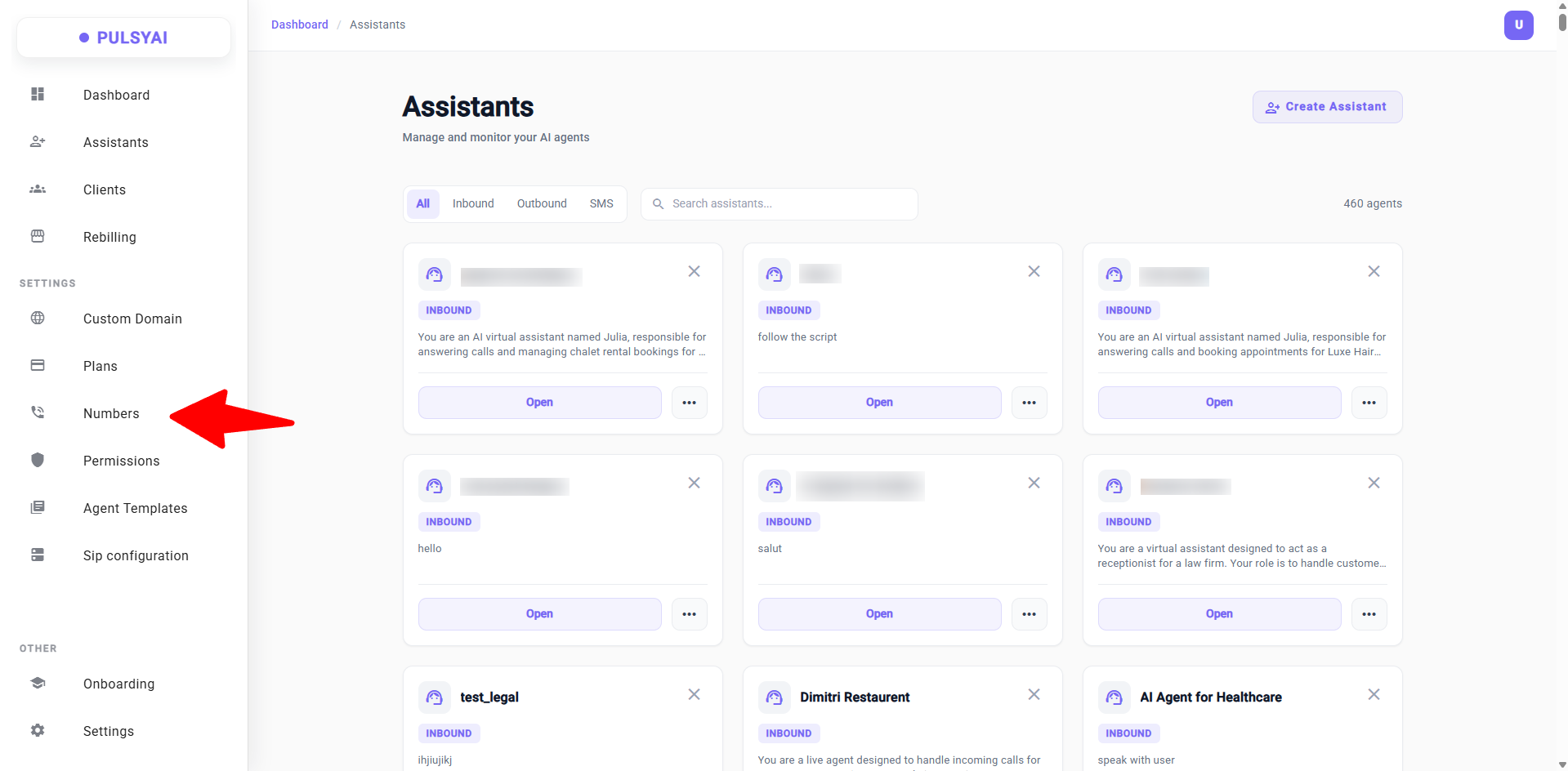
Once inside, you will land on the Numbers page where all your existing numbers are listed. Click **Import** to open the import modal.

### Option 2 — From within an AI Assistant
You can also import a number directly from inside an assistant. Open the assistant, go to the **Call Flows** tab, and you will find the option to assign or import a phone number from there.

Click **Import** to open the same import modal.

***
## Twilio
In the import modal, select the **Twilio** tab. Fill in the following 4 fields:

Here is where to find each value in your Twilio account.
### Step 1 — Purchase a phone number in Twilio
Before importing, you need an active phone number in your Twilio account. In the Twilio console, go to **Develop → Phone Numbers → Buy a Number**.

On the search page, filter by **country**, and optionally enter specific digits or an area code to narrow results. Click **Search** to see available numbers.
Before clicking **Buy**, make sure the number shows the **Voice** (📞) capability icon — this confirms the number can handle calls. Once you find the right number, click **Buy** to purchase it.

> [!NOTE]
>
> If you also want your assistant to send or receive SMS, make sure the number also shows the **SMS** (💬) capability icon. If you only need voice calls, SMS is not required.
A confirmation screen will appear — click **Buy** once more to confirm the purchase.

Once purchased, you will be taken to your active numbers list. Copy the phone number shown (highlighted in the screenshot) and paste it into the **Phone number** field in the PulsyAI import modal. Then click **Configure** to access the number's settings.

Inside the number's configuration page, click **Properties**. Your **Phone number SID** is displayed there — copy it and paste it into the corresponding field in PulsyAI.

### Step 2 — Get your Account SID and Auth Token
Navigate to the **Account Dashboard** in your Twilio console. Your **Account SID** and **Auth Token** are both displayed there. Click the copy icon (□) next to each value to copy them, then paste them into the corresponding fields in PulsyAI.

### Step 3 — Save in PulsyAI
Once all four fields are filled in, click **Save** to complete the import.

### Step 4 — Select the number and assign it to your assistant
Your imported number now appears in the dropdown. Select it to attach it to your AI agent — and that's it, the number is live.

***
## Telnyx
The **Telnyx** tab requires the following 5 fields:
**1. Phone number**
Enter your Telnyx number in E.164 format (e.g. `+14385950345`).
**2. Phone SID**
The unique identifier for your phone number in Telnyx. Found under **Numbers → My Numbers**.
**3. Account Token**
Your Telnyx API key. Found under **Account → API Keys**.
**4. Application ID**
The ID of the Telnyx application connected to your number. Found under **Voice → Applications**.
**5. Message Profile ID (UUID)**
Required for SMS-enabled numbers. Found under **Messaging → Messaging Profiles**. Format is a UUID.
***
## SIP Trunk
Importing a SIP trunk number is a **two-part process**:
**1. Configure your SIP trunk**
Before importing the number, go to **SIP Configuration** in the main menu and set up your SIP trunk connection. This is where you configure the SIP server credentials and routing.
**2. Import the number**
Once the SIP trunk is configured, go to **Numbers → Import** and select the **SIP Trunk** tab. Enter your phone number in E.164 format and complete the import.
> [!WARNING]
>
> The SIP Trunk tab in the Import modal only asks for the phone number. The SIP trunk itself must be fully configured in **SIP Configuration** first — otherwise the import will not connect correctly.
## Next step
> [card] [Call Flows](/platform/call-flows)
>
> Design how your AI agent handles calls — greetings, scripts, transfers, and edge cases.
# Quickstart
Source: https://docs.pulsyai.com/platform/quickstart
Go from a new PulsyAI account to a live, tested AI voice agent — create an assistant, assign a phone number, build a call flow, and place a test call.
This guide walks you from a brand-new PulsyAI account to a live, tested AI agent ready to handle real calls.
## Before you begin
* A PulsyAI account ([pulsyai.com](https://pulsyai.com))
## Steps
**1. Your dashboard — the home page**
Once your account is created, you land on the **Assistants** page. This is your home base.

From here you can:
* **View all your assistants** in a list
* **Filter by type** — Inbound, Outbound, or SMS AI Agent
* **Create a new assistant** using the button in the top right corner
**2. Create an assistant**
Click the **Create Assistant** button in the top right corner.
You'll be asked to give your assistant a name. For this example, we'll call it **Plumbing AI Agent Test**.

**3. Choose your agent type**
Select the type of agent you want to create. For this guide, we'll go with **Inbound AI Agent**.

| Type | Description |
| - | - |
| **Inbound** ↙️ | Receives incoming calls — customer service 24/7, appointment booking, lead qualification, FAQ & support |
| **Outbound** ↗️ | Calls a contact list automatically — prospecting, database reactivation, reminders, marketing campaigns |
| **SMS** 💬 | Text-based conversations — follow-ups, lead nurturing, after-call validation, async support |
**4. Start from a template or build from scratch**
You can either start with a **Blank Agent** and build your script from scratch, or pick one of our **prebuilt templates** to get started instantly.

For this guide, we'll select the **Plumbing Inbound Lead Qualification** prebuilt script.
> [!NOTE]
>
> More templates are coming soon across a wide range of industries. Stay tuned!
**5. Your Call Flow — where everything happens**
Once you select a template, you land on the **Call Flows** tab. This is the heart of your AI agent.

Since we chose a prebuilt script, the **prompt box is already populated** with a ready-to-use script — you can use it as-is to test, or customize it for your business.
**What you see here:**
* **Prompt box** — This is where you tell your AI agent how to behave during the conversation. The script defines the agent's personality, what questions to ask, how to handle objections, and what data to collect.
* **Global settings** — Additional configuration options available in the tabs on the right:
* **General** — Basic agent settings
* **Voice** — Choose your agent's voice and provider
* **Call configuration** — Call behavior and latency settings
* **LLM** — Language model settings
* **Languages** — Set the language(s) your agent speaks
* **Transcriber** — Transcription settings
> [!NOTE]
>
> We'll cover each Global Settings section in detail in a dedicated guide. For now, the goal is to get your agent live and tested as fast as possible — the prebuilt script is ready to go!
> [!NOTE]
>
> Want to learn how we personally write our prompts and how to make your AI agent behave exactly the way you want? We'll show you our exact prompting method in a separate guide.
**6. Test your AI agent live**
Click the **Test AI** button. Your browser will ask for microphone access — allow it, and you'll be connected live with your AI agent instantly.

Talk to your agent just like a real caller would. You can hear the voice, test the script, and validate the full experience in real time. That's it — you just created and tested your first AI agent! 🎉
> [!NOTE]
>
> This is the quickstart. You now know how to spin up and test an agent in minutes. The next guides will show you how to go deeper — adjusting latency for faster responses, changing the voice, and fine-tuning the overall experience to make your agent sound as realistic as possible.
## What's next?
> [card] [Global settings](/platform/agent-settings)
>
> Tune latency, change the voice, and configure your agent for maximum realism.
> [card] [Build a script with Claude AI](/platform/build-your-agent/build-script-with-claude)
>
> Learn how we personally write our prompts to make AI agents behave exactly right.
> [card] [Set up integrations](/platform/integrations)
>
> Connect your CRM, calendar, Zapier, Make, or custom webhooks.
## Next step
> [card] [Key Concepts](/platform/key-concepts)
>
> Learn the core building blocks that power PulsyAI — agents, phone numbers, knowledge bases, integrations, and more.
# Simplified Platform
Source: https://docs.pulsyai.com/platform/simplified-platform
The Simplified Platform is PulsyAI's receptionist view for non-technical business owners: paste a Google Business Profile, answer simple questions, and get an AI receptionist live in minutes, with no prompt engineering.
The **Simplified Platform** is a streamlined receptionist view of PulsyAI, built for business owners who want an AI receptionist that works without learning how to build agents. There is no prompt to write: you paste your Google Business Profile, answer simple questions one by one (your business name, your hours, your services), flip a few toggles, and the receptionist is ready.
It sits next to the full **Platform** (the default experience, best for technical users). Both are connected under the hood: an assistant set up in the Simplified Platform also shows up in the full Platform, and the voice you pick in one updates the same voice settings in the other.
> [!NOTE]
>
> **Resellers:** you can white-label the Simplified Platform and offer it to your clients under your own brand. Choose which product each client gets (full Platform or the simplified receptionist view) from [Platform Configuration](/platform/white-label/platform-configuration).

The Simplified Platform: everything your receptionist needs, organized in one sidebar.
## How the interface is organized
Everything lives in one sidebar, grouped into four sections:
| Section | Pages | What it's for |
| - | - | - |
| **Workspace** | Overview, Billing | Check performance, billing and daily activity. |
| **Conversations** | Call Log, Conversations | Review inbound calls and live SMS messaging. |
| **Setup your assistant** | Business Profile, Assistant Settings, Conversation Rules, Automations | Shape the voice, script and automations. |
| **Account** | Settings | Manage your subscription and display preferences. |
At the top of the sidebar you can switch between your assistants, rename the current one, or create a **New inbound assistant**. At the bottom, **Test Your AI** lets you try the receptionist yourself, and the **Interface / Simplified interface** switch takes you between the full Platform and the Simplified Platform.
> [!NOTE]
>
> Until a phone number is connected, a banner at the top reads **"To get your agent live, attach a phone number."** Click **Attach a number** to connect one. See [Phone Numbers](/platform/phone-numbers).
## Set up your assistant
These four pages are where the receptionist is built. Work through them top to bottom the first time.
### Business Profile
The Business Profile is the receptionist's knowledge of your business: the context, service areas and pricing it can speak about with confidence.
**Start with Google.** In the **Google Business Profile** card, paste your Google Business or Google Maps link (or type your exact public business name) and click **Auto-fill from Google**. PulsyAI pulls your business information, including your website, and fills in the profile automatically in under a minute. Everything it pulls goes into the assistant's knowledge, so it can answer callers right away.
> [!TIP]
>
> Best results come from a full Google Maps business link or the exact public business name.
Every field stays editable, so you can review what was filled in and complete or correct anything by hand. The profile is made of simple sections:
* **Brand Snapshot**: business name, tagline, website, business category, service delivery modes, description, year founded and years in business.
* **Reach & Service Area**: street address, city, region/county, postcode, service areas, coverage distance (km), business phone and business email.
* **Availability Window**: your opening hours for each day of the week (open or closed, start and end time), or switch on **Open 24/7**. Add exceptions in **Additional Hours Information**. Outside business hours, the AI tells callers when you're available.
* **Services & Pricing**: one row per service with its price, pricing type and a short description of what's included, plus **Additional Pricing Notes**. Use **Update from PDF** to fill services from a document.
* **Credentials & Certifications**: qualifications the assistant can mention.
* **Accepted Payment Methods**: for example cash, card, PayPal, bank transfer, Apple Pay or Google Pay.
* **Trust & Coverage**: your service guarantee and insurance coverage.
* **Social Presence**: links to your social media profiles.
* **Common Questions**: your FAQ, added one by one or with **Update from PDF**.

Business Profile: auto-fill from Google, then review simple sections like Brand Snapshot, Availability Window and Services & Pricing.
### Assistant Settings
Assistant Settings defines how your assistant sounds, what context it follows and when it should transfer a call to a person.
* **Voice Identity**: the **Voice Library** shows your **current voice**, with female and male voices labeled by accent and language (for example UK English, Quebec French, Parisian French, American English). Press play to preview a voice, then click **Select**, or use **Change voice** and **Show all voices** to browse more. Your selection updates the same voice settings used in the full Platform.
* **Agent context**: give the AI context on its role and your company's expectations, in plain words.
* **Transfer**: switch on **Enable call transfer** when you want the assistant to offer a live transfer to a person during the call. Enter the **Recipient name** (who should receive the transfer) and the **Transfer phone number**. If no recipient name is set, the assistant uses a generic transfer label.

Assistant Settings: pick a voice, give the agent context, and set up call transfer.
### Conversation Rules
Conversation Rules decides how the assistant greets callers, what it should collect, and how precise it should be when qualifying a lead. Everything is a toggle or a short answer, no scripting.
* **Greeting Message**: what the assistant says when it picks up, for example *"Hey, this is Luna, the virtual assistant of \[your business], how can I help you?"* Switch on **Personalise with customer's name when known?** so the AI naturally uses the caller's name if it already has it.
* **Information Capture**: choose what the assistant should collect by switching on each item, then set whether it's required:
* **Customer name**
* **Email address**
* **Phone number**
* **Complete home address collection**
* **Project details**: switch it on and add the specific questions you want your AI to ask, for example *"What type of service are you interested in?"*, *"Do you have a budget?"* or *"Any preferred stylist?"*
* **Availability window**: switch it on so the assistant asks when the caller is available, and choose how precise times need to be: **Get exact times** (for example "Tuesday at 2pm") or **General time or day** (for example "Monday morning" or "anytime on Wednesday").
Click **Save Changes** when you're done. Saving updates the greeting and the assistant's operational script for you.

Conversation Rules: greeting, the information to collect, project questions and availability.
### Automations
Automations manages the tools, booking logic and follow-up messages your assistant uses during and after each conversation.
* **Connected automations**: the services your assistant can trigger or read from during the conversation: **Cal.com**, **Zapier**, **GoHighLevel** and **Notifications**. Each card shows whether it's connected; click **Connect** to set one up, or **Edit**, **Remove** and **Add another** on a connected one.
* **Booking workflow** (during the call):
* **Live calendar access**: choose the calendar your assistant can use. Once a calendar is configured here, your AI can check availability during calls.
* **Enable appointment booking during calls**: once a live calendar is selected, switch this on to let the assistant book appointments directly.
* **After-call Messages** (follow-up): switch on **Enable automatic after-call SMS** to send a follow-up text when the conversation calls for it. Under **SMS choices**, add each follow-up as a condition plus the message to send, then click **Save SMS Follow Up**.

Automations: connect Cal.com, Zapier, GoHighLevel or Notifications, turn on live booking, and set up after-call SMS.
## Conversations
### Call Log
The Call Log lists every inbound phone interaction handled by your assistant, with the time, the caller's phone number and the call duration. Search by number, summary or transcript, filter by date range (for example the last 7 days), and click any call to open its full details.

Call Log: every inbound call, searchable by number, summary or transcript.
### Conversations
Conversations is where you review and respond to the SMS conversations tied to your active assistant. Pick a conversation from the list to read it, type a message and click **Send** to reply yourself. Use the **Enabled** switch to turn the AI on or off for a conversation, **Empty Conversation** to clear it, and **Fetch More** to load older conversations.

Conversations: read and reply to SMS threads with your callers.
## Workspace
### Overview
The **Operations Overview** tracks how your inbound assistant is performing across calls, messages and live availability. Pick the period you want to look at with the date range selector (for example the last 14 days).
* **At a glance**: the **active assistant**, its **live number**, and the **reporting window** you selected.
* **Run a live test**: click **Test Your AI** to place a browser call and hear the active assistant exactly as your callers will.
* **Key numbers**: **Calls handled**, **Talk time** and **Messages logged** over the period, plus **Open chats** (the live state of your inbox).
* **Latest Conversations**: an activity feed of recent calls, each with its duration and an outcome tag such as **Booked**, **Rescheduled**, **Info provided** or **Confirmed**.
* **Call Rhythm**: a chart of your call volume day by day over the period.
### Billing
Billing shows the pricing of the service and your subscription. **Resellers** set their own prices, and those are the prices their clients see here. See [Plans](/platform/white-label/plans).
## Next steps
> [card] [Phone Numbers](/platform/phone-numbers)
>
> Attach a number to put your receptionist live.
> [card] [Platform Configuration](/platform/white-label/platform-configuration)
>
> Resellers: choose which product each client gets.
# SMS Configuration
Source: https://docs.pulsyai.com/platform/sms-configuration
Send conditional SMS during or after a voice call, continue conversations by text, and verify caller information to improve lead capture data accuracy.
The **SMS Configuration** tab lets you add conditional text messages that your inbound or outbound voice AI agent can send during or after a call. Each message is triggered by a condition you define and pair with instructions in the call flow. SMS Configuration also includes a unique feature for verifying the information the agent collected. To open it, select an assistant and click the **SMS configuration** tab.

## What SMS Configuration Lets You Do
SMS Configuration adds four core capabilities to your voice agent:
> [card] 💬 Send SMS During a Call
>
> While the agent is on a voice call, it can text the caller a static piece of information in real time — such as a calendar link, an address, or any pre-defined link. For dynamic content generated in real time, see the webhook documentation.
> [card] ✉️ Send SMS After a Call
>
> Automatically send a follow-up message once the call ends — a confirmation, summary, or next steps.
> [card] 🔄 Continue by SMS
>
> If the caller wants to keep talking after the call ends, the voice agent transitions into an SMS agent and continues the conversation through text. This behavior is configured in the [Integrations](/platform/integrations) tab.
> [card] ✅ Verify Collected Information
>
> After the call, the agent sends an SMS recap of the information it collected — full name, phone, email — and asks the caller to confirm or correct it. Updates are saved automatically.
## Text the number directly (SMS-first)
Your agent's SMS capabilities no longer require a voice call to start. If someone **texts your agent's phone number directly**, the SMS agent now **responds automatically** — enabling true SMS-first conversations with no prior voice call needed.
Previously, SMS could only be triggered from within a voice call (during or after it). Now, inbound texts to the number are answered on their own, making SMS-first workflows much smoother.
## Adding a Conditional SMS Message
Click the **+** button to add a new SMS message. Each message has two fields:
**1. Custom Message**
Enter the text the agent will send. The label changes automatically based on whether the message is sent live during the call (**Custom Live-Call Message**) or after the call ends (**Custom After-Call Message**).
**2. Send Condition**
Define the condition under which this SMS should be sent. For example: *"the caller asks for the booking link"* or *"the caller agrees to receive a recap by text"*.
**3. Add more messages**
Click **+ Add Message** to add as many conditional SMS messages as you need. Each one runs independently based on its own condition.

> [!NOTE]
>
> This example uses placeholders like `[BURGER LINK]` and `[PIZZA LINK]` for clarity. In your real setup, replace these placeholders with the actual links you want the agent to send.
> [!WARNING]
>
> SMS Configuration is tightly connected to the Call Flow. A condition you define here will only trigger if the call flow's prompt explicitly instructs the agent to activate it. Without clear instructions in the call flow prompt, the condition will not fire.
## How to Trigger an SMS from the Call Flow
For a conditional SMS to actually send, two things must align:
> [card] 📋 Define the Condition Here
>
> In SMS Configuration, write a clear **Send Condition** — for example, *"the user agrees to receive the link by SMS"*.
> [card] 🗺️ Instruct the Agent in the Call Flow
>
> In the Call Flow prompt, tell the agent when to ask permission and when to trigger the SMS — for example: *"Ask the user if they want the link by SMS. If they say yes, send the SMS."*
Here is a real example of a call flow prompt that triggers conditional SMS messages — the agent asks the user first and only sends the SMS when the user agrees.

```text theme={null}
STEP 1 — CALLER ASKS ABOUT THE MENU
"We've got two of our most popular options right now — our signature Burger Box and our Pizza Deal. Which one were you thinking about?"
[PAUSE — listen and respond naturally]
IF BURGER →
"Great choice! The Burger Box comes with a double smash burger, fries, and a drink — all for one great price. Want me to go ahead and text you the link so you can order right from your phone?"
[PAUSE — listen and respond naturally]
IF YES →
[SEND SMS: Burger Box ordering link]
IF NO →
"No problem! You can always call us directly or swing by — we'll take care of you!"
---
IF PIZZA →
"Love it! We've got a ton of options — classic pepperoni, BBQ chicken, veggie... honestly hard to go wrong. Want me to text you the link so you can check out the full menu and order right from your phone?"
[PAUSE — listen and respond naturally]
IF YES →
[SEND SMS: Pizza menu ordering link]
IF NO →
"No worries! You can always give us a call or come in — we're happy to help!"
---
STEP 2 — CALLER WANTS CURRENT SPECIALS
"Right now we've got a Burger + Pizza combo deal running — great for groups or families. Want me to text you the details and the ordering link?"
[PAUSE — listen and respond naturally]
IF YES →
[SEND SMS: Combo deal details + ordering link]
"Sent! Everything's right there — you can customize your order and place it straight from your phone. Anything else I can help with?"
IF NO →
"No problem! Just give us a call or check out our website and we'll get you sorted."
---
STEP 3 — ORDER CONFIRMATION (Auto-Send — No Permission Needed)
"Perfect — you're all set! You'll get a confirmation text in just a moment with all your order details."
[PAUSE — listen and respond naturally]
[SEND SMS: Order confirmation → to customer + all internal numbers simultaneously]
```
> [!TIP]
>
> If your agent does not trigger SMS reliably, switch to a more capable AI model such as GPT-4.1. Smarter models follow function-calling instructions and conditional logic far better than smaller models.
> [!NOTE]
>
> Each `[SEND SMS: ...]` line in the call flow corresponds to a conditional SMS you configured in this tab. The two pages work together.
> [!TIP]
>
> As with any function call, the agent should always ask the user a yes/no question first before triggering an SMS. For example: *"Would you like me to send you the link by text?"* Function calls work much more reliably when the agent has a clear confirmation from the user before triggering them. This applies to every conditional SMS you set up.
## Options
Three checkboxes control how SMS behaves for the agent:
> [card] 🟢 Active
>
> Enables SMS functionality for this agent. If unchecked, SMS messaging is disabled and no messages will be sent. **Active** should be enabled by default.
> [card] ⚡ Send Live
>
> When checked, the agent can send SMS messages live during the call instead of only after. The Custom Message field automatically updates from *"Custom After-Call Message"* to *"Custom Live-Call Message"*.
> [card] ✅ Verify User Information
>
> After the call, the agent sends an SMS containing the information it collected — full name, phone number, email, and so on — and asks the caller to confirm. If something is wrong, the caller replies with the correction and PulsyAI updates the data in the database automatically.
### How Live SMS Works
When **Send Live** is enabled, two things change automatically: the message label switches from *"Custom After-Call Message"* to *"Custom Live-Call Message"*, and the **Send Condition** should specify that the SMS must be sent immediately during the call rather than after.

> [!TIP]
>
> To trigger an SMS live during the call rather than after, do three things: check the **Send Live** option, write your message in the **Custom Live-Call Message** field, and end the **Send Condition** with the word *"immediately"* (for example: *"Send this SMS if the caller asked about the Pizza menu and agreed to receive the ordering link immediately"*). The word *"immediately"* is what tells the agent to send the SMS in real time.
### How Verify User Information Works
> [!TIP]
>
> **Verify User Information** is one of the most powerful features for boosting data accuracy. Speech-to-text is not perfect — especially for languages other than English, like French, Arabic, or Hindi — and even in English, emails and unusual names are sometimes misheard. Enabling this option lets the caller confirm or fix the data themselves, dramatically improving CRM data quality and lead capture accuracy.

### Time to Wait Before Sending Information
When **Verify User Information** is enabled, a new field appears: **Time to wait before sending information**. This setting controls how long PulsyAI waits for the caller's SMS reply before pushing the lead data to your CRM or external system. You can set the wait time in **minutes**, **hours**, or **days**.

#### How the Wait Time Works
PulsyAI uses the wait time as a safety net to guarantee that every lead reaches your CRM, even if the caller never replies to the verification SMS. Here is the logic:
> [card] If the caller replies before the wait time
>
> PulsyAI pushes the lead to your CRM with the corrected, verified information — exactly what the caller confirmed by SMS.
> [card] If the caller does not reply in time
>
> PulsyAI pushes the lead to your CRM with the original information collected during the call. No lead is ever lost or stuck waiting indefinitely.
> [!TIP]
>
> A common setup is **15 minutes** — long enough for most callers to reply, short enough that your CRM receives leads quickly. You can adjust this to whatever fits your business: shorter delays prioritize speed, longer delays prioritize data accuracy.
## Re-Engaging Leads by SMS
SMS is also a powerful tool for re-engagement. If a caller hangs up before the agent can collect their contact information, PulsyAI can automatically follow up by SMS to continue the conversation and even retry multiple times until the lead is captured. These re-engagement workflows are configured in the [Integrations](/platform/integrations) tab.
> [!NOTE]
>
> Click **Save** to apply your SMS configuration to the agent.
## Next Steps
> [card] [🗺️ Call Flows](/platform/call-flows)
>
> Add the instructions that trigger your conditional SMS messages.
> [card] [🔌 Integrations](/platform/integrations)
>
> Set up advanced workflows like automatic re-engagement and stale conversation handling.
# Transfers
Source: https://docs.pulsyai.com/platform/transfers
Configure PulsyAI voice AI agents to transfer live calls to a human team, a closer line, or any other phone destination — using trigger conditions and function calls.
A transfer is when your PulsyAI voice AI agent hands off a live, in-progress call to another phone number — typically a human team standing by to take prequalified leads from the agent. Transfers are configured per-agent and fire on trigger conditions that you write into the agent's prompt.
Transfers are the technical mechanism behind the warm-transfer pattern covered in [Principle 9: The AI prequalifies, the human closes](/platform/build-your-agent/build-a-script#principle-9-the-ai-prequalifies-the-human-closes) — the highest-conversion configuration available for clients with live closing teams.
## How transfers work — two pieces that must both be configured
Setting up a transfer involves two distinct configurations:
1. **Recipients** — configured on the **Transfers tab** of your agent. This is the list of phone numbers your agent can route calls to.
2. **The trigger directive in the agent prompt** — configured in the **Call Flow tab** where you write the agent's script. This is the prompt-side instruction that tells the agent when and how to fire the transfer function call.
Both are required. A recipient with no trigger directive in the prompt will never receive a transfer. A trigger directive in the prompt without a configured recipient has no destination to route to. The rest of this page walks through each configuration in order.
## Setting up recipients
The Transfers tab inside each voice AI agent is where you define who the agent can route calls to. You can add recipients one-by-one manually, or upload a list in bulk via CSV/XLSX.
### Where to find the Transfers tab
Open the voice AI agent you want to configure transfers on. Inside the agent, look at the top navigation bar — the available tabs include Call Flows, Analytics, Knowledge, Call Logs, SMS Configuration, Integrations, and **Transfers**. Click the Transfers tab to open the configuration view.

The first time you open the Transfers tab on a fresh agent, you'll see an empty state with a search filter, an **Add recipient** button, and a **Bulk upload** button. From here, you can add recipients one-by-one or in bulk.

### Adding a recipient manually
Click **+ Add recipient** in the top right of the Transfers tab. A modal opens asking for two fields:

* **Recipient name** — A descriptive label for this destination. This is used inside your prompt to tell the agent which recipient to transfer to (for example, "James", "Billing team", "Sales overflow line"). Choose names that are easy to reference in natural conversation.
* **Recipient phone number** — The phone number the call should be transferred to, including country code.
> [!WARNING]
>
> **Country codes are required and easy to miss.**
>
> Phone numbers must be entered with the international country code at the start, otherwise the transfer function call will fail and your agent will be unable to route the call.
>
> * **Canada and United States** — `+1` followed by the 10-digit number. Example: `+14385551234`
> * **France** — `+33` followed by the number without the leading 0. Example: `+33612345678`
> * **United Kingdom** — `+44` followed by the number without the leading 0. Example: `+447700900123`
> * **Other countries** — Use the ITU-T E.164 international format (`+` followed by the country code and full number, no spaces, no dashes).
>
> If you save a recipient without a country code, transfers to that recipient will not work. Always include the `+` prefix.
Click **Add** in the bottom right of the modal once both fields are filled. The recipient appears in your list and is immediately available for use inside the agent's prompt.
You can add as many recipients as your client's setup requires — a single number for simple one-destination transfers, or multiple numbers when the agent needs to route different lead types to different teams (covered in the multi-recipient configurations section below).
### Bulk upload via CSV or XLSX
For clients with many destinations — call centers with dozens of agents, multi-location service businesses, or sales teams that need every rep available as a transfer target — use the **Bulk upload** button at the top right of the Transfers tab to import recipients from a `.csv` or `.xlsx` file.

The expected file format:
* **Required columns** — `name` and `phoneNumber` (or `phone number`). The upload accepts either spelling for the phone column.
* **Phone number format** — Digits-only international values like `14155552671` or `447700900123`, OR include the `+` prefix already (`+14155552671`). The upload automatically adds `+` before sending when needed, but country codes themselves must always be present in the digits.
* **Starter template** — Click **Download template** inside the modal to grab a pre-formatted CSV with the correct column headers — fill it with your recipient list and upload it back.
If you check **Replace existing recipients** before uploading, the current recipient list is wiped and replaced entirely with the contents of the uploaded file. Leave the checkbox unchecked to append the new recipients to the existing list.
Once the file is selected, click **Upload recipients** at the bottom right of the modal. Recipients are imported in bulk and become immediately available in the agent's prompt.
## Connecting Transfers to Call Flows
Recipients in the Transfers tab are only half the configuration. The other half lives inside the agent's **Call Flow** tab, where you write the prompt — the script directives that tell the agent when to actually fire a transfer.
This works the same way as every other function call in PulsyAI — SMS messages (live or post-call), bookings, transfers all follow the same pattern:
1. **The agent asks the customer a confirmation question** — for example, "Would you like me to transfer you to a representative right now?"
2. **The customer confirms** ("yes", "please", "go ahead").
3. **The directive in your prompt fires the function call** — and PulsyAI executes the transfer to the configured recipient.
The agent does not transfer the call autonomously based on its own inference. It transfers only when the trigger condition you wrote into the prompt is met. This is intentional — it guarantees the customer has explicitly consented to the transfer before it happens.
### Ready-to-use transfer directive
Below is the exact directive block we recommend including in any agent prompt that supports transfers. This is production-tested wording that fires reliably across customer phrasings. Copy it into your Call Flow prompt as-is — only customizing the specific recipient name(s) and the customer-facing response wording if your client wants different language.
```text theme={null}
⚠️ CALL TRANSFER PROTOCOL - IMMEDIATE EXECUTION REQUIRED ⚠️
TRIGGER CONDITIONS (Execute transfer IMMEDIATELY when client says ANY of the following):
"I want to speak to someone"
"Transfer me"
"Can I talk to a person/representative/agent/human"
"Connect me to [name/representative]"
"I need to speak to James"
"Let me talk to..."
"Put me through to..."
"Get me someone"
"I want a real person"
ANY variation expressing desire for human contact
MANDATORY RESPONSE (Use EXACTLY this script - NO deviation):
"Absolutely, I'd be happy to connect you with one of our live representatives right now. They'll be able to assist you immediately with any questions or concerns you have.
Would you like me to go ahead and transfer you?"
[Pause for confirmation]
UPON CLIENT CONFIRMATION (Yes/Sure/Okay/Go ahead):
[EXECUTE THE TRANSFER FUNCTION CALL IMMEDIATELY]
```
### Customizing the trigger conditions to your recipients
The trigger conditions in the directive above reference a specific recipient name as an example ("I need to speak to James"). When you implement this in your own agent, replace `James` with the actual name(s) of your configured recipients. If you have a recipient named `Louise`, your agent should recognize "I need to speak to Louise" as a trigger.
The other listed triggers ("I want to speak to someone", "Transfer me", "Get me a real person", etc.) cover the more generic "I want a human" intent and should stay as-is — these catch the customers who don't know any specific name and just want to escape the AI.
Add as many variations of "I want to talk to a human" as your client's audience phrases it in. The more variations the directive covers, the more reliably the trigger fires across real conversations.
## Multi-recipient configurations
The setup above assumes a single recipient — the agent transfers everyone to the same destination. For clients with department-based routing (sales / billing / technical / customer service), you'll configure multiple recipients and adjust the prompt directive so the agent knows which one to route to.
### Single recipient — straightforward routing
When there's only one transfer destination configured, the directive above works as-is. The agent confirms the customer wants a transfer, fires the function call, and the call routes to the only available recipient. Simplest possible setup, best for clients with a single closing team or a single shared support line.
### Multiple recipients — department-based routing
When you've added multiple recipients (for example James for the technical department, Louise for billing, Maria for sales), the agent needs to know **which recipient** to route to based on what the customer is asking about. The prompt directive needs to be expanded to handle this routing.
The pattern is:
1. **The agent listens for the topic** of the customer's concern (technical issue, billing question, sales inquiry, etc.).
2. **The agent confirms the transfer** with a department-specific framing — "I'm going to transfer you to James in our technical department, would you like me to go ahead?".
3. **The directive fires the transfer to the correct recipient** based on the matched department.
Here's an adjusted version of the directive for a setup with three recipients (James for technical, Louise for billing, Maria for sales):
```text theme={null}
⚠️ CALL TRANSFER PROTOCOL - DEPARTMENT ROUTING ⚠️
AVAILABLE DEPARTMENTS AND CONTACTS:
- James — Technical Department (technical issues, troubleshooting, service problems)
- Louise — Billing Department (payments, invoices, refunds, subscription questions)
- Maria — Sales Department (new accounts, upgrades, pricing inquiries)
TRIGGER CONDITIONS (Execute transfer IMMEDIATELY when client expresses ANY of the following):
"I want to speak to someone"
"Transfer me"
"Can I talk to a person/representative/agent/human"
"Connect me to [James/Louise/Maria]"
"I need help with [billing/technical issue/sales]"
"Let me talk to..."
"Put me through to..."
"Get me someone"
ANY variation expressing desire for human contact OR department-specific request
MANDATORY RESPONSE — Determine the right recipient first, then confirm:
If the issue is TECHNICAL: "I'm going to connect you with James in our technical department who can help you right away. Would you like me to go ahead and transfer you?"
If the issue is BILLING: "I'm going to connect you with Louise in our billing department who can help you right away. Would you like me to go ahead and transfer you?"
If the issue is SALES or upgrade-related: "I'm going to connect you with Maria in our sales department who can help you right away. Would you like me to go ahead and transfer you?"
If the customer just wants "a human" without specifying: Ask one clarifying question — "Is this about a technical issue, a billing question, or something sales-related?" — then route accordingly.
[Pause for confirmation]
UPON CLIENT CONFIRMATION (Yes/Sure/Okay/Go ahead):
[EXECUTE THE TRANSFER FUNCTION CALL TO THE MATCHED RECIPIENT IMMEDIATELY]
```
Adapt this template to your client's actual departments and recipient names. The key principles stay the same regardless of how many recipients you have:
* **List the available departments at the top of the directive** so the agent knows the full routing table.
* **Map each department to keywords or topics** the customer might mention (technical → "broken", "not working"; billing → "charge", "invoice"; sales → "buy", "upgrade").
* **Always confirm the transfer** by stating who the customer is being routed to ("I'm going to connect you with James in our technical department") before firing the function call.
* **Ask a clarifying question** if the customer's intent is ambiguous, rather than guessing the department.
## Best practices
A few patterns to keep in mind when configuring transfers in production:
* **Test every recipient before going live.** Add a recipient, write the directive, and call your own agent to trigger the transfer. Verify the call routes to the correct destination before launching with real customers.
* **Use natural recipient names.** Recipient names appear inside your prompt as routing keywords — keep them short, distinct, and conversational. `James` and `Louise` work; `Recipient_001` and `Backup_Transfer_Number_3` don't.
* **Don't transfer for everything.** Transfers work best when they're a deliberate handoff at peak intent (closing teams, escalations, specific department requests). Transferring for every minor question erodes the customer experience and wastes human team time.
* **Keep the confirmation step.** Always have the agent ask before transferring, even if the customer is clearly asking for a human. The ask-then-confirm pattern eliminates accidental transfers and ensures the customer is mentally prepared for the channel change.
## Next steps
> [card] [Principle 9: AI prequalifies, human closes](/platform/build-a-script#principle-9-the-ai-prequalifies-the-human-closes)
>
> The strategic reasoning behind warm transfers — why human closing beats AI closing for the foreseeable future, and when warm transfer is the right configuration versus a scheduled callback.
> [card] [Speed-to-lead warm transfer pro tip](/platform/build-an-outbound-ai-agent#pro-tip-warm-transfer-to-closers)
>
> How to combine transfers with the outbound speed-to-lead playbook — instant transfer to live closers while the lead is at peak intent.
# Troubleshooting
Source: https://docs.pulsyai.com/platform/troubleshooting
Diagnose and fix the most common PulsyAI issues — integrations not triggering, Cal.com booking failures, missed calls, and CSV campaign upload errors.
## Integration not triggering
**Symptom:** You configured a ring notification, CRM, Zapier, or webhook, but it never fires after calls.
**Root cause:** The integration is configured but not connected as a Call Flow action.
**Fix:**
1. Open the assistant and go to **Call Flows**.
2. Scroll to the **Actions** section.
3. Click **+ Connect Action**.
4. Select your integration.
5. Save.
This two-step process is required for **every** integration. The configuration in the Integrations tab only creates the connection — Call Flows is what triggers it per call.
***
## Variables showing as literal text (e.g., `{FIRST_NAME}` in the call)
**Symptom:** The agent literally says "" instead of the contact's name. **Symptom:** The agent literally says "" instead of the contact's name. **Symptom:** The agent literally says "" instead of the contact's name.
**Cause 1 — Wrong syntax (most common):**
```text theme={null}
❌ {{FIRST_NAME}} ← double brace (used by other platforms)
✅ {FIRST_NAME} ← single brace (PulsyAI format)
```
**Cause 2 — CSV column name mismatch:**
```text theme={null}
CSV column: FIRST_NAME
Script var: {FIRST_NAME} ✅ Match!
CSV column: first_name
Script var: {FIRST_NAME} ❌ No match (case-sensitive!)
```
**Fix:** Check that your script variables use `{SINGLE_BRACE}` syntax and that the name matches the CSV column header exactly, including case.
***
## Cal.com booking not working
**Symptom:** The agent completes the conversation but doesn't actually create a booking in Cal.com.
**Check all three requirements:**
1. ✅ Cal.com configured in the **Integrations** tab with a valid API key
2. ✅ Cal.com connected as a **Call Flow action** (+ Connect Action)
3. ✅ The **"Should the agent book a meeting in this step?"** checkbox is checked on the booking step
All three must be true. Missing any one of them prevents booking.
***
## Agent not capturing email/phone accurately
**Symptom:** Contact info in your CRM or ring notifications has errors (wrong email, transposed numbers).
**Solution 1 — Adjust latency:** Medium (2.5s) latency gives the AI more time to process and transcribe accurately. Low latency trades accuracy for speed. For inbound calls where data capture is critical, use Medium.
**Solution 2 — Enable SMS confirmation:** Configure **Confirm User Info** in the SMS integration settings. After the call, the system sends the contact a text with a summary of captured data. The contact can reply to correct errors. PulsyAI waits 10 minutes for a correction before pushing data to your CRM.
**Solution 3 — Improve ring field prompts:** Be more specific in the **Field description** of your ring notification fields:
```text theme={null}
❌ Vague: "Get the email"
✅ Specific: "Extract the customer's complete email address as provided during the call. If unclear, mark as null."
```
***
## High hang-up rate on outbound calls
**Symptom:** Many prospects hang up immediately or within the first few seconds.
**Fix 1 — Check latency:** Switch to **Low (1.5s)** latency for outbound cold calling. Delays of 2+ seconds cause \~40% of cold call prospects to hang up.
**Fix 2 — Add an intro message:** Upload an MP3 intro message (5–15 seconds of human voice) that plays before the AI picks up. This sets expectations and reduces the shock of an AI voice, improving completion rates by 20–30%.
**Fix 3 — Review the greeting step:** Listen to recordings of dropped calls in Call Logs. Identify exactly where the hang-up happens and rewrite that step.
***
## Getting support for a specific call
If a call behaved unexpectedly and you need help from PulsyAI support, find and share the **Call SID**.
1. Go to **Call Logs** in the affected assistant.
2. Find the problematic call.
3. Click **View**.
4. Copy the **Call sid** value (format: `CAcf332bfaba715e783d1583facbaae771`).
5. Share it with support via Discord or email.
With the Call SID, support can pull complete backend logs, analyze AI behavior, inspect integration triggers, and identify the exact error.
**Without a Call SID, it is very difficult to debug a specific call.**
***
## Quick reference
| Issue | First thing to check |
| - | - |
| Integration not triggering | Is it connected as a Call Flow action? |
| Variable shows as literal text | Check `{SINGLE}` syntax and CSV column name case |
| Cal.com not booking | All 3 requirements checked? |
| Bad data capture | Latency too low? SMS confirmation enabled? |
| High outbound drop-offs | Latency set to Low? Intro message added? |
| Specific call bugged | Get the Call SID and share with support |
# Website Chatbot
Source: https://docs.pulsyai.com/platform/website-chatbot
Deploy your PulsyAI chatbot as an embeddable widget on any website using a copy-paste code snippet. White-label by default, uses the same script and knowledge base as your voice agent.
The PulsyAI Website Chatbot is an embeddable chat widget you can paste into any website to deploy a PulsyAI assistant as a text-based chatbot for site visitors. Each Website Chatbot is powered by a dedicated **SMS AI agent**, with its own Call Flow script, knowledge base, and integrations.
> [!NOTE]
>
> The Copy Code feature for deploying a chatbot widget is only available on **SMS AI agents**. Inbound and Outbound voice agents have a **Test Chatbot** button that lets you preview the conversation in chat mode for testing purposes, but they cannot be deployed as website widgets. To deploy a chatbot on your website, you must first create an SMS AI agent. For an overview of the three agent types, see [Key Concepts](/platform/key-concepts).
## Create an SMS AI agent
Before deploying a chatbot on your website, you need an SMS AI agent. Configure its script, knowledge base, and integrations the same way you would for any other agent type.
**1. Create a new assistant**
From the **Assistants** list in PulsyAI, click **Create Assistant**.
**2. Select Sms as the assistant type**
In the "Choose your type of assistant" step, select **Sms**.

**3. Add a script or knowledge base (if needed)**
Your SMS AI agent needs a script in the **Call Flows** tab to hold a conversation. Optionally, add a knowledge base in the **Knowledge** tab — highly recommended for chatbots and SMS agents so your assistant can answer questions accurately. For a complete walkthrough on writing a script tailored to chat conversations, see [Build a Script (SMS)](/platform/build-an-sms-ai-agent).
> [!TIP]
>
> The SMS AI agent uses the same Call Flow editor and configuration model as voice agents — anything you know about building a voice agent applies here. The only difference is the deployment channel: chat instead of voice.
## Test your chatbot before deploying
Before embedding the widget on a live website, test your chatbot inside PulsyAI to verify the script behaves as expected.
**1. Open the Call Flows tab**
Inside your SMS AI agent, open the **Call Flows** tab.
**2. Click Test Chatbot**
At the top right, click **Test Chatbot**.
**3. Start a conversation**
The chat panel opens — type a message in the input field to start a conversation.
**4. Reset anytime**
Click **New Conversation** at any time to reset and start over.

> [!TIP]
>
> The test chatbot uses the exact same script, knowledge base, and integrations as your live widget. Anything that works during testing will work on your website.
## Deploy the widget on your website
Once you're satisfied with the chatbot's behavior in testing, deploy it on your website using PulsyAI's copy-paste embed snippet.
**1. Copy the embed snippet**
From the **Call Flows** tab of your SMS AI agent, click **Test Chatbot** to open the panel, then click **Copy Code** to copy the embed snippet to your clipboard.

**2. Review the snippet**
The copied snippet looks like this. Your assistant's `aiAgentId` is automatically filled in — you only need to replace the two `{{...}}` placeholders.
```html theme={null}
```
**3. Add your API key**
Replace `{{API_KEY_HERE}}` with your PulsyAI API key. To generate an API key, open **Settings** in your PulsyAI account and create a new key.

**4. Add your logo URL**
Replace `{{LOGO_URL_HERE}}` with the public URL of your logo image. See the Tip below for hosting options.
**5. Paste the snippet into your website**
Paste the complete snippet into the HTML of your website, ideally just before the closing `` tag of any page where you want the chatbot to appear.
**6. Publish your site**
Save and publish your site. The widget appears in the bottom-right corner of every page that includes the snippet.
> [!TIP]
>
> Your logo image must be hosted on a publicly accessible URL that loads over HTTPS. The simplest option is to reference an image already hosted on your own website (for example, the logo from your site header). If you don't have a hosting solution, professional image CDNs like Cloudinary or ImageKit are common choices, and storage services like Amazon S3 paired with CloudFront work well for production use. Whichever you pick, make sure the URL is permanent.
> [!NOTE]
>
> The widget is positioned in the bottom-right corner of the page by default. To move it to the bottom-left, change the inline style from `right:0` to `left:0`. The `z-index:9999` value ensures the widget appears above other page elements — adjust if you have higher-stacked UI on your site. For deeper visual customization (colors, fonts, dimensions), apply custom CSS targeting the `